Applies to: Purchases from Amazon, eBay, software stores, or other retailers/resellers (not purchased directly on www.nero.com via 2Checkout).
| Key point: You need an activation code. Sign in (or create) a Nero Account and redeem the activation code to unlock the product in that account. |
FAQ
1) Do I need an activation code?
Yes. Retailer/reseller purchases are activated with an activation code. You will receive the code on a product card, on a receipt, or in an email from the retailer. Keep the code in a safe place.
2) Where do I find the activation code?
- On the product card included with the product (printed or scratch-off).
- In your retailer confirmation email (digital delivery).
- On the receipt or invoice from the retailer (physical purchase).
3) How do I download the installer?
Follow the instructions on the product card or in the retailer email.
4) Do I need a Nero Account?
Yes. The activation code must be redeemed in a Nero Account. Use the account where you want the product to be listed under Account > My products.
How to activate and unlock your product
Option A: Activate online (recommended)
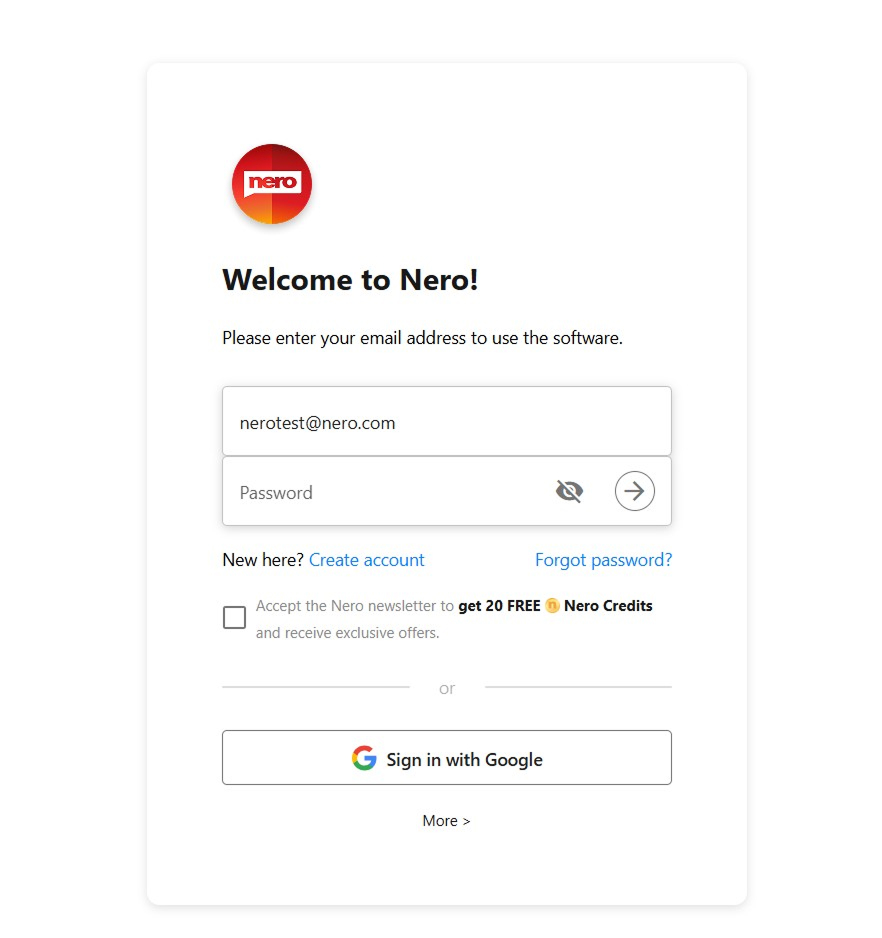
- Open www.nero.com/go in your browser.

Example: online sign-in screen - Sign in to your Nero Account. If you do not have an account, create one first.
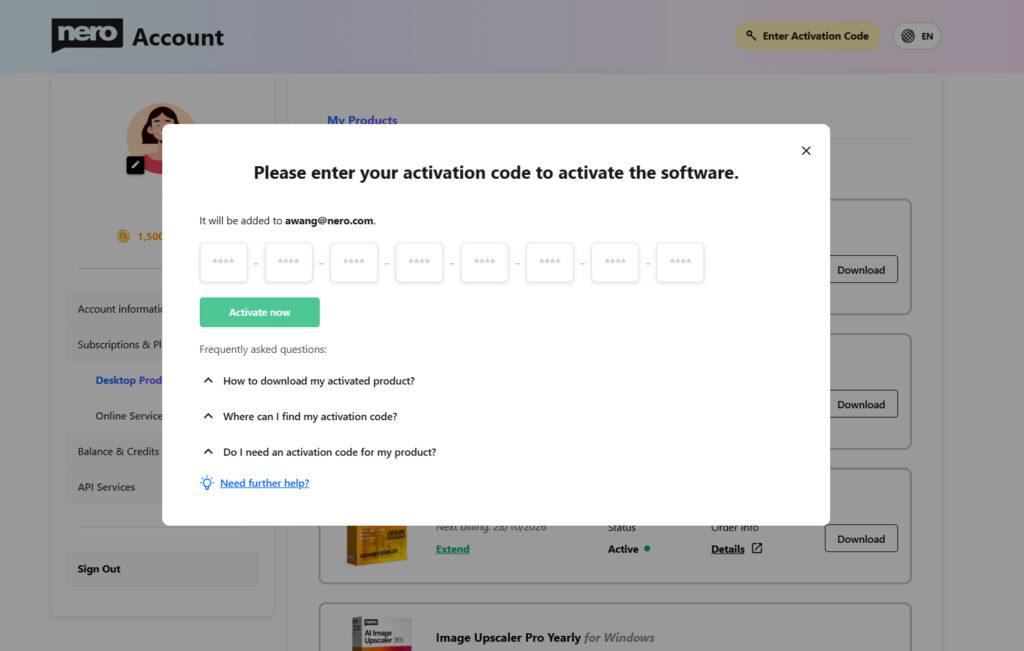
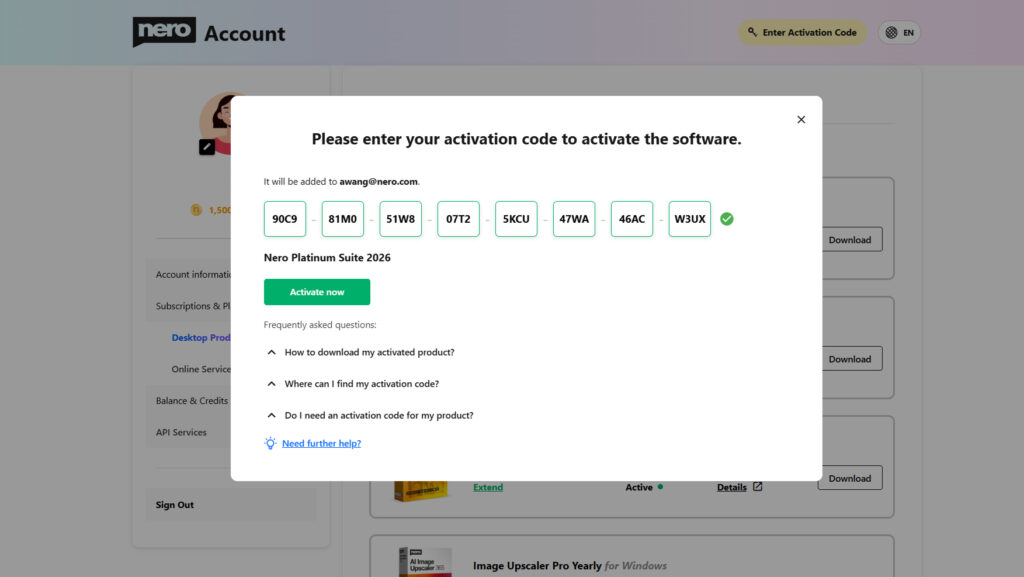
- Enter your activation code and follow the on-screen instructions.

Example: online product activation page 
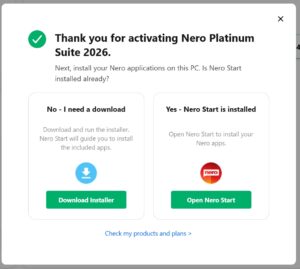
Example: online product activation 4. If Nero Start is already installed (recommended path):

Example:product activated
-
- Open Nero Start from your desktop (or Start menu).
- If sign in is required, sign in with the same Nero Account used in Step 2.
- Follow the on-screen instructions in Nero Start to install or update the product applications.
- If Nero Start is not installed
-
- Download the installer offered after activation (or via the link on the product card/retailer email).
- Run the installer to install Nero Start and the product applications.
- Launch Nero Start and sign in with the same Nero Account used in Step 2.
- For some products, follow the guide in Nero Start to install or update the product applications.
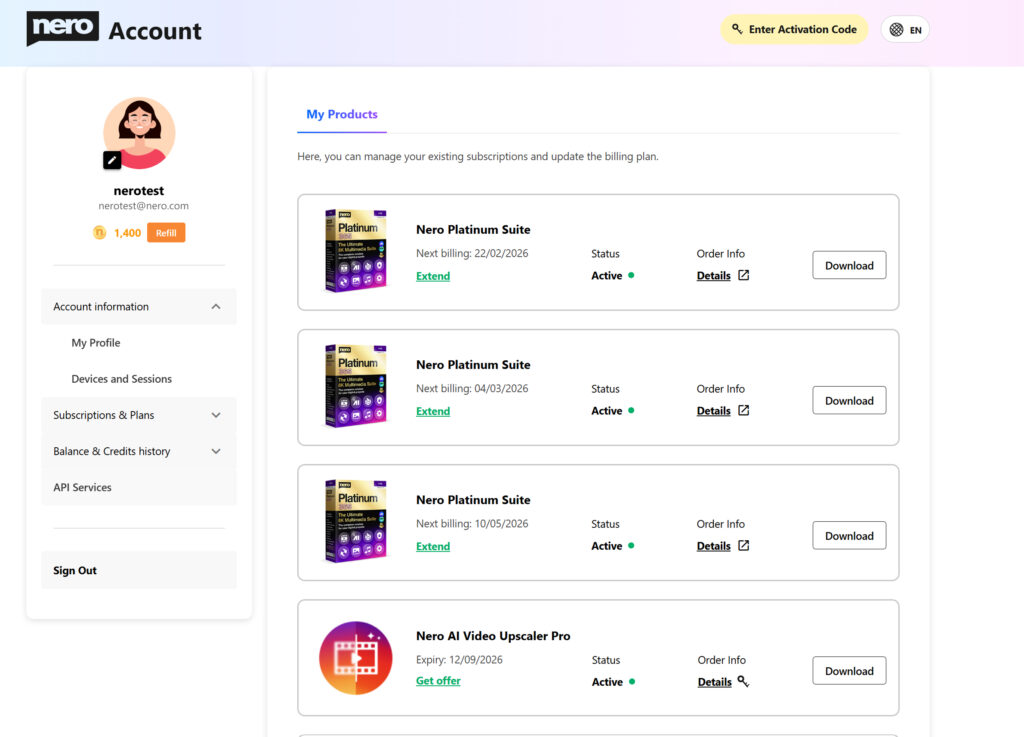
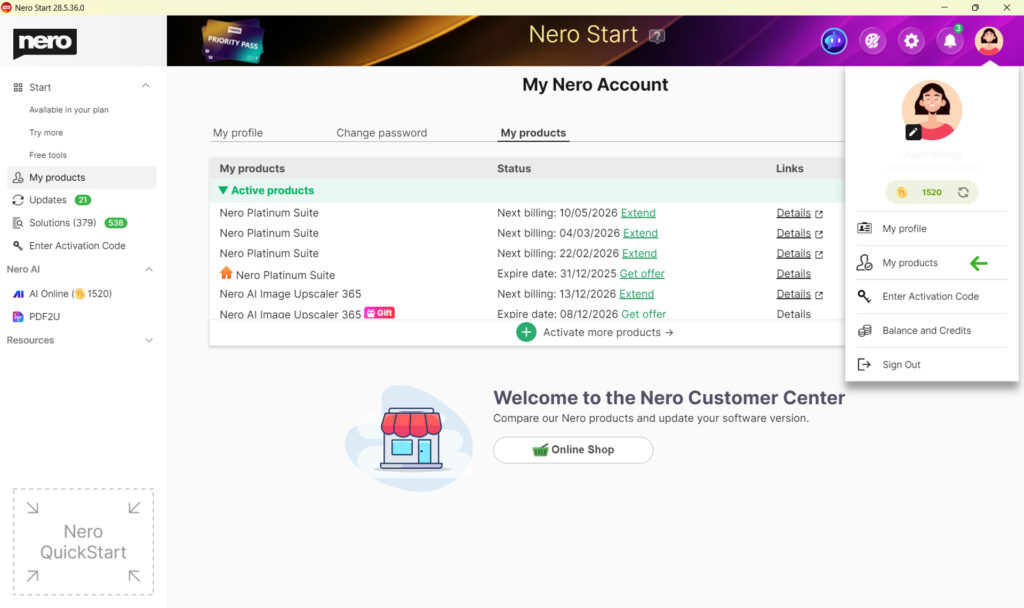
- To confirm, go to Account > My products. Your activated product should be listed there.

Example: my products list
Option B: Activate in Nero Start
- Install the product using the installer from the product card / retailer email.
- Launch Nero Start.
- Sign in the Nero Account where you want to add the product (or create an account).
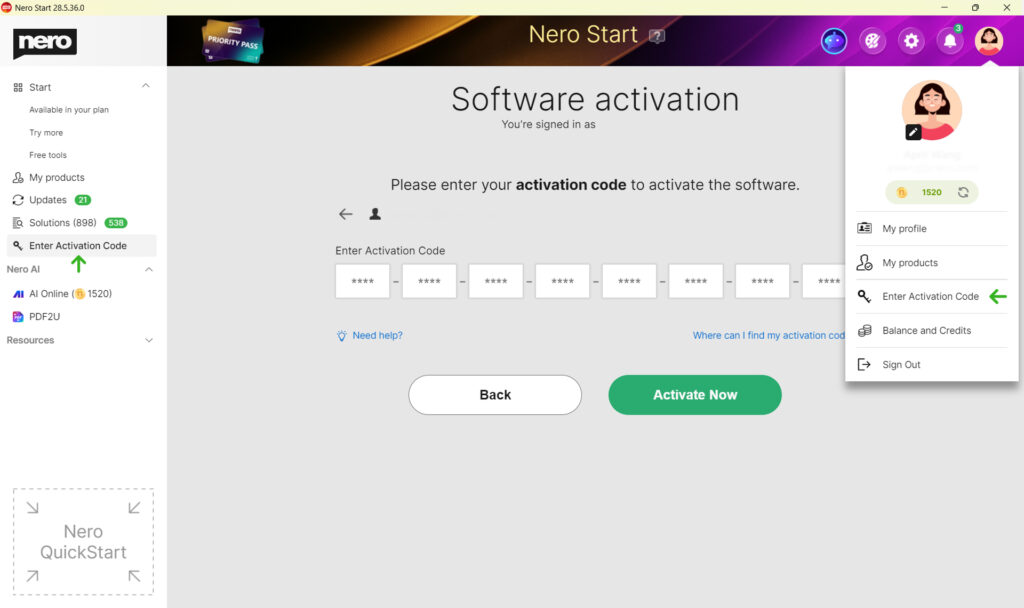
- Select Activate software or ‘Enter Activation Code’ from left pane / Nero Account.

Example: Enter Activation Code - Enter the activation code exactly as shown and confirm.
- After activation, the product should unlock automatically.
How to confirm activation
To confirm, go to Account > My products. Your activated product should be listed there.
Troubleshooting
My activation code is not accepted (invalid / already used).
- Double-check the code for typing errors.
- If the code has already been redeemed, it cannot be used again. Confirm you are signing in to the intended Nero Account.
- If the problem continues, contact the retailer first (for code issues) or Nero Support and include your proof of purchase and the activation code.
I cannot find my activation code.
- Check the product card packaging and any inserts that came with the product.
- Search your email for the retailer confirmation and digital delivery details.
- Check the receipt or invoice from the retailer.
- If the code is missing, contact the retailer/reseller to request a replacement code.
I activated the code in the wrong Nero Account.
Activation codes are linked to the Nero Account used during redemption. If you redeemed the code in the wrong account, sign in to the account that was used and check Account > My products. You also can change your account email.
If you need help, contact Nero Support with your proof of purchase and the activation code.
The product is still locked after activation.
- Confirm you are signed in to the same Nero Account that you used to redeem the activation code.
- Go to Account > My products and verify the product is listed.
- Sign out and sign in again in Nero Start, then restart the application.
- Make sure your device is online during activation and sign-in.
I forgot my Nero Account password.
Use the Forgot password option on the sign-in screen to reset your password.
Note: I purchased directly from www.nero.com.
If you purchased directly from www.nero.com via 2Checkout, you do not need an activation code. Unlocking is done by signing in with the purchase email address. You will find more information at below article:
Getting started with your Nero product – nero.com orders via 2Checkout