Feature Spotlight: The All-New Segment Tracking in Nero Motion Tracker

Video editing is evolving, and so are the tools you need to stay ahead. While standard tracking works for simple geometric shapes, real life isn’t always square.

That is why the highlight of the latest Nero Motion Tracker update is Segment Tracking.

This powerhouse feature allows you to track irregular objects—like a running pet, a dancing silhouette, or a complex prop—and generate dynamic masks that adapt frame-by-frame as the shape changes. Here is your deep-dive guide to mastering this new technology.
The Star of the Show: Segment Tracking

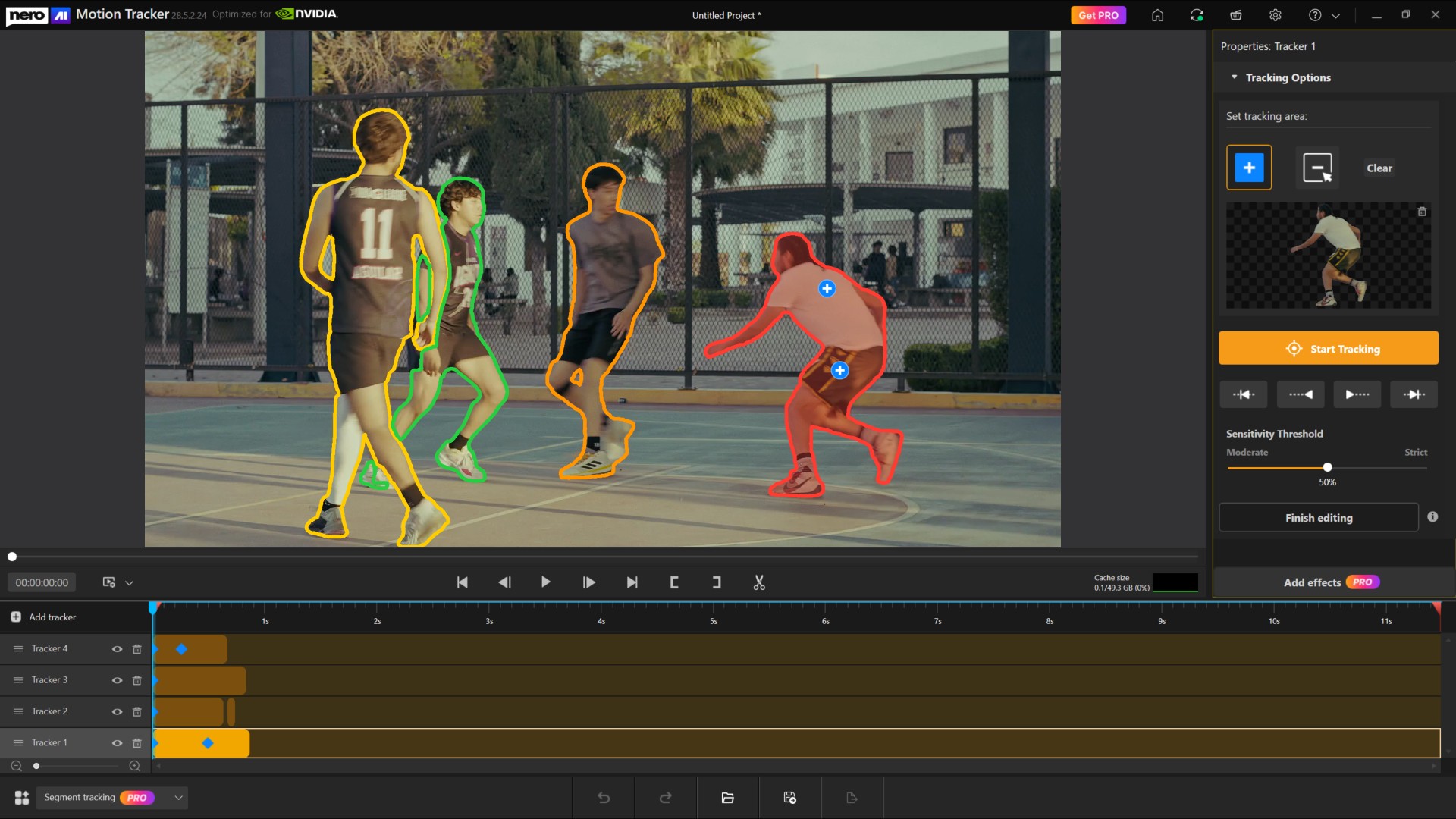
Segment Tracking is designed for precision. Unlike standard “Zone” tracking which draws a box, Segment Tracking analyzes the video pixel-by-pixel. To give you total control, we have refined the Set Tracking Area controls into a simple “Include/Exclude” workflow.

1. How to Define Your Object (Include vs. Exclude)

Once you enter Segment Tracking mode, you will see the “Tracking Options” control panel. Think of this as telling the AI exactly what matters and what doesn’t.

  • Add Tracking Area (Include):
    • Select this tool when you want to include a part of the image in your mask.

    • Click on your subject. A small (+) marker will appear, telling the tracker: “Keep this.”

  • Remove Tracking Area (Exclude):
    • Select this tool when the tracker accidentally picks up the background. You use this to exclude unwanted areas.

    • Click on the unwanted area. A small (-) marker will appear, telling the tracker: “Ignore this.”

2. Refining and Revoking Selection

Did you click the wrong spot? We have made correcting mistakes instant. You don’t need to switch tools to delete a point.

To Revoke: Simply click any existing (+) or (-) marker on the preview screen again. When you hover over a marker, it will glow blue to indicate it is ready to be removed. Clicking it revokes that specific selection instantly.

If you don’t want the tracking area, you can either remove the tracker from the timeline or click the “Clear” button to clear the selection and start from scratch.

3. Tracking Multiple Objects

Need to track two people or more objects?

  • Click “Add Tracker” button on the timeline to start a fresh track for a second item.
  • Smart Display: To keep your view clean, the markers for Object 1 are automatically hidden while you edit Object 2. (Only the outer boundaries are visible, so that they can be distinguished from each other.) 

Ensuring Smooth Performance (Cache & Settings)

Because Segment Tracking analyzes pixels in high detail, it requires system resources. We have added a dedicated Performance & Cache System to keep your editing smooth.

  • Automatic Setup: When you first use Segment Tracking, a dialog will ask to set the Cache Location. By default, it smart selects the disk with the freest space.

  • The Cache Monitor:

    Located under the preview, the Cache Size display shows your current usage (GPU Memory + System Memory + Disk Cache) versus the overall available size. It uses a color-coded progress bar:

    • 🟢 Green: < 70% usage (Optimal)

    • 🟡 Yellow: 70% – 90% usage (Caution)

    • 🔴 Red: > 90% usage (Critical – consider finalizing an object)

  • Finish Editing (Per Object): Once you are happy with an object’s track, click Finish Editing. 

    • What this does: This clears the high-resource cache for that specific tracker and locks it so it is no longer editable. This frees up resources for you to track other objects.

    • Note: A confirmation dialog will pop up to ensure you are ready to lock the tracker.

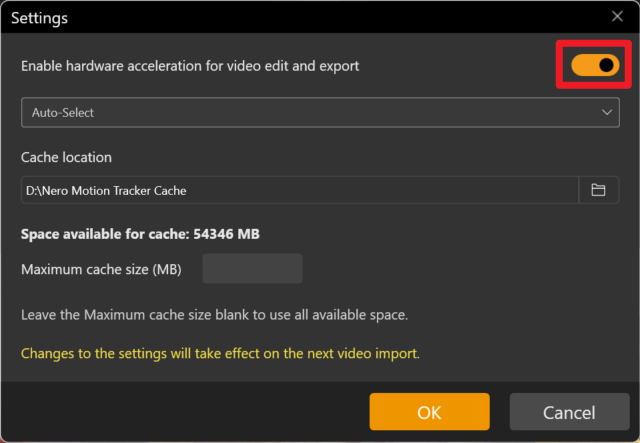
  • Advanced Settings: Click the Gear Icon on the title bar to toggle Hardware Acceleration (CPU/GPU) or manually set a Maximum Cache Size.


The Creative Finish: Effects & Pro Features

Once your tracking is done, click the Add Effects button. This automatically “Finishes Editing” for all trackers and moves you to the design page.

Note: Segment Tracking is a premium feature. You can do all the tracking and testing for free, but the Pro Purchase Dialog will appear when you click “Add Effects” if you are not a subscriber.

Creative Controls

On the Effects page, you can apply 5 post-effects to your masked objects or the background:

  • Original: No changes (great for preserving the subject while editing the background).
  • Image: Fill or Fit a custom image into the tracked area.
  • Blur: Adjust intensity to obscure faces or sensitive info.
  • Mosaic: Pixelate the area; adjust the “amount” to change block size.
  • Color: Tint the area using presets or a specific hex code.
  • Desaturation: Make the area black and white by adjusting saturation levels.

New Face Tracking & Zone Modes

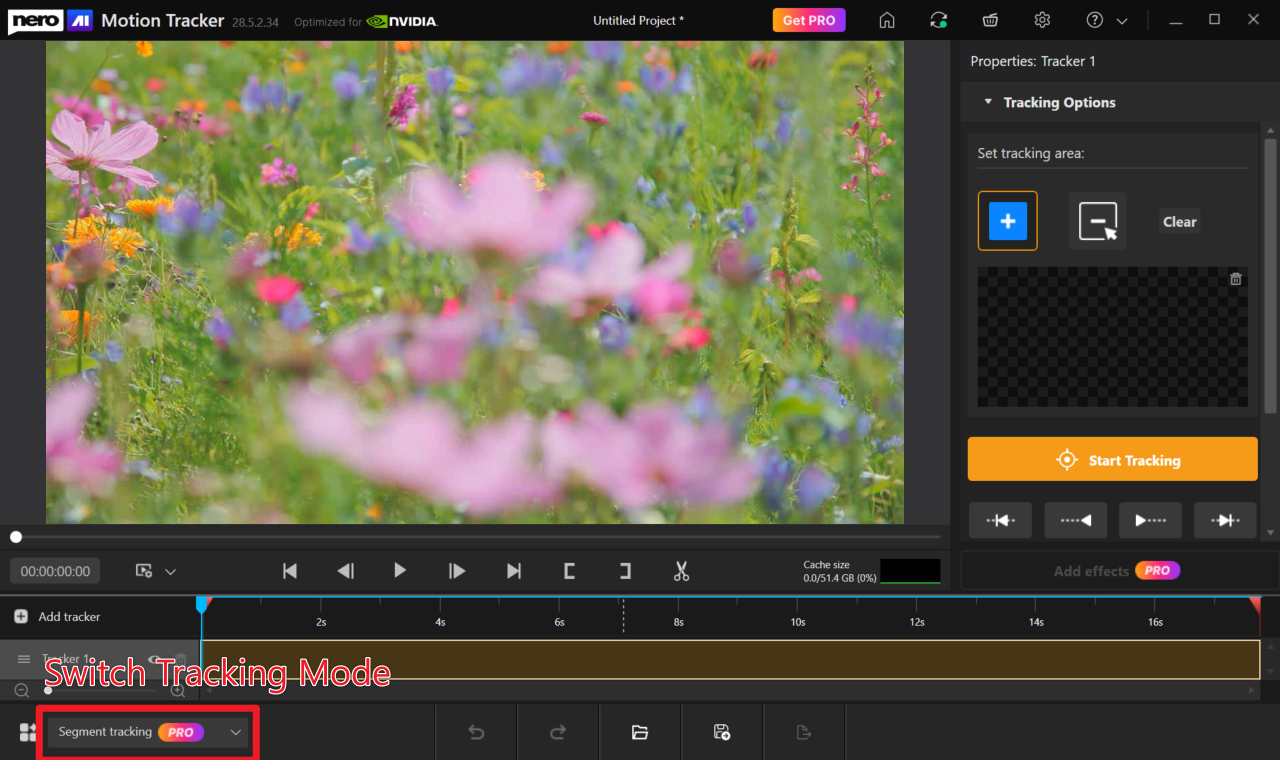
While Segment Tracking is the new headliner, we have also optimized our standard tools. You can switch between modes using the Tracking Mode on the Home Screen or the Dropdown below the timeline.
Face Tracking (Automated)

Now separated from Zone tracking for speed, this mode features Automatic Face Detection and Auto-Start. As soon as a face is detected in the footage, the system locks on and starts tracking immediately—no manual starting required.

Zone Tracking

The classic, reliable mode for tracking standard geometric shapes like rectangles and ovals.

⚠ Warning: Segment, Face, and Zone tracking use different engines. If you switch modes mid-edit, a warning will pop up indicating that current tracking results will be lost.

Ready to create professional, dynamic masks? Open Nero Motion Tracker and try the new Segment Tracking today!
Nero Motion Tracker Segment Tracking – FAQ & Troubleshooting

Nero Motion Tracker Segment Tracking – FAQ & Troubleshooting

1. What are the recommended system specifications for Segment Tracking?

For the best compatibility and performance, we strongly recommend using NVIDIA graphics cards with at least 6GB VRAM. While other cards may work, NVIDIA GPUs provide the most stable experience for AI-based motion tracking.

2. I am using an AMD graphics card and the tracking fails or crashes. What should I do?

When running on AMD graphics cards, the application uses Direct ML for hardware acceleration. However, because Microsoft has not updated Direct ML components recently, this often leads to compatibility gaps with current AMD graphics card drivers. This can result in tracking failures or AMD driver application crashes.

Solutions:

  • Try restarting the application and running the tracking again.
  • If the issue persists, switch to the Software Tracking method within the settings to bypass hardware acceleration issues.
Turn off hardware acceleration.

3. Can I use Intel Graphics for Segment Tracking?

You may encounter performance issues when running Segment Tracking on Intel platforms. If you wish to use an Intel graphics card:

  • Update Drivers: Please ensure your GPU driver is updated to the absolute latest version.
  • Potential Issues: Without the latest drivers, you may experience symptoms such as the inability to detect the tracking object or extremely slow tracking speeds.

Unlocking Media Features: A Guide to Windows N Editions and Media Feature Packs

In the ever-evolving landscape of Windows operating systems, the inclusion of different feature sets can sometimes leave users scratching their heads, especially when it comes to the Windows N editions. This article takes a deep dive into the recently updated Media Feature Pack list designed specifically for Windows N editions, explaining what these packs are, why they matter, and how users can effectively reinstall necessary media technologies in their systems.

What Are Windows N Editions?​

Windows N editions are tailored versions of Microsoft Windows that cater to markets in the European Economic Area. Due to legal regulations that require Microsoft to provide a version of Windows without its media functionalities, N editions do not come pre-equipped with media-related technologies. This means tools like Windows Media Player, Groove, Movies & TV, and Skype are absent out of the box.
But fret not! Enter the Media Feature Pack, which serves as a pacifier for users who wish to restore these stripped features.

The Media Feature Pack Explained​

The Media Feature Pack is a downloadable add-on that reinstates those missing functionalities in the Windows N editions. By installing this pack, users regain access to:

  • Windows Media Player: The classic media player for Windows that plays picture, music, and video files.
  • Groove and Movies & TV: Services that integrate media libraries and provide streaming options.
  • Voice Recorder and Skype: Tools designed for audio capture and video conferencing, respectively.

Compatibility Notes​

The latest information regarding the Media Feature Pack can be found on Microsoft’s support page, which meticulously lists every available pack starting from Windows 8.1 N editions up to the current Windows 11 N editions.

How to Install the Media Feature Pack​

For Windows 10 N:​

  • Click on the Start button.
  • Navigate to Settings > Apps.
  • Search “Optional features“.
  • Click on Add a feature and find the Media Feature Pack from the list of optional features.

For Windows 11 N:​

  • Click on the Start button.
  • Go to Settings > Apps.
  • Search “Optional features“.
  • Select View features next to Add an optional feature and look for the Media Feature Pack.

Early Versions Note​

While some Media Feature Packs for earlier versions of Windows 10 are standalone downloads, from version 1909 onward, the packs are only available as an optional feature.

The List of Media Feature Packs​

Below is a concise catalog of Media Feature Packs, breaking down the historical timeline of when these were made available: Windows Version Media Feature Pack Release Date
Windows 8 N Original Edition
Windows 8.1 N April 2014
Windows 10, Version 1508 November 2015
Windows 10, Version 1607 August 2016
Windows 10, Version 1703 April 2017
Windows 10, Version 1803 April 2018
Windows 10, Version 1903 May 2019
Windows 10, Version 21H1 May 2021
Windows 11 N Latest Updates Available

Note: For versions 1909 and beyond, the Media Feature Pack is an optional feature rather than a separate install.

Why Should You Care?​

For users, having access to a full suite of multimedia technology enhances the overall experience of their operating system. Whether it’s for casual media consumption, professional audio/video work, or staying connected with friends through Skype, these functionalities are indispensable.
Failure to install the Media Feature Pack might feel like rolling a new vehicle out of the showroom without a radio—functional yet strangely devoid of a fundamental feature.

Conclusion: Jump Back Into the Media Pool​

The Media Feature Pack is crucial for those using Windows N editions who want a seamless experience akin to standard releases. If you’re among those users, take action by installing the appropriate Media Feature Pack based on your Windows version and reclaim the multimedia functionalities you deserve.
By staying informed with updates and guides like these, you not only enhance your user experience but also arm yourself against potential headaches caused by missing features. So dive in, enjoy your media content, and keep exploring the rich features Windows has to offer!

Source: Microsoft Support Media Feature Pack list for Windows N editions – Microsoft Support

What’s New in Nero DuplicateManager 2026?

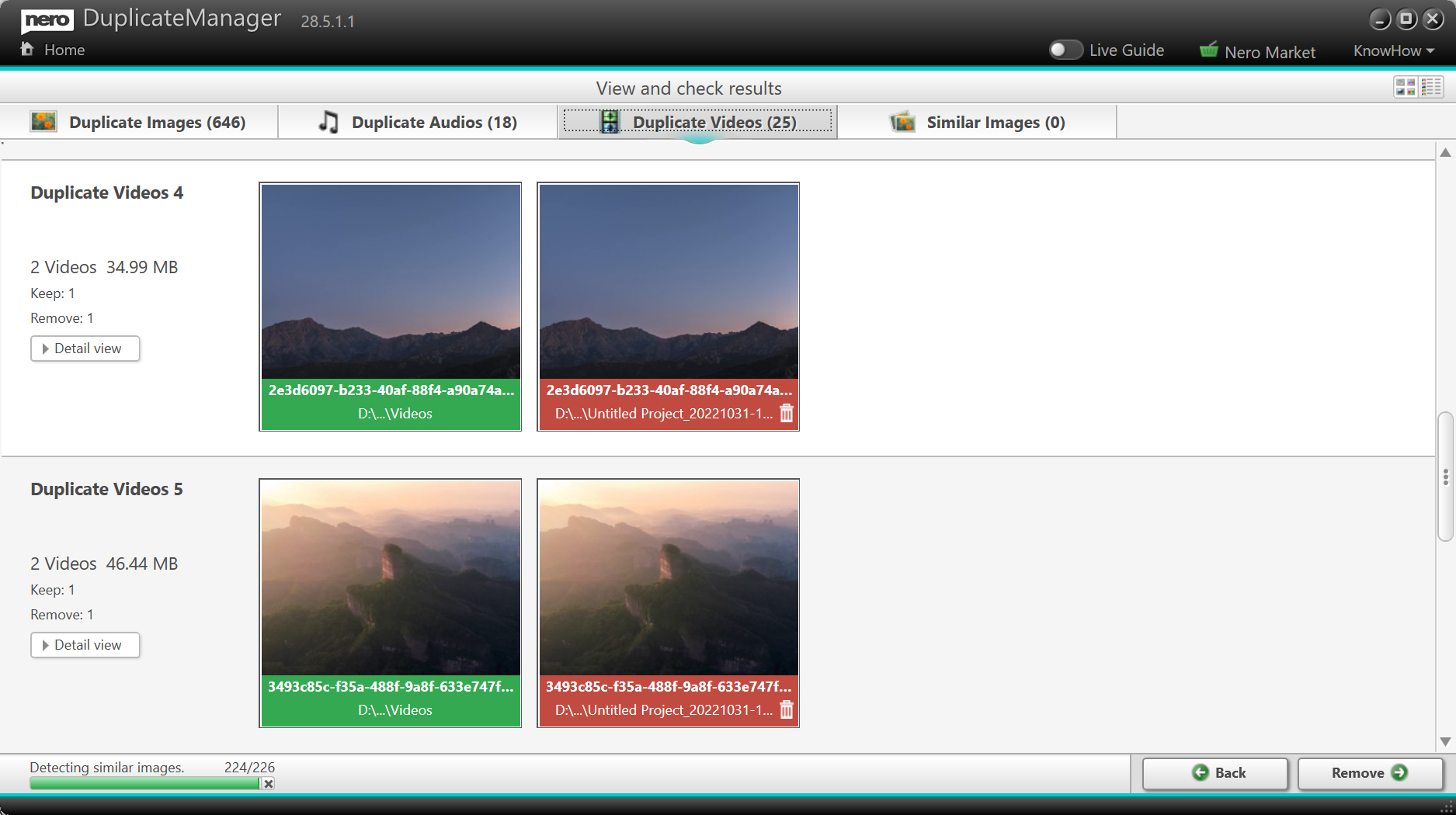
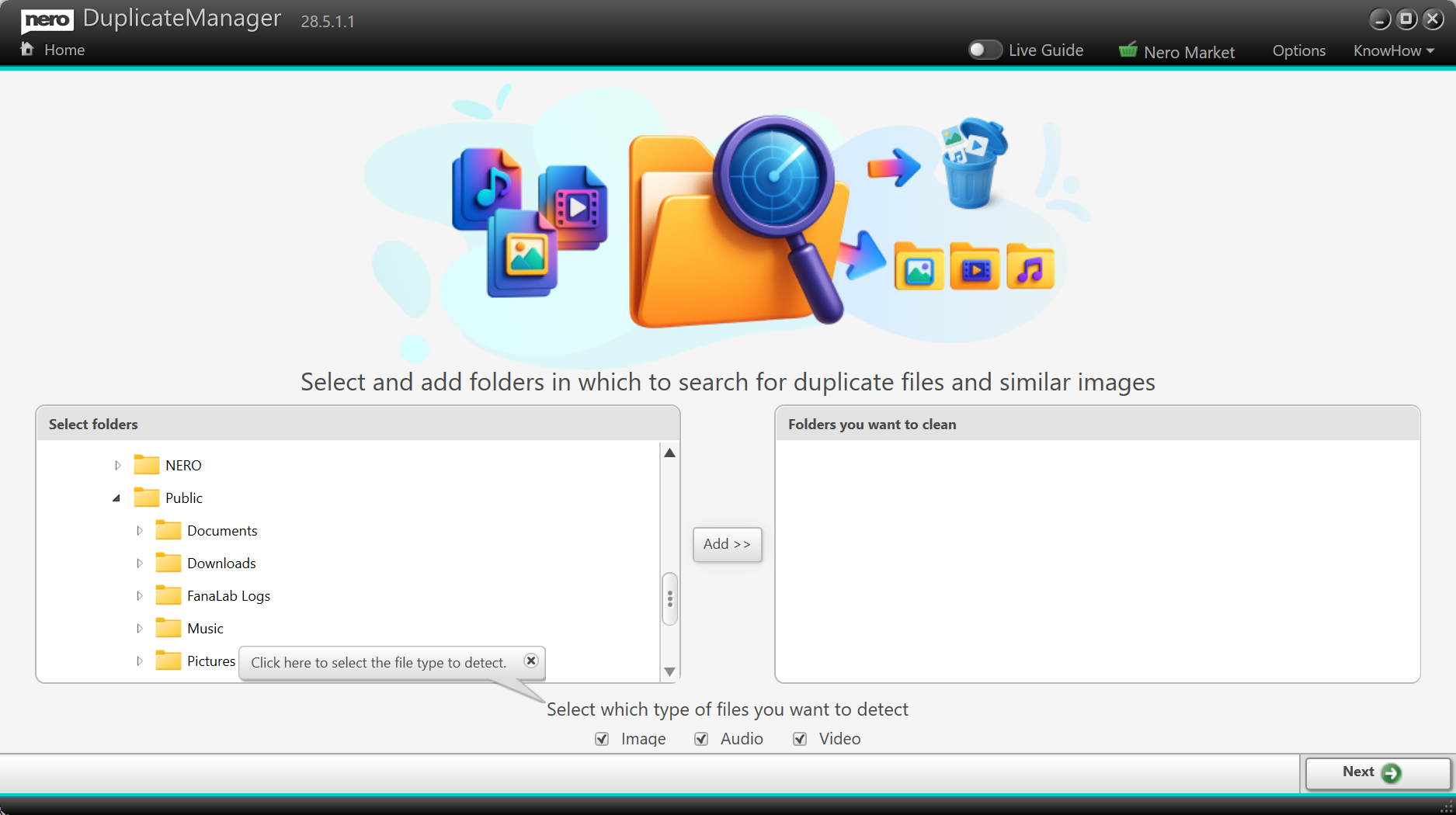
Keeping your media collection organized just got even easier. With the 2026 update of Nero DuplicateManager, we’ve expanded its powerful duplicate detection capabilities to go beyond images, making it the ultimate tool for cleaning and managing your digital library.


🎵 Detect Exact Duplicate Audio Files

Got the same song stored in multiple folders? With the new audio duplicate detection, Nero DuplicateManager can now find exact duplicate audio files across your drives. Whether it’s duplicate music tracks in your playlists or backup folders you forgot about, you can quickly identify and remove unnecessary copies to free up space and keep your library tidy.


🎬 Detect Exact Duplicate Video Files

Videos often take up the most storage space—and now you can keep them under control. The new update introduces video duplicate detection, allowing Nero DuplicateManager to spot exact duplicate video files across your system. From old project exports to repeated downloads, you’ll be able to clean up your drives with confidence.


🖼️ Built on Proven Image Detection Technology

Nero DuplicateManager 2026 builds on its existing strengths. The previous version already helped users find exact and similar duplicate images, making it easy to organize photo collections. Now, with support for audio and video duplicates, it becomes a complete solution for managing all types of media files.


🚀 Part of Nero Platinum Suite

The new Nero DuplicateManager 2026 is included with the latest Nero Platinum Suite update. As always, you’ll get the newest features automatically, ensuring your tools are always up to date.

👉 Update to Nero Platinum Suite 2026 today and experience smarter media management with Nero DuplicateManager.

Upgrade Now 🛒

What’s New in Nero AI Video Upscaler 2026?

The wait is over—Nero AI Video Upscaler 2026 is here, and it comes packed with powerful new features designed to make your video enhancement workflow faster, smarter, and more flexible. Whether you’re a content creator, filmmaker, or simply someone who wants the best quality from their videos, this update is built with you in mind.


✨ New Enhance Detail Model

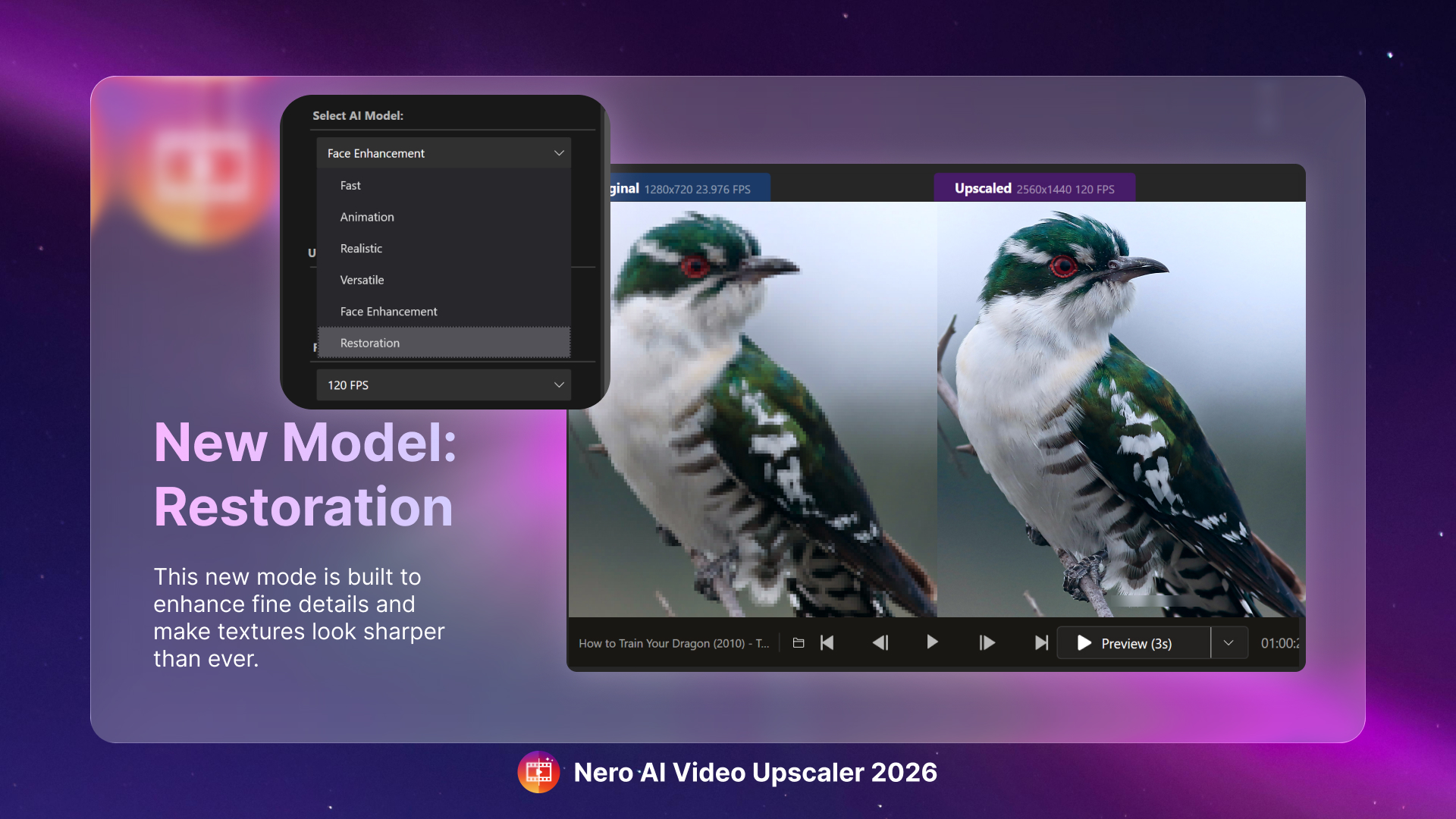
Bring out every nuance in your footage with the brand-new Enhance Detail model. Designed for users who want maximum sharpness and texture, this AI model goes beyond resolution upscaling to intelligently restore fine details, making old or low-resolution videos look sharper than ever before. Perfect for archival material, family videos, or professional projects where clarity matters most.


📂 Batch Video Import

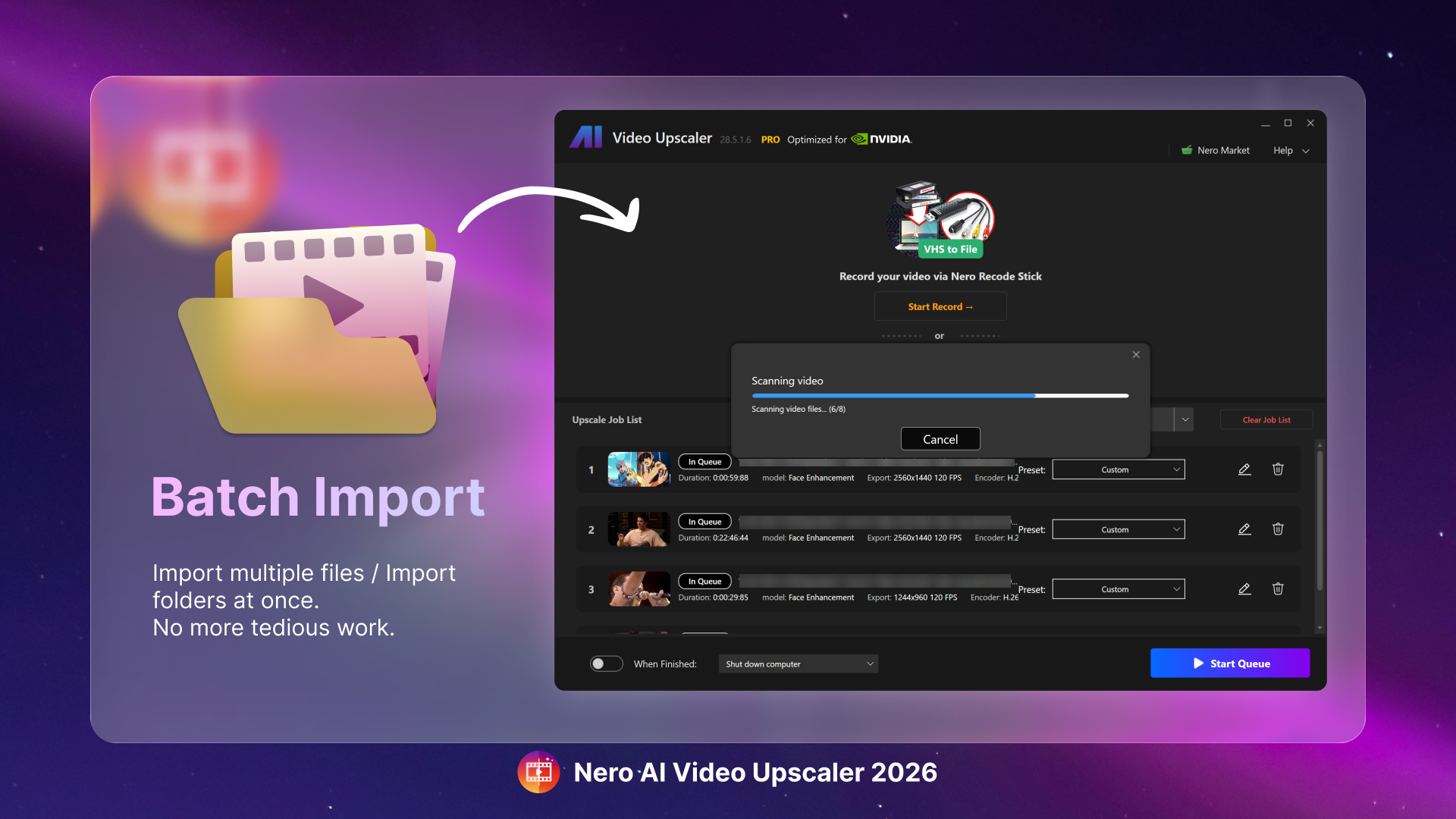
Tired of loading files one by one? The Batch Video Import feature lets you add multiple videos at once for upscaling. Simply drag and drop entire folders into the app, and Nero AI Video Upscaler will automatically prepare them for processing. This means less time managing files and more time focusing on the results.


⚙️ Save & Load Presets for Batch Processing

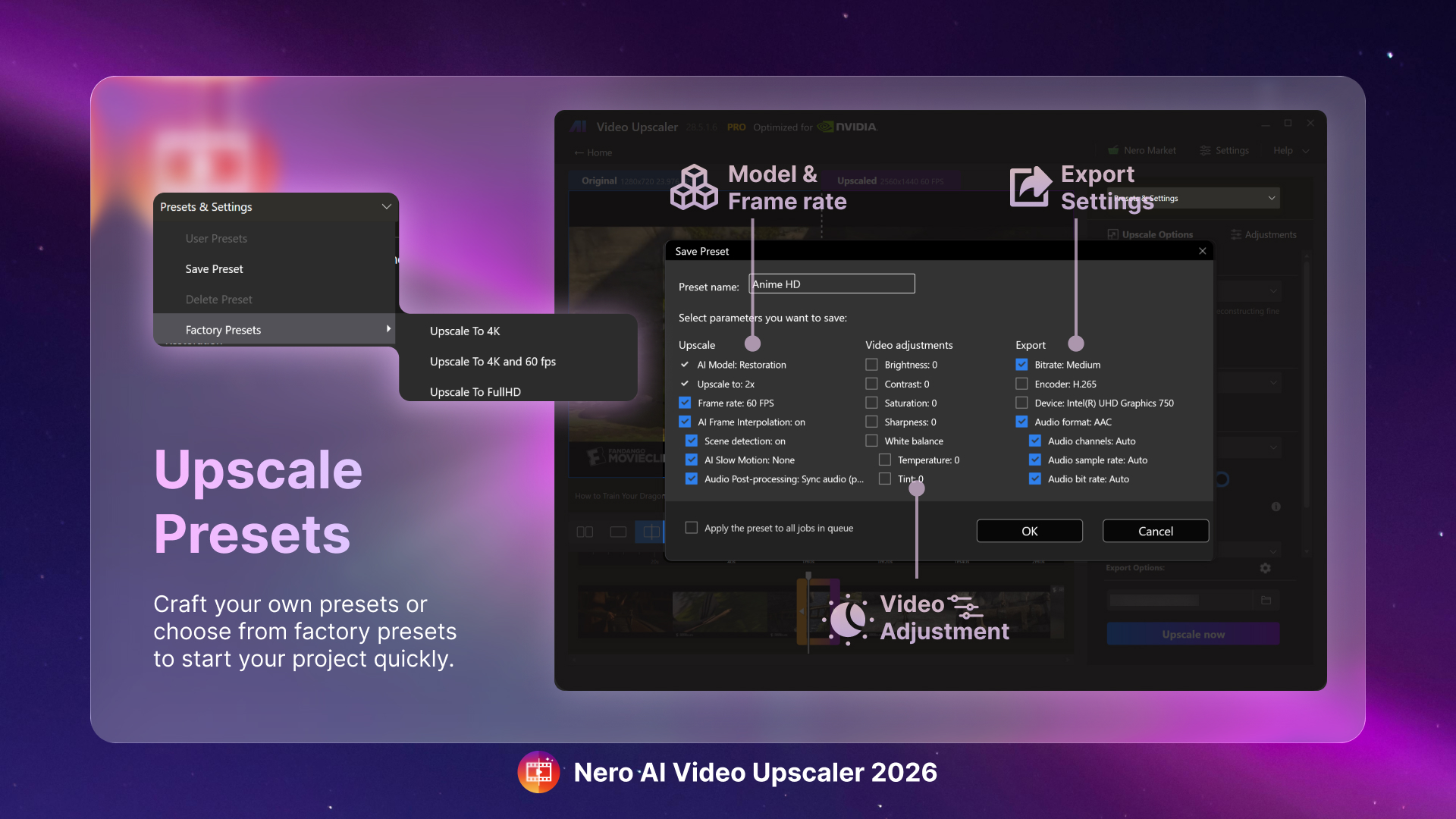
Efficiency just got an upgrade. With the new Save and Load Presets, you can store your favorite settings—AI model, resolution, output format—and apply them instantly to future projects. Combined with batch processing, this feature is a game-changer for professionals handling large volumes of videos.


🚀 Built for Speed and Flexibility

These new tools aren’t just about convenience—they’re about giving you a workflow that adapts to your needs. Whether you’re enhancing a single clip with maximum detail or processing dozens of videos overnight, Nero AI Video Upscaler 2026 delivers a seamless editing experience.


✅ Availability

The new features in Nero AI Video Upscaler 2026 are available exclusively for:

  • Active subscriptions

  • Nero AI Video Upscaler 2026 Lifetime version

  • Nero AI Video Upscaler MS Store and Steam latest version

If you’re using an earlier lifetime version, upgrade today to access the new Enhance Detail Model, Batch Video Import, and Save & Load Presets.

👉 Upgrade now and unlock the full power of AI-driven video upscaling.