What is “batch uninstall”?
Batch uninstall means removing multiple Nero apps in one action, instead of uninstalling them one by one in Windows.
How do I batch uninstall Nero apps in Nero Start?
- Open Nero Start.
- Go to My products.
- Open Uninstall & Cleanup.
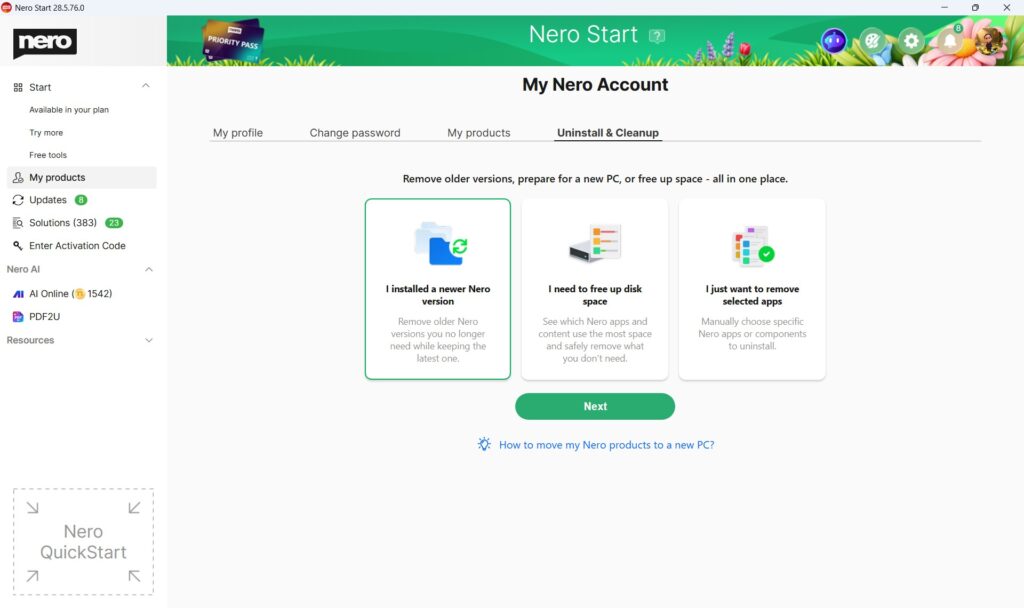
- Choose the option that best fits your situation:

- I installed a newer Nero version: Remove older Nero versions you no longer need while keeping the latest one.
- I need to free up disk space: See which Nero apps and content use the most space and safely remove what you don’t need.
- I just want to remove selected apps: Custom mode—manually choose specific Nero apps or components to uninstall.
- Open the details view and click Uninstall for the items you want to remove.
- Wait for the process to finish. If prompted, restart your PC.
How do I remove old versions quickly?
- In Uninstall & Cleanup, select I installed a newer Nero version.
- Click Uninstall for the items you want to remove and confirm.
- If you want to remove everything listed, select Remove all.
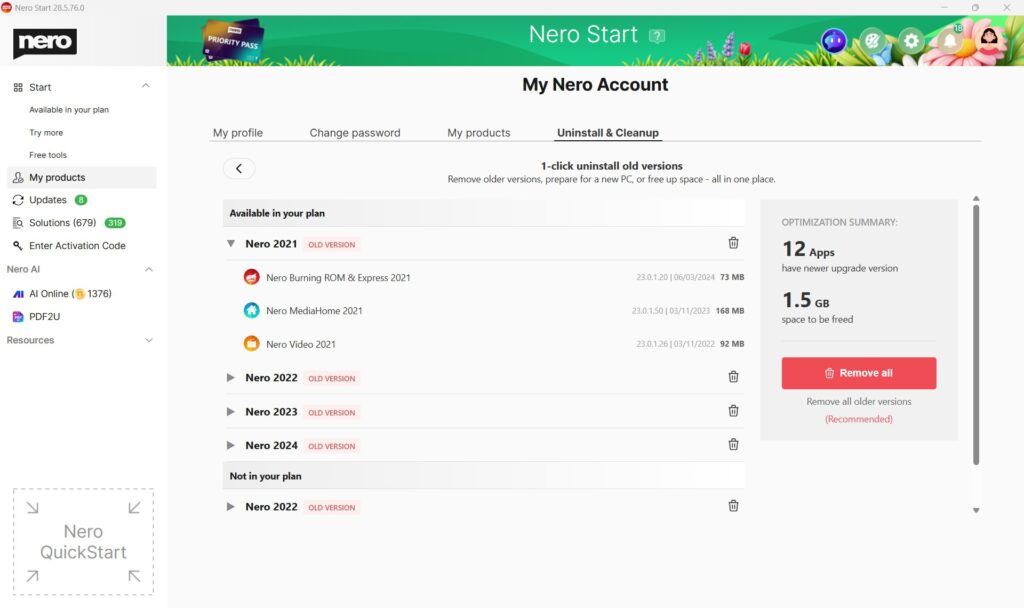
Tip: Keeping only the latest version helps reduce clutter and avoids confusion.
How do I free up disk space fastest?
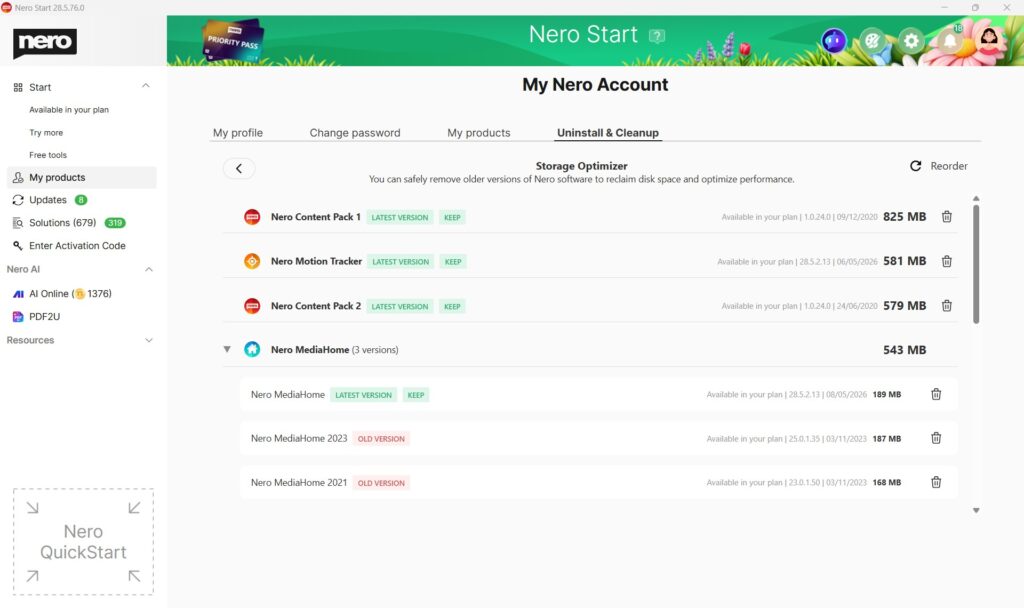
- In Uninstall & Cleanup, select I need to free up disk space.
- Review the list.
- Uninstall apps you no longer use — especially older versions that take up space.
How do I remove specific apps?
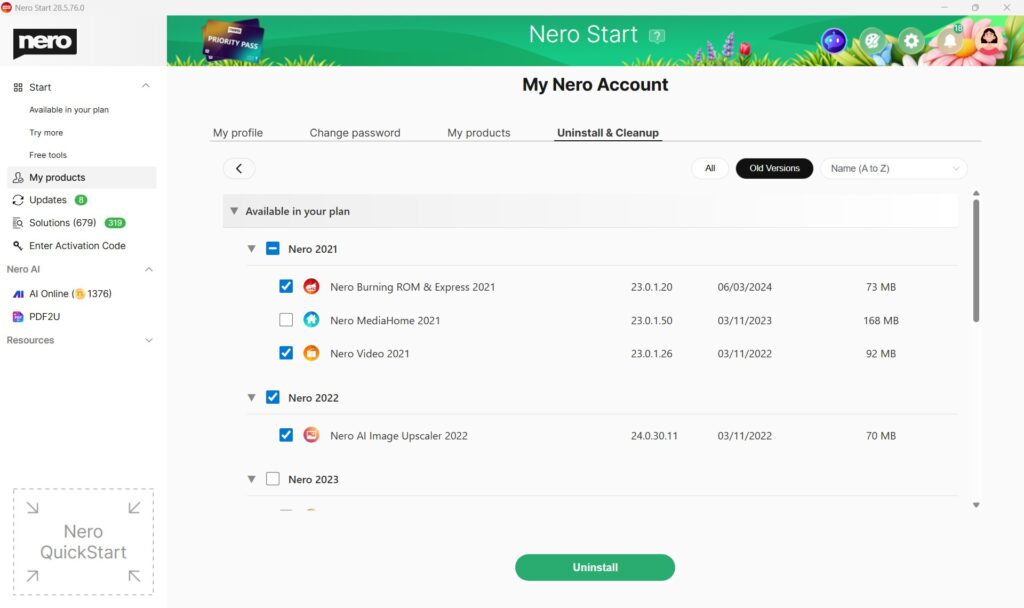
- In Uninstall & Cleanup, select I just want to remove selected apps.
- Select what you want to remove:
- Choose one or multiple apps from the list, or
- Use filters (for example: Old versions) and sorting (for example: Size or Install date) to narrow it down
- Click Uninstall and confirm
Can I reinstall later?
Yes. You can reinstall your Nero apps anytime from Nero Start.
Visited 247 times, 1 visit(s) today