What is Folder view in Nero MediaHome?
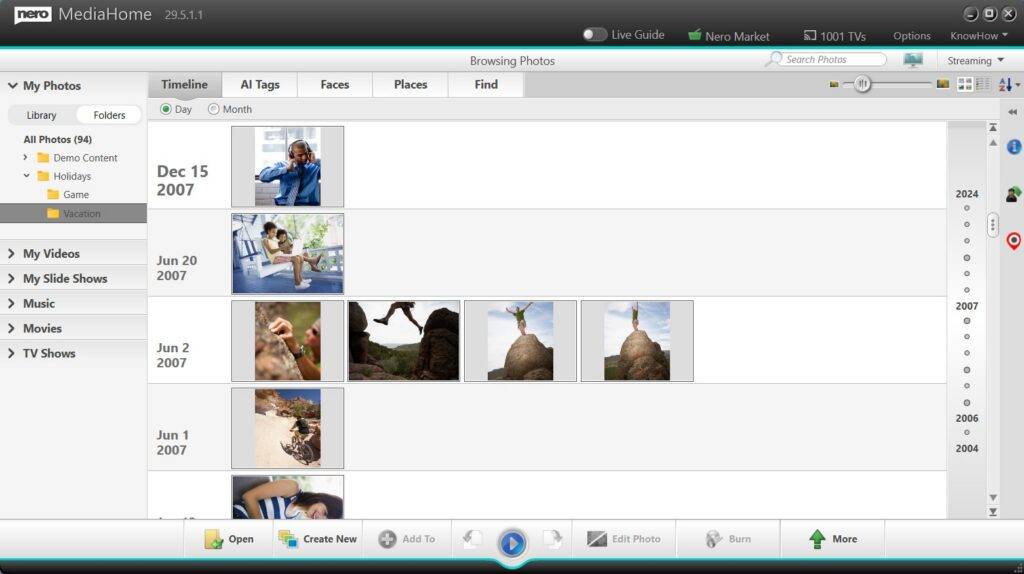
Folder view gives you another way to browse your photos and videos in Nero MediaHome.
Instead of browsing only through the MediaHome Library, you can now view your media using the folder structure you already know from Windows.
Switch between:
- Library — browse media organized by Nero MediaHome.
- Folders — browse media using your existing folders and subfolders.
Both views work with the same media. You can switch between them anytime depending on how you want to find your photos or videos.
Why use Folder view?
Many people already organize their photos and videos into folders such as:
Photos > 2026 > Summer Vacation
Videos > Family > Birthdays
With Folder view, you don’t need to learn a different organization just to find them in Nero MediaHome.
It helps you:
- Find media where you expect it — browse using your familiar Windows folder structure.
- Keep your existing organization — there is no need to reorganize or move your files.
- Switch browsing styles anytime — use Folders when you know where a file is, or Library when you want MediaHome to help you explore your collection.
- Combine folders with smart media information — find files by folder first, then use MediaHome information such as Faces, Places and AI tags to explore related memories.
How do I browse my media by folder?
- Open Nero MediaHome.
- Go to My Photos or My Videos.
- Select Folders instead of Library.
- Browse through your folders and subfolders just as you would in Windows.
- Select a folder to see the photos or videos it contains.
You can switch back to Library at any time.
Switching views does not move, rename, or reorganize your original files and folders.
How do Folders work with Faces, Places and AI Tags?
This is where Folder view becomes especially useful.
Your folder structure tells you where you stored your media, while Nero MediaHome’s smart information helps you find and explore media based on who or what is in it, and where it was taken.
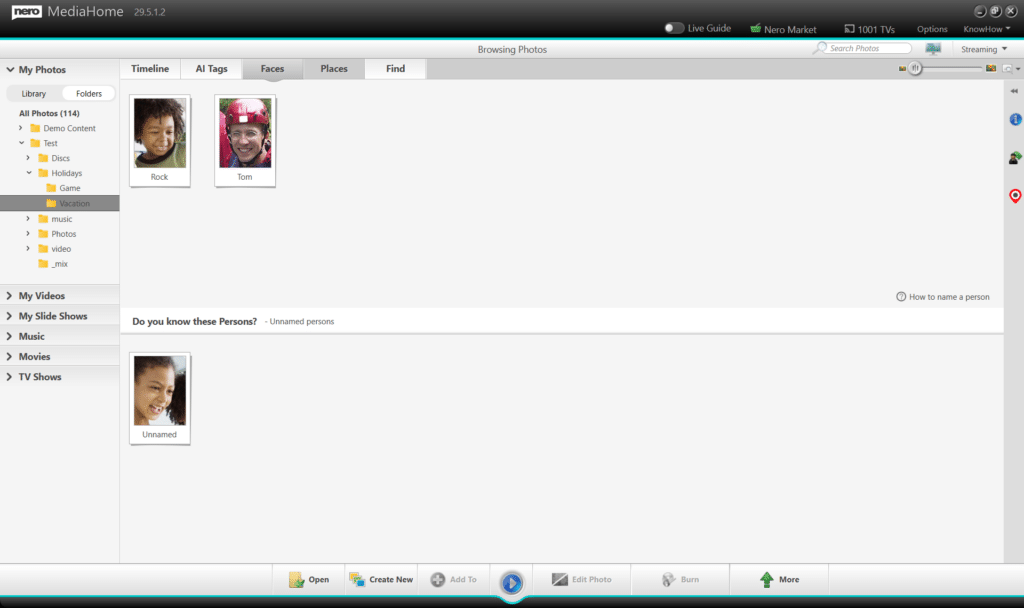
For example, suppose you open:
Photos > 2026 > Summer Vacation
You can browse the photos exactly where you saved them, while Nero MediaHome can still use smart information such as:
- Faces — find and organize photos by the people in them.
- Places — explore photos based on where they were taken.
- AI Tags — automatically identify content in your photos, making it easier to find images by subjects and objects.
This gives you complementary ways to find your media:
Folders: Where did I save it?
Faces: Who is in it?
Places: Where was it taken?
AI Tags: What is in it?
You don’t have to choose one way of organizing your media. Use them together depending on what you remember about the photo you’re looking for.
When should I use Library or Folders?
| If you want to… | Use |
|---|---|
| Browse media using your existing Windows organization | Folders |
| Go directly to a folder you already know | Folders |
| Browse your media through MediaHome’s organization | Library |
| Explore memories by people or location | Faces / Places |
| Find related media when you don’t remember where it is stored | Library + Faces / Places |
Quick tip
You don’t need to reorganize your media to take advantage of Nero MediaHome.
Keep the folder structure that already works for you, and use MediaHome’s Faces and Places when you want a smarter way to explore your collection.