If you have a large collection of audio CDs, Nero Burning ROM can help you digitize them with fewer manual steps while keeping your music files organized.
With Collection Ripping and Custom File Naming, you can:
- Automate repetitive steps — start ripping automatically, select Gracenote album information, and eject finished discs.
- Step away while ripping — return when a disc is finished and you hear the sound notification.
- Track ripping results — use session reports to review ripping status and errors.
- Match your existing music library — customize file names using your preferred metadata fields, order, and separators.
1. How to start ripping an Audio CD
To get started, open Nero Burning ROM and access the Audio CD ripping feature using either of these methods:
Option 1: From the toolbar
Click Rip in the top toolbar.

Option 2: From the menu
Go to Extras > Rip Audio CD…
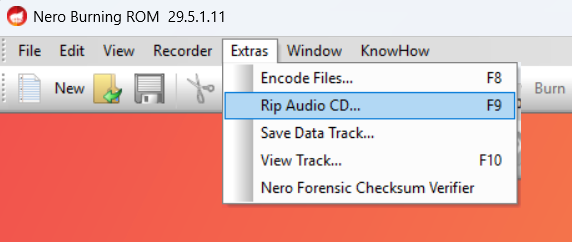
Both options open the Nero CD Ripper window, where you can configure Collection Ripping and Custom File Naming before digitizing your CDs.
2. Set up Collection Ripping for multiple CDs
Collection Ripping automates steps that previously required repeated clicks, including starting each rip, selecting Gracenote album information, and ejecting finished discs.
How to enable Collection Ripping
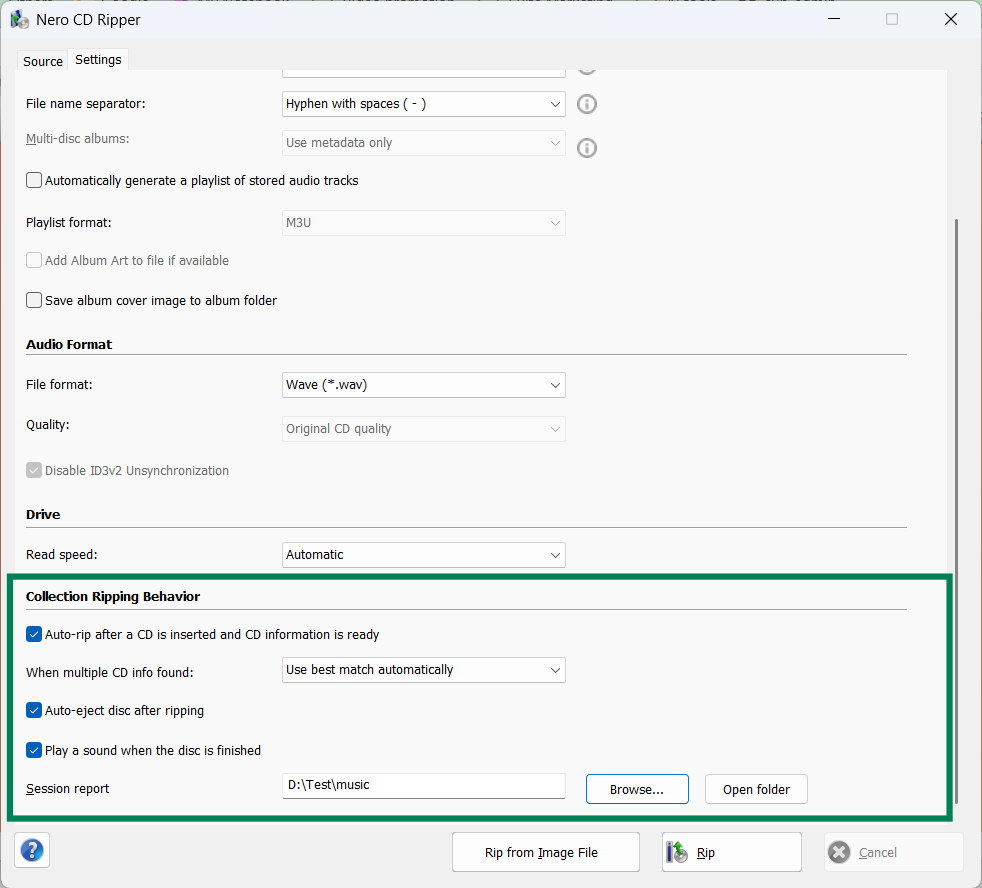
- In the Nero CD Ripper window, switch to Settings, find Collection Ripping Behavior.
- Enable Automatically start ripping after album and track information is ready.
- Under When multiple CD info found, choose:
- Use best match automatically — Nero selects the best available Gracenote album information and starts ripping without asking.
- Ask me to choose — select the correct album information yourself when multiple matches are found.
- Enable Auto-eject disc after ripping.
- Enable Play a sound when the disc is finished.
- Optionally, select a folder for the Session report to keep a record of ripping results and errors.
How does it work?
With automatic ripping, auto-eject, and sound notifications enabled:
- Insert an audio CD. Nero retrieves the album and track information from Gracenote.
- Ripping starts automatically when the information is ready. If multiple matches are found, Nero follows your selected matching preference.
- You can step away while Nero processes the CD.
- When finished, Nero ejects the disc and plays a notification sound.
- Insert the next CD to continue.
You still need to change discs manually, but you no longer need to monitor the ripping process or repeatedly click Rip and Eject.
Tip: Choose Use best match automatically for fewer interruptions. If multiple album matches are found and you prefer to verify the information, select Ask me to choose.
3. Customize file names to match your music library
If you already have a digital music collection, you may want newly ripped files to follow the same naming conventions.
With Custom File Naming, you can define how metadata is combined in file names, rather than relying on preset formats or manually renaming files after ripping.
How to customize file naming
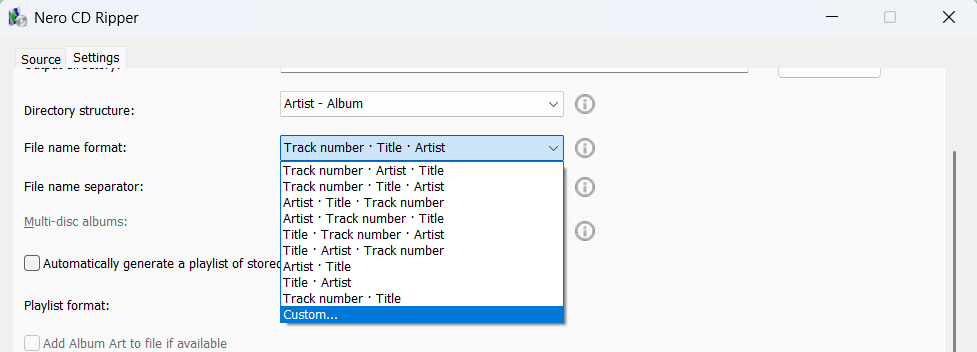
- In the Nero CD Ripper window, switch to Settings, find the file naming settings.
- Under File name format, select Custom…

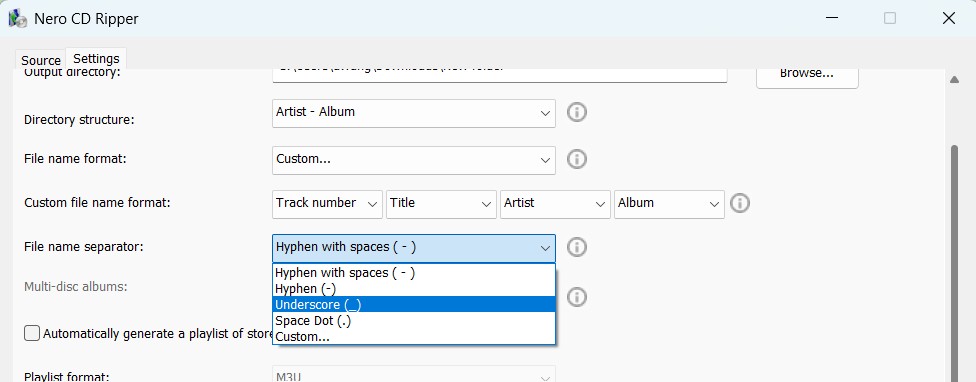
- Under Custom file name format, select the metadata fields you want, such as Artist, Album, Title, or Track Number.
- Arrange the fields in your preferred order.
- Under File name separator, choose a separator such as
-or_, or select Custom… to enter your own. - Start ripping. Nero will apply your naming format to the output files.
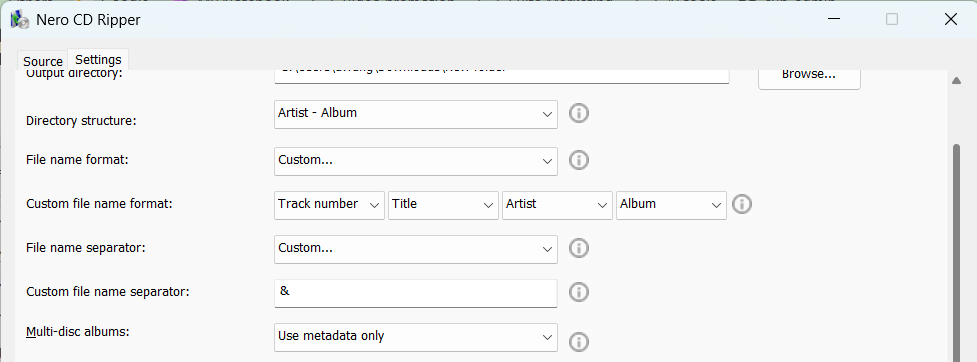
Example: Match your existing file naming style
Suppose you’re ripping a track with this information:
- Artist: Queen
- Album: A Night at the Opera
- Title: Bohemian Rhapsody
- Track Number: 11
You can choose a format that matches your existing music library:
| File naming format | Example output |
|---|---|
| Artist – Title | Queen – Bohemian Rhapsody.mp3 |
| Track Number – Title | 11 – Bohemian Rhapsody.mp3 |
| Artist – Album – Title | Queen – A Night at the Opera – Bohemian Rhapsody.mp3 |
| Artist_Album_Title | Queen_A Night at the Opera_Bohemian Rhapsody.mp3 |
You can combine metadata fields in different orders and use your preferred separators.
Tip: Configure file naming before ripping a large collection to keep your new files consistent with your existing library and avoid renaming them afterward.
Quick tip
For large CD collections, enable automatic ripping, auto-eject, and sound notifications together. This lets you step away during each rip and return when the next CD needs to be inserted.
Set your custom file naming format beforehand so the resulting files are organized consistently from the start.