Changelog – Image Upscaler Pro Steam

This is the changelog for Image Upscaler Steam.

1.0.13

New features

  • 1-Click Start/Cancel for Multiple Images
    You can now start or cancel upscaling with a single click for all selected images. This streamlined feature saves time and gives you greater control over batch processing.
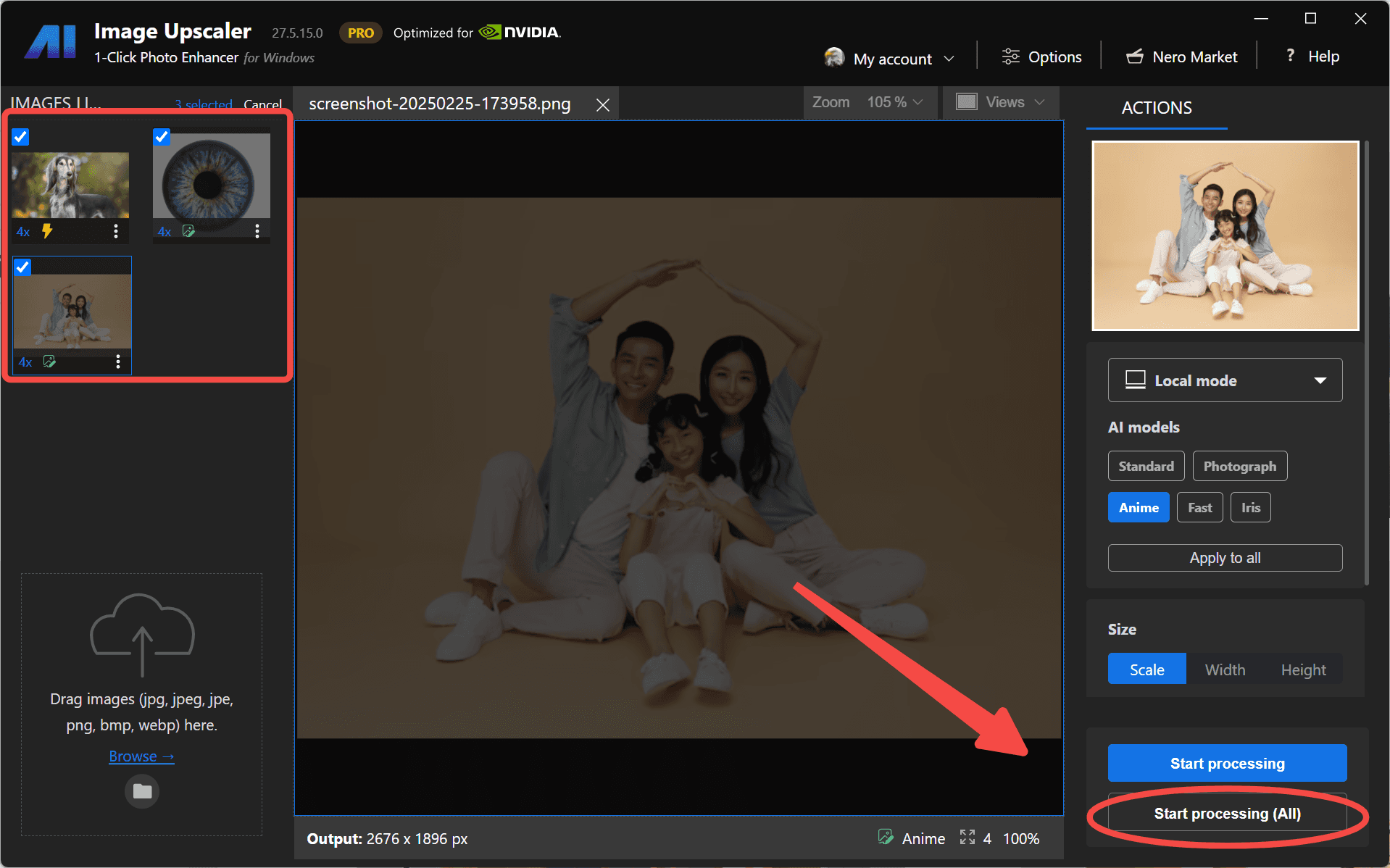
1-click to start all images
  • New AI Model – Iris
    Meet Iris, our latest model designed to enhance fine contrast details like eyes, fur, hair, and feathers. Perfect for portraits and close-ups, Iris brings out the delicate textures in your images.
Meet our new model IRIS

Improvements

  • You can now enable face enhancement with any online upscaling model, thanks to Nero Cloud GPU. Enjoy sharper, more detailed facial features across all your images.
Face Enhancement with All online Models
  • You can now set a targeted scaling ratio for online upscaling models, giving you more control over the final image size and quality.
Custom Scaling Ratios for Online Upscaling

Bugfixes

  • We’ve fixed an issue where the app failed to load the local upscaling engine on certain devices.


1.0.10

New features

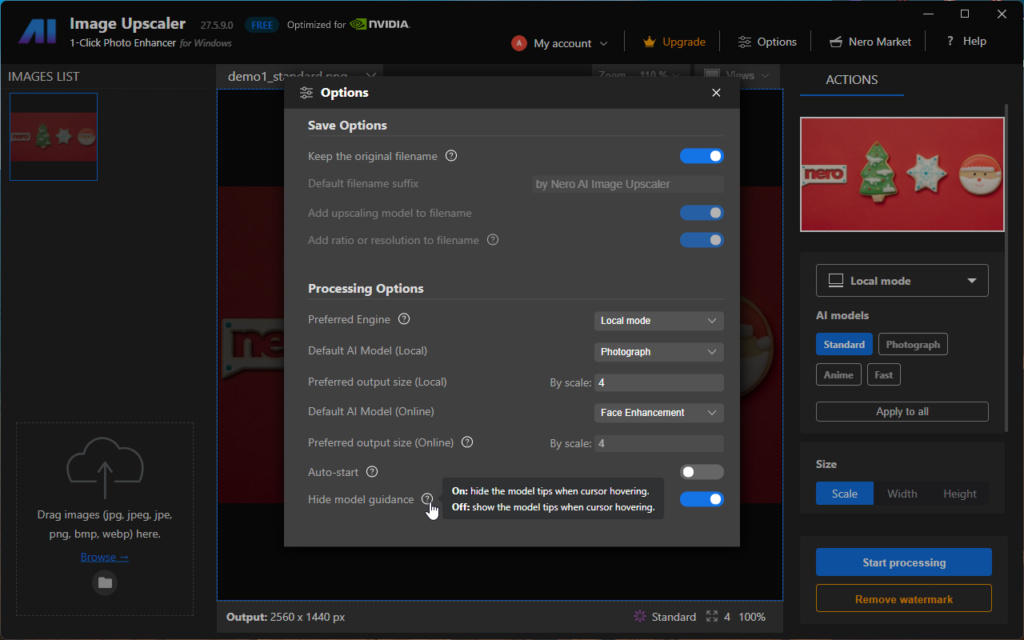
  • Model tips can now be shown or hidden based on your preferencesOption to turn off the model tips in Image Upscaler

1.0.8

New features

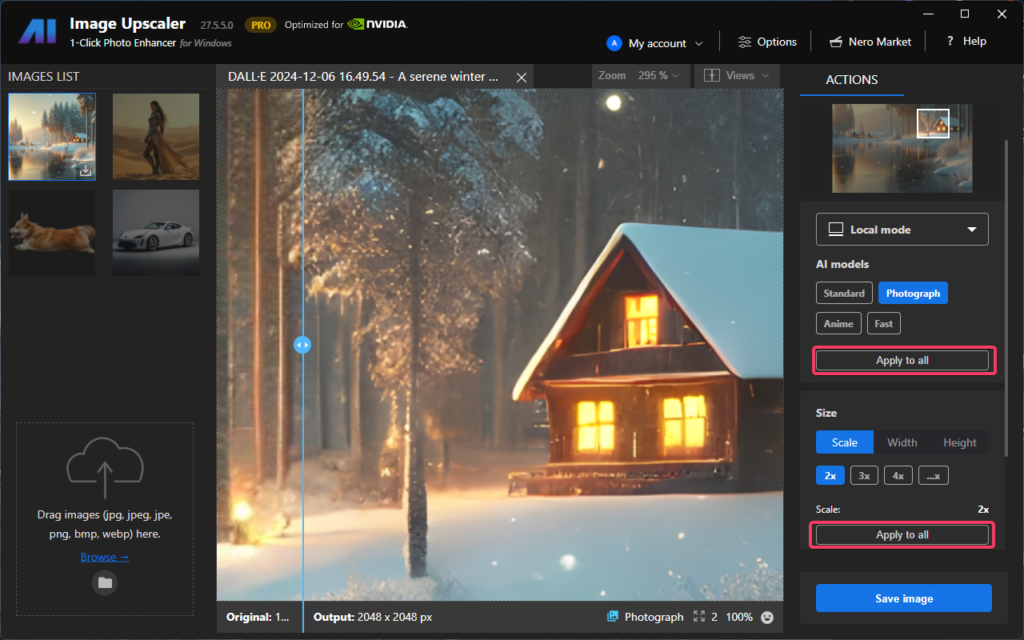
  • Now you can set the default upscaling ratio and models for all remaining unprocessed images with just 1-click.
    • via Options page:Auto-start option for face recovery
    • via the processing control zone:Apply model and size settings to all the unprocessed images

For more infomation, please refer to How to set model and size settings to all unprocessed photos quickly with Image Upscaler


1.0.1

Improvements

Improvement in the speed of login and online processing.


1.0.0

The initial version was released!

Features

Utilize artificial intelligence to increase image resolution with enhanced sharpness and detail.

  • Flexible Upscale: up to 4x
  • Batch process: upscale multiple images in 1-click.
  • Remove noises and jpeg compression artifacts.
  • Recover blurred facial details for blurry portraits.
  • Use the Nero cloud-based GPU for slow PCs. Read more >
  • Support JPEG, PNG, WEBP, BMP, JFIF, and so on.
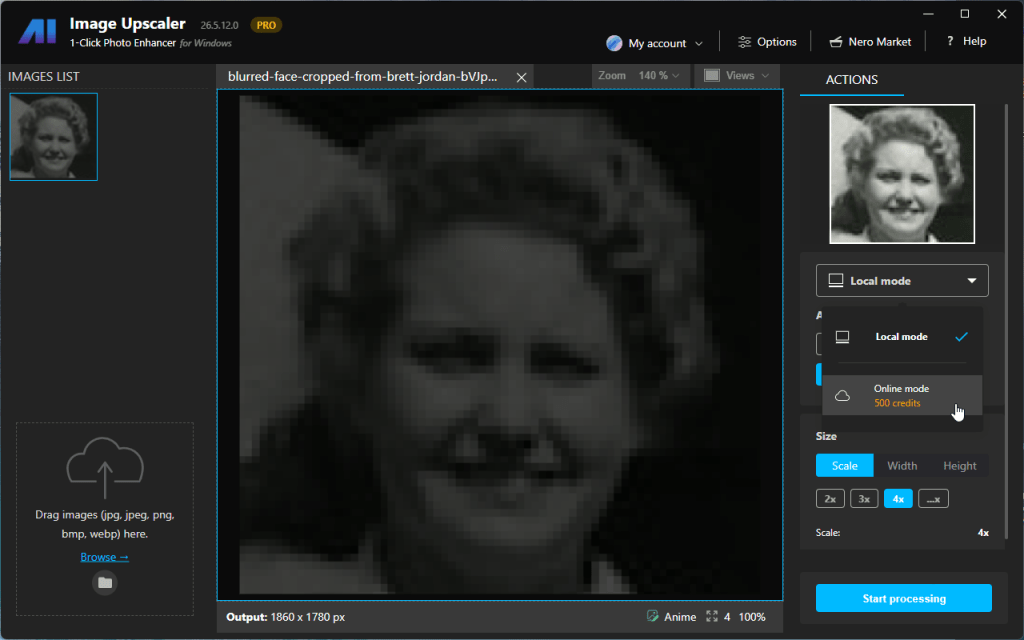
 

Image Upscaler Release notes – 26.5.12.0

New features

We are pleased to announce that the latest version 26.5.12.0  includes an online engine mode. Users can now upscale images faster than ever before, thanks to the acceleration provided by the cloud server GPU.

select online mode
select online mode

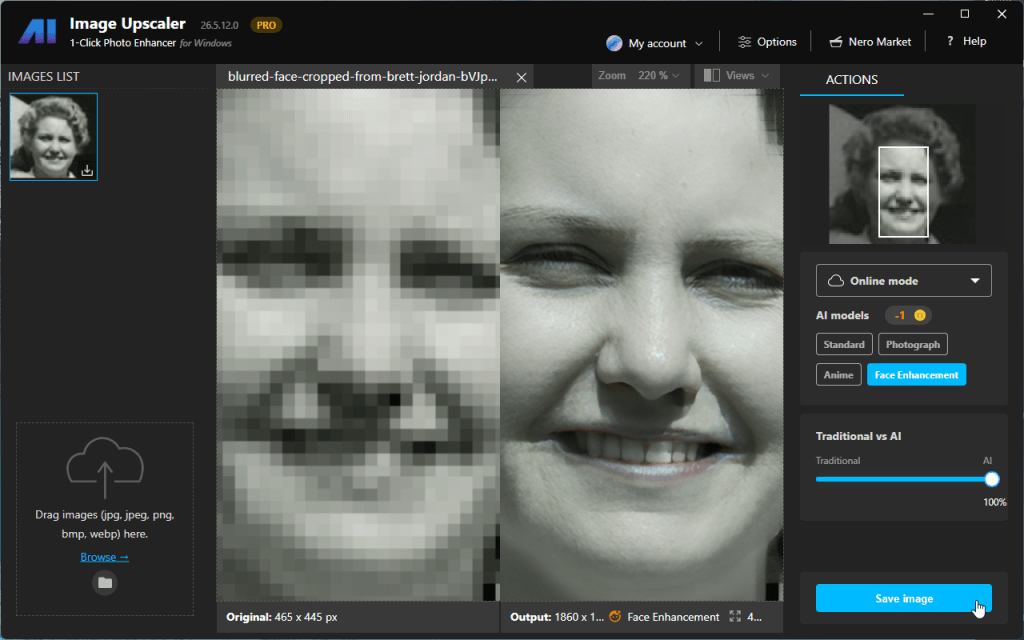
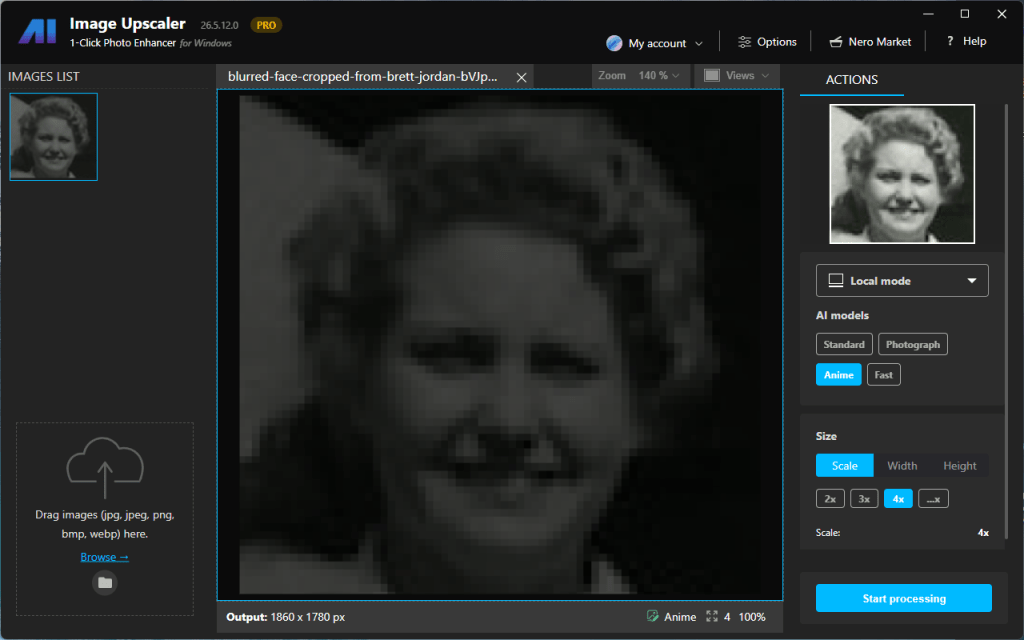
A new AI model – Face Enhancement is included in the online engine mode so you can restore and enhance blurry faces in the desktop app without going to the web service or the mobile app.

Save the result
Example result of Face Enhancement

Improvements

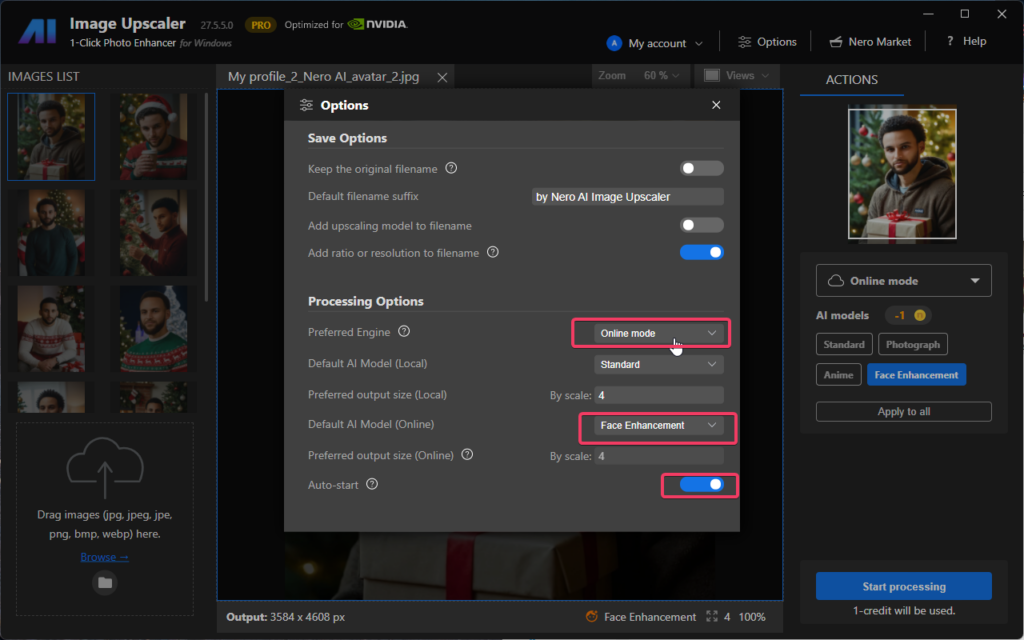
Now you can set up the automatic trigger with a specified AI model. Just import the images and the upscaling process will be automatically started.

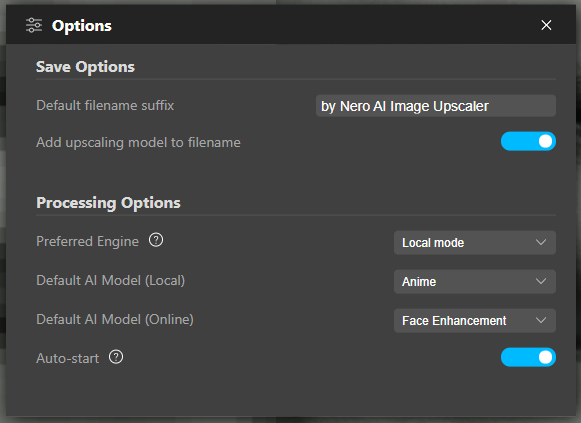
Preferred engine, model and auto-start

Bilder hochskalieren mit Cloud-GPU-Beschleunigung⚡

Wir freuen uns, bekannt zu geben, dass wir in der neuesten Version den Online-Engine-Modus hinzugefĂŒgt haben – Benutzer können Bilder schneller als je zuvor mit der Beschleunigung der Cloud-Server-GPU hochskalieren.

Was ist der Online-Engine-Modus?

Dieser Modus bezieht sich auf die Integration eines Webdienst-Engines in der AI Image Upscaler Windows Desktop App, um den Vorgang des Bildhochskalierens zu bearbeiten.

Daher werden Bilder zur Verarbeitung auf den Server hochgeladen. Seien Sie versichert, dass Ihre wertvollen Bilder nach der Verarbeitung nicht gespeichert werden. Unser Server löscht Ihre hochgeladenen Daten umgehend und sicher, um sicherzustellen, dass keine Gefahr besteht, dass Ihre wertvollen Informationen offengelegt werden. Wir legen großen Wert auf den Schutz Ihrer Daten und sind voll und ganz dafĂŒr engagiert.

Warum brauchen wir den Online-Engine-Modus?

Die Geschwindigkeit des AI-Bildhochskalierens hĂ€ngt stark von der Leistung und dem Stromverbrauch der GPU ab. In den letzten Jahren sind aufgrund des Einflusses von Bitcoin und KI-generierten Inhalten (bekannt als AIGC) die Preise fĂŒr Grafikkarten explodiert. Nicht alle Benutzer können sich leistungsstarke Grafikkarten fĂŒr ihre Desktop-Computer leisten. Selbst wenn Ihr Desktop-Computer zu Hause eine gute Grafikkarte hat, mĂŒssen Sie möglicherweise immer noch lange Wartezeiten aufgrund des Fehlens einer dedizierten Grafikkarte wĂ€hrend GeschĂ€ftsreisen ertragen.

Deshalb wird der Online-Engine-Modus eingefĂŒhrt, insbesondere fĂŒr Benutzer mit Low-End-Computern, um ihnen schnelle Verarbeitung zu ermöglichen.

Kann ich den Online-Engine-Modus kostenlos nutzen?

ZunÀchst einmal ist der Online-Modus kein kostenloser Service. Es ist erforderlich, dass Sie Guthaben von Ihrem Konto verbrauchen, um die Nutzung zu ermöglichen. Im Allgemeinen benötigt das Hochskalieren eines Bildes 1 Guthaben.

Zweitens benötigen Sie Pro-Version-Privilegien. Sie können Ihre Berechtigung ĂŒber In-App-KĂ€ufe aktualisieren. Wenn Sie bereits unser Nero Platinum Suite 365-Platin-Abonnement 2024 fĂŒr ein Jahr abonniert haben, herzlichen GlĂŒckwunsch, Sie können sich in Ihrem Nero-Konto anmelden, um Ihre Berechtigung zu erhalten.

Wie benutze ich den Online-Engine-Modus?

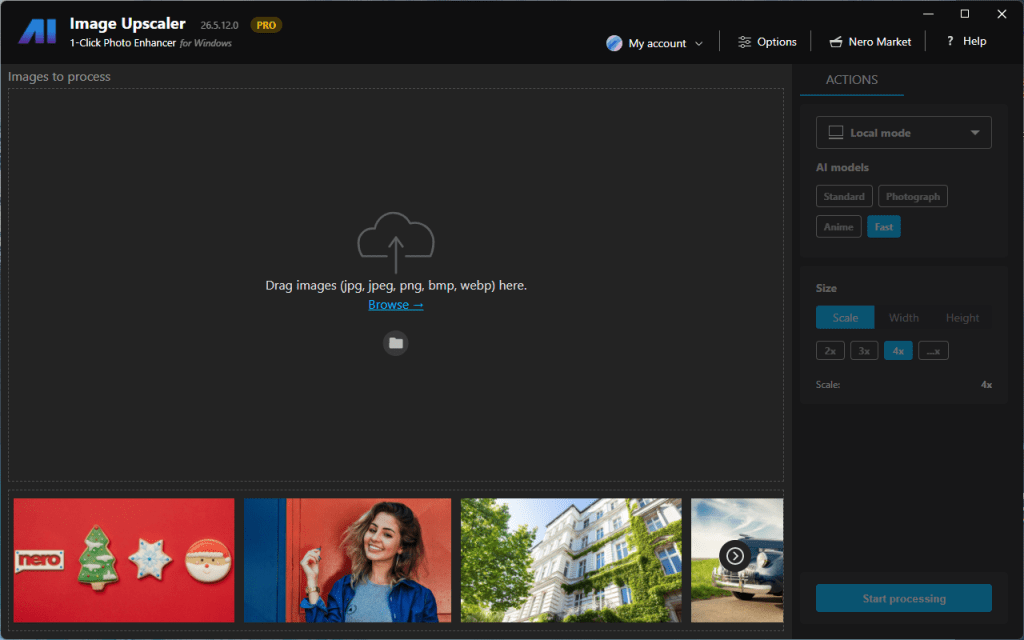
  1. Starten Sie die App.

    Run the app
    Run the app
  2. Importieren Sie das Bild.

    Import image
    Import image
  3. In der AI-Modell-Auswahl auf der rechten Seite des Einstellungsfensters können Sie auf die Modusoptionen klicken und den Online-Modus auswÀhlen.

    select online mode
    Select online mode
  4. Klicken Sie auf Start, um zu beginnen.
    Select AI model and click [Start processing]
    Select AI model and click [Start processing]
  5. Vergessen Sie nicht, das Ergebnis zu speichern.

    Save the result
    Save the result

ZusĂ€tzlich können Sie den bevorzugten Engine-Modus als Online-Modus festlegen und das Standardmodell in den Einstellungen angeben. Schalten Sie den Schalter fĂŒr den automatischen Start ein. Importieren Sie einfach das Bild, ohne auf die SchaltflĂ€che Start zu klicken, und die App fĂŒhrt automatisch die Bildhochskalierungsaufgabe aus.

Preferred engine, model and auto-start

Was sollte berĂŒcksichtigt werden?

Erstens benötigen Sie eine Internetverbindung.

Zweitens benötigen Sie die Pro-Version-Privilegien.

Drittens benötigen Sie ausreichend Guthaben.

Viertens mĂŒssen Sie der Datenschutzrichtlinie und den EULA zustimmen.

Schließlich speichern Sie die Bilder bitte umgehend in Ihrem lokalen Speicher, sobald die Aufgabe erfolgreich verarbeitet wurde.

Was ist Nero Muse?

Nero Muse ist eine AIGC-App, mit der Sie KI-Kunst auf der Grundlage von Eingabeaufforderungen und Fotos erstellen können. AIGC steht fĂŒr AI Generate Contents. Es ist ein auf kĂŒnstlicher Intelligenz basierendes Tool, das bei der Erstellung von Fotos und Bildern hilft.

Wie funktioniert Nero Muse?

Nero Muse verwendet maschinelle Lernalgorithmen, um den Kontext, den Ton und den Stil des Inhalts zu analysieren und zu verstehen. Anschließend generiert es einzigartige und hochwertige Fotos auf der Grundlage der von den Nutzern bereitgestellten Eingaben wie Aufforderungen und Referenzbilder.

What are the benefits of using Nero Muse?

Using Nero Muse can save time and effort in image creation. It can generate images quickly and efficiently. What’s more, it is a lot of fun to share your AI artworks and creations. You can also get inspired by the Artwork Gallery which is published by other creators.

Was sind die Vorteile der Verwendung von Nero Muse?

Nero Muse ist benutzerfreundlich und einfach zu bedienen.

Der Rookie-Modus ist fĂŒr Benutzer gedacht, die mit der KI-Bilderstellung ĂŒberhaupt nicht vertraut sind. Die Benutzer mĂŒssen nur ein Foto aus der Bibliothek auswĂ€hlen und einen Stil wĂ€hlen. Dann verwandelt die App das echte Foto in großartige KI-Kunst.

Der „Hall of Fame“-Modus ist fĂŒr Neulinge, die noch nie etwas von KI-Bilderzeugung gehört haben, etwas schwierig. Wie bei den anderen KI-Bildgeneratoren mĂŒssen die Benutzer eine Eingabeaufforderung schreiben, bevor die KI mit der Verarbeitung beginnt.

Was ist Prompt und wie funktioniert es?

Bei der Bilderzeugung ist ein Prompt eine kurze Beschreibung oder ein Satz, der dem KI-Modell eine Idee oder ein Konzept liefert, aus dem es ein Bild erzeugen soll. Das Modell verwendet dann Algorithmen, um ein Bild zu erstellen, das dem Prompt entspricht. Die QualitÀt des erzeugten Bildes hÀngt von der QualitÀt des Modells und der Detailgenauigkeit des Prompts ab.

Wie schreibt man eine Eingabeaufforderung fĂŒr die Bilderzeugung?

Um eine gute Aufforderung zur Bilderstellung zu schreiben, sollten Sie so spezifisch und detailliert wie möglich sein. Verwenden Sie eine beschreibende Sprache, um den Stil, den Ton und den Kontext zu vermitteln, den das Bild haben soll. Es ist auch hilfreich, Referenzbilder oder Beispiele anzugeben, damit das KI-Modell besser versteht, wonach Sie suchen. Experimentieren Sie mit verschiedenen Eingabeaufforderungen und finden Sie heraus, was fĂŒr Sie am besten funktioniert.

Ist die Nutzung kostenlos?

Ja, Nero Muse bietet eine kostenlose Version mit eingeschrĂ€nkten Funktionen. Mit der kostenlosen Version können Benutzer Bilder mit einigen grundlegenden Stilen und begrenzter QualitĂ€t erstellen. Sie können auf die Pro-Version upgraden, um unbegrenzten Zugriff auf alle Funktionen und Stile zu erhalten. Die Pro-Version ist gegen eine monatliche oder jĂ€hrliche AbonnementgebĂŒhr erhĂ€ltlich.


Nero KnowHow 000304

Visit Nero Muse Official site →

Leave us feedback at feedback@nero.com

Changelog – Image Upscaler MS

This is the changelog for Image Upscaler Microsoft Store

2.0.51.0

2025-03-27

Improvements

  • Now we will provide you a discount on Lifetime Plan regularly. Don’t miss out the offer!

    Join the Microsoft Store sales
    Join the Microsoft Store sales
  • Localization update for German


2.0.50.0

2025-03-07

New features

  • 1-Click Start/Cancel for Multiple Images
    You can now start or cancel upscaling with a single click for all selected images. This streamlined feature saves time and gives you greater control over batch processing.
1-click to start all images
  • New Local AI Model – Iris
    Meet Iris, our latest model designed to enhance fine contrast details like eyes, fur, hair, and feathers. Perfect for portraits and close-ups, Iris brings out the delicate textures in your images.
Meet our new model IRIS

Note: The „Iris“ model is paid-only. 

  • Seamless Editing in PhotoSnap
    After upscaling with Nero AI Image Upscaler, you can now fine-tune your images directly in PhotoSnap. Adjust colors, apply filters, retouch faces, add clip art, text, and more—without missing a beat.
Seamless Editing in PhotoSnap

Improvements

  • You can now enable face enhancement with any online upscaling model, thanks to Nero Cloud GPU. Enjoy sharper, more detailed facial features across all your images.
Face Enhancement with All online Models
  • You can now set a targeted scaling ratio for online upscaling models, giving you more control over the final image size and quality.
Custom Scaling Ratios for Online Upscaling

Bugfixes

  • We’ve fixed an issue where the app failed to load the local upscaling engine on certain devices.


2.0.48.0

2025-02-12

New features

  • In-app purchase update – now you can subscribe to our Lifetime Plan.


2.0.43.0

New features

  • Model tips can now be shown or hidden based on your preferencesOption to turn off the model tips in Image Upscaler

2.0.41.0

2024-12-11

New features

  • Now you can set the default upscaling ratio and models for all remaining unprocessed images with just 1-click.
    • via Options page:Auto-start option for face recovery
    • via the processing control zone:Apply model and size settings to all the unprocessed images

For more infomation, please refer to How to set model and size settings to all unprocessed photos quickly with Image Upscaler

2.0.37.0

2024-05-20

New features

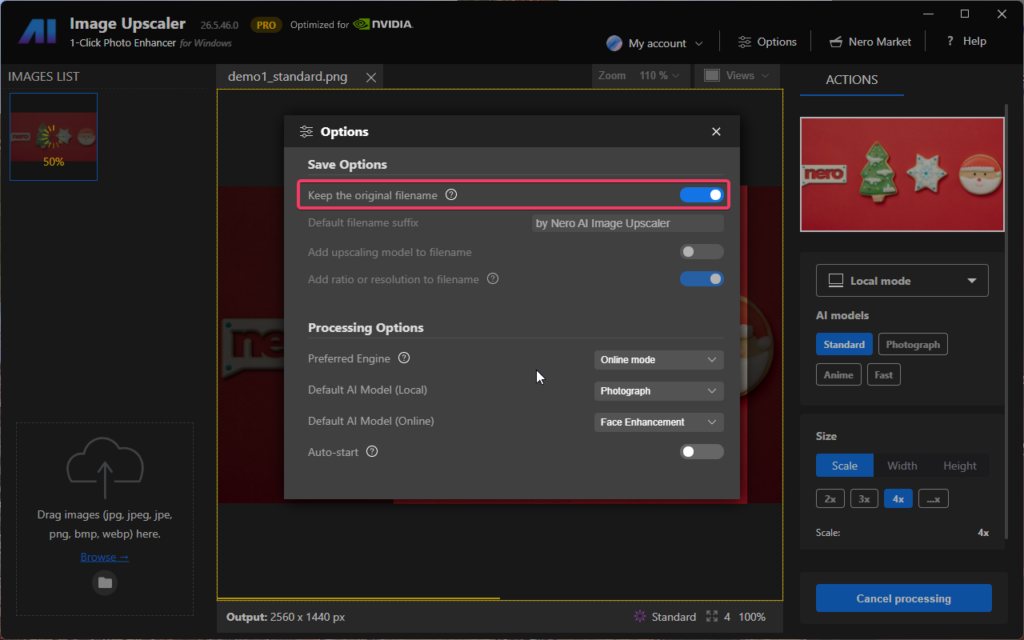
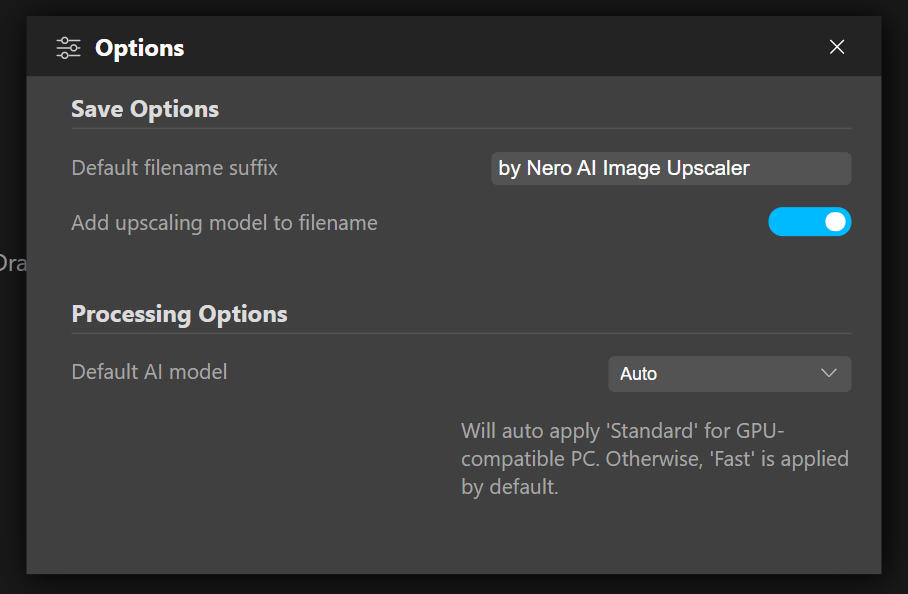
  • Now you can choose to keep the original filename when you output results.
    Options - keep original filename
    Options – keep original filename

    Warning: This option might overwrite your original files when you export the results to the same directory as the original files.

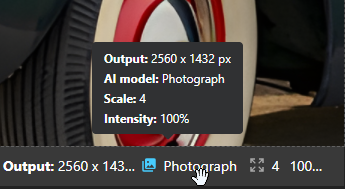
  • You can see all upscaling info with the cursor hovering on output image
    hovering for image info
    hovering for image info

2.0.25.0

2023-06-30

New features

If you like our app, share you love and rate for us!

rate for us
rate for us

Or give us feedback via quick survey.

2.0.21.0

2023-06-01

New features

  • New model to restore blurred faces.

  • Zoom in to the image at 300% level.


2.0.16.0

2023-02-03

New features

setup default ai model

  • Now you can set up the default AI model in the Options.
  • Support new format .webp
  • A 7-day free trial is now available.


2.0.12.0

2022-10-10

New features

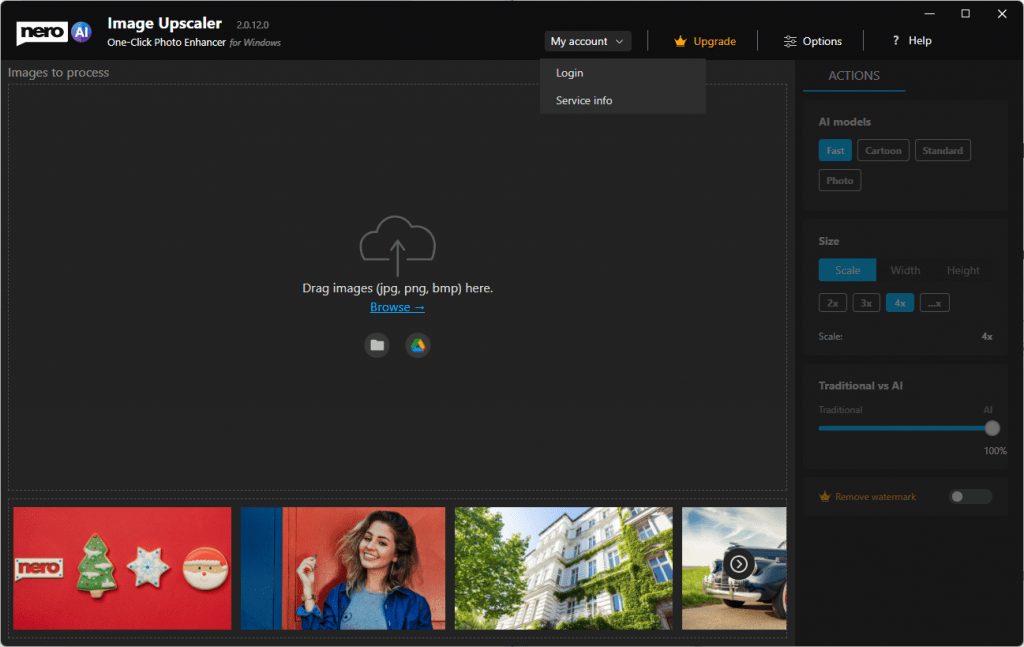
  • Sign in or create a new Nero Account for a special gift now!

sign in

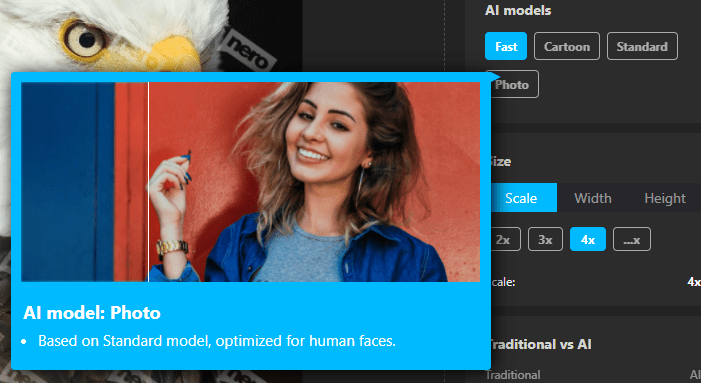
  • Hints with gif when cursor hovers on the model.

tooltip for models

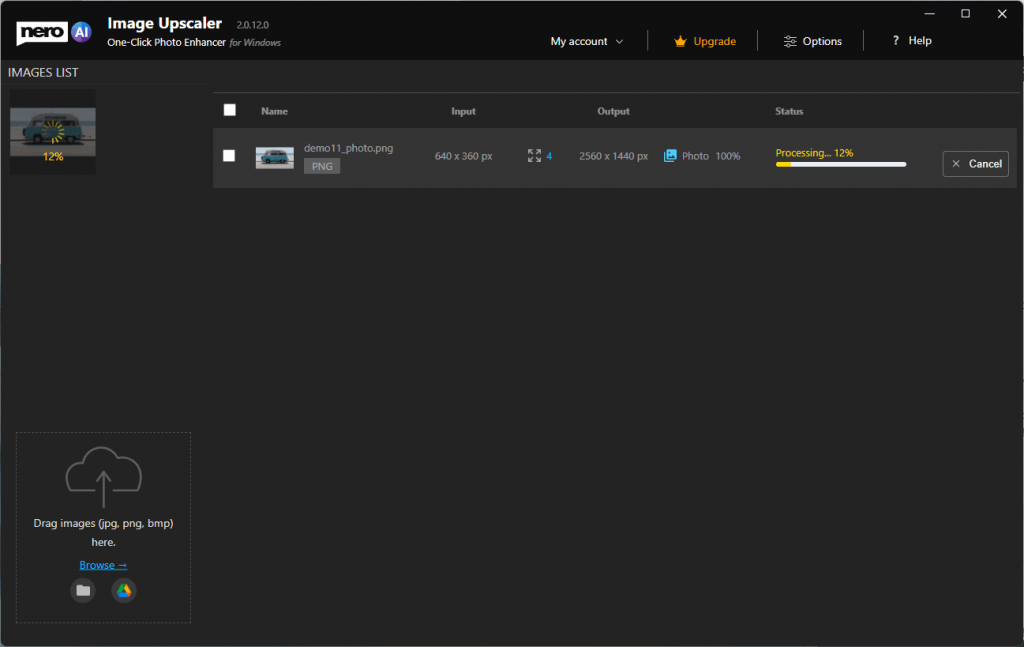
  • Show the progress status in the thumbnail list for the image under processing.

progress status

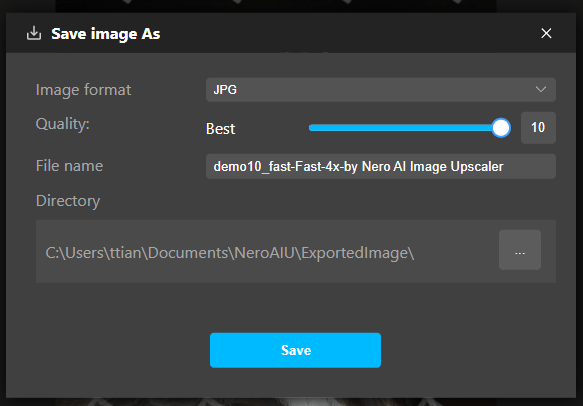
  • Support compression settings when saving results as jpeg files.

jpeg compressions

  • Keep original EXIF data in the result.

Improvements

  • Better sample image with result presenting.
  • The project will not be interrupted when the PC sleep.
  • Other improvements for stability and reliability.


2.0.6.0

2022-08-29

Improvements

  • Some improvements for Intel CPU acceleration.


2.0.3.0

2022-8-18

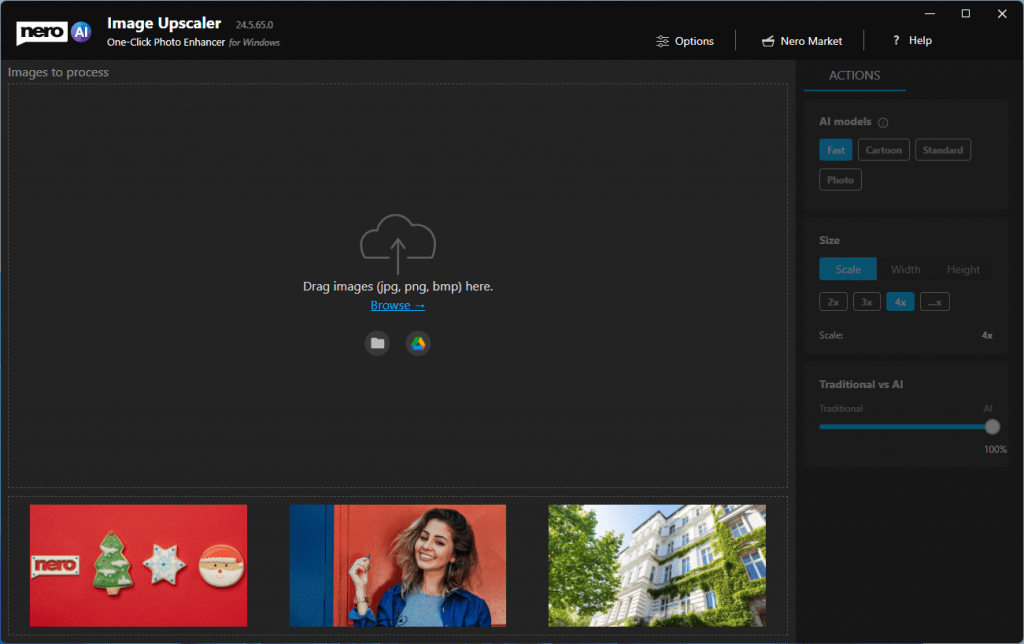
New

  • Some example images to start with.new start with example
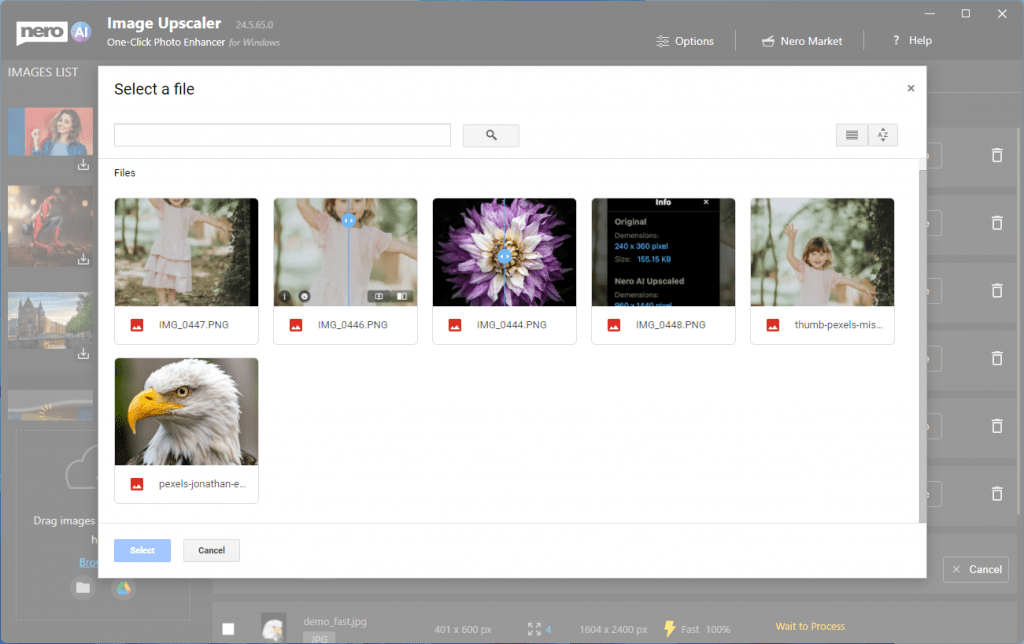
  • You can input images from Google Drive

open from google drive

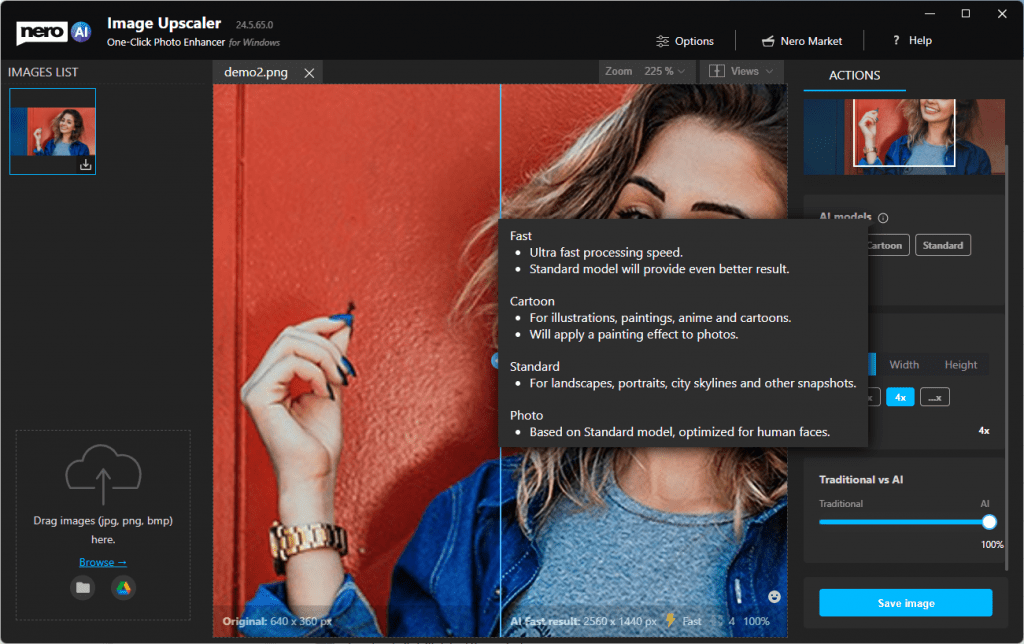
  • AI model selection is now available. Try different models for different photo till you get happy result.

ai models

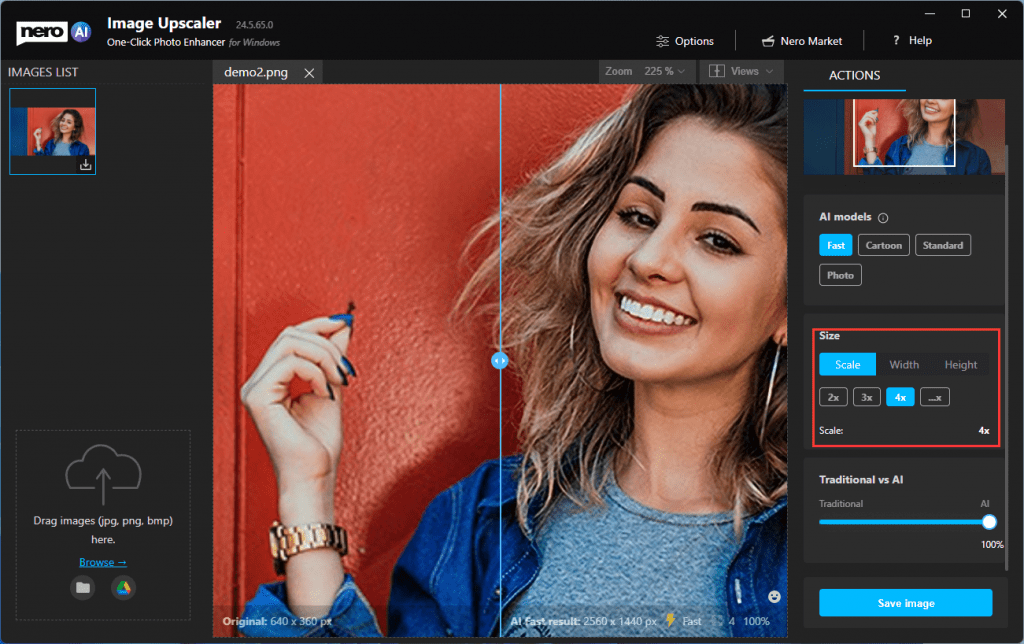
  • You define how big the result goes. 2x, 4x or by targeted width and height values.

more scale ratio

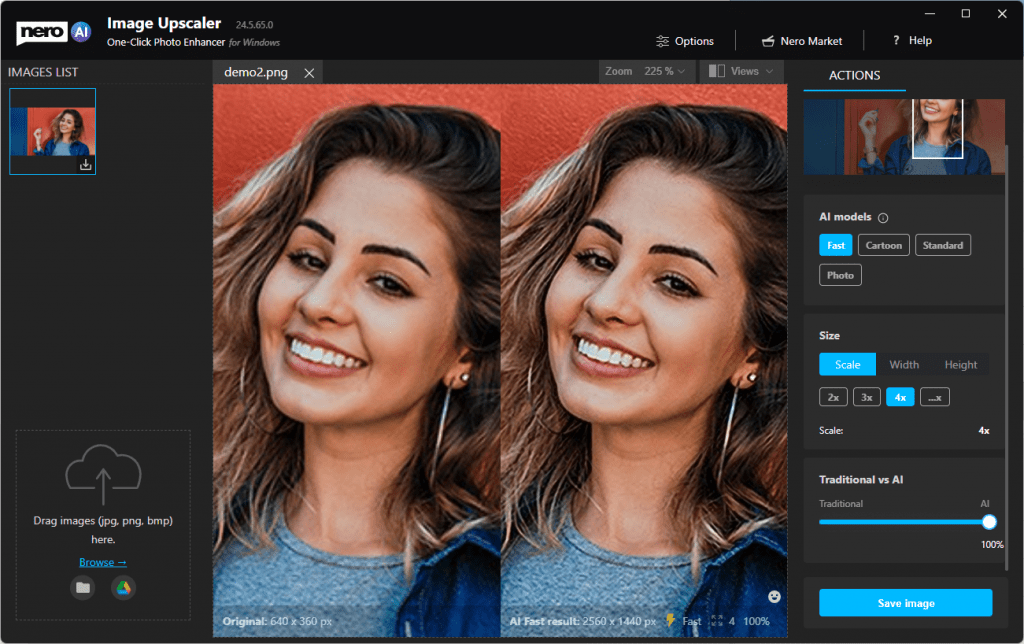
  • More comparison views:

1on1 view

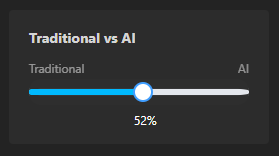
  • Compare traditional and AI results with slide bar.

traditionalvsai

  • Batch processing is possible and up to 20 images in a row.

batch process

Improvements

  • Giant improvements on processing speed with NVIDIA GPU acceleration.
  • Save files with customized file name.


1.0.9.0

2021-11-1

Features

Microsoft Store initial release of Nero AI Image Upscaler – use artificial intelligence to increase image resolution with enhanced sharpness and detail.

  • Upscale rate: 4x.
  • Remove noise and jpeg compression artifacts.
  • Support JPEG, PNG.


Nero KnowHow 00287