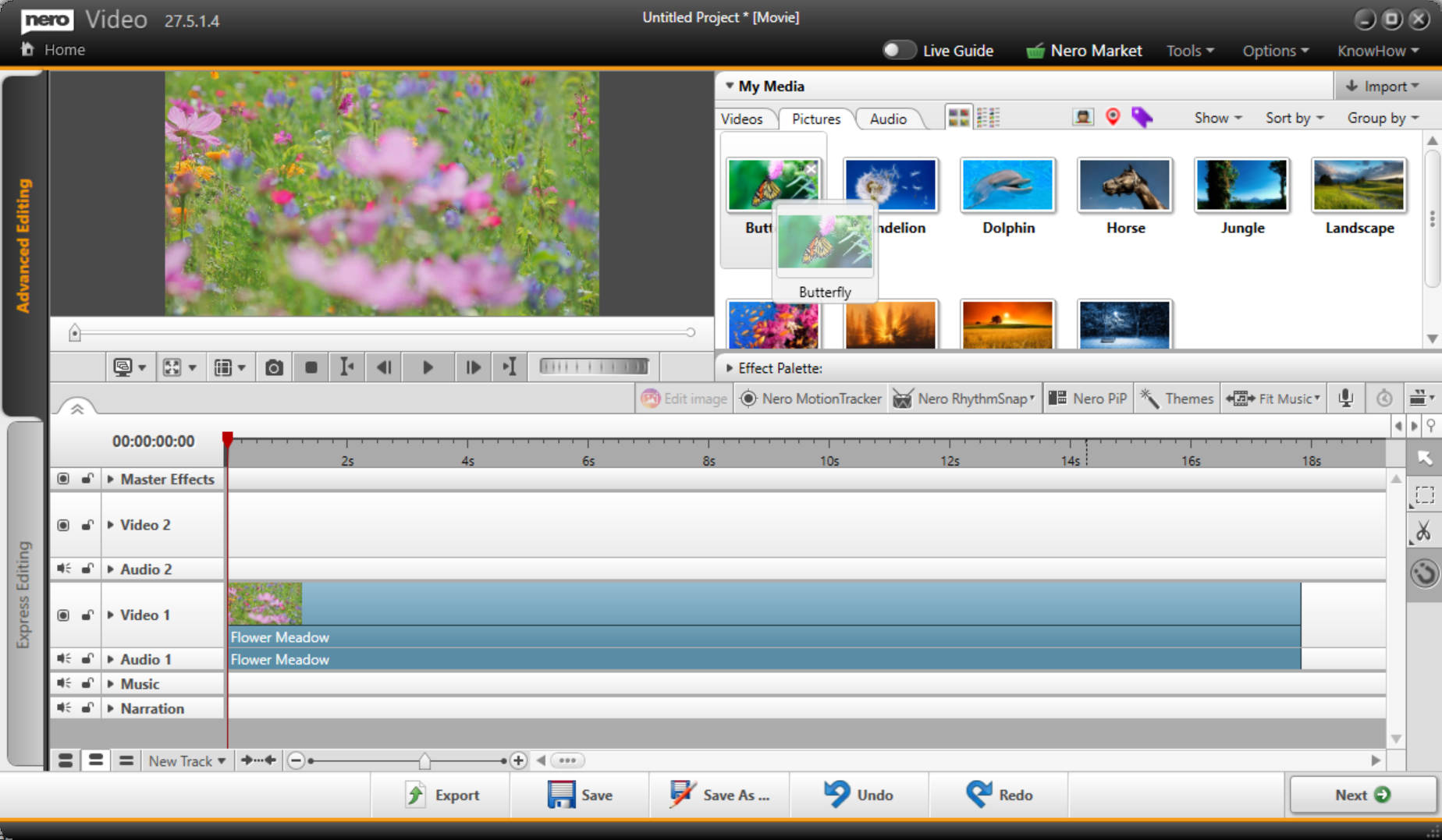
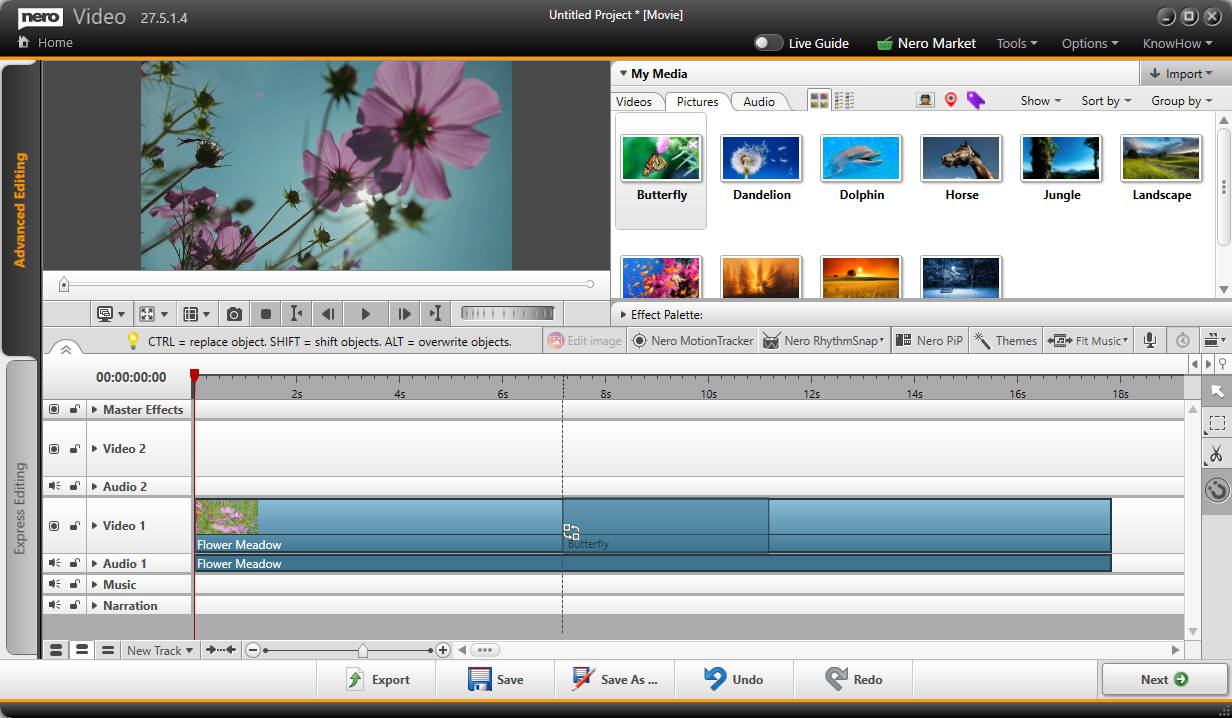
Um Mediendateien in der Timeline zu ersetzen, ohne ihre Einstellungen zu verlieren, bietet Nero Video jetzt den Ersetzen-Modus, der das Austauschen ermöglicht, indem Sie beim Ziehen der Mediendatei aus der Bibliothek in die Timeline einfach die “STRG”-Taste („CTRL“) drücken.
Die einzige Einschränkung des Ersetzen-Modus ist, dass die ersetzende Mediendatei länger sein muss als das zu ersetzende Segment.
Video- und Bilddateien können das Segment auf der Videospur ersetzen. Audiodateien können das Segment auf der Audio-/Musik-/Erzählspur ersetzen. Effekte können das Effektsegment auf der Mastereffektspur ersetzen.
*Kaufen Sie jetzt die Dauerversion von Nero Video 2025 oder die Dauerversion/Abonnementversion von Nero Platinum Suite 2025 und Sie erhalten 100 Nero Credits für AI-Onlinedienste.
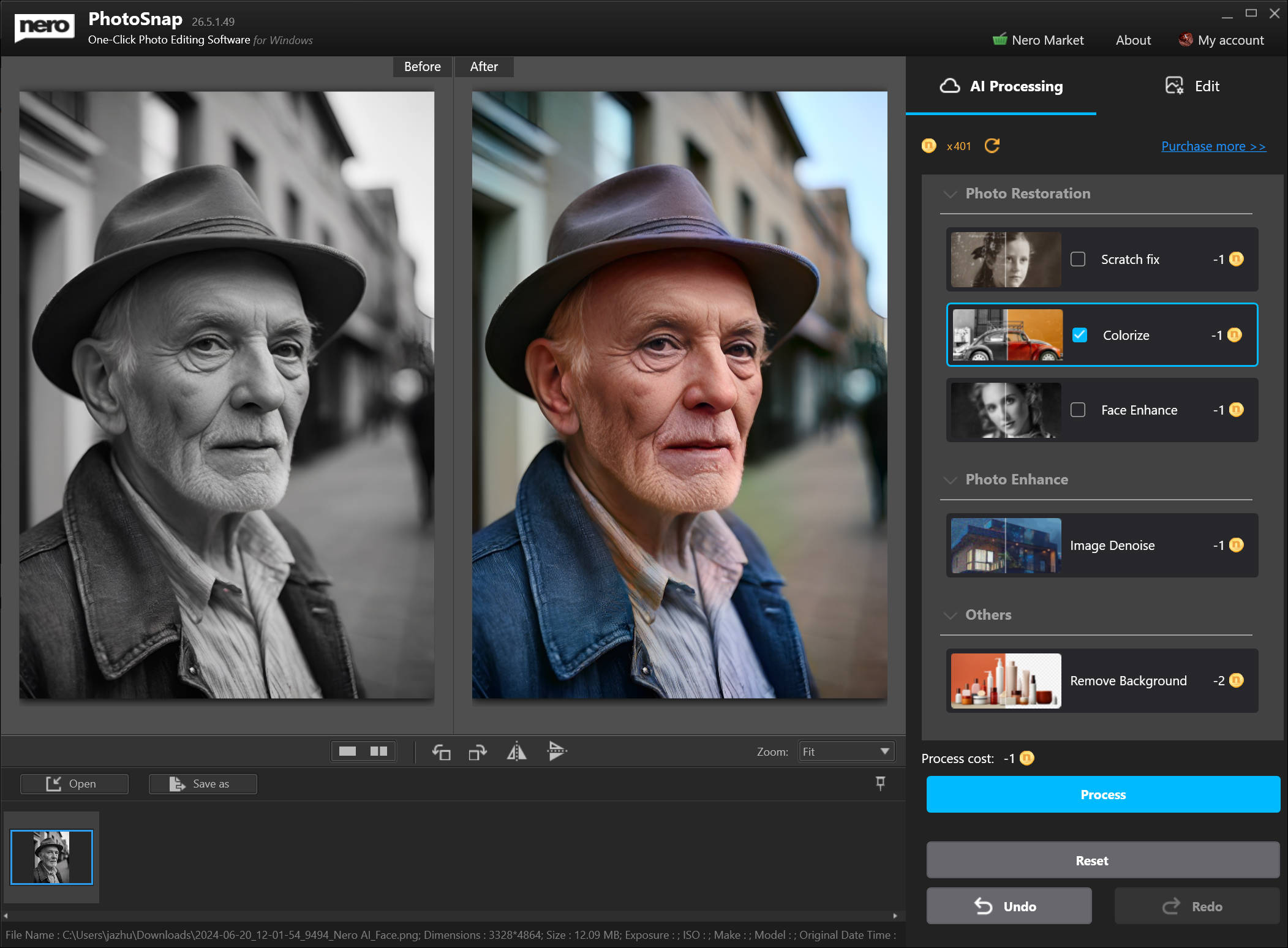
Nero PhotoSnap hat die KI-Bildverarbeitung per Onlinedienst integriert, darunter die beliebte Nero KI-Fotorestaurierung mit Funktionen wie Kratzerentfernung, Kolorierung von Schwarz-Weiß-Fotos und Gesichtsverbesserung. Zusätzlich weitere Werkzeuge wie Rauschunterdrückung und Hintergrundentferner, um Fotos mit nur einem Klick zu bearbeiten.
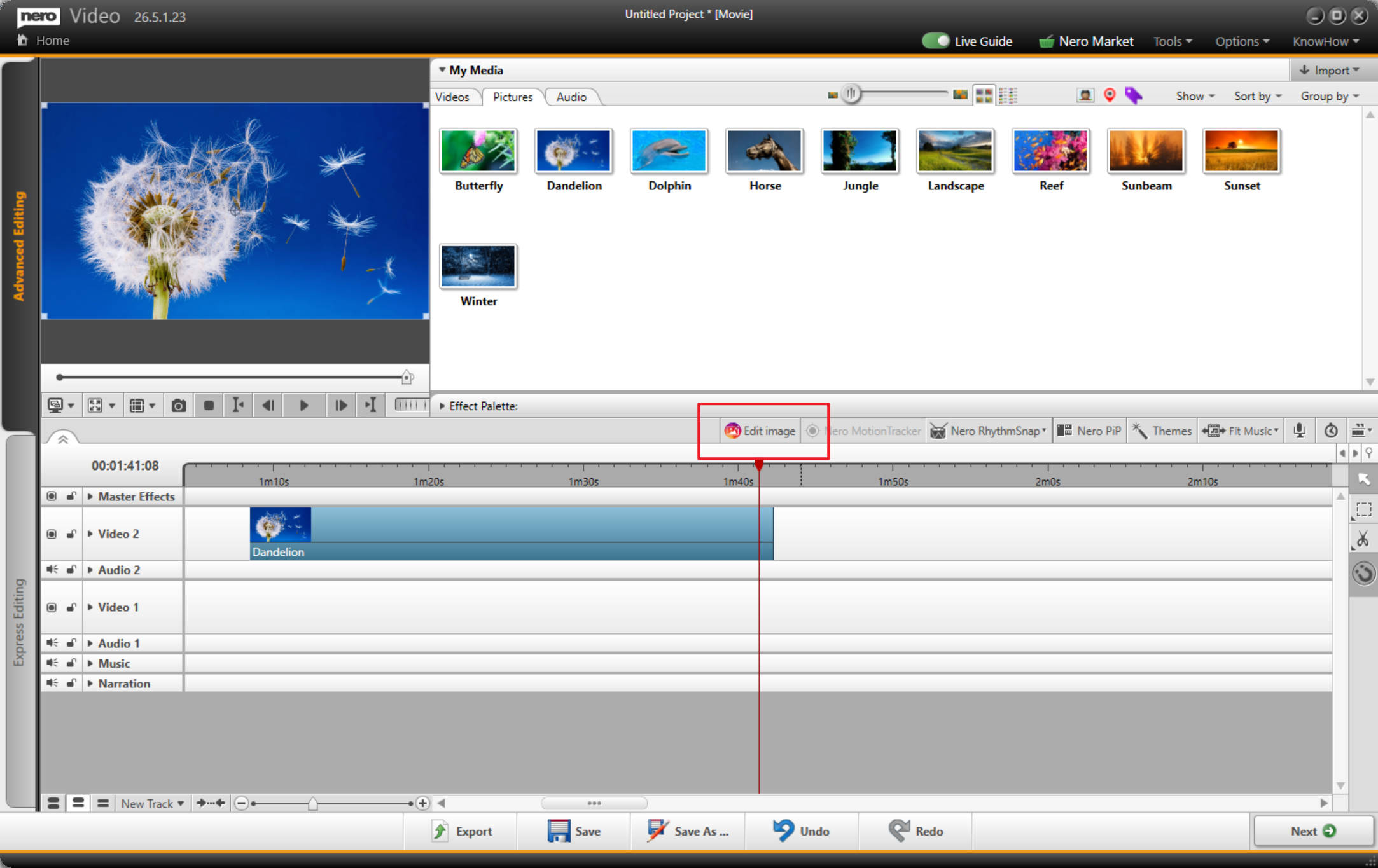
Zusätzlich können Nero Video und Nero MediaHome Bilder zu Nero PhotoSnap übertragen und das bearbeitete Bild zurück in die Bibliothek transferieren. Jetzt können Sie die KI-Bildverarbeitung auch in Nero Video und Nero MediaHome mit Nero PhotoSnap genießen.
*Kaufen Sie jetzt die Dauerversion/Abonnementversion der Nero Platinum Suite 2025 und Sie erhalten 100 Nero Credits für KI-Onlinedienste.
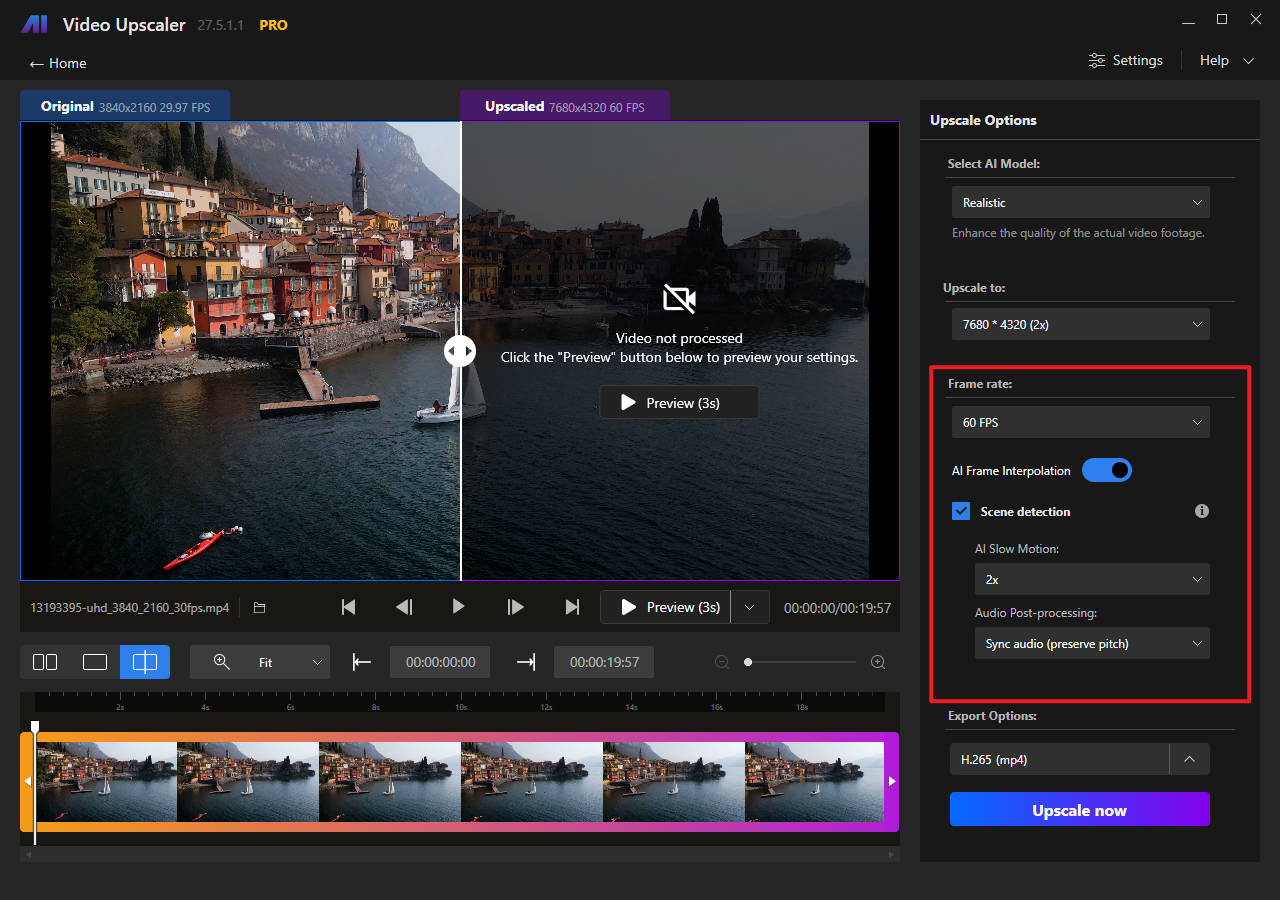
Die Nero KI-Zwischenbild-Berechnung ist eine Technik, die künstliche Intelligenz verwendet, um zusätzliche Bilder zwischen den vorhandenen Einzelbildern in einem Video zu erstellen. Dieser Prozess verbessert die Flüssigkeit der Bewegung, indem die Bildwiederholrate erhöht wird, wodurch das Video flüssiger und optisch ansprechender erscheint.
Die KI-Zwischenbild-Berechnung wird automatisch aktiviert, wenn Sie eine Bildwiederholrate wählen, die höher ist als die ursprüngliche.
Der Szenenerkennung wird verwendet, um unpassende Bilder zu vermeiden, die durch die Interpolation bei Szenenwechseln entstehen. Wenn es in Ihrem Video keine Szenenwechsel gibt, können Sie diese Option deaktivieren, um die Berechnung zu beschleunigen.
KI-Zeitlupe
Die KI-Zeitlupe kann nur aktiviert werden, wenn die KI-Zwischenbild-Berechnung aktiviert ist.
Wählen Sie den Zeitfaktor von 2x bis 8x und wählen Sie die Methode zur Audio-Nachbearbeitung, um die Verarbeitung zu starten.
Methoden der Audio-Nachbearbeitung:
Original-Audio beibehalten: Audio wird nicht verarbeitet, und die ursprüngliche Länge bleibt erhalten. Bitte beachten Sie, dass das Audio möglicherweise nicht mehr synchron zum Video ist.
Audio entfernen: Audiospur entfernen, geeignet für Benutzer, die das Audio separat bearbeiten möchten.
Audio synchronisieren (Tonhöhe beibehalten): Das Tempo des Audios wird verlangsamt, aber die Tonhöhe bleibt erhalten. Bitte beachten Sie, dass das Audio seltsam klingen kann, wenn die Geschwindigkeit sehr niedrig ist.
Audio synchronisieren (Tonhöhe nicht beibehalten): Das Tempo des Audios wird verlangsamt, und die Tonhöhe wird niedriger als das Original.
Gesichtsverbesserungsmodell
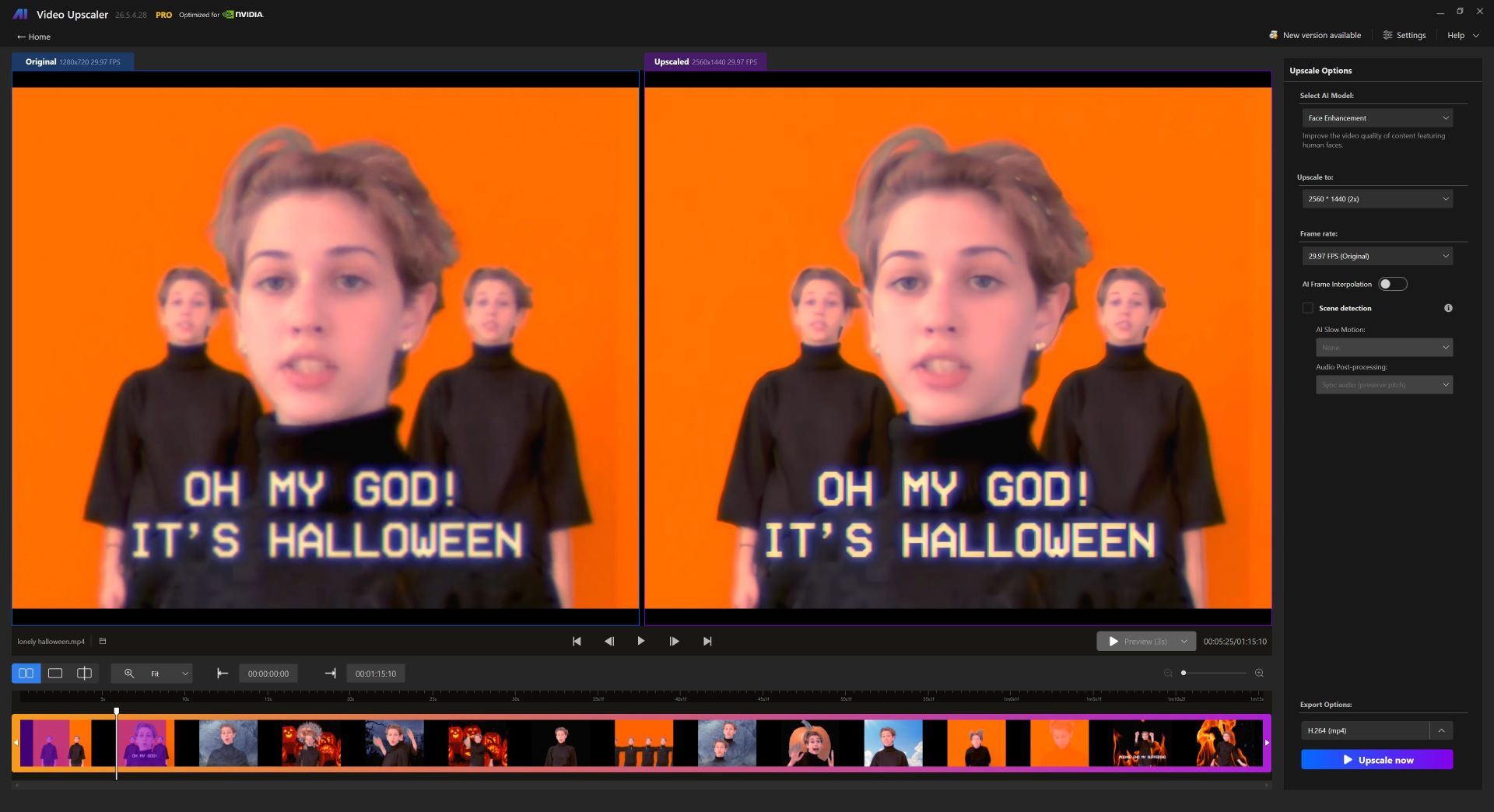
Das Gesichtsverbesserungsmodell wird als erstes Online-Update für die unbegrenzte und die Abo-Version des Nero AI Video Upscaler veröffentlicht werden.
Dieses Modell konzentriert sich darauf, unscharfe Details auf den Gesichtern im Video zu verbessern.