How to Export SUB/IDX Subtitles When Ripping DVDs with Nero Recode

When ripping a DVD with Nero Recode, you may want to keep the original subtitles without permanently embedding them in the video. With the external SUB/IDX subtitle export option, you can save selected DVD subtitle tracks separately from the video, giving you more flexibility when watching your ripped movies.

This guide explains how to select DVD subtitles, export them as external SUB/IDX files, and troubleshoot common issues.
What Are External SUB/IDX Subtitles?

SUB/IDX is a subtitle format commonly used for DVD-style image-based subtitles. Unlike text-based formats such as SRT, these subtitles preserve the original subtitle appearance as images, including styling and positioning.

The format consists of two companion files:

  • SUB file (.sub): Contains the subtitle image data.
  • IDX file (.idx): Contains subtitle index information, including timing and information needed to select and display the subtitles.

Both files are needed for proper playback. Keep them together and use a compatible media player.

Exporting subtitles separately allows you to retain the subtitle track without burning the subtitles directly into the video image.

How to Export SUB/IDX Subtitles in Nero Recode

Follow these steps to export subtitles while ripping a DVD.

Step 1: Import Your DVD

  1. Launch Nero Recode.
  2. Import the DVD you want to rip.
  3. Select the title you want to convert.
  4. Open the title’s Audio & Subtitles settings.

Nero Recode displays the available audio and subtitle tracks for the selected title.

Step 2: Open the Subtitles Tab

In the Audio & Subtitles window, select the Subtitles tab.

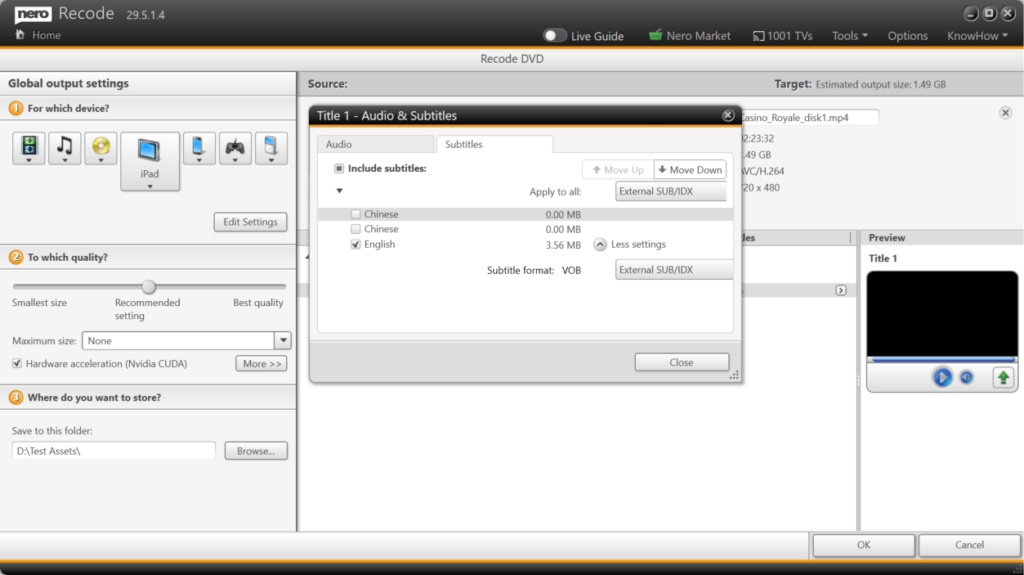
Enable Include subtitles to include subtitle tracks in your output settings. The available subtitle tracks are listed with their language names and, where applicable, their estimated sizes.

Step 3: Select the Subtitle Tracks You Need

Select the checkbox next to each subtitle track you want to export.

For example, if the DVD contains Chinese and English subtitles, you can select English only or choose both languages if you want to keep multiple subtitle options.

Consider the following when choosing your tracks:

  • Select the language you intend to use during playback.
  • Keep multiple languages if you need them for different viewers.
  • Check the estimated size of each track when managing storage space.

Step 4: Choose External SUB/IDX as the Subtitle Format

Locate the Subtitle format setting and select External SUB/IDX.

If you want to apply this setting to multiple titles, use the Apply to all control where available and choose External SUB/IDX for the subtitle format.

This setting tells Nero Recode to export the selected DVD subtitles as external SUB/IDX files instead of relying on subtitles being permanently embedded in the video.

Tip: Confirm the format for the selected subtitle track before proceeding. If your DVD contains several titles, check that the intended subtitle settings apply to each relevant title.

Step 5: Configure the Output and Start Ripping

  1. Close the Audio & Subtitles settings window.
  2. Review the output device, quality, maximum size, and destination folder.
  3. Confirm your selections.
  4. Click OK to start the ripping or conversion process.

When processing is complete, open the output folder and check for the exported subtitle files.

For each exported subtitle track, look for the corresponding .sub and .idx files. Keep both files together with clear, matching filenames so that you can identify the correct subtitle track later.

Step 6: Test the Exported Subtitles

Open the converted video in a media player that supports external SUB/IDX subtitles.

If the subtitles do not appear automatically, use the player’s subtitle menu to load the corresponding IDX file. Confirm that the subtitles display correctly and remain synchronized with the video.

Why Export Subtitles Separately?

External subtitles are useful when you want more control over how you watch your videos.

  • Flexible playback: Turn subtitles on or off in a compatible player.
  • Multilingual viewing: Keep separate subtitle tracks for different languages.
  • Preserved appearance: Retain image-based DVD subtitle styling and positioning.
  • Cleaner video output: Avoid permanently burning subtitles into the video when a separate subtitle track is preferred.
  • Reusable subtitle files: Keep subtitle files alongside the video for later playback on compatible devices and applications.

Keep in mind that subtitle support varies by media player and device. Not every player supports SUB/IDX files.

Frequently Asked Questions

1. What is the difference between SUB/IDX and SRT?

SUB/IDX is an image-based subtitle format commonly used for DVD subtitles. SRT is a text-based format that stores subtitle text and timestamps.

SUB/IDX is useful when preserving the appearance of DVD subtitles is important. SRT is generally more convenient when you want to edit subtitle text or use it with a wide range of applications.

2. Why are there two subtitle files, .sub and .idx?

The two files contain different parts of the subtitle information. The SUB file stores the subtitle images, while the IDX file contains the index information needed to locate and display them.

Both files are required. If either file is missing, the subtitles may fail to load or display correctly.

3. Will the subtitles be permanently embedded in my video?

No. The purpose of choosing External SUB/IDX is to export the selected subtitles separately rather than permanently burning them into the video image.

The resulting video and subtitle files are separate, allowing compatible media players to display or hide the subtitles during playback.

4. Can I export multiple subtitle languages from one DVD?

Yes. You can select multiple available subtitle tracks in the Subtitles tab, provided those tracks are available for the selected title and the export settings support them.

Each exported language should be identifiable by its associated subtitle files. Keep the files organized so you can select the correct language during playback.

5. Can I use SUB/IDX subtitles with any media player?

No. The player must support external SUB/IDX subtitles. Some players support SRT but not image-based subtitle formats.

If your subtitles do not appear, check the player’s subtitle-format support and load the IDX file manually if necessary.

6. Can I edit the text in a SUB/IDX subtitle file?

Not as easily as an SRT file. SUB/IDX subtitles store text as images rather than ordinary editable text.

If you need to change dialogue, correct spelling, or translate subtitles, a text-based format such as SRT is generally more convenient. Converting image-based subtitles into editable text may require optical character recognition (OCR).

7. What should I do if the exported subtitles are missing?

First, check the output folder for both the .sub and .idx files. Make sure the files were not moved or deleted and that the output settings were configured to export the subtitles externally.

If the files are missing, review the selected subtitle track and format settings, then try the conversion again.

8. Why are the subtitles out of sync with the video?

Synchronization issues may arise if the subtitle timing does not match the converted video, or if the subtitle files are being used with a different video version.

Check that the subtitle files belong to the correct video and title. Test them in a compatible media player and use its subtitle-delay controls if necessary.

9. Can I export subtitles from every video file using SUB/IDX?

The workflow described here is specifically for DVD subtitle tracks. SUB/IDX is associated with image-based subtitle data commonly found on DVDs, and the available export options depend on the source and Nero Recode’s supported settings.

For other video sources, check the subtitle formats supported by Nero Recode and choose the format that best matches your playback or editing requirements.

Conclusion

Nero Recode makes it possible to keep DVD subtitles separate from the converted video by selecting External SUB/IDX in the Audio & Subtitles settings.

By choosing the required language tracks, checking the output format, and keeping the paired SUB and IDX files together, you can preserve DVD-style subtitles for flexible playback in compatible media players.
How to Edit Mouse Cursor and Balance Audio in Nero Screen Recorder

When creating software tutorials, product demonstrations, or training videos, small details can make a big difference. A clearly visible mouse cursor helps viewers follow your actions, while balanced audio makes your recording easier to understand.

Nero Screen Recorder 2027 introduces new post-recording controls that let you customize the mouse cursor and adjust audio levels directly in the built-in editor. You can personalize the cursor’s appearance, highlight mouse clicks, and fine-tune the balance between system sound and microphone audio without switching to another editing application.

In this guide, we’ll show you how to use these features to polish your screen recordings.

1. Customize the Mouse Cursor After Recording

The mouse cursor is often the main guide in a screen recording. Whether you’re demonstrating software settings, explaining a workflow, or presenting an online tool, a clearly visible cursor helps viewers understand exactly where to look.

With Nero Screen Recorder, you can adjust the cursor’s appearance and size after recording.

Step 1: Configure Mouse Cursor Recording

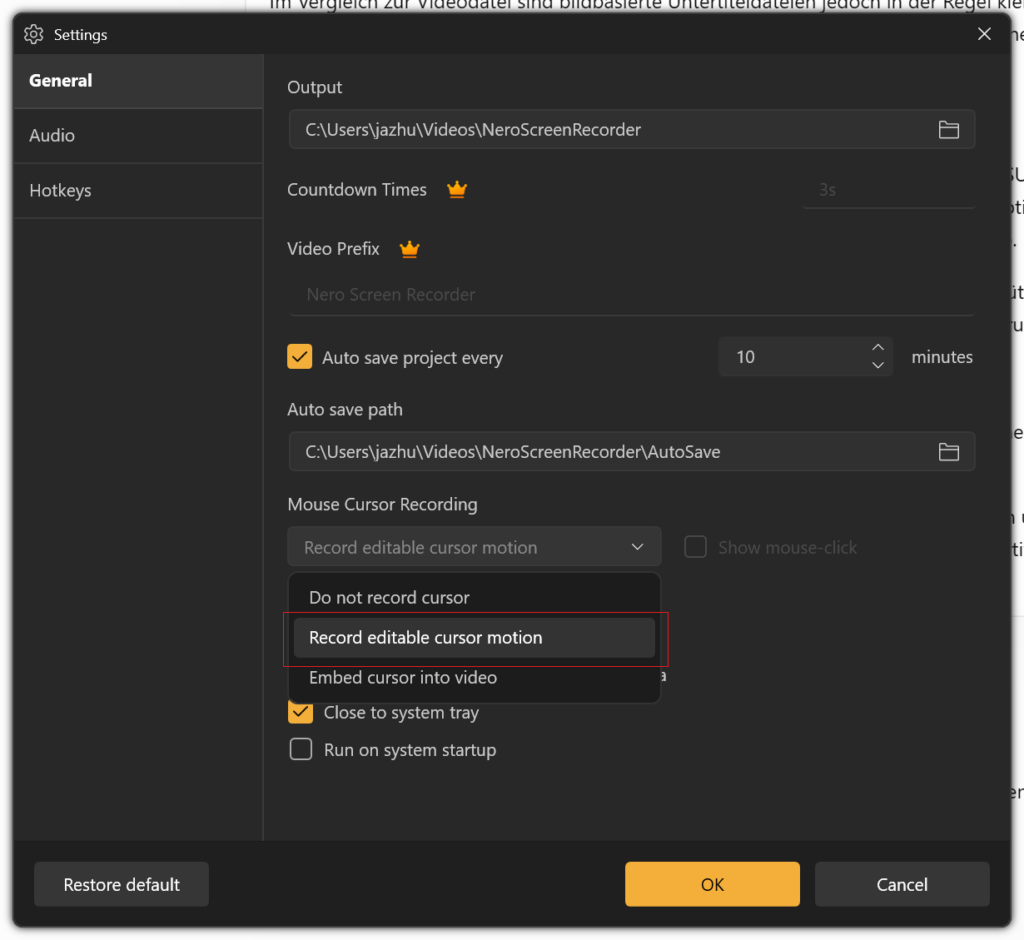
Before recording, open Settings and locate the Mouse Cursor Recording section under General.

Choose one of the available recording modes:

  • Do not record cursor: Excludes the mouse cursor from the recording.
  • Record editable cursor motion: Records the cursor movement separately so you can customize its appearance during post-production.
  • Embed cursor into video: Includes the cursor directly in the recorded video.

If you want to customize the cursor after recording, select Record editable cursor motion.

This option is especially useful for tutorials and demonstrations because it gives you more flexibility when editing the cursor’s appearance.

Step 2: Open the Appearance Panel

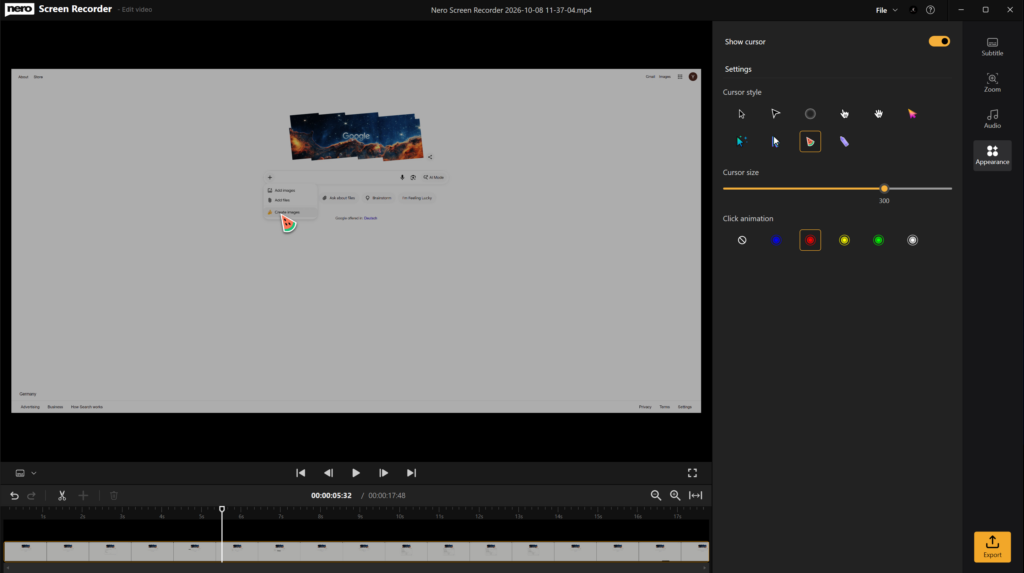
After recording, open your video in the built-in editor and select Appearance in the right-hand panel.

Enable Show cursor to display the cursor in the preview.

You can then customize its appearance using the available controls.

Step 3: Choose a Cursor Style

Under Cursor style, select the design that best fits your video.

Depending on the available options, you can choose from different pointer shapes and visual styles, including standard pointers, hand-shaped pointers, circular highlights, and colorful cursor designs.

Consider your audience and recording background when choosing a style:

  • Use a standard pointer for a clean, professional look.
  • Choose a larger or more distinctive pointer when recording detailed software tutorials.
  • Use a colorful cursor to make important actions easier to spot in visually complex recordings.

A consistent cursor style helps viewers follow your demonstrations without unnecessary distractions.

Step 4: Adjust the Cursor Size

Use the Cursor size slider to make the cursor larger or smaller.

A larger cursor is helpful when demonstrating small interface elements, menu options, or detailed settings. A smaller cursor may be more appropriate when you want to keep the screen uncluttered.

Preview the result and choose a size that remains easy to see without covering important interface elements.

Step 5: Add Click Animations

Nero Screen Recorder also lets you customize the visual effect shown when you click the mouse.

Under Click animation, choose the effect that best suits your recording. Available options include different colored rings and a setting that disables the click animation.

Click animations can help viewers identify important actions, especially when you are explaining a sequence of steps or demonstrating where to select a button.

For example, a colored ring around a click can draw attention to a menu selection without requiring additional annotations.

Tip: Use click animations selectively. A clear cursor and occasional click highlights usually work better than effects that distract from the content.

2. Adjust Audio Balance in the Built-in Editor

Clear visuals are only half of a good screen recording. If your system audio is too loud or your microphone narration is difficult to hear, viewers may struggle to follow your explanation.

Nero Screen Recorder 2027 lets you adjust audio levels in the built-in editor, helping you balance system sound and microphone audio after recording.

Step 1: Open the Audio Panel

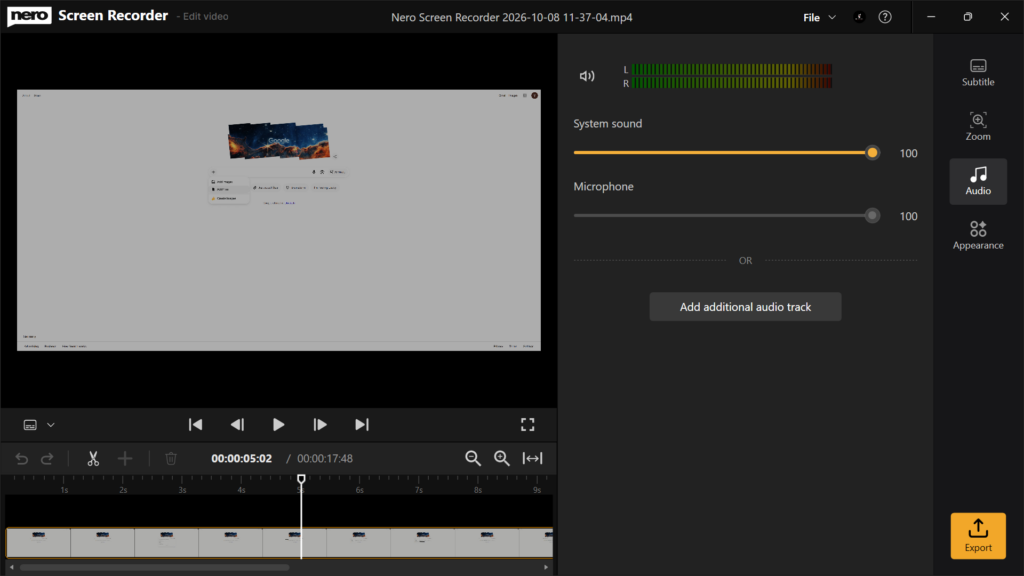
Open your recording in the editor and select Audio in the right-hand panel.

The panel displays separate controls for:

  • System sound: Controls the level of audio captured from your computer, such as application sounds, website audio, and other system playback.
  • Microphone: Controls the level of your recorded voice or other microphone input.

The level sliders let you adjust these sources independently.

Step 2: Adjust the System Sound Level

Use the System sound slider to increase or decrease the volume of your computer’s audio.

For example, if a tutorial includes background music or application sounds that overpower your narration, lower the system sound level.

If the computer audio is too quiet to hear important notifications or demonstrations, increase it as needed.

Step 3: Adjust the Microphone Level

Use the Microphone slider to control the volume of your recorded narration.

If your voice sounds too quiet compared with the system audio, increase the microphone level. If your narration is too prominent, reduce it.

The goal is to make speech easy to understand while keeping other sounds at an appropriate level.

Step 4: Find a Suitable Balance

Play the recording and listen to both audio sources together.

A useful starting point for a narrated software tutorial is to make the voice the primary audio source while keeping system sounds audible but secondary.

Adjust the two sliders until the narration and system audio work well together. The ideal settings depend on the original recording levels and the type of content.

Important: Changing a volume slider adjusts the playback level of its corresponding audio source. It does not necessarily remove background noise, repair distortion, or recover audio that was never captured.

Step 5: Add an Additional Audio Track if Needed

The Audio panel also includes an Add additional audio track option.

Use this option when you want to add another audio source to your editing workflow, such as supplementary audio for your video.

After adding a track, review the available controls and listen to the combined result to ensure the audio remains clear and balanced.

Step 6: Export Your Edited Video

Once you are satisfied with the cursor appearance and audio balance, click Export to produce your finished video.

Review the exported file to confirm that the cursor is visible as intended, click animations appear correctly, and the audio levels are suitable for your audience.

3. Create More Professional Screen Recordings

Combining mouse cursor editing with audio balancing helps you create more polished screen recordings for a variety of purposes.

  • Software tutorials: Make buttons, menus, and mouse clicks easier to follow.
  • Training videos: Help learners focus on each action while keeping spoken instructions clear.
  • Product demonstrations: Present interface interactions in a more visually engaging way.
  • Online presentations: Balance narration with application sounds or other system audio.
  • Instructional content: Improve accessibility and comprehension through clear visual guidance and understandable sound.

The advantage is convenience: you can refine these important details within Nero Screen Recorder’s existing editing workflow rather than relying on a separate application for every adjustment.

Frequently Asked Questions (FAQ)

1. Can I change the mouse cursor after recording?

Yes, provided you selected Record editable cursor motion in the recording settings. You can then use the editor’s Appearance panel to show or hide the cursor, choose a style, adjust its size, and configure click animations.

If you chose Embed cursor into video, the cursor is part of the recorded image and cannot be customized in the same way as a separately recorded, editable cursor.

2. What is the difference between editable cursor motion and an embedded cursor?

With editable cursor motion, the cursor is recorded separately from the screen image, allowing you to modify its appearance during post-production.

With an embedded cursor, the pointer is included directly in the video frames. Its appearance is therefore part of the image, so changing the cursor style or size independently is not available in the same way.

3. Can I hide the mouse cursor in the final video?

Yes. If your recording contains editable cursor motion, turn off Show cursor in the Appearance panel.

If the cursor was embedded directly into the video, disabling the cursor display control will not remove it from the recorded image.

4. Can I make the mouse cursor larger?

Yes. Open the Appearance panel and use the Cursor size slider to adjust the cursor size.

A larger cursor can make tutorials easier to follow, especially when viewers need to identify small buttons or interface controls.

5. What are click animations used for?

Click animations visually highlight mouse clicks so viewers can more easily identify where an action takes place.

They are particularly useful for software demonstrations and step-by-step instructions. Choose a suitable animation or disable the effect if you prefer a simpler presentation.

6. Can I adjust system sound and microphone audio separately?

Yes. In the Audio panel, the System sound and Microphone sliders control their respective audio levels independently.

This lets you reduce loud application sounds or increase quiet narration without necessarily changing the level of the other source.

7. What should I do if my voice is too quiet?

Open the Audio panel and increase the Microphone level. Then play the recording to check whether your narration is easier to hear.

If your voice was recorded at an extremely low level, increasing the volume may also make background noise more noticeable. It is best to check your microphone level before recording whenever possible.

8. Can I reduce system sounds without affecting my voice?

Yes. Lower the System sound slider while leaving the Microphone slider unchanged.

This is useful when recording tutorials that include website audio, application notifications, or other computer sounds alongside spoken explanations.

9. Does adjusting audio balance remove background noise or echo?

Not necessarily. The audio sliders adjust volume levels; they are not, by themselves, dedicated noise-removal or echo-cancellation tools.

For cleaner recordings, use a suitable microphone, minimize background noise, and check your recording environment before starting.

10. What does Add additional audio track do?

The Add additional audio track option lets you add another audio source to your editing workflow.

This can be useful when you want to supplement the original recording with additional audio. Check the controls available for the added track and preview the result before exporting.

11. Do I need a separate video editor to customize the cursor and audio levels?

For the cursor and audio adjustments described in this guide, Nero Screen Recorder provides controls in its built-in editor. You can customize an editable cursor and adjust the available audio levels before exporting your video.

More advanced editing requirements may still call for dedicated audio or video editing software.

12. Are these features available in every version of Nero Screen Recorder?

Feature availability depends on your Nero Screen Recorder edition and license. Nero Platinum Suite includes the Basic version of Nero Screen Recorder, while the Pro version is available separately. Check your edition’s feature list to confirm which tools are included.

Conclusion

Nero Screen Recorder 2027 gives you more control over two important aspects of screen recording: visual guidance and sound clarity.

With editable mouse cursor motion, customizable cursor styles, adjustable size, and click animations, you can help viewers follow your on-screen actions. With separate system sound and microphone controls, you can also create a more balanced listening experience.

Make these adjustments in the built-in editor, preview the result, and export a screen recording that is easier to watch, hear, and understand.

How to Create, Import, and Export Subtitles in Nero Video

Subtitles make your videos easier to follow, more accessible, and more convenient to watch without sound. With Nero Video, you can create subtitles manually, import existing SRT subtitle files, automatically generate subtitles using speech recognition, and export your subtitles for use in other video editing applications.

This guide walks you through all four subtitle workflows, from creating your first subtitle to exporting a finished subtitle file.

1. Create Subtitles Manually

If you want complete control over your subtitle text, timing, and appearance, you can create subtitles directly on the Subtitle track in the Nero Video timeline.

Step 1: Open the Subtitle Track

  1. Open your project in Nero Video and add your video to the timeline.
  2. Locate the Subtitle track in the timeline.
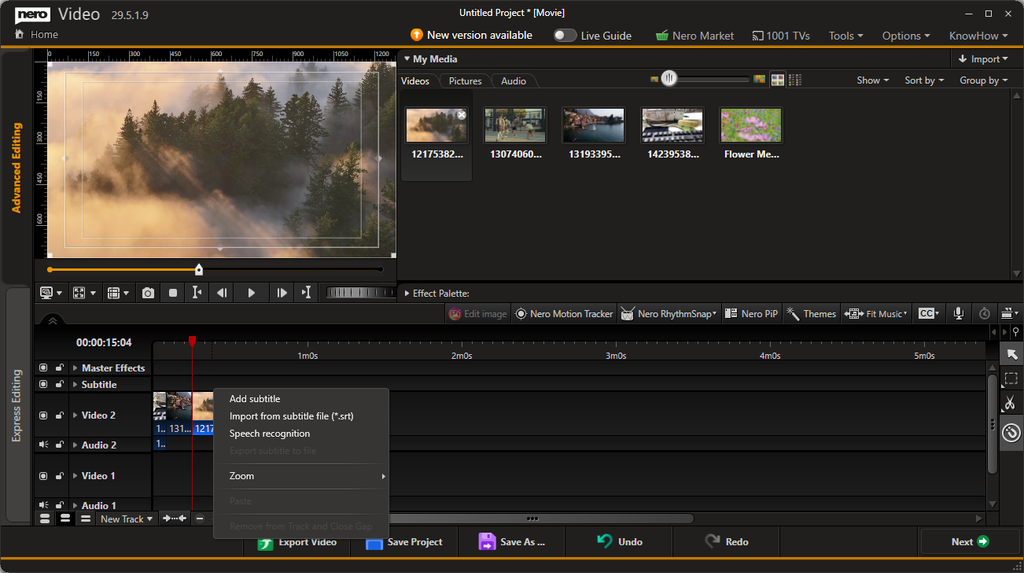
  3. Double-click an empty area on the Subtitle track where you want to add a subtitle.

Alternatively, right-click an empty area on the Subtitle track and select Add subtitle from the context menu.

Step 2: Enter Your Subtitle Text

After creating a subtitle, enter the text you want to display in your video. Use the preview window to check how the subtitle appears over your footage.

Keep your subtitle text concise and easy to read. For longer dialogue, consider splitting the text into multiple subtitle segments.

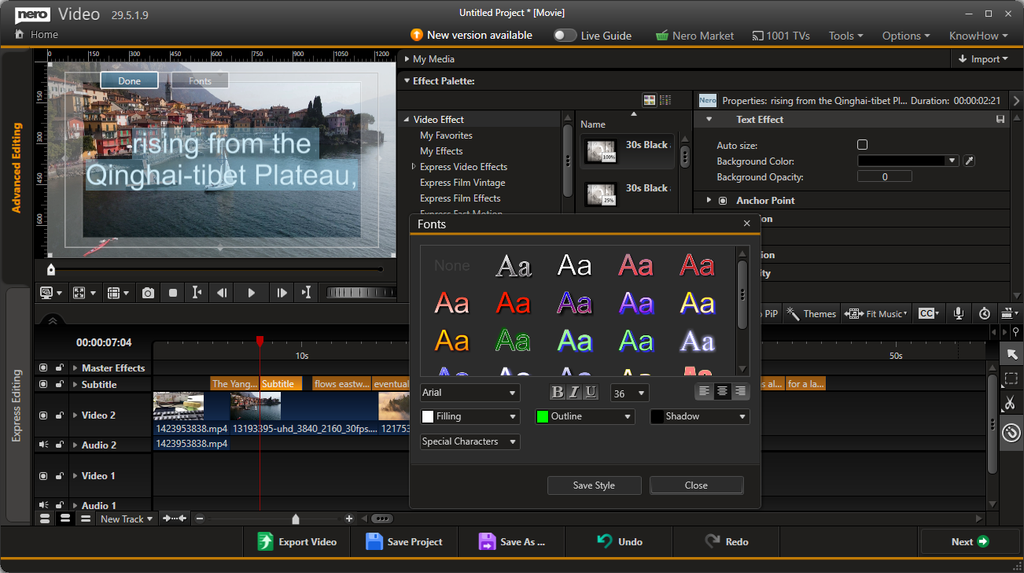
Step 3: Customize the Subtitle Appearance

Use the subtitle editing controls to customize the text style. Depending on your needs, you can adjust options such as:

  • Font: Choose a suitable font for your video.
  • Font size: Make the text readable at your intended playback size.
  • Text color and fill: Select a color that contrasts with the video.
  • Outline: Add an outline to help the text stand out against bright or busy backgrounds.
  • Shadow: Apply a shadow to improve readability.
  • Text alignment: Adjust the alignment to suit your composition.

You can also save a customized style for reuse, helping you maintain a consistent look across your subtitles.

Step 4: Check the Subtitle Timing

Review the subtitle on the timeline and preview it during playback. Make sure the text appears at the appropriate moment and remains visible long enough to read.

Repeat these steps to create additional subtitle segments throughout your video.

Tip: Use consistent font sizes, colors, and positioning throughout your project to create a polished and professional result.

2. Import Subtitles from an SRT File

Already have subtitles prepared? Nero Video supports importing subtitles in the SubRip Subtitle (SRT) format, allowing you to reuse existing subtitle text and timing instead of creating every segment manually.

Step 1: Prepare Your SRT File

Make sure your subtitle file uses the .srt file extension and contains the subtitle text and timing information you want to use.

Step 2: Import the Subtitle File

  1. Open your project in Nero Video.
  2. Locate the Subtitle track in the timeline.
  3. Right-click the Subtitle track or an empty area on it.
  4. Select Import from subtitle file (*.srt).
  5. Browse to your SRT file and select it.

Step 3: Review the Imported Subtitles

After importing, check the subtitle segments on the timeline and preview the video.

Verify that the text displays correctly and that the subtitles are synchronized with the dialogue or other relevant audio.

If necessary, adjust the subtitle timing or appearance before exporting your finished video.

Tip: If the subtitles appear out of sync, check the timing information in the SRT file and compare it with the actual video content.

3. Automatically Create Subtitles with Speech Recognition

Don’t have a subtitle file yet? Nero Video can use speech recognition to generate subtitles automatically from spoken audio in your project.

This feature uses online speech recognition services hosted on Nero’s own servers, so an internet connection is required.

Step 1: Open Speech Recognition

  1. Open your video project and locate the Subtitle track.
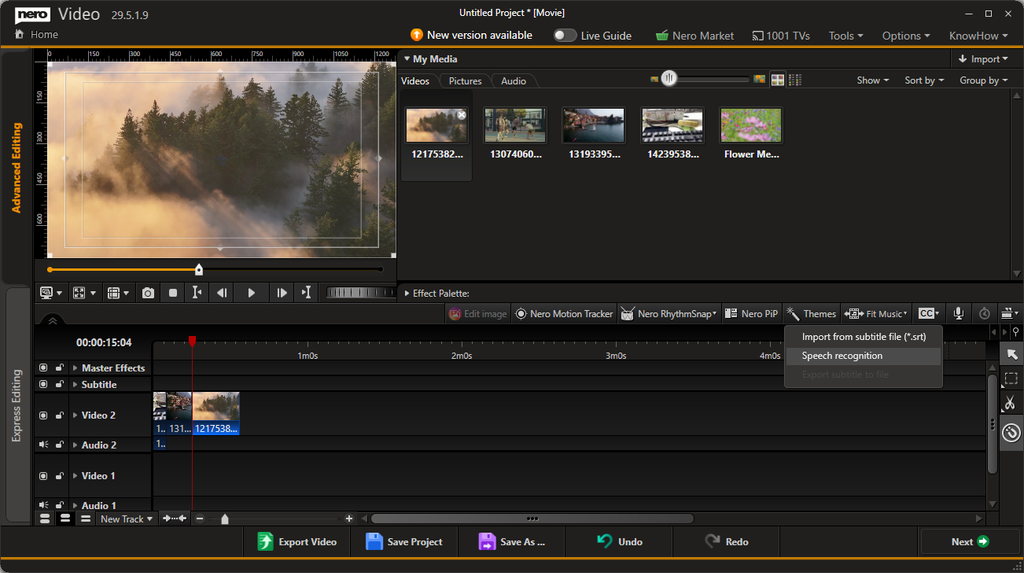
  2. Right-click the track or an empty area on it.
  3. Select Speech recognition from the context menu.

The Speech Recognition dialog opens, allowing you to configure the recognition settings.

Step 2: Select the Audio Track

Under Audio track containing speech, select the audio track that contains the dialogue or narration you want to transcribe.

If your project contains multiple audio tracks, choose the one with the clearest spoken content.

For example, select the track containing the original dialogue rather than a background music track.

Step 3: Choose the Language

Under Language, select the language spoken in your video.

You can leave the setting at Auto when you want Nero Video to detect the language automatically.

For the best results, select the correct language manually when it is known and available.

Step 4: Enable Translation (Optional)

If you want subtitles in another language, select Enable translation.

Then choose the target language from the available language options.

This allows you to generate translated subtitles instead of subtitles only in the original spoken language.

Step 5: Generate the Subtitles

Click Create to start the speech recognition process.

Nero Video processes the selected audio using its online service and generates subtitle segments for your project.

Once the process is complete, review the generated subtitles on the timeline.

Step 6: Review and Correct the Results

Automatic speech recognition can occasionally misinterpret words, names, accents, or background speech. Review the generated text carefully and correct any errors.

Also check the timing and readability of each subtitle segment before exporting your video.

Tips for better results:

  • Use audio with clear speech and minimal background noise.
  • Select the correct audio track.
  • Choose the spoken language when it is known.
  • Review technical terms, proper names, and translated text.
  • Check subtitle synchronization during playback.

4. Export Subtitles as an SRT File

Need to reuse your subtitles in another video editor, share them separately, or keep them as a standalone file? Nero Video lets you export subtitles in SRT format.

Step 1: Open the Subtitle Track Menu

After creating or importing subtitles, locate the Subtitle track in the timeline.

Right-click the track or an empty area on it to open the context menu.

Step 2: Export the Subtitle File

Select Export subtitle to file from the context menu.

Follow the prompts to save the subtitle file in SRT format at your preferred location.

Step 3: Reuse Your SRT File

Your exported SRT file can be stored separately from the video and imported into compatible video editors or playback applications.

Before sharing the file, check that the subtitle text and timing match the intended video.

Export Subtitles or Export the Video?

These are two different operations:

  • Export subtitle to file: Creates a separate subtitle file in SRT format.
  • Export Video: Renders your video into a video file. In the Export Video window, the Export subtitle to file checkbox is a separate option for exporting the subtitles alongside the video export workflow.

If you need a standalone subtitle file for another application, use the Subtitle track’s context menu.

Frequently Asked Questions

1. Can I create subtitles without an existing subtitle file?

Yes. You can create subtitles manually by double-clicking an empty area on the Subtitle track or selecting Add subtitle from its context menu. You can also use speech recognition to generate subtitles from spoken audio.

2. What subtitle file format does Nero Video support for importing and exporting?

The subtitle import and export workflows described in this guide use the SubRip Subtitle format (.srt).

3. Can Nero Video generate subtitles automatically?

Yes. Select Speech recognition from the Subtitle track’s context menu. Choose the audio track containing speech and the language, then click Create.

4. Does speech recognition require an internet connection?

Yes. Nero Video’s speech recognition feature uses online services hosted on Nero’s own servers, so an internet connection is required to generate subtitles.

5. Can I translate subtitles into another language?

Yes. In the Speech Recognition dialog, enable Enable translation and select the target language from the available options. Review the translated subtitles after generation to ensure their accuracy.

6. Can I edit subtitles generated by speech recognition?

Yes. Treat automatically generated subtitles as a starting point. Review the text, correct recognition errors, and check the timing and appearance before finishing your project.

7. Can I customize the appearance of my subtitles?

Yes. Nero Video provides subtitle styling controls, including font selection, font size, fill color, outline, shadow, and text alignment. You can also save a custom style for reuse.

8. Can I export subtitles without exporting the video?

Yes. Right-click the Subtitle track and select Export subtitle to file to save a standalone SRT file. You do not need to render the entire video just to obtain a separate subtitle file.

9. Why can’t I select Export subtitle to file?

Make sure your project contains subtitles on the Subtitle track and that you are opening the correct track context menu. If the option is unavailable, check whether subtitles have been created or imported successfully.

10. Can I use an SRT file in another video editor?

Yes. SRT is a widely supported subtitle format. You can import the exported file into compatible video editing applications and media players. Subtitle styling may need to be configured again in the destination application.

11. Why are my subtitles out of sync with the video?

The subtitle timing may not match the video’s dialogue or the SRT file may have been prepared for a different version of the video. Check the timing of the subtitle segments and adjust them to match the footage.

12. Why does speech recognition produce incorrect words?

Recognition accuracy depends on audio clarity, background noise, accents, pronunciation, and the selected language. Select the correct audio track, reduce background noise where possible, and review the generated text before exporting.

Conclusion

Nero Video gives you four practical ways to work with subtitles: create them manually, import existing SRT files, generate them automatically through speech recognition, and export them as standalone SRT files.

Whether you’re editing dialogue, preparing translated subtitles, or creating captions for a video project, these tools help you manage subtitles within your existing editing workflow.

Feature Spotlight: The All-New Segment Tracking in Nero Motion Tracker

Video editing is evolving, and so are the tools you need to stay ahead. While standard tracking works for simple geometric shapes, real life isn’t always square.

That is why the highlight of the latest Nero Motion Tracker update is Segment Tracking.

This powerhouse feature allows you to track irregular objects—like a running pet, a dancing silhouette, or a complex prop—and generate dynamic masks that adapt frame-by-frame as the shape changes. Here is your deep-dive guide to mastering this new technology.

The Star of the Show: Segment Tracking

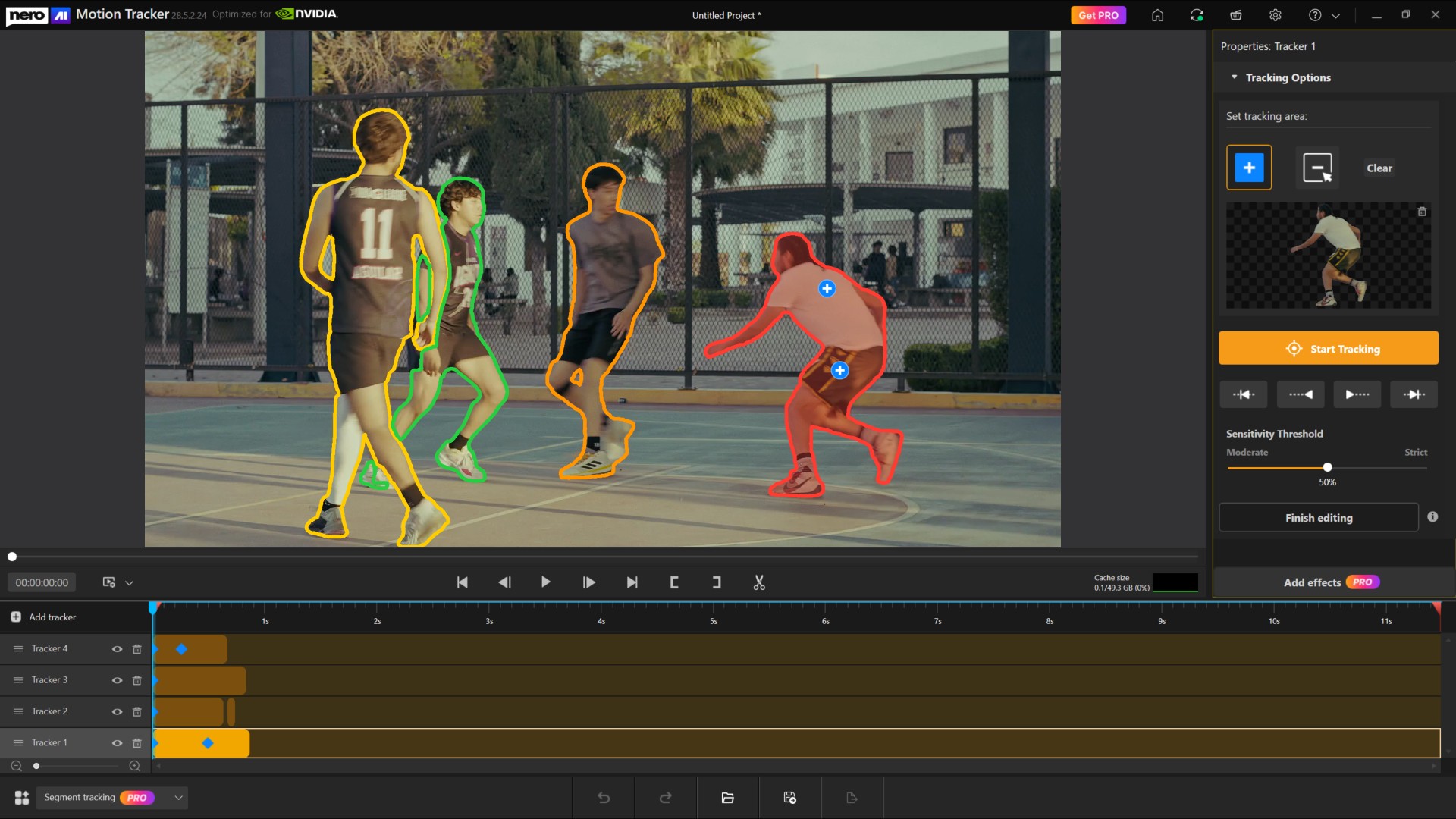
Segment Tracking is designed for precision. Unlike standard “Zone” tracking which draws a box, Segment Tracking analyzes the video pixel-by-pixel. To give you total control, we have refined the Set Tracking Area controls into a simple “Include/Exclude” workflow.

1. How to Define Your Object (Include vs. Exclude)

Once you enter Segment Tracking mode, you will see the “Tracking Options” control panel. Think of this as telling the AI exactly what matters and what doesn’t.

  • Add Tracking Area (Include):
    • Select this tool when you want to include a part of the image in your mask.

    • Click on your subject. A small (+) marker will appear, telling the tracker: “Keep this.”

  • Remove Tracking Area (Exclude):
    • Select this tool when the tracker accidentally picks up the background. You use this to exclude unwanted areas.

    • Click on the unwanted area. A small (-) marker will appear, telling the tracker: “Ignore this.”

2. Refining and Revoking Selection

Did you click the wrong spot? We have made correcting mistakes instant. You don’t need to switch tools to delete a point.

To Revoke: Simply click any existing (+) or (-) marker on the preview screen again. When you hover over a marker, it will glow blue to indicate it is ready to be removed. Clicking it revokes that specific selection instantly.

If you don’t want the tracking area, you can either remove the tracker from the timeline or click the “Clear” button to clear the selection and start from scratch.

3. Tracking Multiple Objects

Need to track two people or more objects?

  • Click “Add Tracker” button on the timeline to start a fresh track for a second item.
  • Smart Display: To keep your view clean, the markers for Object 1 are automatically hidden while you edit Object 2. (Only the outer boundaries are visible, so that they can be distinguished from each other.) 

Ensuring Smooth Performance (Cache & Settings)

Because Segment Tracking analyzes pixels in high detail, it requires system resources. We have added a dedicated Performance & Cache System to keep your editing smooth.

  • Automatic Setup: When you first use Segment Tracking, a dialog will ask to set the Cache Location. By default, it smart selects the disk with the freest space.

  • The Cache Monitor:

    Located under the preview, the Cache Size display shows your current usage (GPU Memory + System Memory + Disk Cache) versus the overall available size. It uses a color-coded progress bar:

    • 🟢 Green: < 70% usage (Optimal)

    • 🟡 Yellow: 70% – 90% usage (Caution)

    • 🔴 Red: > 90% usage (Critical – consider finalizing an object)

  • Finish Editing (Per Object): Once you are happy with an object’s track, click Finish Editing. 

    • What this does: This clears the high-resource cache for that specific tracker and locks it so it is no longer editable. This frees up resources for you to track other objects.

    • Note: A confirmation dialog will pop up to ensure you are ready to lock the tracker.

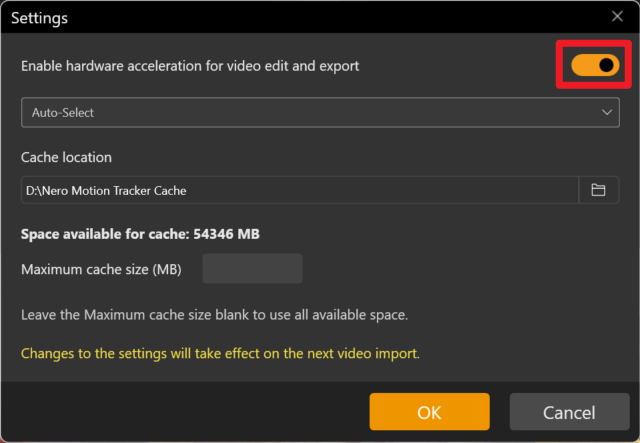
  • Advanced Settings: Click the Gear Icon on the title bar to toggle Hardware Acceleration (CPU/GPU) or manually set a Maximum Cache Size.


The Creative Finish: Effects & Pro Features

Once your tracking is done, click the Add Effects button. This automatically “Finishes Editing” for all trackers and moves you to the design page.

Note: Segment Tracking is a premium feature. You can do all the tracking and testing for free, but the Pro Purchase Dialog will appear when you click “Add Effects” if you are not a subscriber.

Creative Controls

On the Effects page, you can apply 5 post-effects to your masked objects or the background:

  • Original: No changes (great for preserving the subject while editing the background).
  • Image: Fill or Fit a custom image into the tracked area.
  • Blur: Adjust intensity to obscure faces or sensitive info.
  • Mosaic: Pixelate the area; adjust the “amount” to change block size.
  • Color: Tint the area using presets or a specific hex code.
  • Desaturation: Make the area black and white by adjusting saturation levels.

New Face Tracking & Zone Modes

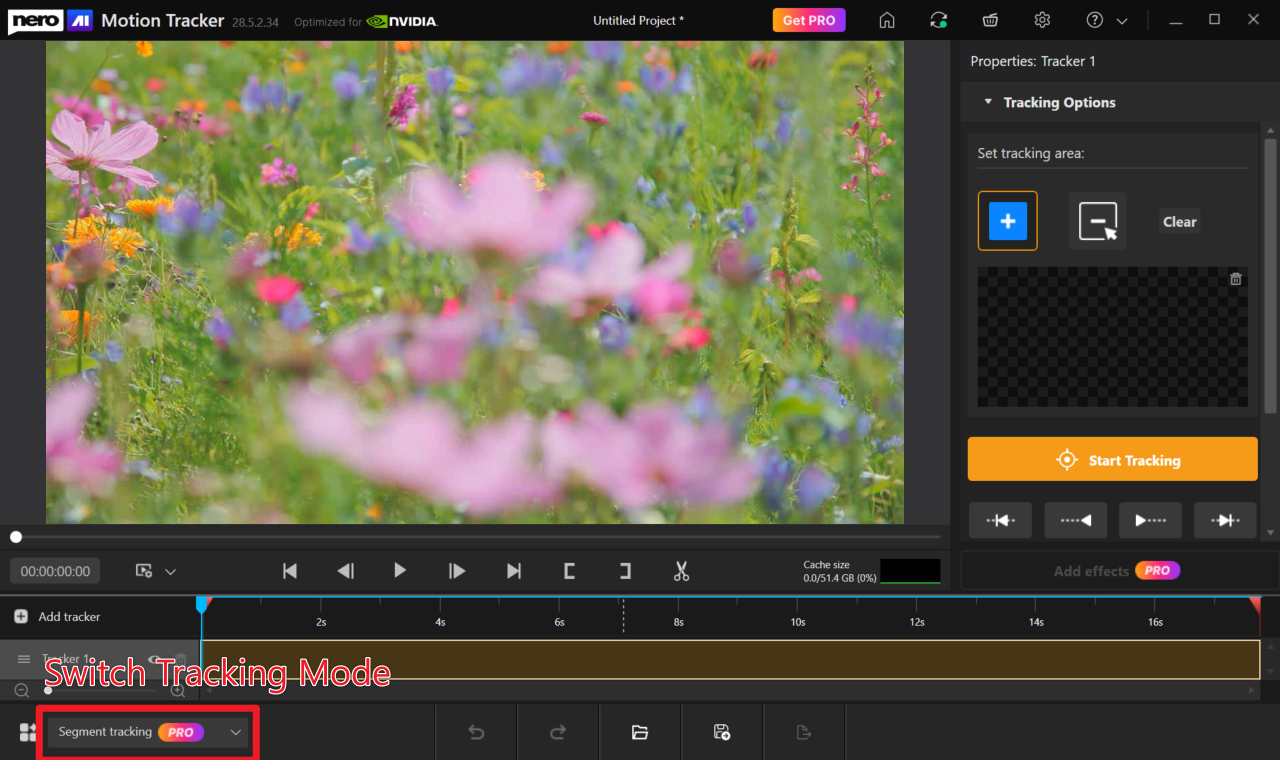
While Segment Tracking is the new headliner, we have also optimized our standard tools. You can switch between modes using the Tracking Mode on the Home Screen or the Dropdown below the timeline.

(If you are launching Motion Tracker direct from Nero Video, you can also use this dropdown to switch back to your familiar Face/Zone Tracking mode.)

Face Tracking (Automated)

Now separated from Zone tracking for speed, this mode features Automatic Face Detection and Auto-Start. As soon as a face is detected in the footage, the system locks on and starts tracking immediately—no manual starting required.

Zone Tracking

The classic, reliable mode for tracking standard geometric shapes like rectangles and ovals.

⚠ Warning: Segment, Face, and Zone tracking use different engines. If you switch modes mid-edit, a warning will pop up indicating that current tracking results will be lost.

Ready to create professional, dynamic masks? Open Nero Motion Tracker and try the new Segment Tracking today!

Nero Motion Tracker Segment Tracking – FAQ & Troubleshooting

Nero Motion Tracker Segment Tracking – FAQ & Troubleshooting

1. What are the recommended system specifications for Segment Tracking?

For the best compatibility and performance, we strongly recommend using NVIDIA graphics cards with at least 6GB VRAM. While other cards may work, NVIDIA GPUs provide the most stable experience for AI-based motion tracking.

2. I am using an AMD graphics card and the tracking fails or crashes. What should I do?

When running on AMD graphics cards, the application uses Direct ML for hardware acceleration. However, because Microsoft has not updated Direct ML components recently, this often leads to compatibility gaps with current AMD graphics card drivers. This can result in tracking failures or AMD driver application crashes.

Solutions:

  • Try restarting the application and running the tracking again.
  • If the issue persists, switch to the Software Tracking method within the settings to bypass hardware acceleration issues.
Turn off hardware acceleration.

3. Can I use Intel Graphics for Segment Tracking?

You may encounter performance issues when running Segment Tracking on Intel platforms. If you wish to use an Intel graphics card:

  • Update Drivers: Please ensure your GPU driver is updated to the absolute latest version.
  • Potential Issues: Without the latest drivers, you may experience symptoms such as the inability to detect the tracking object or extremely slow tracking speeds.