How to Create, Import, and Export Subtitles in Nero Video

Subtitles make your videos easier to follow, more accessible, and more convenient to watch without sound. With Nero Video, you can create subtitles manually, import existing SRT subtitle files, automatically generate subtitles using speech recognition, and export your subtitles for use in other video editing applications.

This guide walks you through all four subtitle workflows, from creating your first subtitle to exporting a finished subtitle file.
1. Create Subtitles Manually

If you want complete control over your subtitle text, timing, and appearance, you can create subtitles directly on the Subtitle track in the Nero Video timeline.
Step 1: Open the Subtitle Track

  1. Open your project in Nero Video and add your video to the timeline.
  2. Locate the Subtitle track in the timeline.
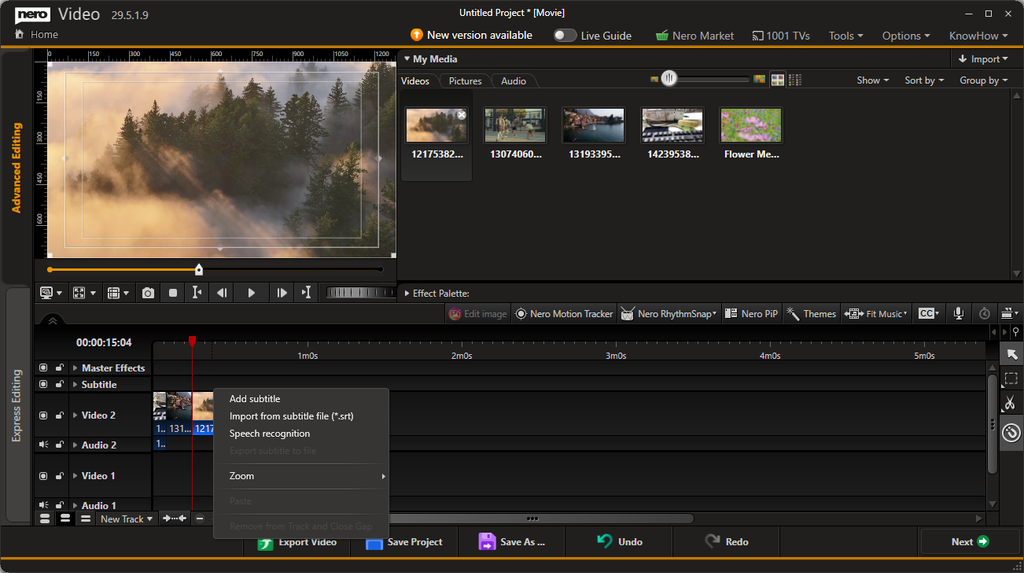
  3. Double-click an empty area on the Subtitle track where you want to add a subtitle.

Alternatively, right-click an empty area on the Subtitle track and select Add subtitle from the context menu.

Step 2: Enter Your Subtitle Text

After creating a subtitle, enter the text you want to display in your video. Use the preview window to check how the subtitle appears over your footage.

Keep your subtitle text concise and easy to read. For longer dialogue, consider splitting the text into multiple subtitle segments.

Step 3: Customize the Subtitle Appearance

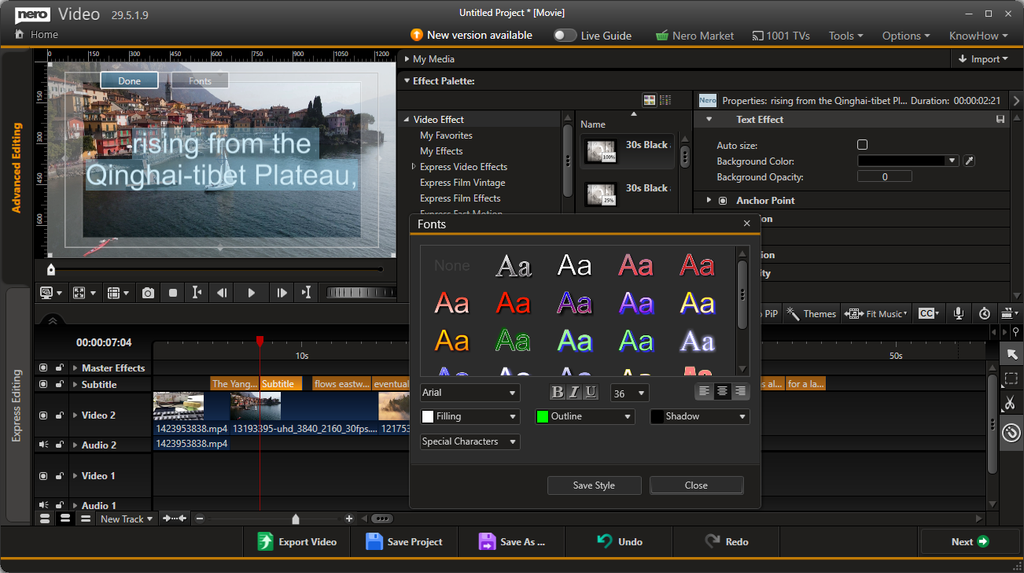
Use the subtitle editing controls to customize the text style. Depending on your needs, you can adjust options such as:

  • Font: Choose a suitable font for your video.
  • Font size: Make the text readable at your intended playback size.
  • Text color and fill: Select a color that contrasts with the video.
  • Outline: Add an outline to help the text stand out against bright or busy backgrounds.
  • Shadow: Apply a shadow to improve readability.
  • Text alignment: Adjust the alignment to suit your composition.

You can also save a customized style for reuse, helping you maintain a consistent look across your subtitles.

Step 4: Check the Subtitle Timing

Review the subtitle on the timeline and preview it during playback. Make sure the text appears at the appropriate moment and remains visible long enough to read.

Repeat these steps to create additional subtitle segments throughout your video.

Tip: Use consistent font sizes, colors, and positioning throughout your project to create a polished and professional result.

2. Import Subtitles from an SRT File

Already have subtitles prepared? Nero Video supports importing subtitles in the SubRip Subtitle (SRT) format, allowing you to reuse existing subtitle text and timing instead of creating every segment manually.

Step 1: Prepare Your SRT File

Make sure your subtitle file uses the .srt file extension and contains the subtitle text and timing information you want to use.

Step 2: Import the Subtitle File

  1. Open your project in Nero Video.
  2. Locate the Subtitle track in the timeline.
  3. Right-click the Subtitle track or an empty area on it.
  4. Select Import from subtitle file (*.srt).
  5. Browse to your SRT file and select it.

Step 3: Review the Imported Subtitles

After importing, check the subtitle segments on the timeline and preview the video.

Verify that the text displays correctly and that the subtitles are synchronized with the dialogue or other relevant audio.

If necessary, adjust the subtitle timing or appearance before exporting your finished video.

Tip: If the subtitles appear out of sync, check the timing information in the SRT file and compare it with the actual video content.

3. Automatically Create Subtitles with Speech Recognition

Don’t have a subtitle file yet? Nero Video can use speech recognition to generate subtitles automatically from spoken audio in your project.

This feature uses online speech recognition services hosted on Nero’s own servers, so an internet connection is required.
Step 1: Open Speech Recognition

  1. Open your video project and locate the Subtitle track.
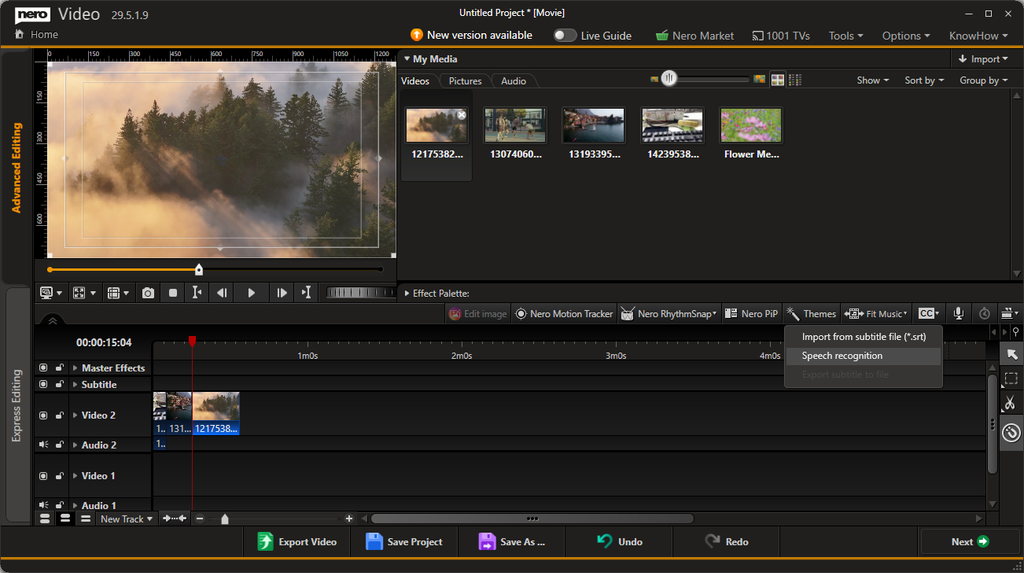
  2. Right-click the track or an empty area on it.
  3. Select Speech recognition from the context menu.

The Speech Recognition dialog opens, allowing you to configure the recognition settings.

Step 2: Select the Audio Track

Under Audio track containing speech, select the audio track that contains the dialogue or narration you want to transcribe.

If your project contains multiple audio tracks, choose the one with the clearest spoken content.

For example, select the track containing the original dialogue rather than a background music track.

Step 3: Choose the Language

Under Language, select the language spoken in your video.

You can leave the setting at Auto when you want Nero Video to detect the language automatically.

For the best results, select the correct language manually when it is known and available.

Step 4: Enable Translation (Optional)

If you want subtitles in another language, select Enable translation.

Then choose the target language from the available language options.

This allows you to generate translated subtitles instead of subtitles only in the original spoken language.

Step 5: Generate the Subtitles

Click Create to start the speech recognition process.

Nero Video processes the selected audio using its online service and generates subtitle segments for your project.

Once the process is complete, review the generated subtitles on the timeline.

Step 6: Review and Correct the Results

Automatic speech recognition can occasionally misinterpret words, names, accents, or background speech. Review the generated text carefully and correct any errors.

Also check the timing and readability of each subtitle segment before exporting your video.

Tips for better results:

  • Use audio with clear speech and minimal background noise.
  • Select the correct audio track.
  • Choose the spoken language when it is known.
  • Review technical terms, proper names, and translated text.
  • Check subtitle synchronization during playback.

4. Export Subtitles as an SRT File

Need to reuse your subtitles in another video editor, share them separately, or keep them as a standalone file? Nero Video lets you export subtitles in SRT format.

Step 1: Open the Subtitle Track Menu

After creating or importing subtitles, locate the Subtitle track in the timeline.

Right-click the track or an empty area on it to open the context menu.

Step 2: Export the Subtitle File

Select Export subtitle to file from the context menu.

Follow the prompts to save the subtitle file in SRT format at your preferred location.

Step 3: Reuse Your SRT File

Your exported SRT file can be stored separately from the video and imported into compatible video editors or playback applications.

Before sharing the file, check that the subtitle text and timing match the intended video.

Export Subtitles or Export the Video?

These are two different operations:

  • Export subtitle to file: Creates a separate subtitle file in SRT format.
  • Export Video: Renders your video into a video file. In the Export Video window, the Export subtitle to file checkbox is a separate option for exporting the subtitles alongside the video export workflow.

If you need a standalone subtitle file for another application, use the Subtitle track’s context menu.

Frequently Asked Questions

1. Can I create subtitles without an existing subtitle file?

Yes. You can create subtitles manually by double-clicking an empty area on the Subtitle track or selecting Add subtitle from its context menu. You can also use speech recognition to generate subtitles from spoken audio.

2. What subtitle file format does Nero Video support for importing and exporting?

The subtitle import and export workflows described in this guide use the SubRip Subtitle format (.srt).

3. Can Nero Video generate subtitles automatically?

Yes. Select Speech recognition from the Subtitle track’s context menu. Choose the audio track containing speech and the language, then click Create.

4. Does speech recognition require an internet connection?

Yes. Nero Video’s speech recognition feature uses online services hosted on Nero’s own servers, so an internet connection is required to generate subtitles.

5. Can I translate subtitles into another language?

Yes. In the Speech Recognition dialog, enable Enable translation and select the target language from the available options. Review the translated subtitles after generation to ensure their accuracy.

6. Can I edit subtitles generated by speech recognition?

Yes. Treat automatically generated subtitles as a starting point. Review the text, correct recognition errors, and check the timing and appearance before finishing your project.

7. Can I customize the appearance of my subtitles?

Yes. Nero Video provides subtitle styling controls, including font selection, font size, fill color, outline, shadow, and text alignment. You can also save a custom style for reuse.

8. Can I export subtitles without exporting the video?

Yes. Right-click the Subtitle track and select Export subtitle to file to save a standalone SRT file. You do not need to render the entire video just to obtain a separate subtitle file.

9. Why can’t I select Export subtitle to file?

Make sure your project contains subtitles on the Subtitle track and that you are opening the correct track context menu. If the option is unavailable, check whether subtitles have been created or imported successfully.

10. Can I use an SRT file in another video editor?

Yes. SRT is a widely supported subtitle format. You can import the exported file into compatible video editing applications and media players. Subtitle styling may need to be configured again in the destination application.

11. Why are my subtitles out of sync with the video?

The subtitle timing may not match the video’s dialogue or the SRT file may have been prepared for a different version of the video. Check the timing of the subtitle segments and adjust them to match the footage.

12. Why does speech recognition produce incorrect words?

Recognition accuracy depends on audio clarity, background noise, accents, pronunciation, and the selected language. Select the correct audio track, reduce background noise where possible, and review the generated text before exporting.

Conclusion

Nero Video gives you four practical ways to work with subtitles: create them manually, import existing SRT files, generate them automatically through speech recognition, and export them as standalone SRT files.

Whether you’re editing dialogue, preparing translated subtitles, or creating captions for a video project, these tools help you manage subtitles within your existing editing workflow.
Feature Spotlight: The All-New Segment Tracking in Nero Motion Tracker

Video editing is evolving, and so are the tools you need to stay ahead. While standard tracking works for simple geometric shapes, real life isn’t always square.

That is why the highlight of the latest Nero Motion Tracker update is Segment Tracking.

This powerhouse feature allows you to track irregular objects—like a running pet, a dancing silhouette, or a complex prop—and generate dynamic masks that adapt frame-by-frame as the shape changes. Here is your deep-dive guide to mastering this new technology.

The Star of the Show: Segment Tracking

Segment Tracking is designed for precision. Unlike standard “Zone” tracking which draws a box, Segment Tracking analyzes the video pixel-by-pixel. To give you total control, we have refined the Set Tracking Area controls into a simple “Include/Exclude” workflow.

1. How to Define Your Object (Include vs. Exclude)

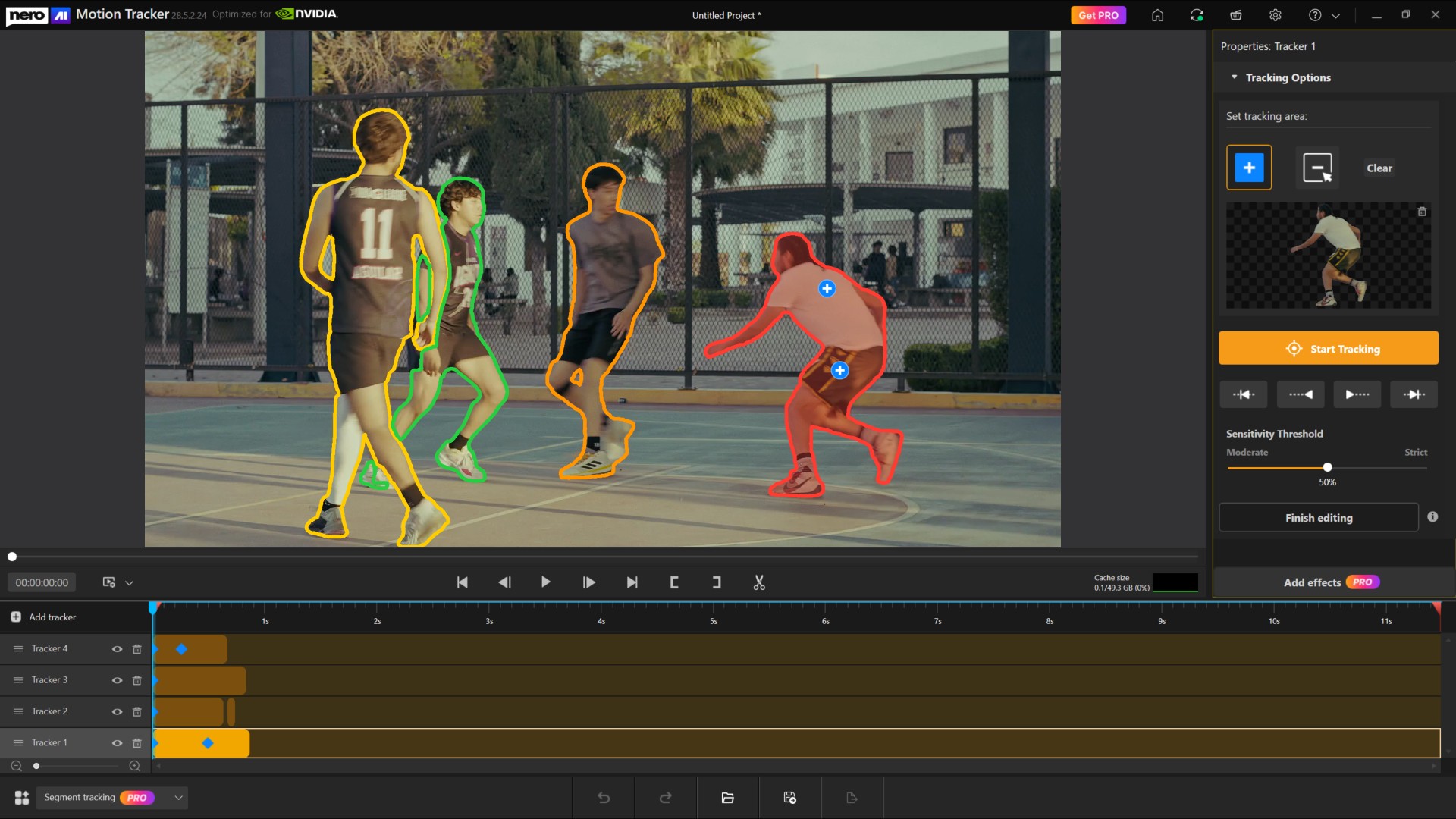
Once you enter Segment Tracking mode, you will see the “Tracking Options” control panel. Think of this as telling the AI exactly what matters and what doesn’t.

  • Add Tracking Area (Include):
    • Select this tool when you want to include a part of the image in your mask.

    • Click on your subject. A small (+) marker will appear, telling the tracker: “Keep this.”

  • Remove Tracking Area (Exclude):
    • Select this tool when the tracker accidentally picks up the background. You use this to exclude unwanted areas.

    • Click on the unwanted area. A small (-) marker will appear, telling the tracker: “Ignore this.”

2. Refining and Revoking Selection

Did you click the wrong spot? We have made correcting mistakes instant. You don’t need to switch tools to delete a point.

To Revoke: Simply click any existing (+) or (-) marker on the preview screen again. When you hover over a marker, it will glow blue to indicate it is ready to be removed. Clicking it revokes that specific selection instantly.

If you don’t want the tracking area, you can either remove the tracker from the timeline or click the “Clear” button to clear the selection and start from scratch.

3. Tracking Multiple Objects

Need to track two people or more objects?

  • Click “Add Tracker” button on the timeline to start a fresh track for a second item.
  • Smart Display: To keep your view clean, the markers for Object 1 are automatically hidden while you edit Object 2. (Only the outer boundaries are visible, so that they can be distinguished from each other.) 

Ensuring Smooth Performance (Cache & Settings)

Because Segment Tracking analyzes pixels in high detail, it requires system resources. We have added a dedicated Performance & Cache System to keep your editing smooth.

  • Automatic Setup: When you first use Segment Tracking, a dialog will ask to set the Cache Location. By default, it smart selects the disk with the freest space.

  • The Cache Monitor:

    Located under the preview, the Cache Size display shows your current usage (GPU Memory + System Memory + Disk Cache) versus the overall available size. It uses a color-coded progress bar:

    • 🟢 Green: < 70% usage (Optimal)

    • 🟡 Yellow: 70% – 90% usage (Caution)

    • 🔴 Red: > 90% usage (Critical – consider finalizing an object)

  • Finish Editing (Per Object): Once you are happy with an object’s track, click Finish Editing. 

    • What this does: This clears the high-resource cache for that specific tracker and locks it so it is no longer editable. This frees up resources for you to track other objects.

    • Note: A confirmation dialog will pop up to ensure you are ready to lock the tracker.

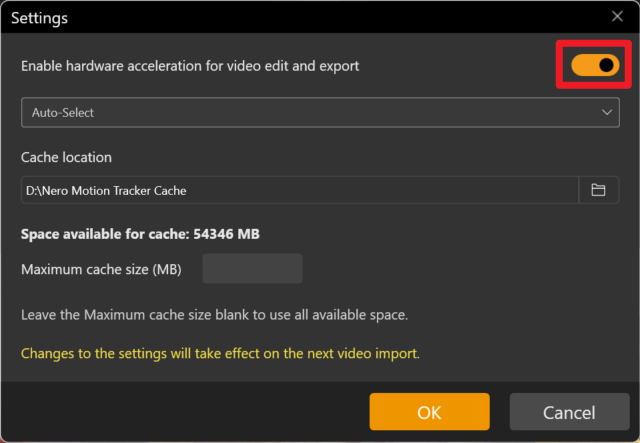
  • Advanced Settings: Click the Gear Icon on the title bar to toggle Hardware Acceleration (CPU/GPU) or manually set a Maximum Cache Size.


The Creative Finish: Effects & Pro Features

Once your tracking is done, click the Add Effects button. This automatically “Finishes Editing” for all trackers and moves you to the design page.

Note: Segment Tracking is a premium feature. You can do all the tracking and testing for free, but the Pro Purchase Dialog will appear when you click “Add Effects” if you are not a subscriber.

Creative Controls

On the Effects page, you can apply 5 post-effects to your masked objects or the background:

  • Original: No changes (great for preserving the subject while editing the background).
  • Image: Fill or Fit a custom image into the tracked area.
  • Blur: Adjust intensity to obscure faces or sensitive info.
  • Mosaic: Pixelate the area; adjust the “amount” to change block size.
  • Color: Tint the area using presets or a specific hex code.
  • Desaturation: Make the area black and white by adjusting saturation levels.

New Face Tracking & Zone Modes

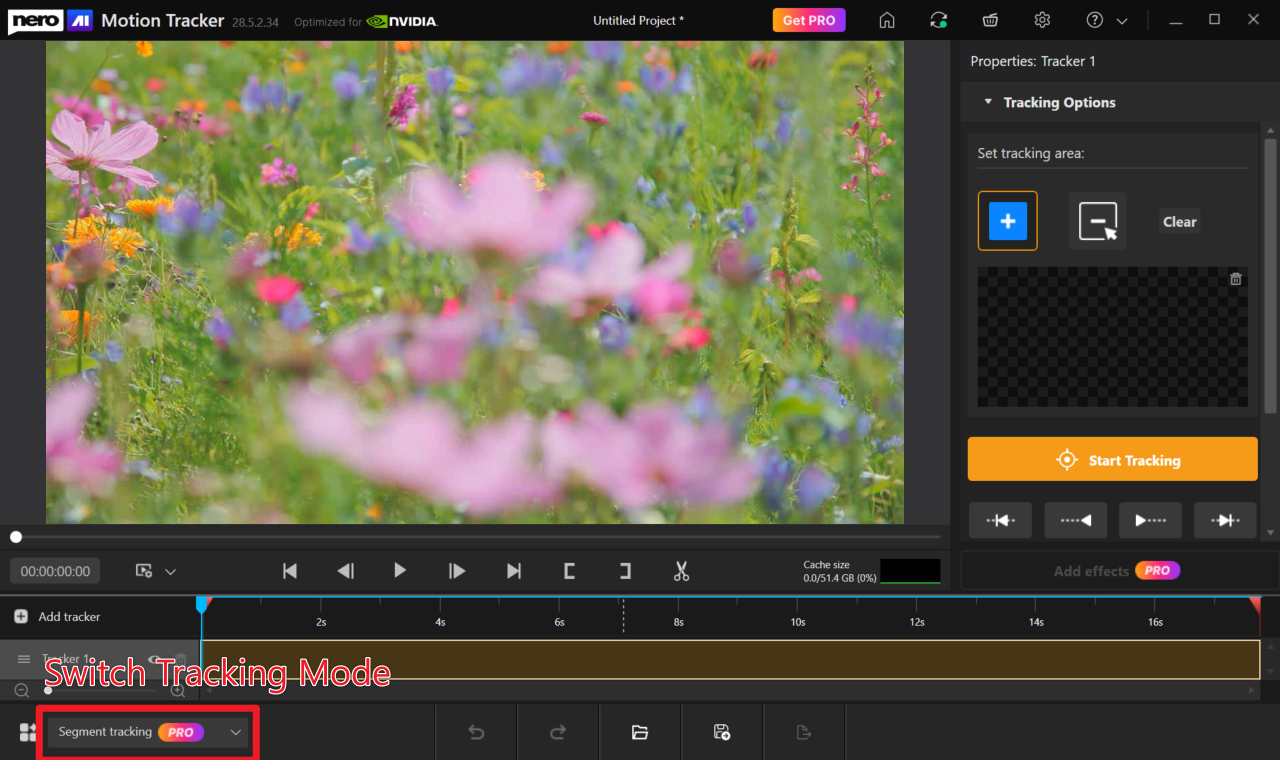
While Segment Tracking is the new headliner, we have also optimized our standard tools. You can switch between modes using the Tracking Mode on the Home Screen or the Dropdown below the timeline.

(If you are launching Motion Tracker direct from Nero Video, you can also use this dropdown to switch back to your familiar Face/Zone Tracking mode.)

Face Tracking (Automated)

Now separated from Zone tracking for speed, this mode features Automatic Face Detection and Auto-Start. As soon as a face is detected in the footage, the system locks on and starts tracking immediately—no manual starting required.

Zone Tracking

The classic, reliable mode for tracking standard geometric shapes like rectangles and ovals.

⚠ Warning: Segment, Face, and Zone tracking use different engines. If you switch modes mid-edit, a warning will pop up indicating that current tracking results will be lost.

Ready to create professional, dynamic masks? Open Nero Motion Tracker and try the new Segment Tracking today!

Nero Motion Tracker Segment Tracking – FAQ & Troubleshooting

Nero Motion Tracker Segment Tracking – FAQ & Troubleshooting

1. What are the recommended system specifications for Segment Tracking?

For the best compatibility and performance, we strongly recommend using NVIDIA graphics cards with at least 6GB VRAM. While other cards may work, NVIDIA GPUs provide the most stable experience for AI-based motion tracking.

2. I am using an AMD graphics card and the tracking fails or crashes. What should I do?

When running on AMD graphics cards, the application uses Direct ML for hardware acceleration. However, because Microsoft has not updated Direct ML components recently, this often leads to compatibility gaps with current AMD graphics card drivers. This can result in tracking failures or AMD driver application crashes.

Solutions:

  • Try restarting the application and running the tracking again.
  • If the issue persists, switch to the Software Tracking method within the settings to bypass hardware acceleration issues.
Turn off hardware acceleration.

3. Can I use Intel Graphics for Segment Tracking?

You may encounter performance issues when running Segment Tracking on Intel platforms. If you wish to use an Intel graphics card:

  • Update Drivers: Please ensure your GPU driver is updated to the absolute latest version.
  • Potential Issues: Without the latest drivers, you may experience symptoms such as the inability to detect the tracking object or extremely slow tracking speeds.

Unlocking Media Features: A Guide to Windows N Editions and Media Feature Packs

In the ever-evolving landscape of Windows operating systems, the inclusion of different feature sets can sometimes leave users scratching their heads, especially when it comes to the Windows N editions. This article takes a deep dive into the recently updated Media Feature Pack list designed specifically for Windows N editions, explaining what these packs are, why they matter, and how users can effectively reinstall necessary media technologies in their systems.

What Are Windows N Editions?​

Windows N editions are tailored versions of Microsoft Windows that cater to markets in the European Economic Area. Due to legal regulations that require Microsoft to provide a version of Windows without its media functionalities, N editions do not come pre-equipped with media-related technologies. This means tools like Windows Media Player, Groove, Movies & TV, and Skype are absent out of the box.
But fret not! Enter the Media Feature Pack, which serves as a pacifier for users who wish to restore these stripped features.

The Media Feature Pack Explained​

The Media Feature Pack is a downloadable add-on that reinstates those missing functionalities in the Windows N editions. By installing this pack, users regain access to:

  • Windows Media Player: The classic media player for Windows that plays picture, music, and video files.
  • Groove and Movies & TV: Services that integrate media libraries and provide streaming options.
  • Voice Recorder and Skype: Tools designed for audio capture and video conferencing, respectively.

Compatibility Notes​

The latest information regarding the Media Feature Pack can be found on Microsoft’s support page, which meticulously lists every available pack starting from Windows 8.1 N editions up to the current Windows 11 N editions.

How to Install the Media Feature Pack​

For Windows 10 N:​

  • Click on the Start button.
  • Navigate to Settings > Apps.
  • Search “Optional features“.
  • Click on Add a feature and find the Media Feature Pack from the list of optional features.

For Windows 11 N:​

  • Click on the Start button.
  • Go to Settings > Apps.
  • Search “Optional features“.
  • Select View features next to Add an optional feature and look for the Media Feature Pack.

Early Versions Note​

While some Media Feature Packs for earlier versions of Windows 10 are standalone downloads, from version 1909 onward, the packs are only available as an optional feature.

The List of Media Feature Packs​

Below is a concise catalog of Media Feature Packs, breaking down the historical timeline of when these were made available: Windows Version Media Feature Pack Release Date
Windows 8 N Original Edition
Windows 8.1 N April 2014
Windows 10, Version 1508 November 2015
Windows 10, Version 1607 August 2016
Windows 10, Version 1703 April 2017
Windows 10, Version 1803 April 2018
Windows 10, Version 1903 May 2019
Windows 10, Version 21H1 May 2021
Windows 11 N Latest Updates Available

Note: For versions 1909 and beyond, the Media Feature Pack is an optional feature rather than a separate install.

Why Should You Care?​

For users, having access to a full suite of multimedia technology enhances the overall experience of their operating system. Whether it’s for casual media consumption, professional audio/video work, or staying connected with friends through Skype, these functionalities are indispensable.
Failure to install the Media Feature Pack might feel like rolling a new vehicle out of the showroom without a radio—functional yet strangely devoid of a fundamental feature.

Conclusion: Jump Back Into the Media Pool​

The Media Feature Pack is crucial for those using Windows N editions who want a seamless experience akin to standard releases. If you’re among those users, take action by installing the appropriate Media Feature Pack based on your Windows version and reclaim the multimedia functionalities you deserve.
By staying informed with updates and guides like these, you not only enhance your user experience but also arm yourself against potential headaches caused by missing features. So dive in, enjoy your media content, and keep exploring the rich features Windows has to offer!

Source: Microsoft Support Media Feature Pack list for Windows N editions – Microsoft Support

What’s new in Nero Video 2025?

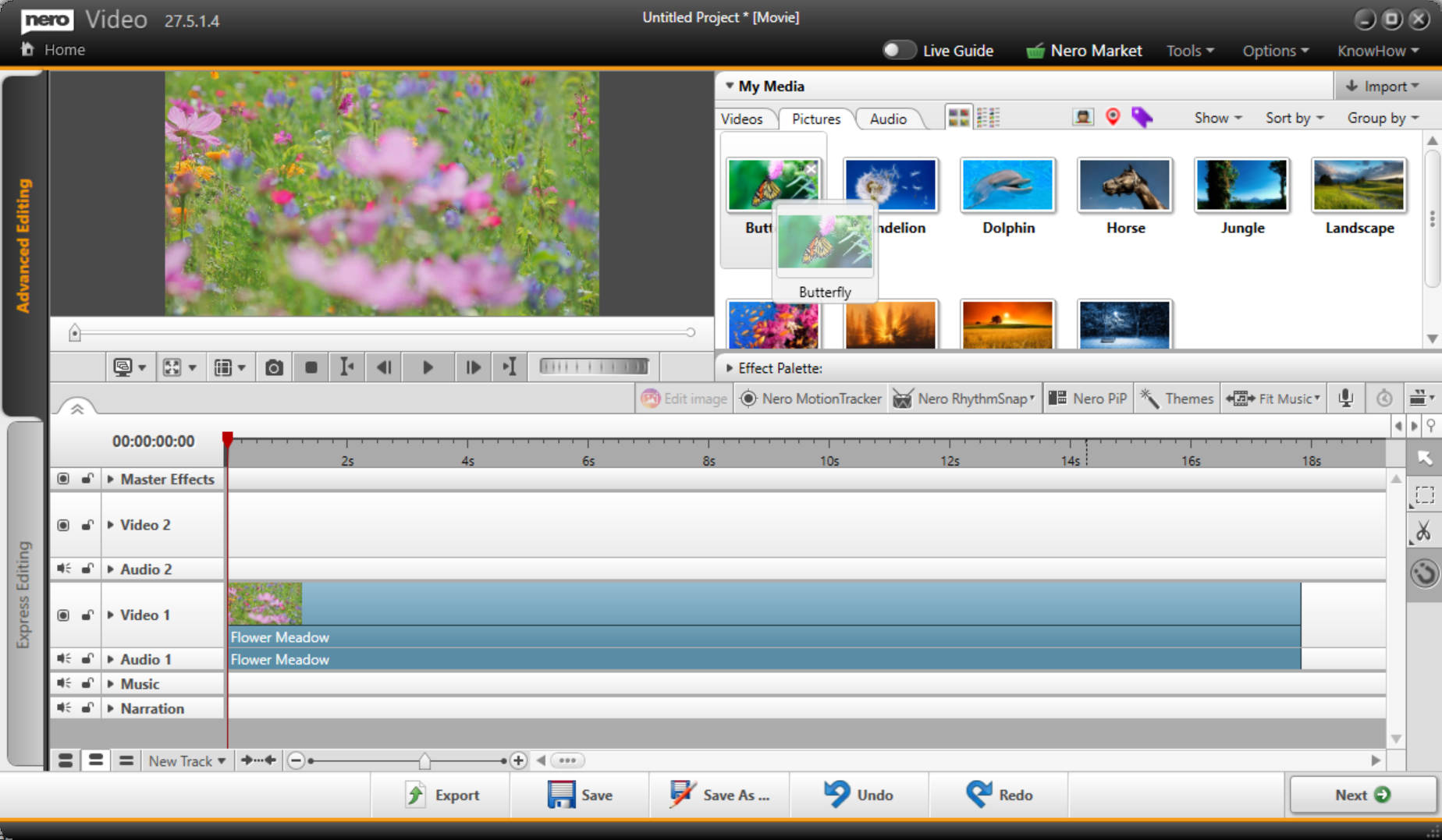
Replace mode

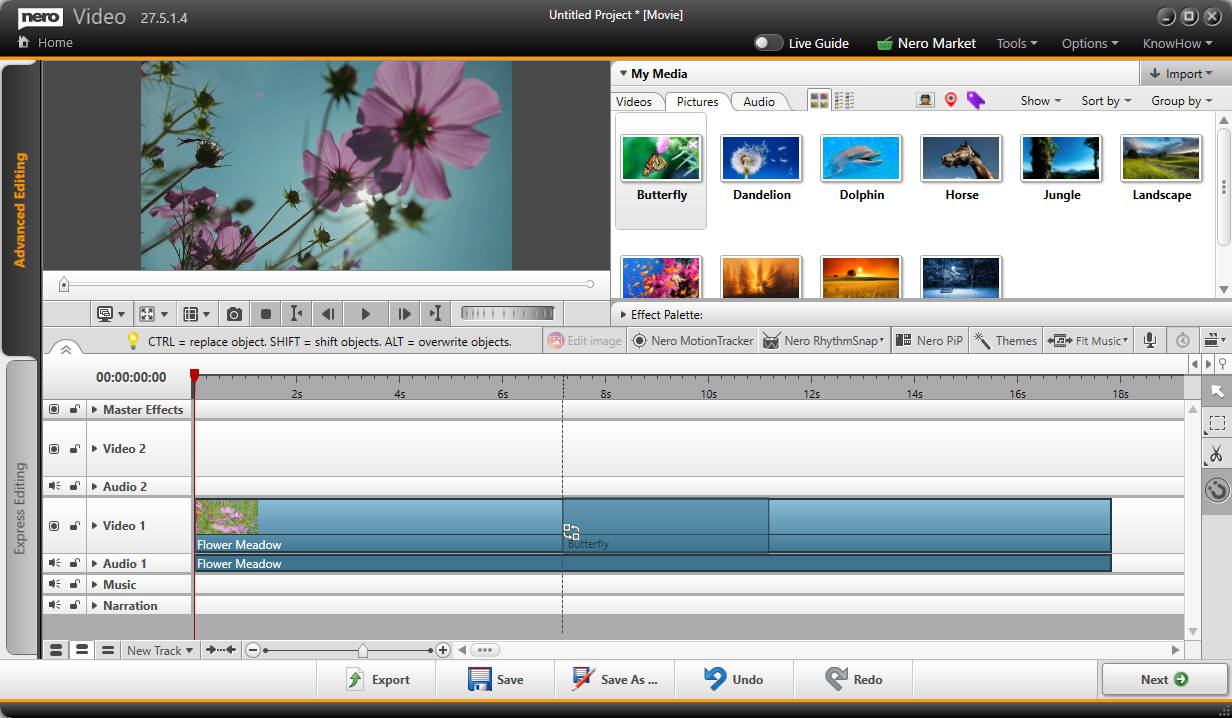
For the request to change media files on the timeline, Nero Video now features the replace mode to make it easier to use by only pressing “Ctrl” button when dragging media file from library to the timeline.

The only limitation of replace mode is that the replacing media file needs to be longer than the replaced segment.

Video and image file can replace the segment on the video track. Audio file can replace the segment on the audio/music/narration track. Effect can replace the effect segment on the master effects track.