🎁 Nero Platinum 2026
Free Trial BUY
Skip to content

Nero Knowhow

Get to know your Nero product

Languages

  • English
    • Deutsch (German)

Search

category

Popular posts:

  • Update History for Nero Start (207,202)
  • Where can I find my activation code? (20,735)
  • What is Nero Screen Recorder (6,178)
  • How to reinstall Nero when I get a new PC? (4,664)
  • Why and how shall I choose a product to show in Start? (3,887)

Recent Posts

  • Nero Start release notes v.28.5.65.0 March 23, 2026
  • Nero Start release notes v.28.5.45.0 March 23, 2026
  • How to find the right solution faster in Nero Start? March 23, 2026
  • Getting started with your Nero product – nero.com orders via 2Checkout March 18, 2026
  • Getting started with your Nero product – retailer/reseller purchase March 18, 2026

Nero Apps


 Nero PDF

 Nero AI

 Microsoft Store

 Google Play Store

 App Store

Category: Nero Account

Nero account, my Nero account

Getting started with your Nero product – nero.com orders via 2Checkout

Applies to: Purchases made directly on www.nero.com where the payment was processed by 2Checkout.

No activation code is required for these purchases.
Your product is automatically added to your Nero Account. Signing in unlocks the product.

1) Do I need an activation code?

No. If you purchased your Nero product directly from www.nero.com via 2Checkout, you will not receive an activation code. The purchase is linked to your Nero Account automatically.

2) Which email address should I use to sign in?

Use the email address you entered during checkout on www.nero.com. A Nero Account is created automatically with that email address, and your product is added to it.

3) Where do I find my password?

Your initial password is sent to you by email after purchase. If you cannot find it, check your spam/junk folder and then use the “Forgot password?” / “Request password again” option on the sign-in screen.

4) How do I unlock the product?

Follow these steps:

  1. Install the product.
    You can download the installer from your purchase email.
  2. Open Nero Start.
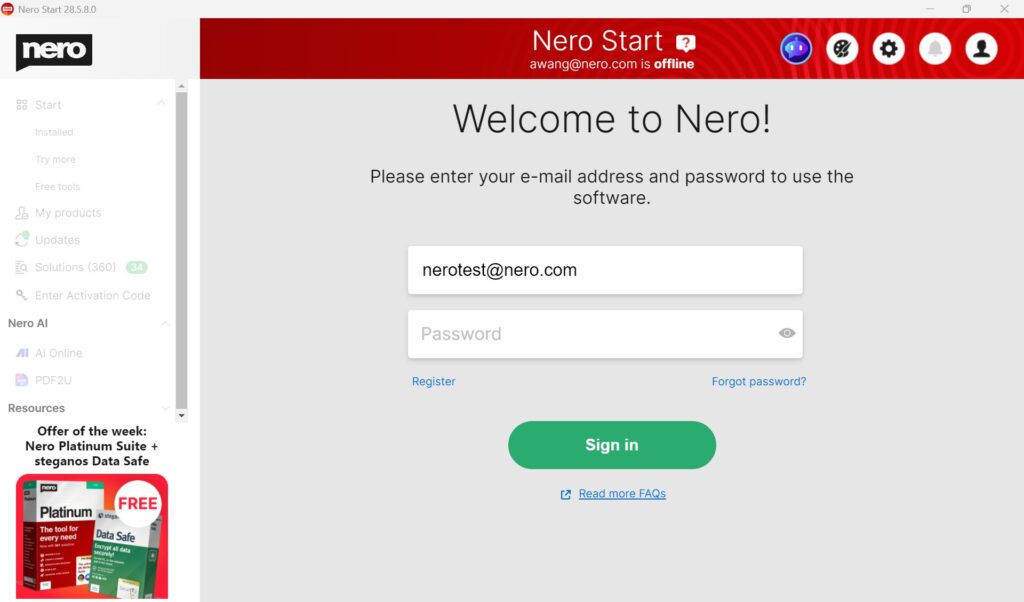
  3. Enter the email address you used during checkout.
  4. Enter your password. If needed, select “Forgot password?” / “Request password again”.
  5. After you sign in, the product unlocks automatically.
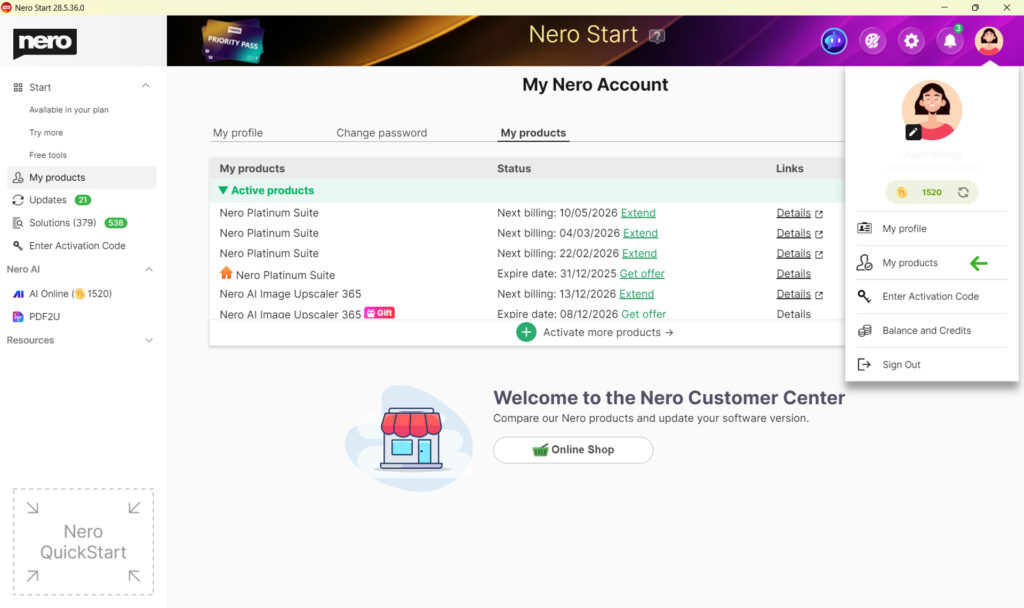
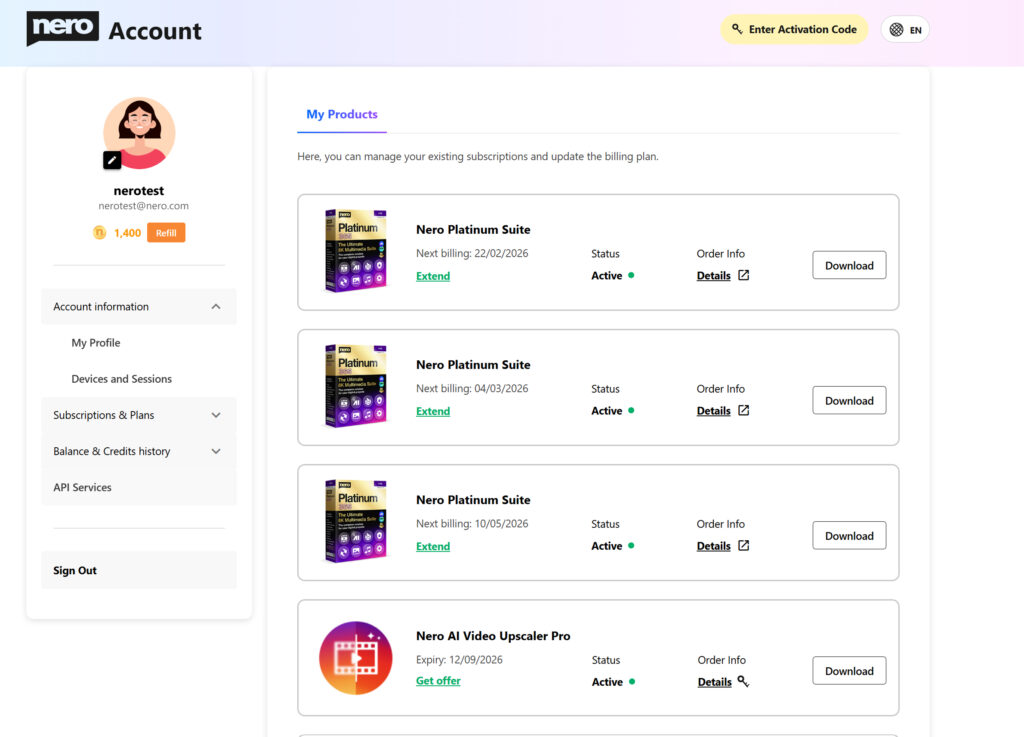
  6. To confirm, go to Account > My products. Your purchased product should be listed there.
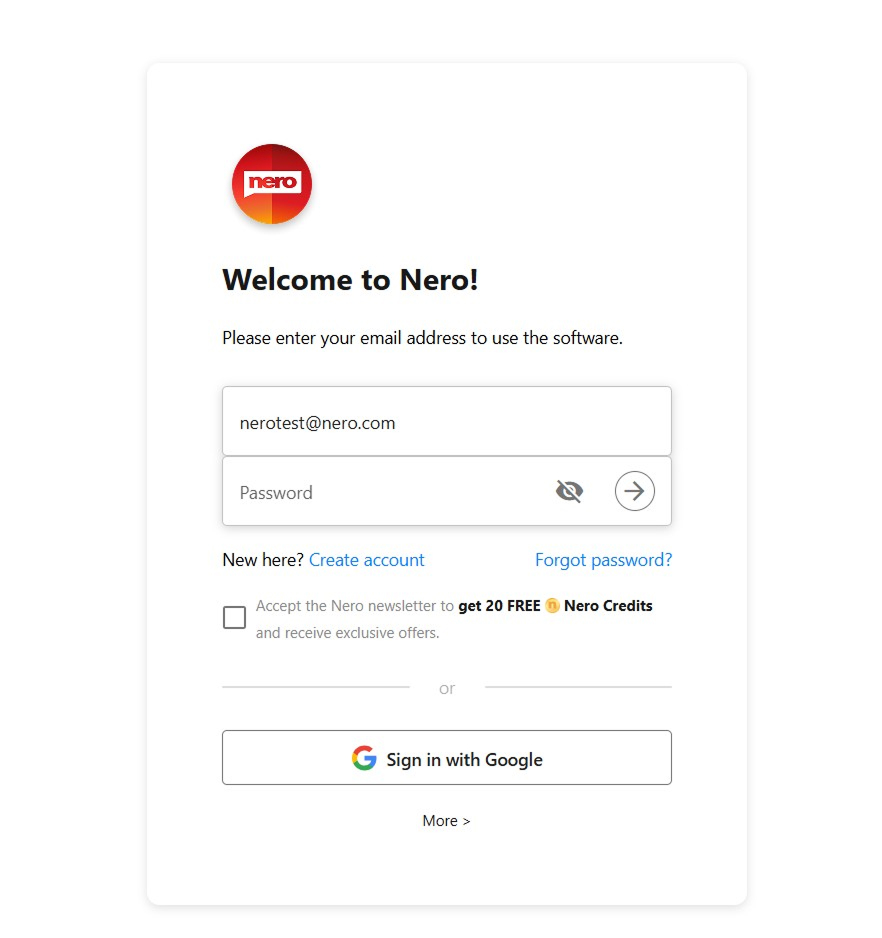
Example: Nero Start sign-in screen
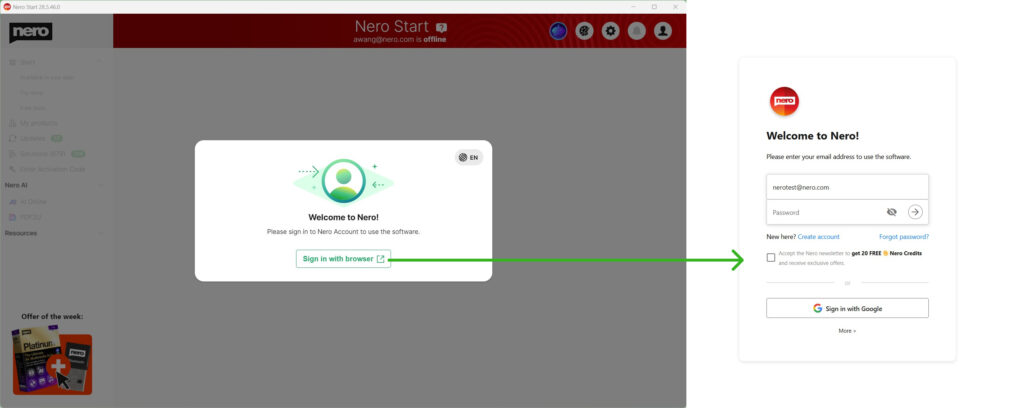
Nero account online login
Example: Nero Start online sign-in screen
Example: Account > My products (product listed after sign-in)


Troubleshooting

  • I did not receive the password email.

Check spam/junk folders and search your mailbox for “Nero” and your order confirmation. Then use “Forgot password?” / “Request password again” on the sign-in screen.

  • I’m not sure which email address I used at checkout.

Use the same email address that received the order confirmation from www.nero.com / 2Checkout. Try any alternative email addresses you may have used for the purchase.

  • The product is still locked after I sign in.

Confirm you signed in with the purchase email address, and check Account > My products. If the product is not listed, sign out and sign in again. If the issue continues, contact Nero Support and include your order information.

  • I see an “Enter Activation Code” item.

For nero.com purchases via 2Checkout, you do not need an activation code. Ignore this option and unlock the product by signing in to your Nero Account.

Note: If you purchased Nero from a retailer, reseller, or as a boxed product, activation may work differently and an activation code may be required. You will find more information at below article:

Getting started with your Nero product – retailer/reseller purchase


Posted on March 18, 2026March 18, 2026Author AprilCategories Nero AccountLeave a comment on Getting started with your Nero product – nero.com orders via 2Checkout

Getting started with your Nero product – retailer/reseller purchase

Applies to: Purchases from Amazon, eBay, software stores, or other retailers/resellers (not purchased directly on www.nero.com via 2Checkout).

Key point: You need an activation code.
Sign in (or create) a Nero Account and redeem the activation code to unlock the product in that account.

FAQ

1) Do I need an activation code?

Yes. Retailer/reseller purchases are activated with an activation code. You will receive the code on a product card, on a receipt, or in an email from the retailer. Keep the code in a safe place.

2) Where do I find the activation code?

  • On the product card included with the product (printed or scratch-off).
  • In your retailer confirmation email (digital delivery).
  • On the receipt or invoice from the retailer (physical purchase).

3) How do I download the installer?

Follow the instructions on the product card or in the retailer email.

4) Do I need a Nero Account?

Yes. The activation code must be redeemed in a Nero Account. Use the account where you want the product to be listed under Account > My products.

How to activate and unlock your product

Option A: Activate online (recommended)

  1. Open www.nero.com/go in your browser.

    Example: online sign-in screen
  2. Sign in to your Nero Account. If you do not have an account, create one first.
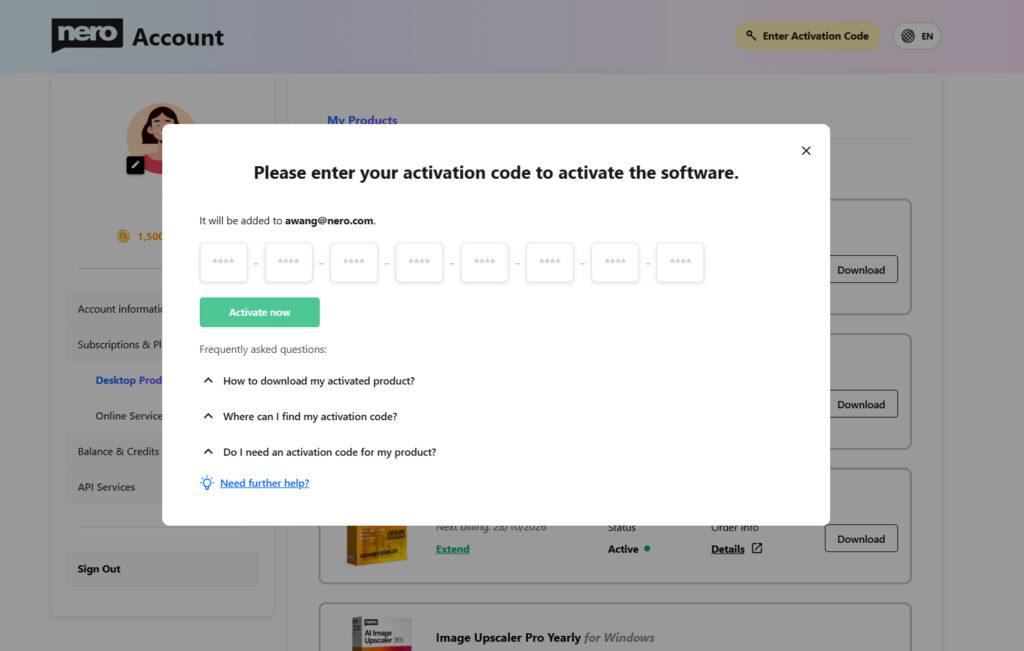
  3. Enter your activation code and follow the on-screen instructions.
    online product activation page
    Example: online product activation page
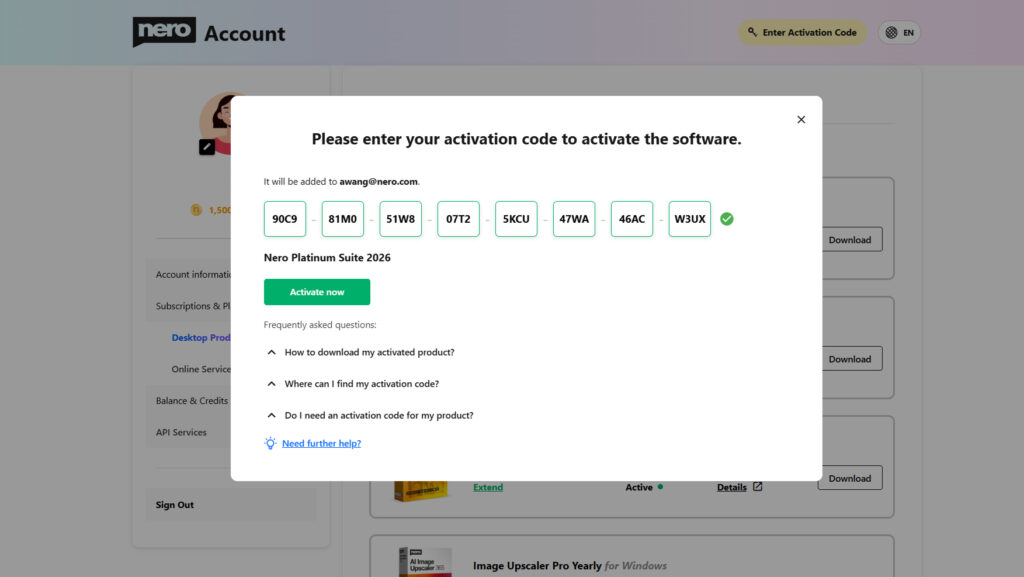
    online product activation
    Example: online product activation


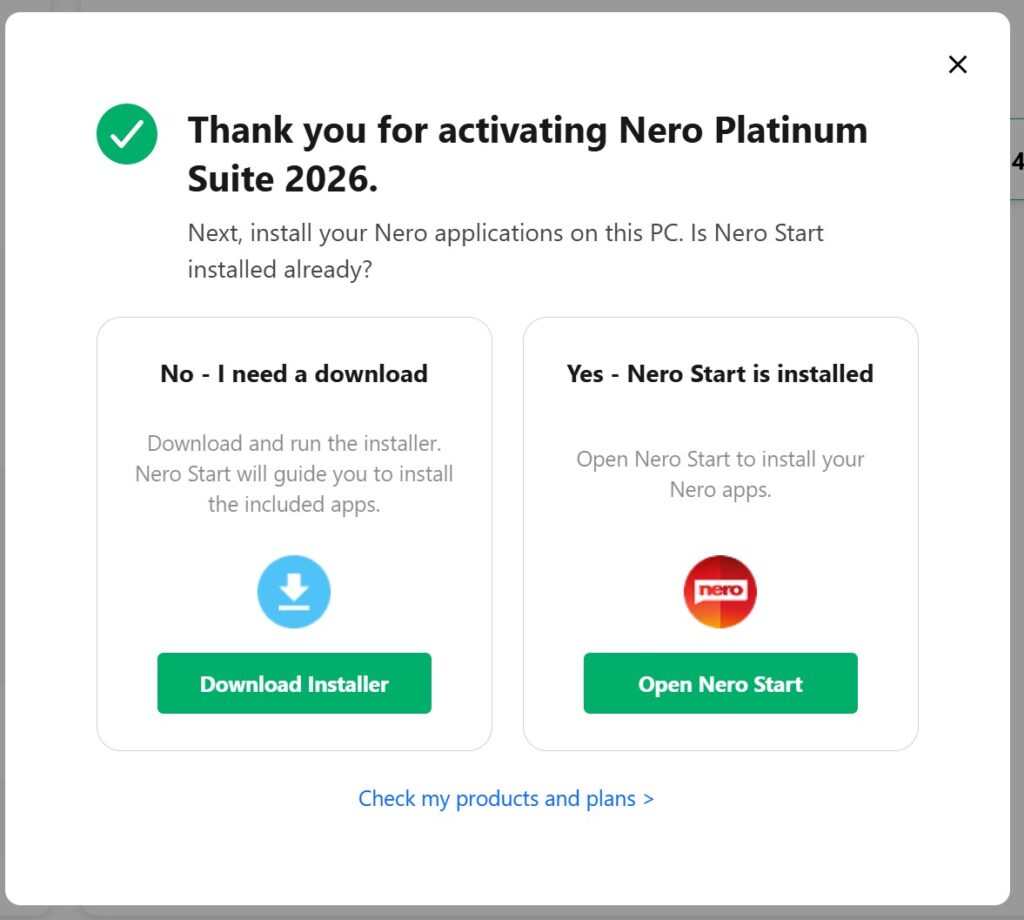
    4. If Nero Start is already installed (recommended path): 

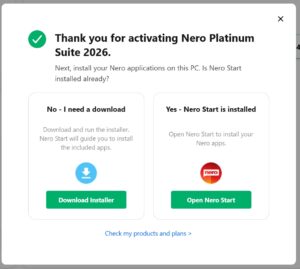
    product activated - Nero Start installed or not
    Example:product activated
    • Open Nero Start from your desktop (or Start menu).
    • If sign in is required, sign in with the same Nero Account used in Step 2.
    • Follow the on-screen instructions in Nero Start to install or update the product applications.
  1. If Nero Start is not installed
    • Download the installer offered after activation (or via the link on the product card/retailer email).
    • Run the installer to install Nero Start and the product applications.
    • Launch Nero Start and sign in with the same Nero Account used in Step 2.
    • For some products, follow the guide in Nero Start to install or update the product applications.
  1. To confirm, go to Account > My products. Your activated product should be listed there.

    Nero online account: my products list
    Example: my products list

Option B: Activate in Nero Start

  1. Install the product using the installer from the product card / retailer email.
  2. Launch Nero Start.
  3. Sign in the Nero Account where you want to add the product (or create an account).
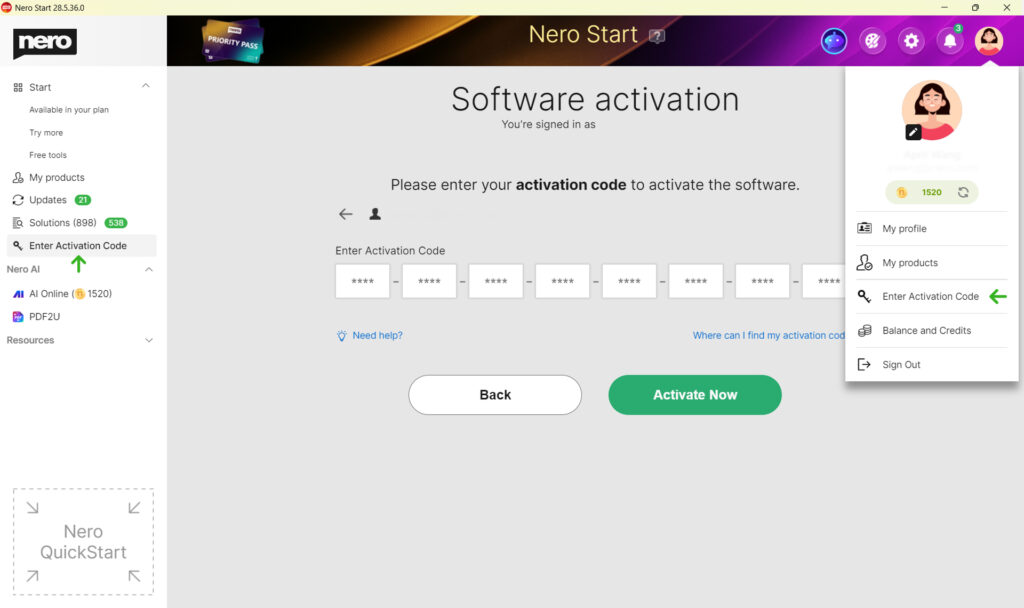
  4. Select Activate software or ‘Enter Activation Code’ from left pane / Nero Account.

    Enter Activation Code
    Example: Enter Activation Code
  5. Enter the activation code exactly as shown and confirm.
  6. After activation, the product should unlock automatically.

How to confirm activation

To confirm, go to Account > My products. Your activated product should be listed there.

Example: Account > My products (product listed after sign-in)
Example: Nero Start > My Nero Account > My products (product listed after sign-in)

Troubleshooting

My activation code is not accepted (invalid / already used).

  • Double-check the code for typing errors.
  • If the code has already been redeemed, it cannot be used again. Confirm you are signing in to the intended Nero Account.
  • If the problem continues, contact the retailer first (for code issues) or Nero Support and include your proof of purchase and the activation code.

I cannot find my activation code.

  • Check the product card packaging and any inserts that came with the product.
  • Search your email for the retailer confirmation and digital delivery details.
  • Check the receipt or invoice from the retailer.
  • If the code is missing, contact the retailer/reseller to request a replacement code.

I activated the code in the wrong Nero Account.

Activation codes are linked to the Nero Account used during redemption. If you redeemed the code in the wrong account, sign in to the account that was used and check Account > My products. You also can change your account email.

If you need help, contact Nero Support with your proof of purchase and the activation code.

The product is still locked after activation.

  • Confirm you are signed in to the same Nero Account that you used to redeem the activation code.
  • Go to Account > My products and verify the product is listed.
  • Sign out and sign in again in Nero Start, then restart the application.
  • Make sure your device is online during activation and sign-in.

I forgot my Nero Account password.

Use the Forgot password option on the sign-in screen to reset your password.

Note: I purchased directly from www.nero.com.

If you purchased directly from www.nero.com via 2Checkout, you do not need an activation code. Unlocking is done by signing in with the purchase email address. You will find more information at below article:

Getting started with your Nero product – nero.com orders via 2Checkout


Posted on March 18, 2026March 18, 2026Author AprilCategories Nero AccountLeave a comment on Getting started with your Nero product – retailer/reseller purchase

How to download my activated product?

1) Do I need to download the installer?If your product is Nero 2021 or newer and Nero Start is already installed, you usually do not need a separate installer. Nero Start can download, install, and update the included applications for you.

You need to download an installer if:

  • Nero Start is not installed on your PC.
  • You are using an older Nero version that does not support installation via Nero Start.

If you only want to download the installer of Nero Start, please get it here.

2) Where can I get the installer of my product?

You can download the installer from:

  • Your Nero Account (recommended): https://login.nero.com/oauth/profile/subscriptions-and-plans/desktop-products (Find your product and download its installer).
  • Your retailer email / digital delivery message, or the product card included in the box.
  • The download link shown after online activation (for activation-code products) at www.nero.com/go.
  • For older versions: https://www.nero.com/eng/downloads/previous-versions/bootstrap/nero-previous-downloads.php

3) How do I download and install?

Option A: Use Nero Start (recommended)

Nero Start is already installed and your product is Nero 2021 or newer

  1. Open Nero Start from your desktop (or Start menu).
  2. Sign in with the same Nero Account you used to purchase or activate the product.
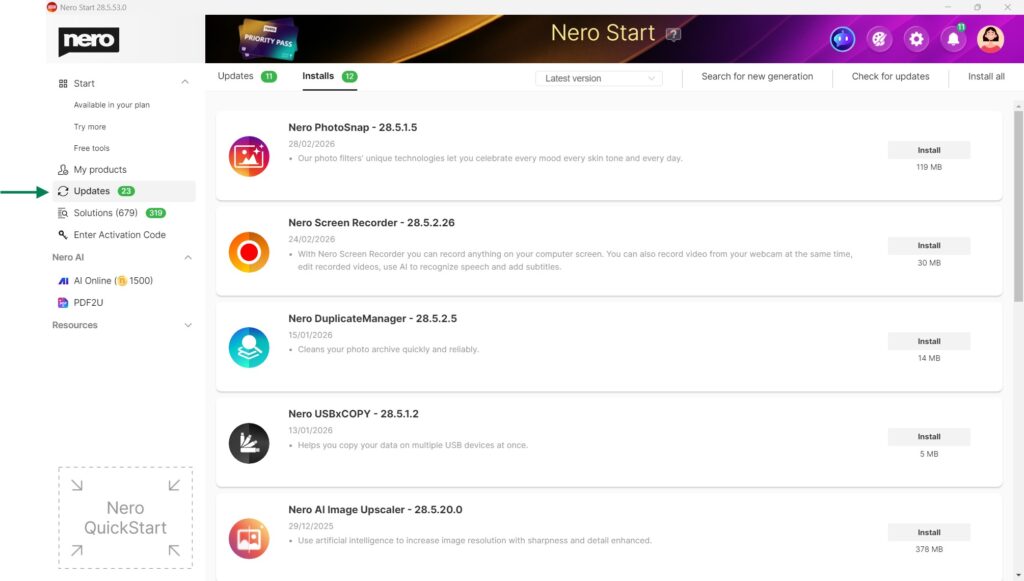
  3. Go to Updates view to intall or update your applications. 

Option B: Download after activation

product activated - Nero Start installed or not
Example:product activated

In the ‘thank you for activating’ dialog, download the installer.

  1. Download the installer offered after activation (or via the link on the product card / retailer email).
  2. Run the installer to install Nero Start and the product applications.
  3. Launch Nero Start and sign in with the same Nero Account used for activation.
  4. If prompted, follow the on-screen instructions to install or update the product applications.

Option C: Download from your Nero Account

Nero online account: my products list
Example: my products list
  1. Open https://login.nero.com/oauth/profile/subscriptions-and-plans/desktop-products and sign in.
  2. Find your product and select Download.
  3. Run the downloaded installer and follow the setup instructions.

Option D: Download from official website

Download Nero older versions from: https://www.nero.com/eng/downloads/previous-versions/bootstrap/nero-previous-downloads.php

Troubleshooting

I don’t see my product or a Download entry.

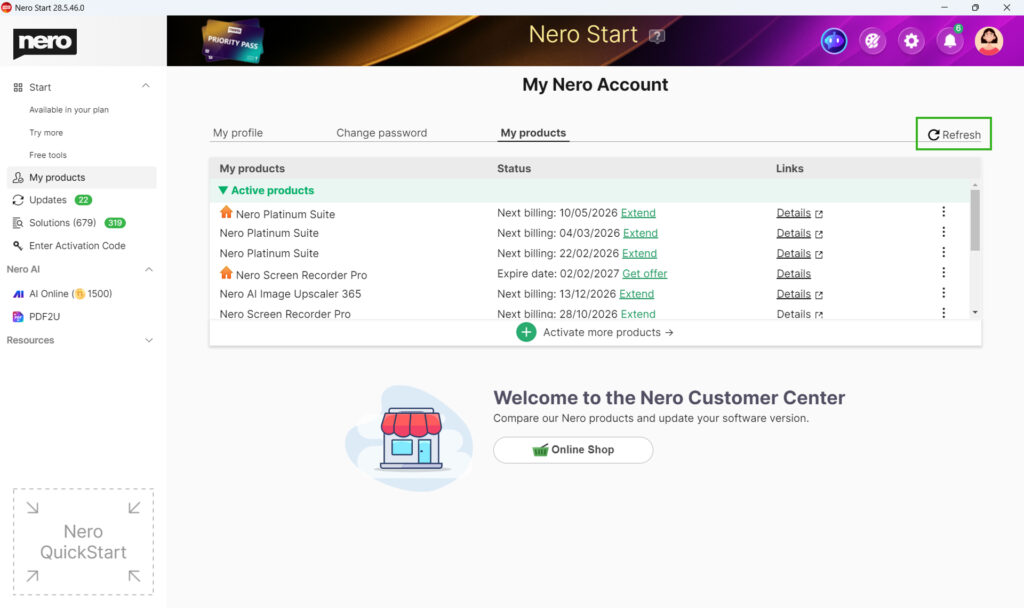
Sign in with the correct Nero Account (the one used for purchase/activation). Then check Account > My products in Nero Start and refresh. If the product still does not appear, contact Nero Support and include your order/activation details.

refresh product list in Nero Account
Example: refresh product list
Posted on March 18, 2026March 18, 2026Author AprilCategories Nero AccountLeave a comment on How to download my activated product?

How to enable ‘Local Network Access’ for Nero Start login?

Why do I see a “Local network access” permission request?

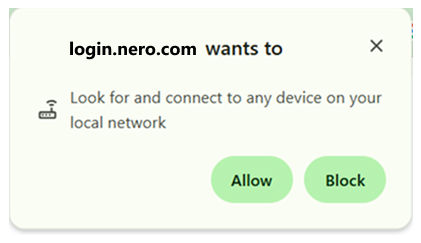
When you sign in or sign out, the login page must send the “signed-in”/“signed-out” result back to Nero Start on the same PC (via a local connection such as localhost). Some browsers show this as ‘Look for and connect to any device on your local network‘ (or similar wording).

local network access permission
Example: local network access permission

What happens if I block it?

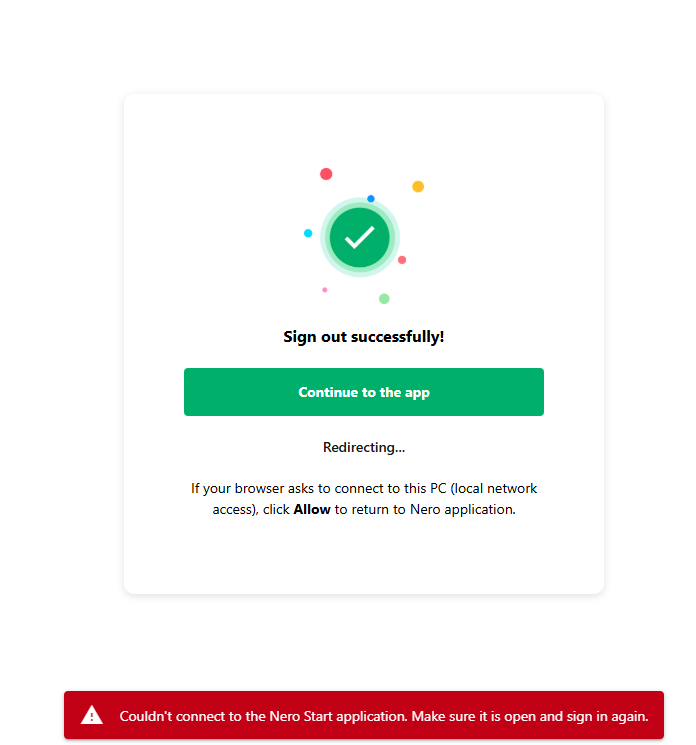
If this permission is blocked, the browser cannot return the sign-in result to Nero Start, and the login may fail (for example: “Couldn’t connect to the Nero Start application…”).

Exaple: Error – couldn’t connect to Nero Start

Is it safe to allow?

Yes. This permission is used only to hand over the sign-in status to Nero Start on your device. It is not used to access your files.


How to allow it (Chrome, Edge, Firefox, and other browsers)

The setting name may vary by browser. Look for permissions related to Local network access, local connections, or connecting to this device/PC for https://login.nero.com/ .

Method A: Allow it when the browser asks

  1. Start the online login from Nero Start.

  2. When your browser asks for permission to connect to this PC / local network access, select Allow.

    local network access permission

  3. Return to Nero Start and complete sign-in.

Method B: Change it in the settings of login.nero.com (if you previously blocked it)

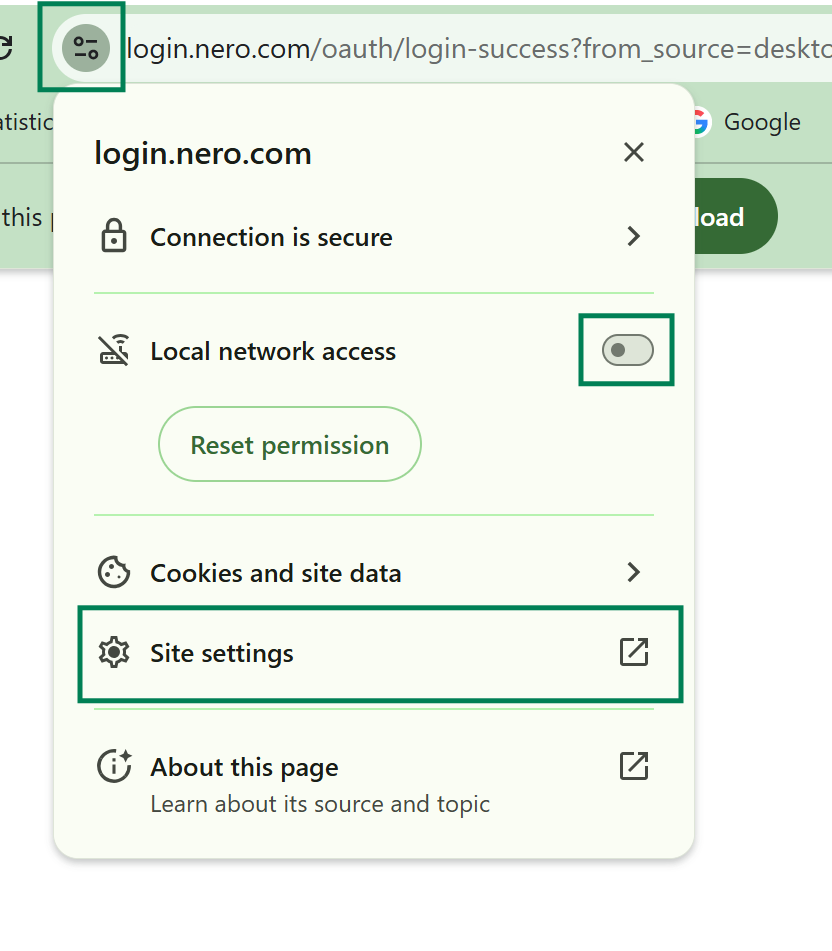
  1. In the Nero Account Login page which you got the error info, open your browser Settings.

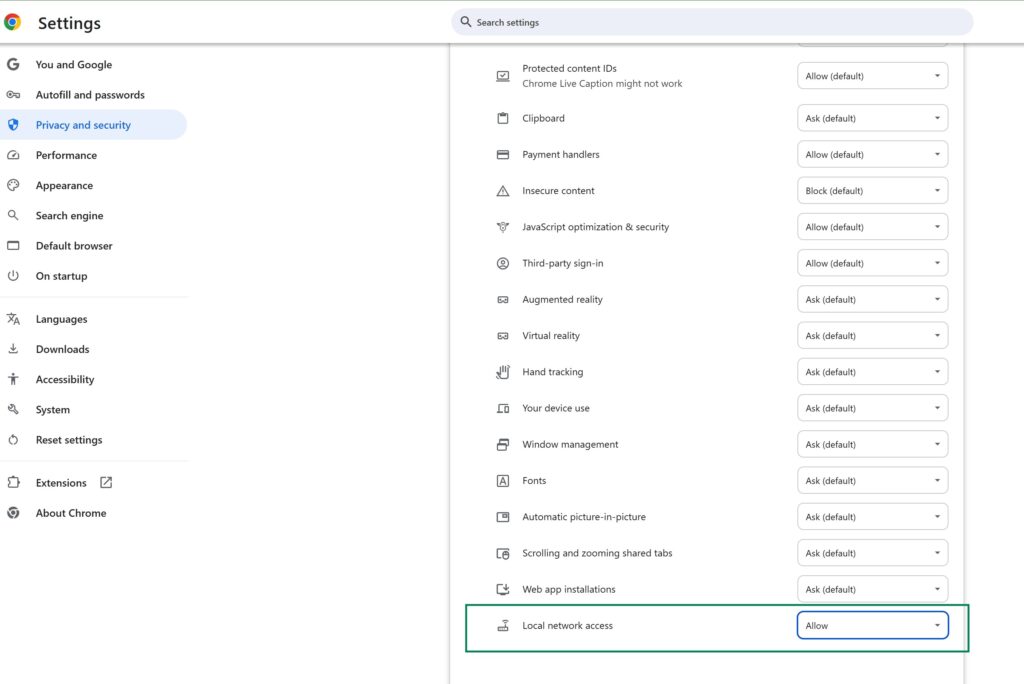
  2. Enable ‘Local network access‘ directly

  3. Or clicking ‘Site Settings‘ and scrool to the bottom to find ‘Local network access‘(or equivalent), and set it to ‘Allow‘.

  4. Close the settings tab, then return to Nero Start and sign in again (keep Nero Start open).

Method C: Change it in your browser site settings (if you closed login.nero.com)

  1. Open your browser Settings.

  2. Go to Privacy & Security (or Site permissions / Site settings).

  3. Find site permissions for https://login.nero.com/.

  4. Locate Local network access (or equivalent) and set it to Allow.

  5. Close the settings tab, then return to Nero Start and sign in again (keep Nero Start open).


Quick checklist if it still fails

  • Keep Nero Start open while signing in.

  • After changing the permission, back to Nero Start and sign in again.

  • Contact Nero Support(feedback@nero.com) for further help.

Posted on January 5, 2026Author AprilCategories Nero Account, Nero StartTags online login, failed to loginLeave a comment on How to enable ‘Local Network Access’ for Nero Start login?

Where can I find my activation code?

Inside of Nero Start you will be prompted to enter your activation code. Depending on the product you have purchased this code might be located in different places:

1) Product boxes

Boxed products typically come with an installation CD. Inside of the CD case or on the the paper sleeve you will find your activation code required to activate the software. Typically it consist of 32 characters in blocks of 4 with dashes in between. 

Another option for boxed products is that the code is actually printed on the cash register receipt. In this case the code the code typically starts with NERO followed by several characters. This code needs to be entered to activate your product.

 2) Product cards

The product cards typically contain a download link and your personal activation code printed on it. The activation code typically consist of 32 characters in blocks of 4 with dashes in between and needs to be entered to activate your product.


Posted on September 20, 2024Author AprilCategories Get Nero Installed and started, Nero Account, Nero Start443 Comments on Where can I find my activation code?

Posts pagination

Page 1 Page 2 Page 3 Next page
Proudly powered by WordPress