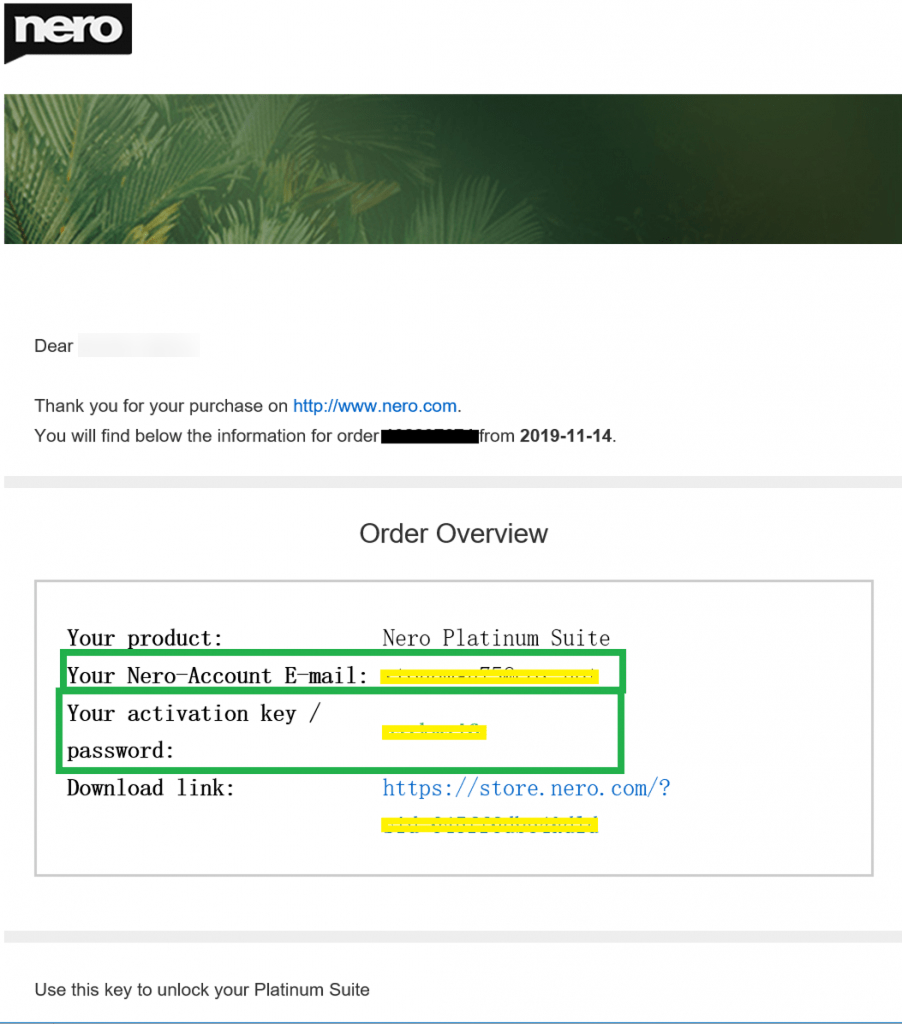
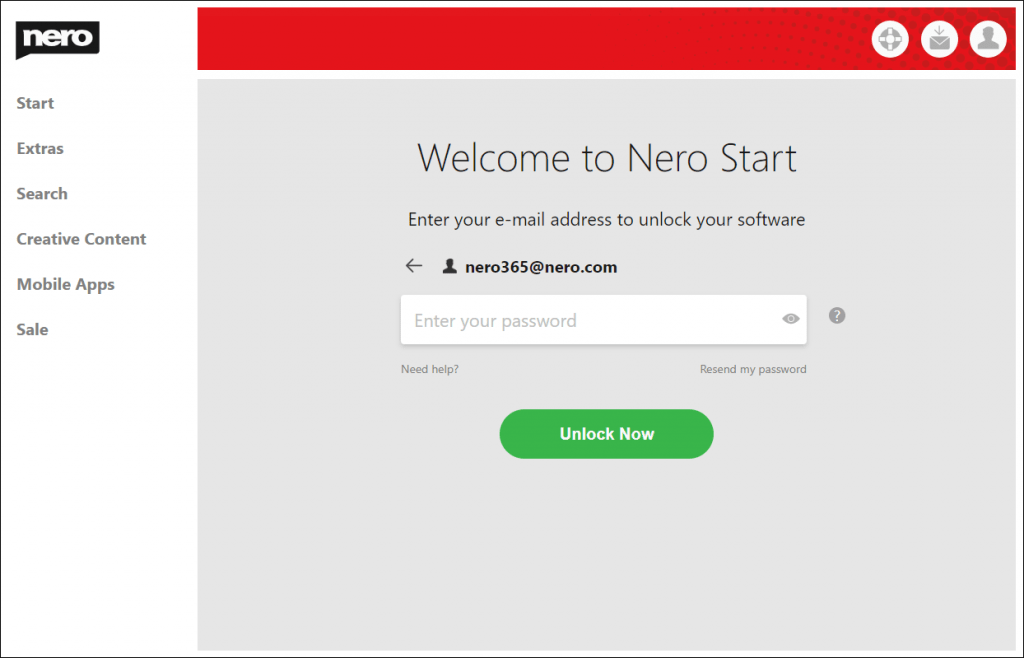
Inside of Nero Start you will be prompted to enter your activation code. Depending on the product you have purchased this code might be located in different places:
1) Product boxes
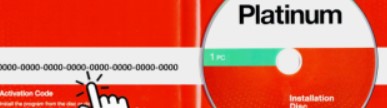
Boxed products typically come with an installation CD. Inside of the CD case or on the the paper sleeve you will find your activation code required to activate the software. Typically it consist of 32 characters in blocks of 4 with dashes in between.
Another option for boxed products is that the code is actually printed on the cash register receipt. In this case the code the code typically starts with NERO followed by several characters. This code needs to be entered to activate your product.
2) Product cards
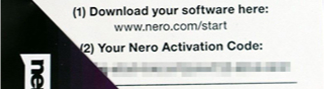
The product cards typically contain a download link and your personal activation code printed on it. The activation code typically consist of 32 characters in blocks of 4 with dashes in between and needs to be entered to activate your product.
If you are an user of the Nero AI online services, you may have wondered about the Nero Start login email and password when you first stepped into the Nero desktop applications.
The email address is still the key information which required to sign into Nero Start.
How do I know my account email and password? Please follow the steps below to find your email and password information:
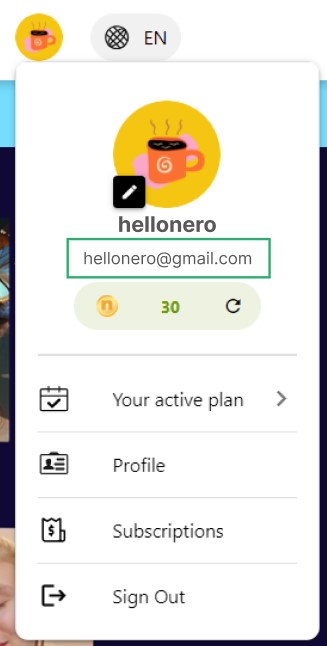
From your Nero Account, you will find the email address. This is the email address for your Nero Account. You can sign into Nero Start with it.
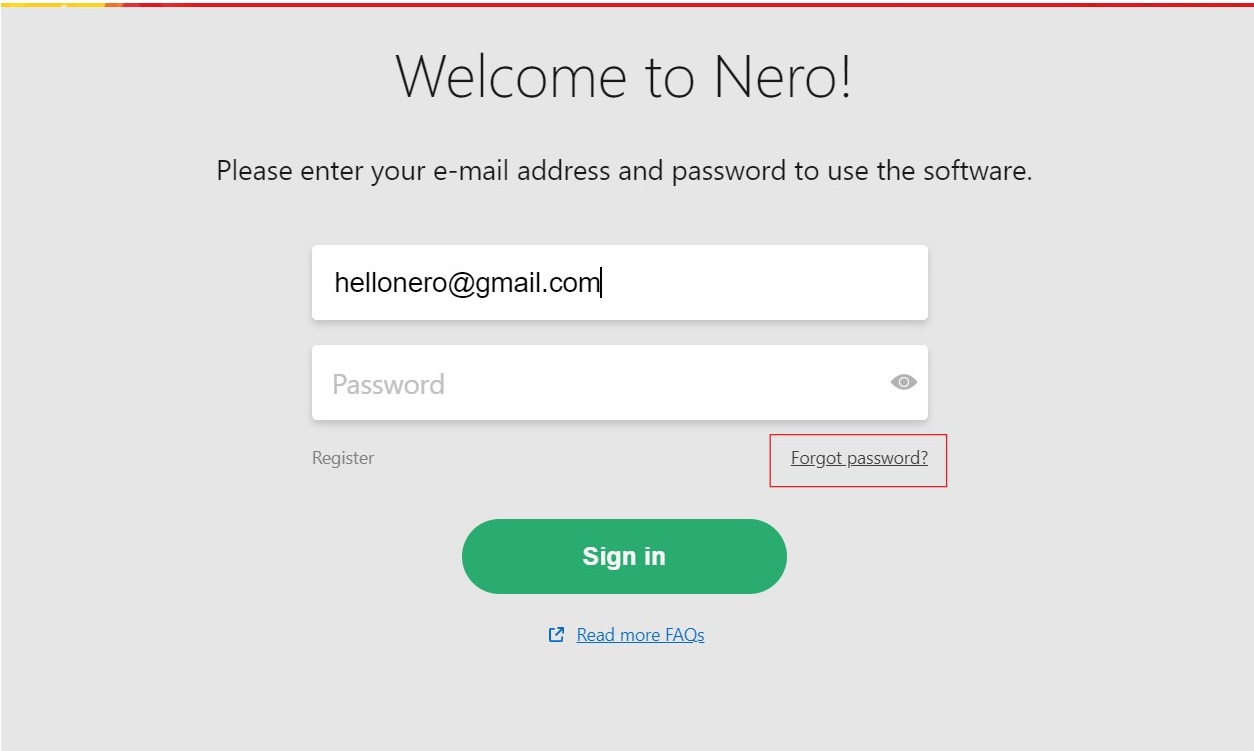
Launch Nero Start. Enter the email address of your Nero Account
Clicking ‘Forgot Password’ will try to reset your password. This only will reset your Nero Account password, no change for your 3rd party account password.
The default password will be sent to your email address.
Note:
If you are using Apple account to login your Nero Account and find your email is ended by @privaterelay.appleid.com, it shall because you enabled Apple privacy settings. This email is the email address for your Nero Account now.
In case of any question, please get in touch with our techinical support.
All Nero products you purchased are bundled to your nero account. Email, especially the primary email, is very important for your nero account. It is used not only for your Nero account but also for your orders.
But what do you do if your email address has to be changed because it is about to be expired or for some other reason?
Please check below FAQs and follow the steps to change your email.
In Nero Start, from Account icon, go to ‘Manage my account’
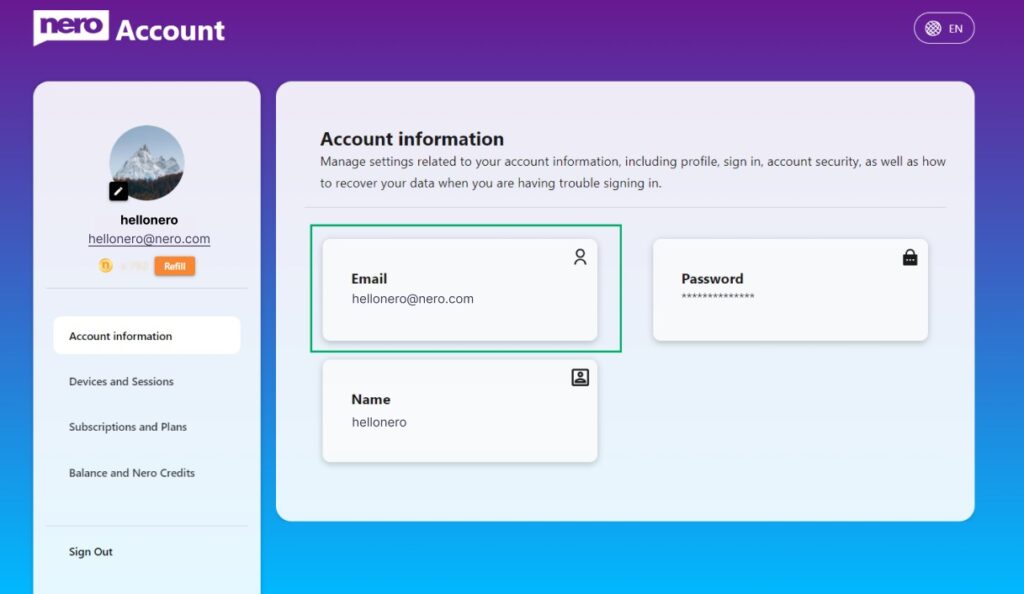
Click ‘Edit’ button for Email. Nero Account online page will be opened. The email change need to be done in the Nero Account online page. Maybe another login will be required if you have never open Nero Account online page before.
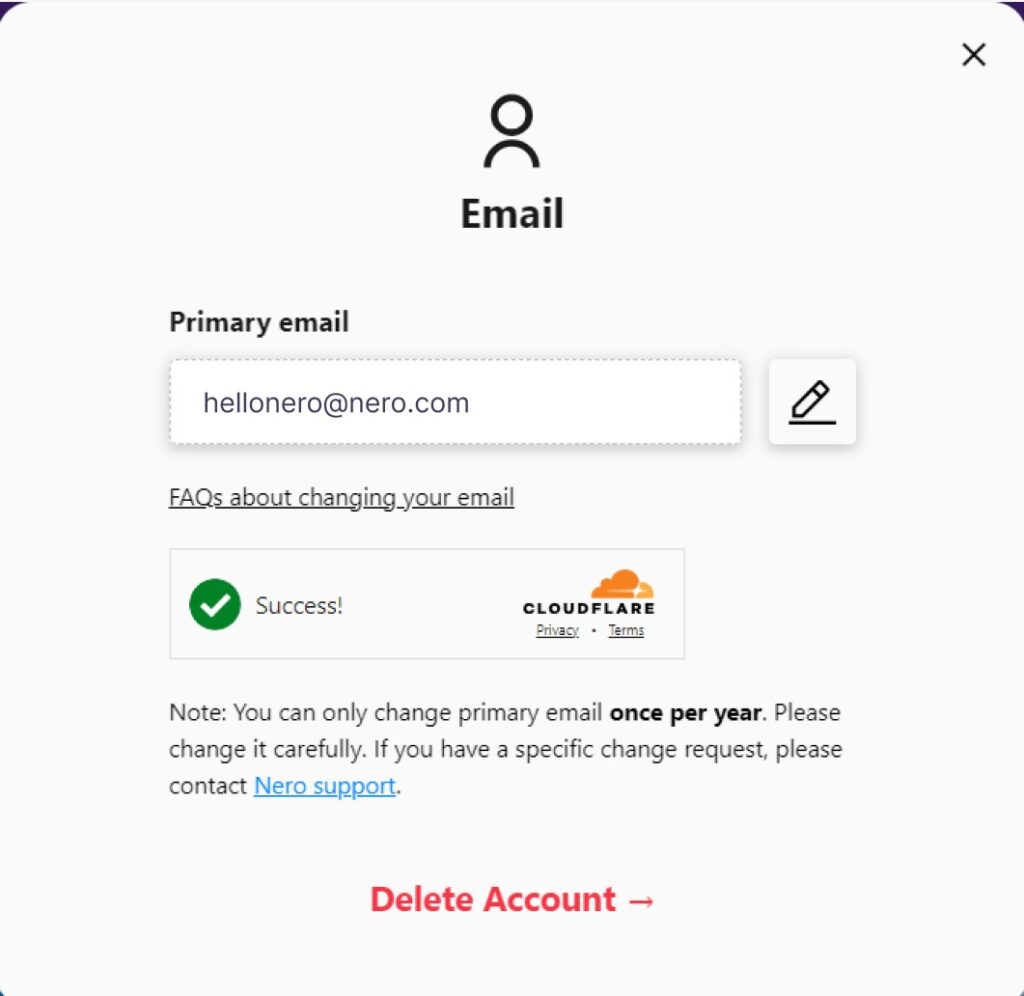
Click ‘Email’ in ‘Account information’. ‘Edit’ button will be enabled once you cofirmed not a robot. Click ‘Edit’.
Follow the guide to confirm your password.
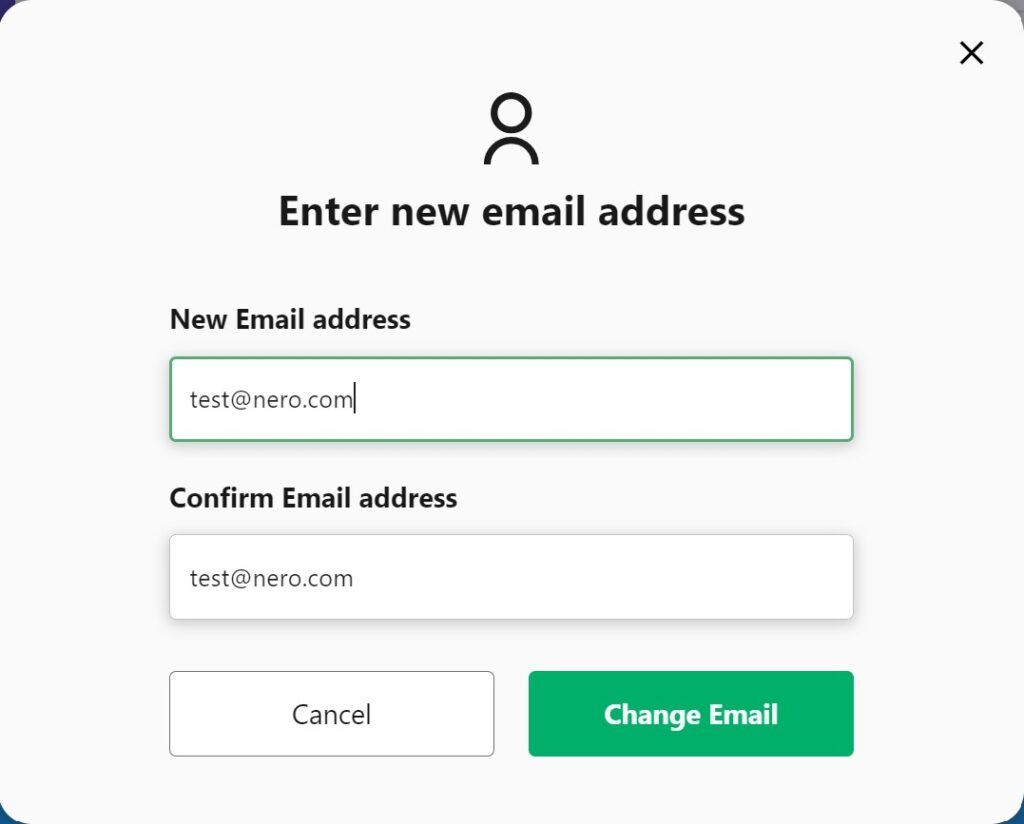
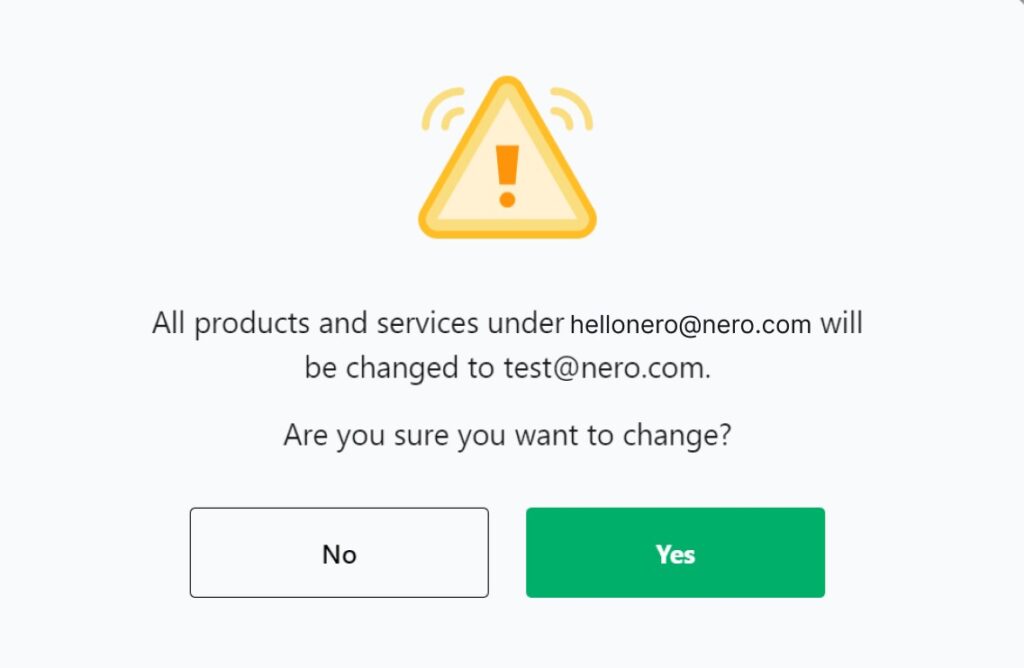
Now you can enter the new email address. Click ‘Change Email’ and make sure you want to move all your Nero products and services to new email.
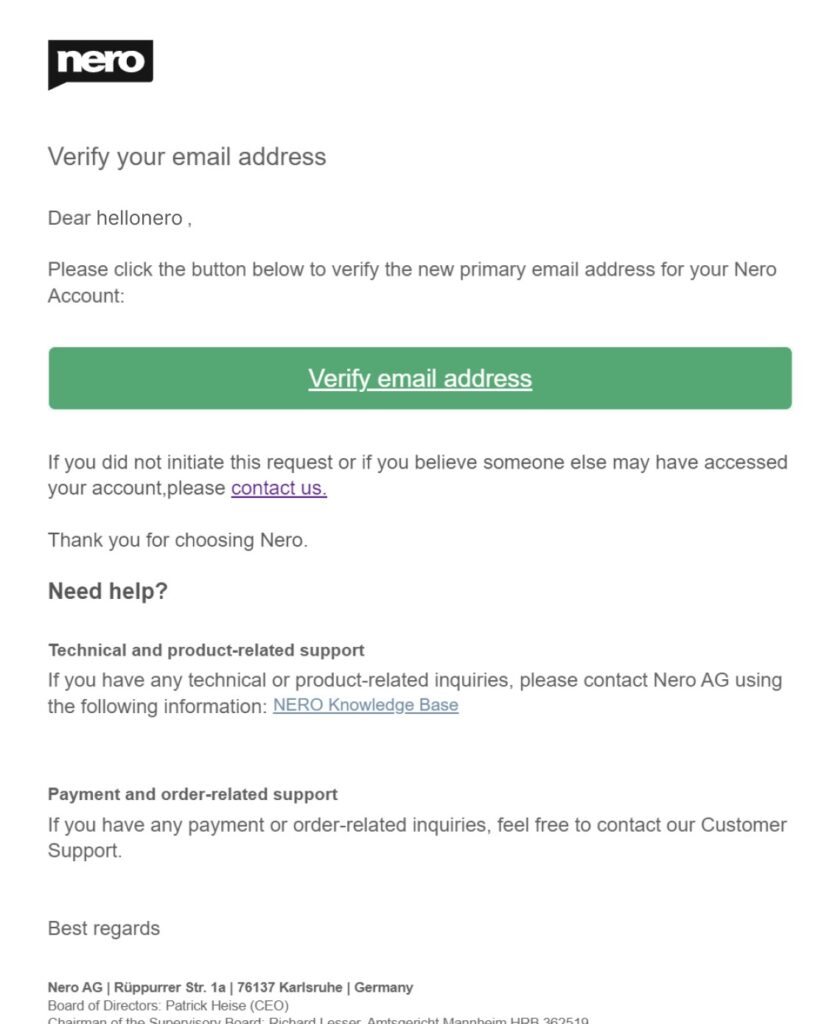
Your new email address will receive a confirmation email. You will be able to change your account’s primiary email by clicking the verification button in the confirmation email.
Clicking the verification button to start the change. Please be patient and don’t leave the page.
After email address is changed successfully, please go to Nero Start to log back in with your new email.
Note:
As Email is a very important information for your Nero account, please change it carefully.
There is only one chance to change your primary email per year. If you do have special request to change it again, please contact our customer support to get some help.
In order to avoid the change by mistake, the primary email can be rolled back to the original one within 48 hours.
After changed the primary email, when checking the order information, you may find that some of the order information is empty. Don’t worry. All of your information, products and services have been properly saved. This is just a “display” issue and we are fixing.
FAQ: How to upgrade my 2nd email to primary email?
You may have added a 2nd email a long time ago because you were worried about your primary email expiring. You can leave it as it is or you can upgrade the 2nd email to the primary email. None of this will impact your normal use of Nero products.
If you would like to upgrade the 2nd email to the primary email:
You will see your 2nd email at your Nero Account online page.
Remove it. As you are able to change your primary email, 2nd email does not make a lot of sense to you.
Now follow the ‘FAQ: How can I change email?’ to change your primary email to the new one.
FAQ: Can I merge two Nero accounts if I purchased products with the wrong email address?
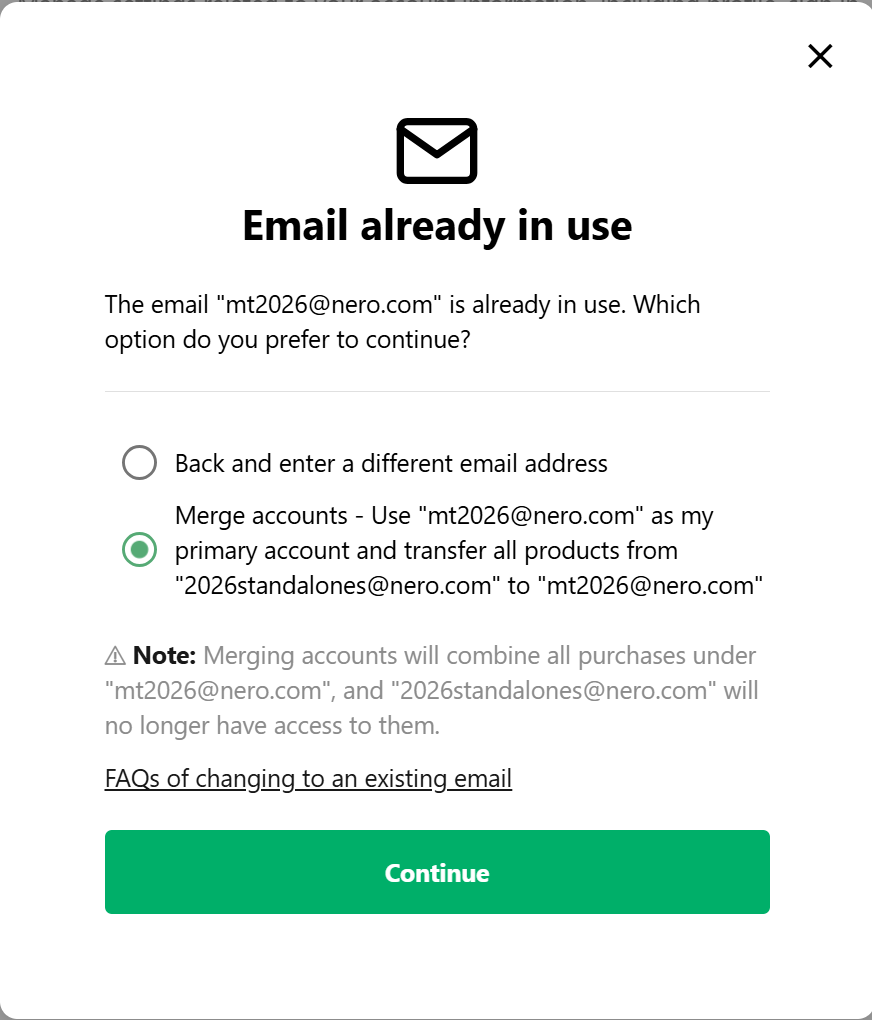
Yes. If you want to update your email from address ‘A’ to address ‘B’, and ‘B’ already exists, you now have two options:
Enter a different email address instead of B.
Merge your accounts by transferring all products from ‘A’ to ‘B’ and if ‘B’ is your primary account.
This is especially useful if you accidentally purchased products using the wrong email address. By merging, you can ensure all your products are available under the correct account without losing access.
Just like ‘change email’, if you choose to merge accounts, a confirmation email will be sent to email B to verify that you own it. This process can only be done once per year, so please make sure you double-check the email address before making a purchase to avoid delays or complications.
If you are having difficulties or questions, please get in touch with our customer support.
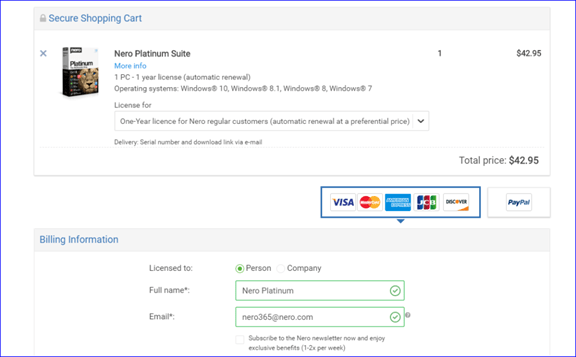
In Nero Start, have you logged in with your Nero Account correctly? If you bought Nero product via Nero.com, you need to log in with the email address which you entered during purchase. If you log in with other email, you could not unlock your Nero product. See how to log in here.
If you have already log in correctly with your Nero Account, but Nero is still a Trial. In this case, the reason is what you bought is Nero Platinum 2021 permanent license (‘pay once, forever use’ version), but what you installed is 1-year license subscription version. Please follow below steps:
1. Go to Windows Control Panel -> Program and Features. Is there Nero Platinum? If yes, please uninstall it.
2. Restart your PC as soon as uninstallation finished.
3. Download Nero 2021 Unlimited to your PC: https://www.nero.com/download.php?id=npla2021_full_installer
4. Close all Nero program which is running on your PC. Turn off anti-virus software temporarily. Install with the offline installer.
5. After installation, please run Nero Start, login with your email and password
6. After activate your Nero 2021, please continue to download and install 3 Content Packs if they are not installed yet. They could be installed in any order:
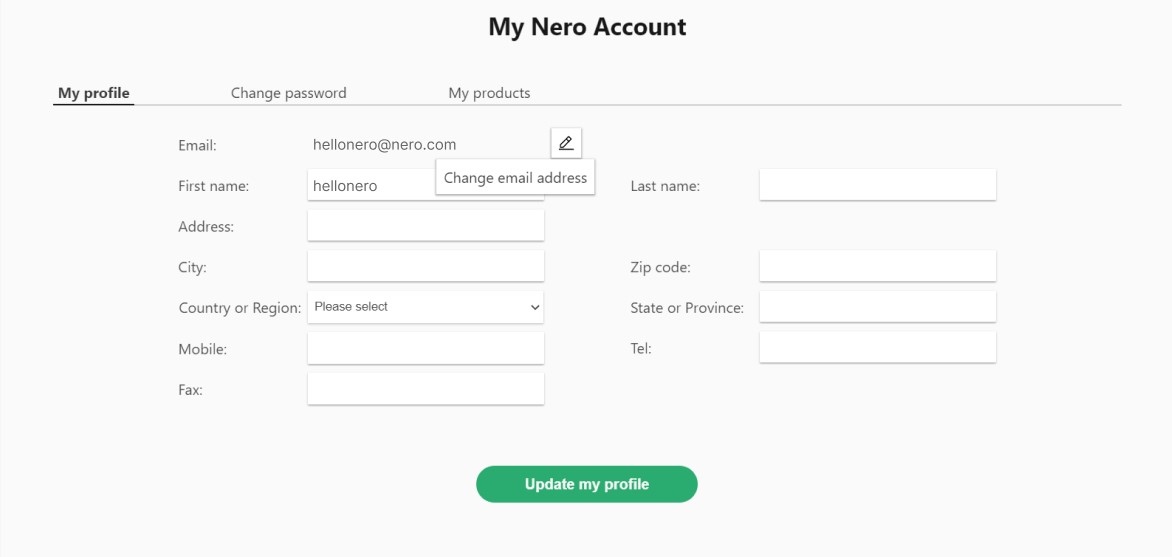 Nero Account online page will be opened. The email change need to be done in the Nero Account online page. Maybe another login will be required if you have never open Nero Account online page before.