Subtitles make your videos easier to follow, more accessible, and more convenient to watch without sound. With Nero Video, you can create subtitles manually, import existing SRT subtitle files, automatically generate subtitles using speech recognition, and export your subtitles for use in other video editing applications.
This guide walks you through all four subtitle workflows, from creating your first subtitle to exporting a finished subtitle file.
1. Create Subtitles Manually
If you want complete control over your subtitle text, timing, and appearance, you can create subtitles directly on the Subtitle track in the Nero Video timeline.
Step 1: Open the Subtitle Track
- Open your project in Nero Video and add your video to the timeline.
- Locate the Subtitle track in the timeline.
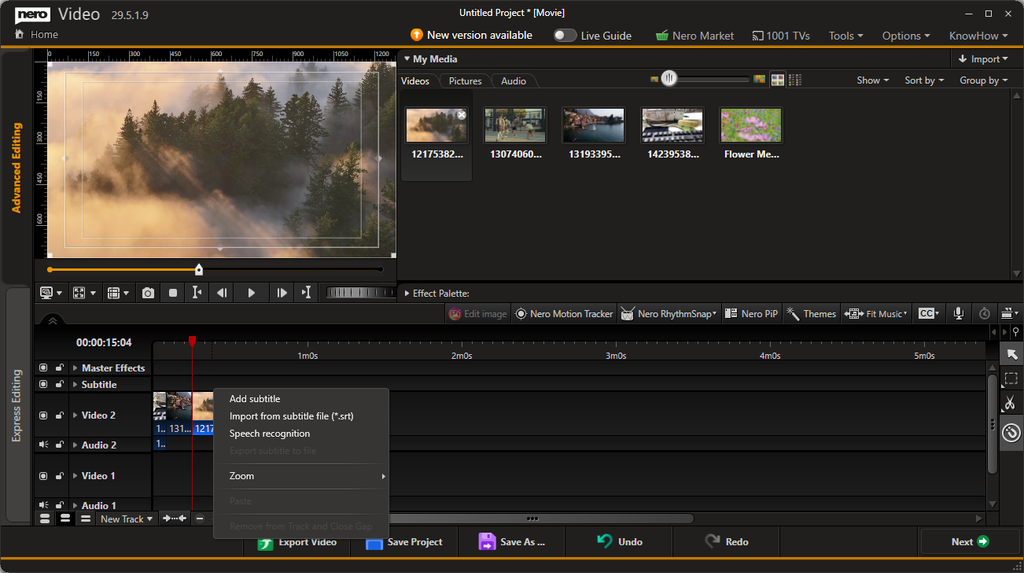
- Double-click an empty area on the Subtitle track where you want to add a subtitle.
Alternatively, right-click an empty area on the Subtitle track and select Add subtitle from the context menu.
Step 2: Enter Your Subtitle Text
After creating a subtitle, enter the text you want to display in your video. Use the preview window to check how the subtitle appears over your footage.
Keep your subtitle text concise and easy to read. For longer dialogue, consider splitting the text into multiple subtitle segments.
Step 3: Customize the Subtitle Appearance
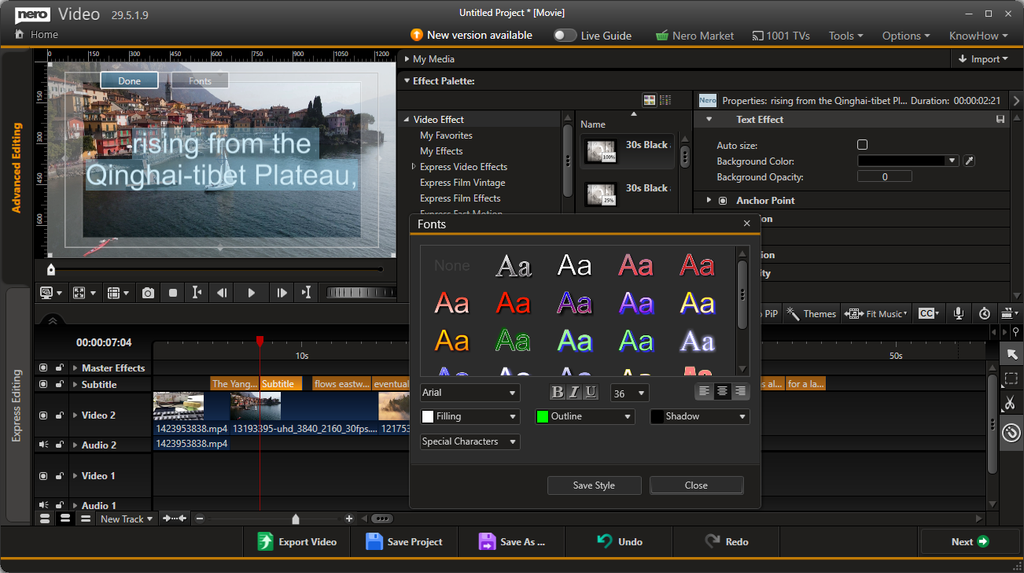
Use the subtitle editing controls to customize the text style. Depending on your needs, you can adjust options such as:
- Font: Choose a suitable font for your video.
- Font size: Make the text readable at your intended playback size.
- Text color and fill: Select a color that contrasts with the video.
- Outline: Add an outline to help the text stand out against bright or busy backgrounds.
- Shadow: Apply a shadow to improve readability.
- Text alignment: Adjust the alignment to suit your composition.
You can also save a customized style for reuse, helping you maintain a consistent look across your subtitles.
Step 4: Check the Subtitle Timing
Review the subtitle on the timeline and preview it during playback. Make sure the text appears at the appropriate moment and remains visible long enough to read.
Repeat these steps to create additional subtitle segments throughout your video.
Tip: Use consistent font sizes, colors, and positioning throughout your project to create a polished and professional result.
2. Import Subtitles from an SRT File
Already have subtitles prepared? Nero Video supports importing subtitles in the SubRip Subtitle (SRT) format, allowing you to reuse existing subtitle text and timing instead of creating every segment manually.
Step 1: Prepare Your SRT File
Make sure your subtitle file uses the .srt file extension and contains the subtitle text and timing information you want to use.
Step 2: Import the Subtitle File
- Open your project in Nero Video.
- Locate the Subtitle track in the timeline.
- Right-click the Subtitle track or an empty area on it.
- Select Import from subtitle file (*.srt).
- Browse to your SRT file and select it.
Step 3: Review the Imported Subtitles
After importing, check the subtitle segments on the timeline and preview the video.
Verify that the text displays correctly and that the subtitles are synchronized with the dialogue or other relevant audio.
If necessary, adjust the subtitle timing or appearance before exporting your finished video.
Tip: If the subtitles appear out of sync, check the timing information in the SRT file and compare it with the actual video content.
3. Automatically Create Subtitles with Speech Recognition
Don’t have a subtitle file yet? Nero Video can use speech recognition to generate subtitles automatically from spoken audio in your project.
This feature uses online speech recognition services hosted on Nero’s own servers, so an internet connection is required.
Step 1: Open Speech Recognition
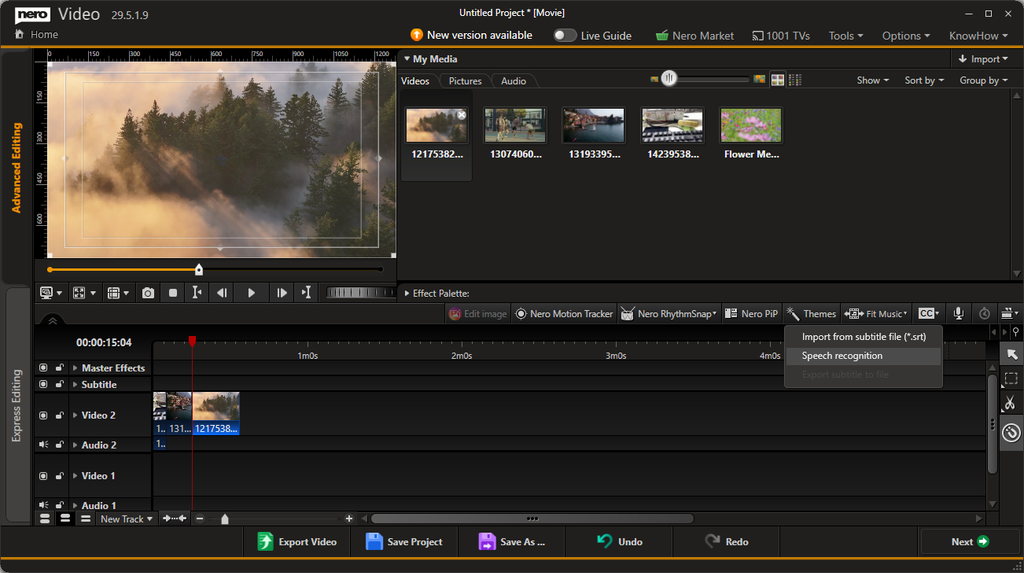
- Open your video project and locate the Subtitle track.
- Right-click the track or an empty area on it.
- Select Speech recognition from the context menu.
The Speech Recognition dialog opens, allowing you to configure the recognition settings.
Step 2: Select the Audio Track
Under Audio track containing speech, select the audio track that contains the dialogue or narration you want to transcribe.
If your project contains multiple audio tracks, choose the one with the clearest spoken content.
For example, select the track containing the original dialogue rather than a background music track.
Step 3: Choose the Language
Under Language, select the language spoken in your video.
You can leave the setting at Auto when you want Nero Video to detect the language automatically.
For the best results, select the correct language manually when it is known and available.
Step 4: Enable Translation (Optional)
If you want subtitles in another language, select Enable translation.
Then choose the target language from the available language options.
This allows you to generate translated subtitles instead of subtitles only in the original spoken language.
Step 5: Generate the Subtitles
Click Create to start the speech recognition process.
Nero Video processes the selected audio using its online service and generates subtitle segments for your project.
Once the process is complete, review the generated subtitles on the timeline.
Step 6: Review and Correct the Results
Automatic speech recognition can occasionally misinterpret words, names, accents, or background speech. Review the generated text carefully and correct any errors.
Also check the timing and readability of each subtitle segment before exporting your video.
Tips for better results:
- Use audio with clear speech and minimal background noise.
- Select the correct audio track.
- Choose the spoken language when it is known.
- Review technical terms, proper names, and translated text.
- Check subtitle synchronization during playback.
4. Export Subtitles as an SRT File
Need to reuse your subtitles in another video editor, share them separately, or keep them as a standalone file? Nero Video lets you export subtitles in SRT format.
Step 1: Open the Subtitle Track Menu
After creating or importing subtitles, locate the Subtitle track in the timeline.
Right-click the track or an empty area on it to open the context menu.
Step 2: Export the Subtitle File
Select Export subtitle to file from the context menu.
Follow the prompts to save the subtitle file in SRT format at your preferred location.
Step 3: Reuse Your SRT File
Your exported SRT file can be stored separately from the video and imported into compatible video editors or playback applications.
Before sharing the file, check that the subtitle text and timing match the intended video.
Export Subtitles or Export the Video?
These are two different operations:
- Export subtitle to file: Creates a separate subtitle file in SRT format.
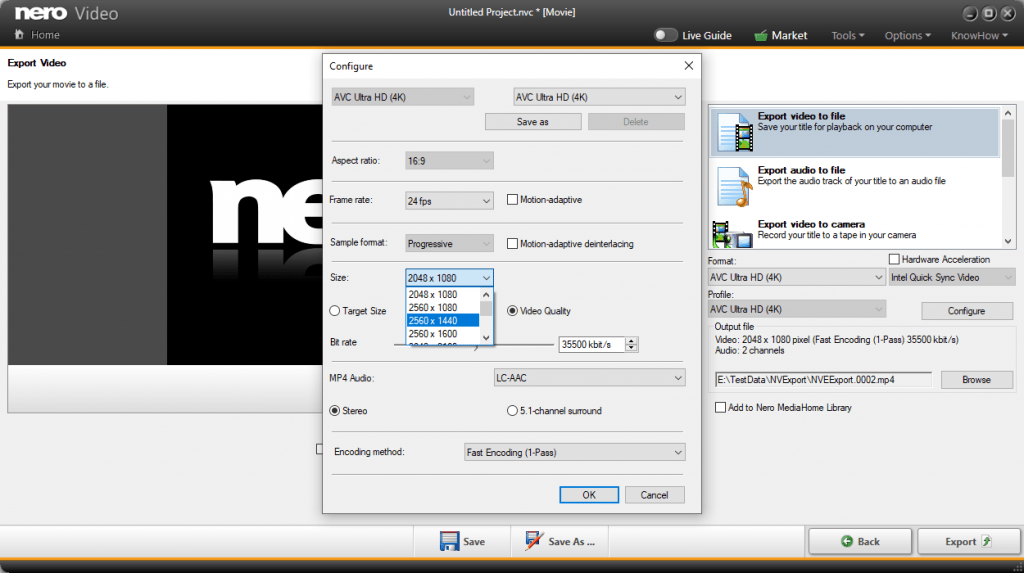
- Export Video: Renders your video into a video file. In the Export Video window, the Export subtitle to file checkbox is a separate option for exporting the subtitles alongside the video export workflow.
If you need a standalone subtitle file for another application, use the Subtitle track’s context menu.
Frequently Asked Questions
1. Can I create subtitles without an existing subtitle file?
Yes. You can create subtitles manually by double-clicking an empty area on the Subtitle track or selecting Add subtitle from its context menu. You can also use speech recognition to generate subtitles from spoken audio.
2. What subtitle file format does Nero Video support for importing and exporting?
The subtitle import and export workflows described in this guide use the SubRip Subtitle format (.srt).
3. Can Nero Video generate subtitles automatically?
Yes. Select Speech recognition from the Subtitle track’s context menu. Choose the audio track containing speech and the language, then click Create.
4. Does speech recognition require an internet connection?
Yes. Nero Video’s speech recognition feature uses online services hosted on Nero’s own servers, so an internet connection is required to generate subtitles.
5. Can I translate subtitles into another language?
Yes. In the Speech Recognition dialog, enable Enable translation and select the target language from the available options. Review the translated subtitles after generation to ensure their accuracy.
6. Can I edit subtitles generated by speech recognition?
Yes. Treat automatically generated subtitles as a starting point. Review the text, correct recognition errors, and check the timing and appearance before finishing your project.
7. Can I customize the appearance of my subtitles?
Yes. Nero Video provides subtitle styling controls, including font selection, font size, fill color, outline, shadow, and text alignment. You can also save a custom style for reuse.
8. Can I export subtitles without exporting the video?
Yes. Right-click the Subtitle track and select Export subtitle to file to save a standalone SRT file. You do not need to render the entire video just to obtain a separate subtitle file.
9. Why can’t I select Export subtitle to file?
Make sure your project contains subtitles on the Subtitle track and that you are opening the correct track context menu. If the option is unavailable, check whether subtitles have been created or imported successfully.
10. Can I use an SRT file in another video editor?
Yes. SRT is a widely supported subtitle format. You can import the exported file into compatible video editing applications and media players. Subtitle styling may need to be configured again in the destination application.
11. Why are my subtitles out of sync with the video?
The subtitle timing may not match the video’s dialogue or the SRT file may have been prepared for a different version of the video. Check the timing of the subtitle segments and adjust them to match the footage.
12. Why does speech recognition produce incorrect words?
Recognition accuracy depends on audio clarity, background noise, accents, pronunciation, and the selected language. Select the correct audio track, reduce background noise where possible, and review the generated text before exporting.
Conclusion
Nero Video gives you four practical ways to work with subtitles: create them manually, import existing SRT files, generate them automatically through speech recognition, and export them as standalone SRT files.
Whether you’re editing dialogue, preparing translated subtitles, or creating captions for a video project, these tools help you manage subtitles within your existing editing workflow.