How to obtain products from the VIP Store?

Available Product: Nero Platinum Suite – yearly license


The VIP Store is the app Store in Nero Start. It is only available for Nero Platinum Suite – yearly license users. In the VIP Store, you can directly purchase additional software with just one click.

Info: Nero Start and other necessary components should be updated to the latest version to ensure the smooth functioning of the VIP Store.


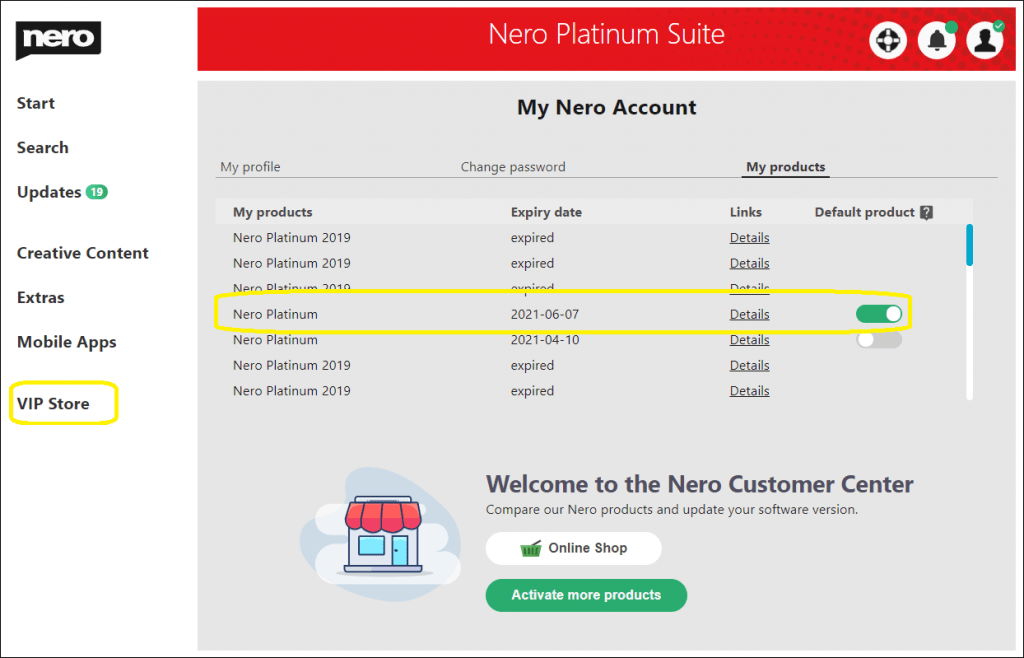
When you are signed in in Nero Start and have Nero Platinum selected as your default product, the Nero VIP Store will appear in the left menu entry.
SelectProduct

Nero Platinum subscribers will receive exclusive discounts for different products.
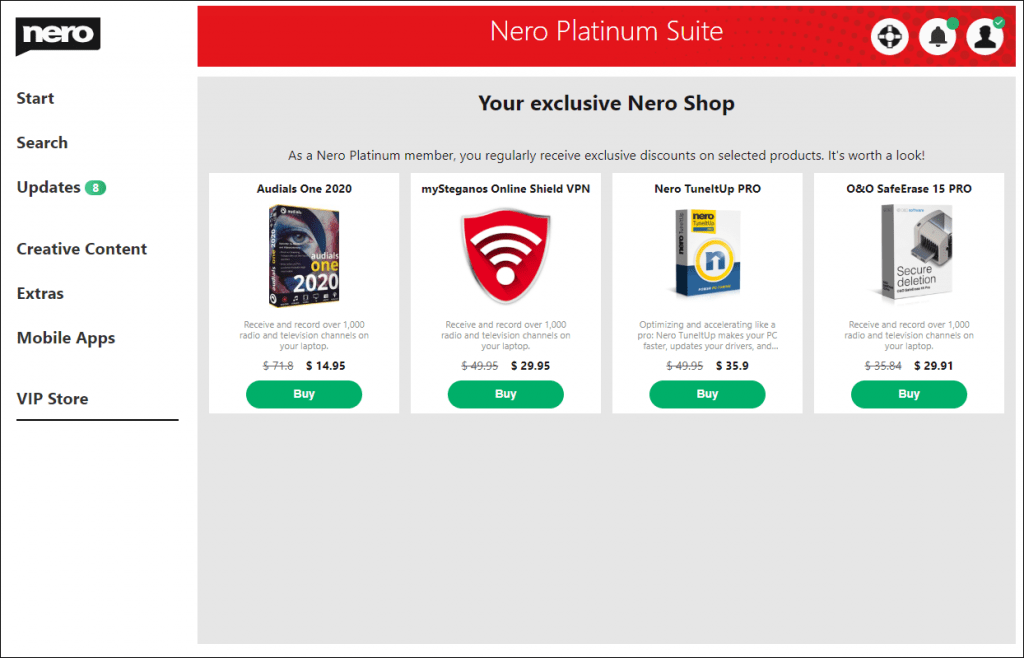
VIPStore_ProductList

After you have confirmed your purchase in the VIP Store, the order will be placed by our authorized payment provider Verifone. The payment method will be the same one you are using for your yearly Nero Platinum license.
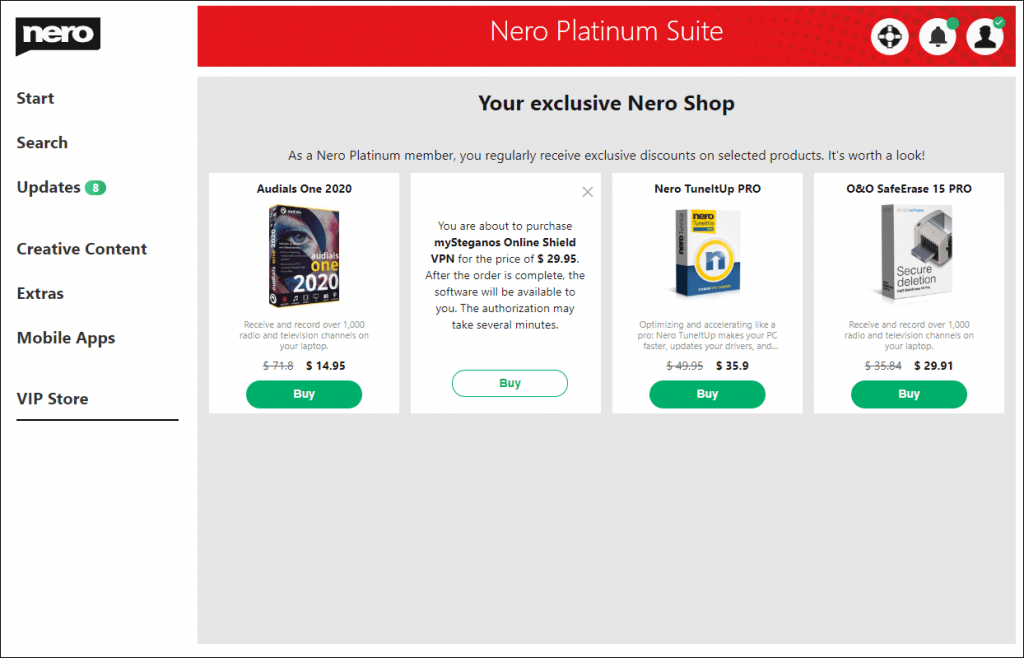
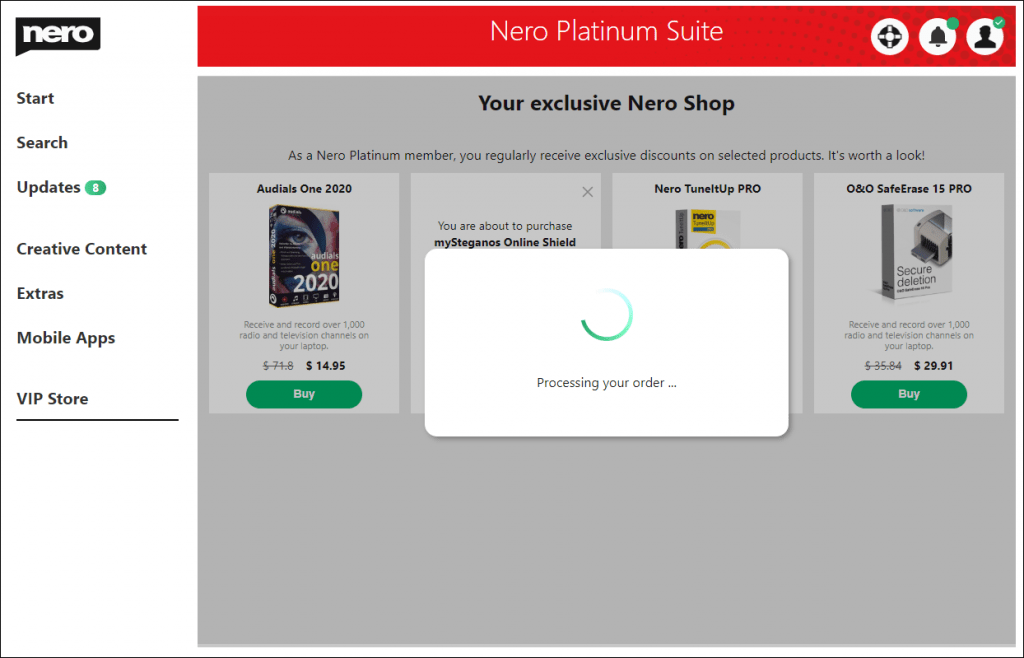
VIPStore_PurchaseConfirm VIPStore_Purchase


After the order is finished and successful, Nero Start will begin to download and install the product. After the product is installed successfully, you can start the application directly via the VIP Store.
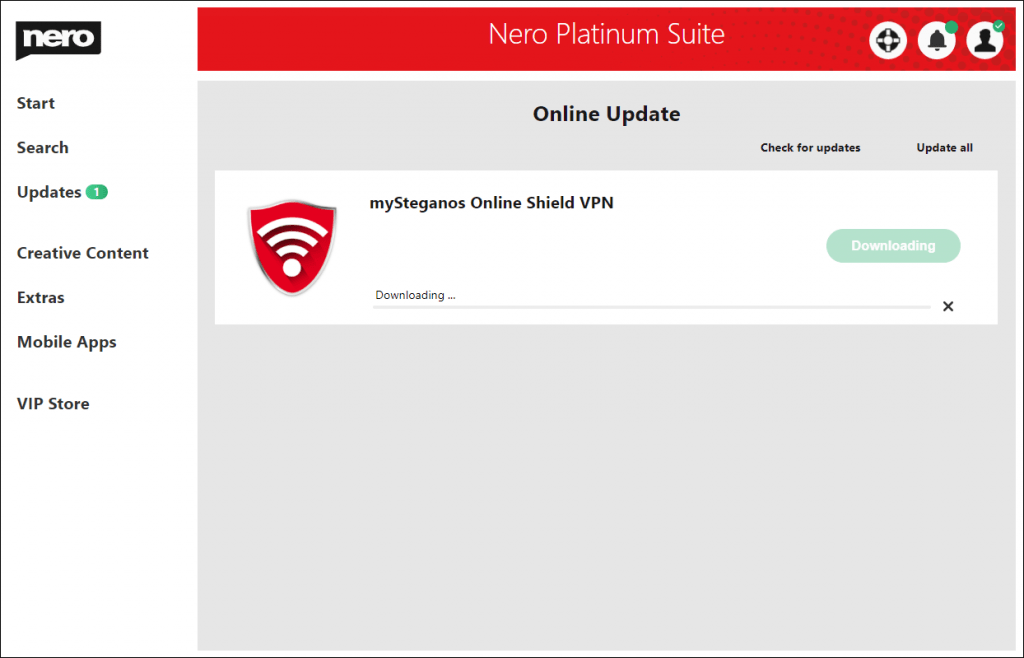
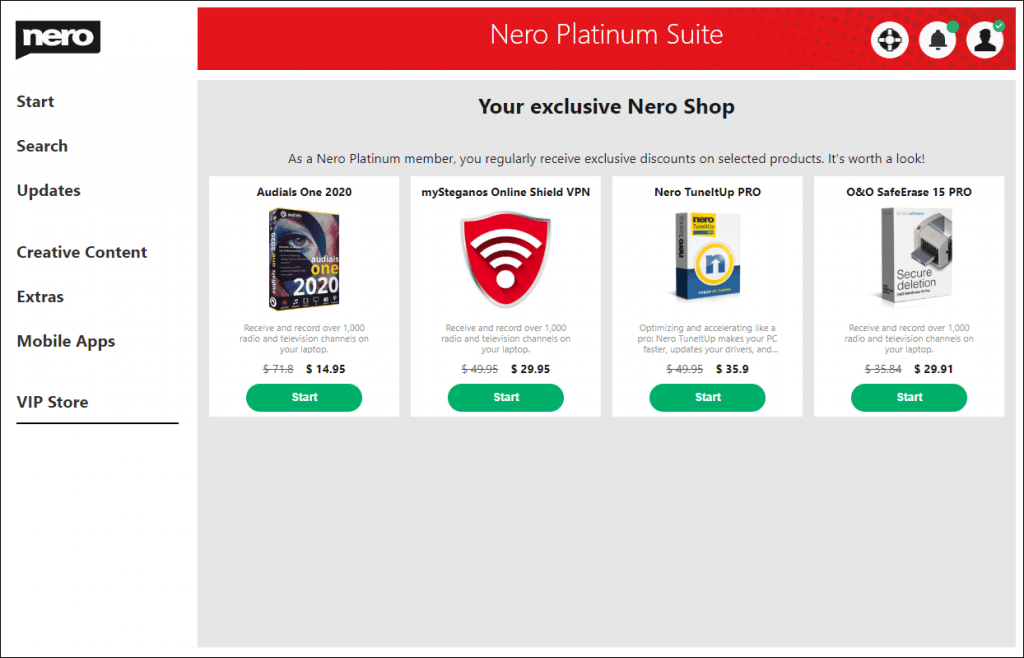
VIPStore_Install_App VIPStore_Puchased_All


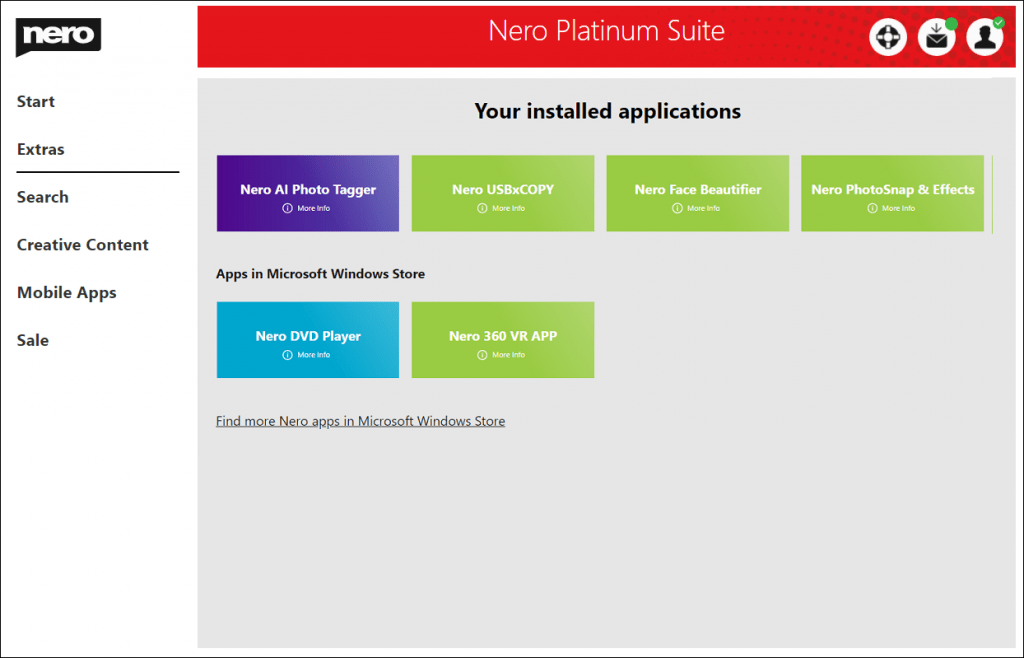
You can also find the application in your Extras menu entry.
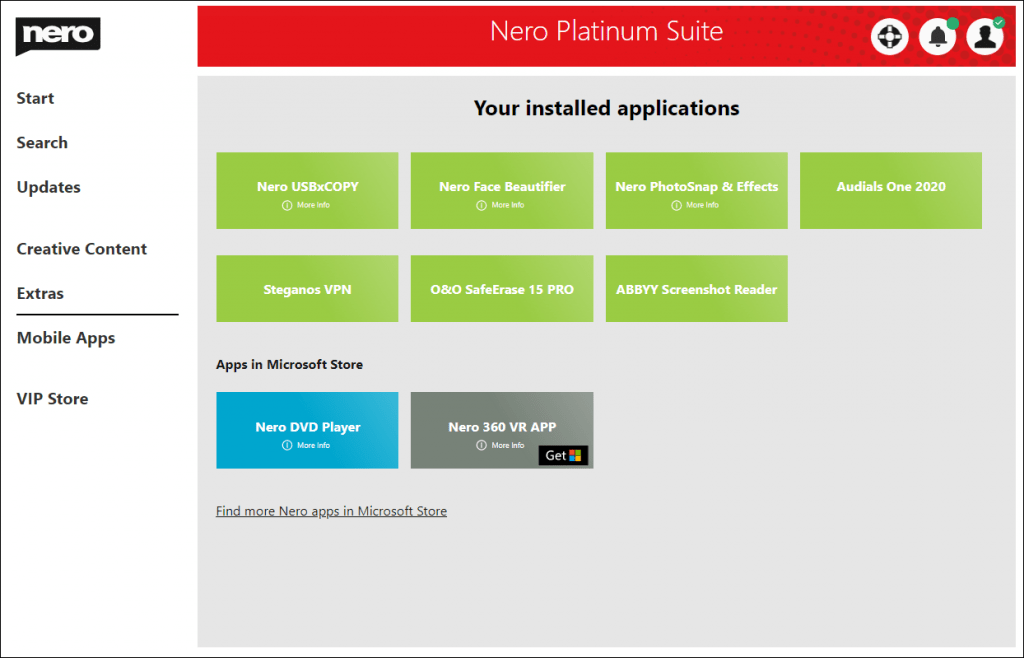
VIPStore_InstalledAppsInExtra

If the payment information from your Nero Platinum Suite happens to be out of date, you will be notified and asked to input your payment info manually to continue with the order.


You can get the privacy policy detail information from below link.

https://store.nero.com/order/privacy.php


Nero KnowHow 00225
🛒 Click and Get Nero Platinum Suite

Release Notes for Nero Platinum Suite (Subscription) – 2020 Q3

We always improve our product based on your feedback and suggestions continually.

Nero Start

  • [NEW] VIP Store is available for Nero Platinum Suite – 1 year license. In VIP store exclusive discounts is available.
  • [NEW] Nero TuneItUp PRO is available for Nero Platinum Suite – 1 year license. Download, install and unlock it!
  • [NEW] New Updates Center to install and Update Nero products.
  • [NEW] New designed Options screen in Nero Start.
  • [NEW] It is available to select one Nero product from all products in my Nero Account and show in on the Start screen.
  • Improved notifications in Nero Start.
  • Fix issues to improve the software stability.


Nero MediaHome

  • [NEW] At Windows 10 system, now Nero MediaHome supports high dynamic range(HDR) playback for videos, movies and TV shows. You will find more detail at its How To document.
  • [NEW] The detected AI tags are not so satisfied? Now you can manually correct the AI tag for your photo to better organize your photos.
  • [IMPROVEMENT] Now you can find your photos easily! The new organized “Find” view allows you select “Find” conditions with much clearer structure.
  • We have fixed some issues during face detection for the photos which are stored at OneDrive, NAS and network drives.


Nero AI Photo Tagger

  • [NEW] Completely new user interface and better usability.
  • [NEW] Nero AI Photo Tagger now supports more than 90 AI tags.
  • [NEW] Upgraded AI detection is smarter than before. Now it provides you a better tagging precision for less manual work.


Nero Video

  • [NEW] Now in Nero Video editing screen, possible to save the used assets and project file to another folder. With this new function, you can easily manage your Nero Video projects.
  • [NEW] Add 2K level output resolutions in the profile “AVC Ultra HD(4k)”.
  • Fixed the issue “Video looks distorted with green stripes in preview windows or burned disc” while decoding via Video Graphic Card Hardware Acceleration Decoding.
  • Fixed the the position of audio config menu in Express Editing while in tablet model. At the same time, click the number in pop up volume adjust dialog, you can adjust the volume more precisely.
  • Fixed the issue “Export MPEG-4 files failed due to the useless audio settings”.
  • Fixed the crashes in Nero Video while enable the function of Video Graphic Card Hardware Acceleration Decoding.
  • Fixed the issue that Seamless audios are missing in Audio Tab or cannot import into Nero Video project.
  • Fixed the issue that the right context menu is missing in the Text editing screen.


Nero Recode

  • [NEW] Support to export AVC 2K video files.
  • Fixed the issue that the estimated output size is much larger than the actual size.
  • Fixed the crash in playing HEVC 4K videos via Video Graph Card’s Hardware Acceleration decoding.


Nero Burning ROM & Nero Express

  • Improve the burning module to fix the issue of cannot identify some Optical Disc Driver.
  • Fix crash issues to improve the software stability.


Nero BackItUp

  • Fix issues to improve the software stability.


Nero USBxCOPY

  • [NEW] New user interface and better usability.


Nero Content (v1.0.24.0 in Nero Start Updates screen)

  • Update Nero Content installers to capability with Nero Platinum Suite and other products.


🛒 Click and Get Nero Platinum Suite

How can Nero Video export or package media files which are used in the project?

Available Products: Nero Platinum Suite, Nero Platinum Suite 2021, Nero Video 2021


While using Nero Video to create your own movie, Nero Video can import your own media files like Video, Music or Pictures from different folders or different devices like TV or Camera. At the same time, all media files can be managed in the “My Media” palette.

Sometimes, if you want to consolidate your media files in your disks, or edit the Nero Video project in another PC, you have to

  1. Manually check and copy all used files in the Nero Video project to a specific folder.
  2. Copy or save the Nero Video project to the specific folder again.
  3. It is possible that you have to fix the Nero Video project file issue first before opening the project again. If certain files cannot be set correctly, these files and related applied effects will be removed.

Nero Video 2021 now supports exporting or packaging the project file and used media assets.

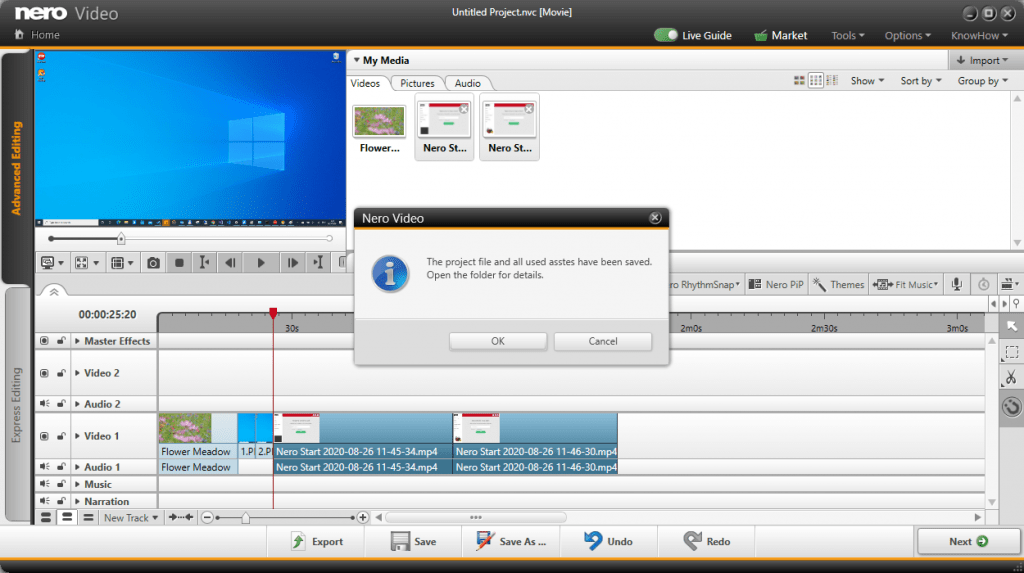
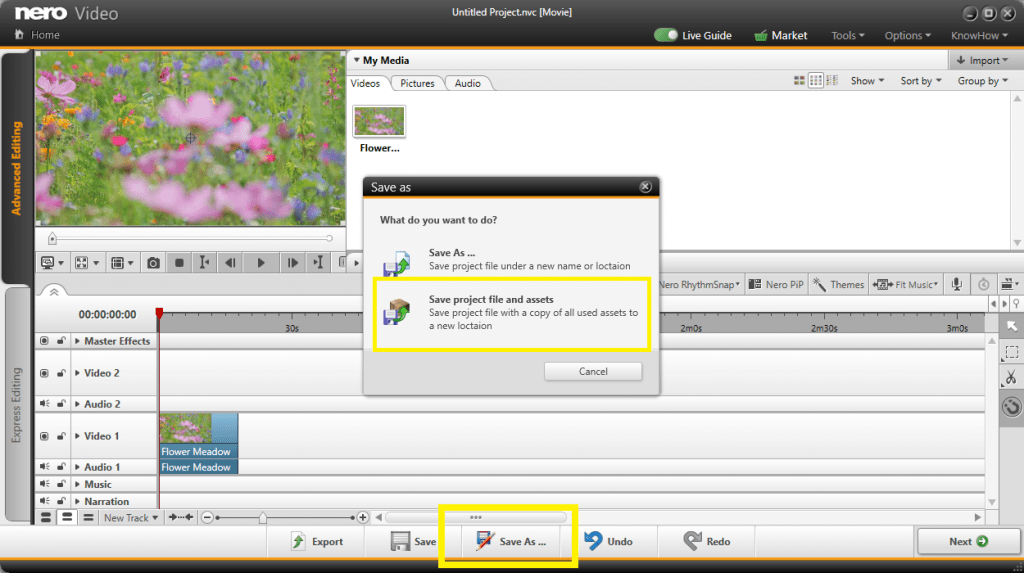
Once you have finished video editing and click “Save”, you can “Save project file and assets” by clicking the button “Save As …”.

Popup dialog

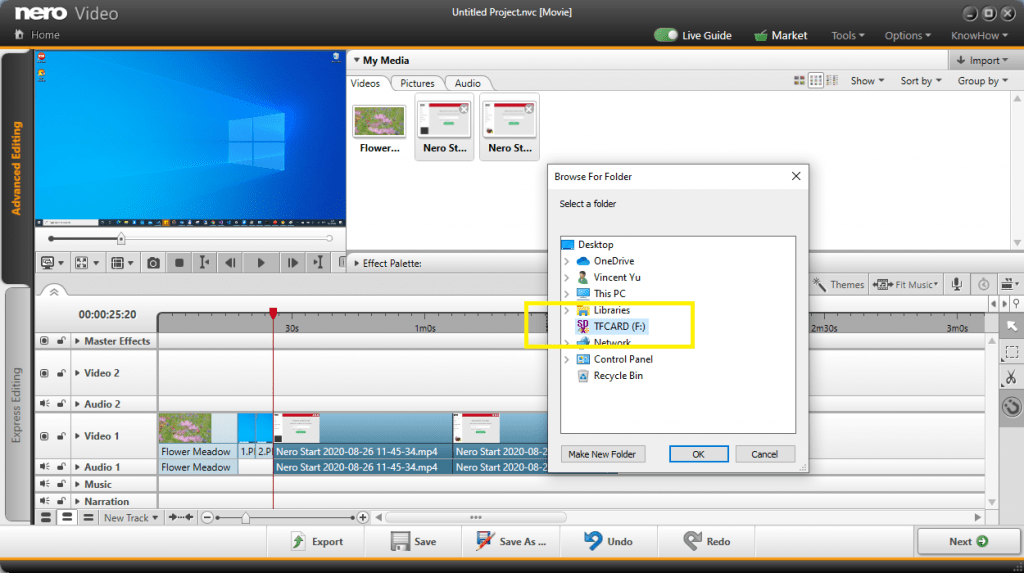
Then the Windows folder selection dialog pops up, and you can select the folder which you want to export or package the whole folder. You can even select a removable device or network drive.

Folder


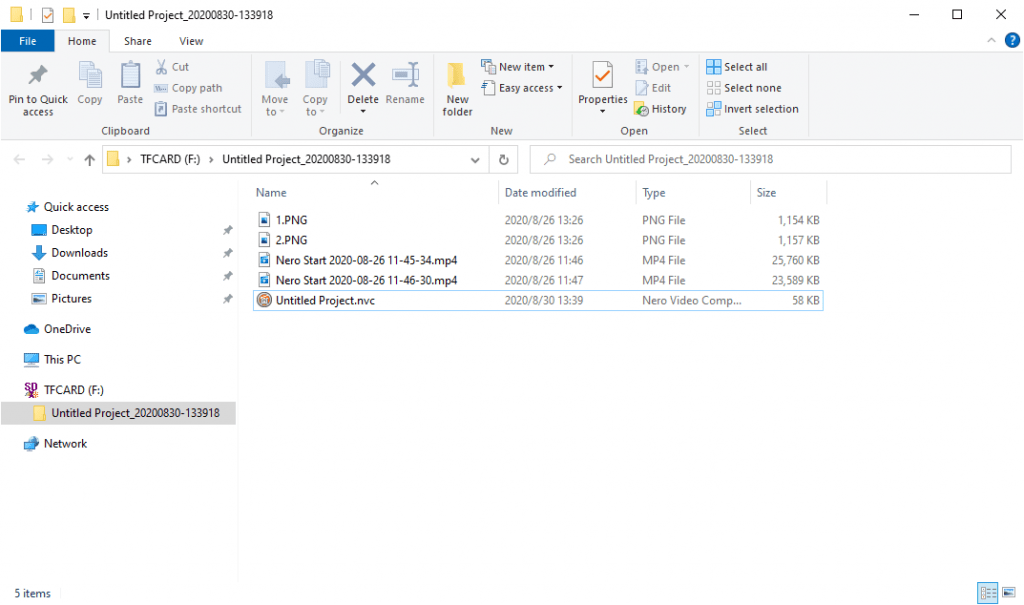
Depending on the number of the files you need to export and package, the whole export process will take some time. After the process is finished, you can open the folder to check the exported project and files.

Finish Export Folder

Other info: Nero Video will create a folder with the project name and the date info.


Nero KnowHow 00212


🛒 Click and Get Nero Platinum Suite

Release Notes for Nero Platinum Suite (Subscription) – 2020 Q2

We always improve our product based on your feedback and suggestions continually.


Nero Start

  • [NEW] You can get Nero products from Windows Store now. Open “Extra” screen, find Nero in Windows Store.

WindowsStore

  • Fix issue to improve the application’s stability.


Nero Video

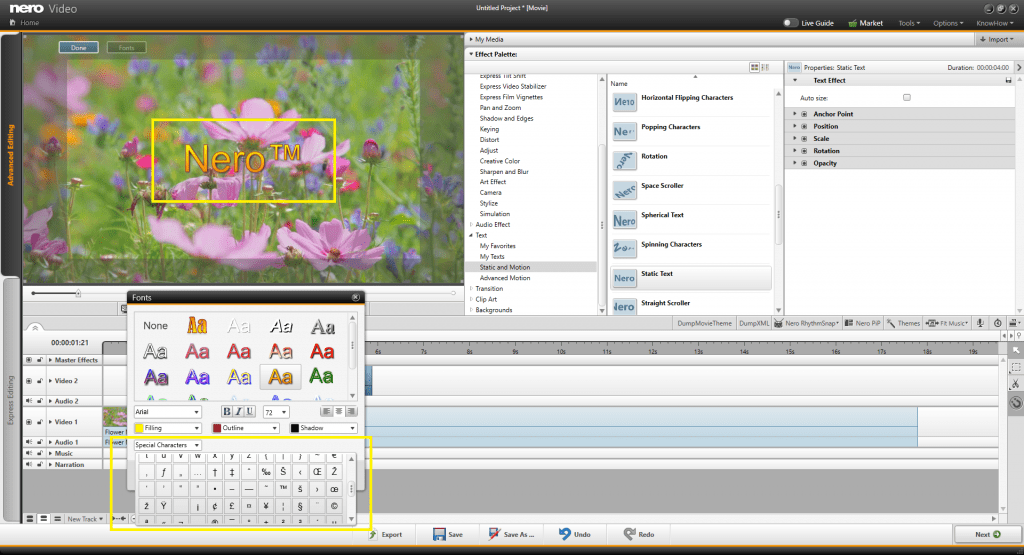
  • [NEW] Have you ever met problem in inputting special characters like “©”, “£”, “™”, “®”, “§” or even other symbols? Now, Nero Video can easily input these symbols. In the Font editing window, a new input named “Special Characters” will help you easily insert the characters into your movies. Try it!

Speical Characters_2

  • Nero Video has fixed a crash issue while applying effect in video editing.


Nero BackItUp & Nero Burning ROM

  • We received several issue reports by customers for the application, now in the new update we fixed these issues


Nero DuplicateManager Photo

  • In this update, we have fixed a crash issue which happened for some photos during similar detection. At the same time, we also improved the stability and performance for Nero DuplicateManager Photo.


Click to download the Nero Platinum Suite Installer

How can I covert and export AVC 4K Video in Nero Recode?

This cool feature is only available for subscribers

In addition to more profiles for Tablets, Smartphones and Home Entertainment systems, the 2020 Spring Release also contains 4K video – “AVC Ultra HD (4K)” export support.

12_AVC_4K_Profile


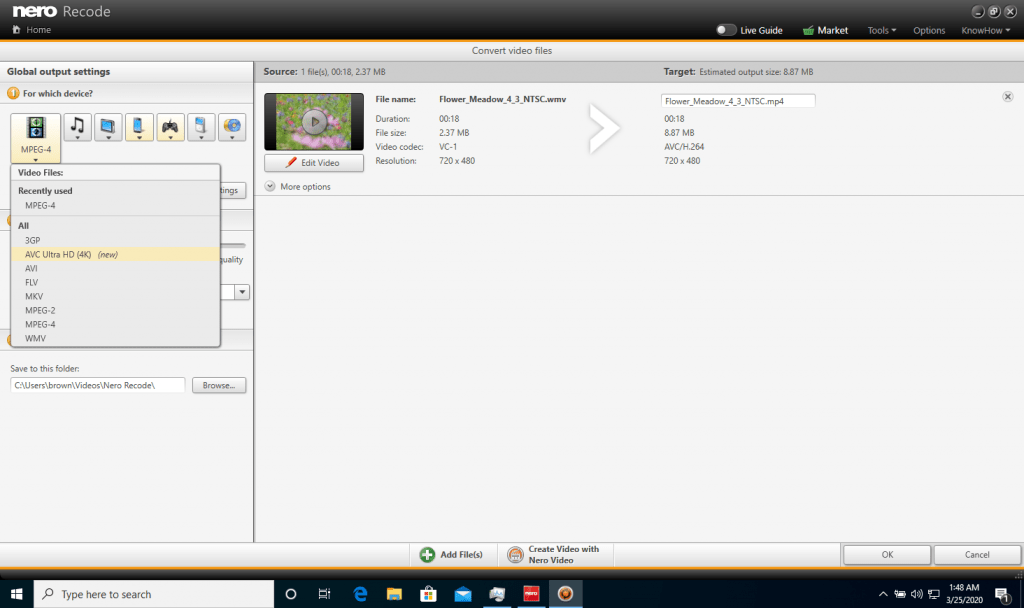
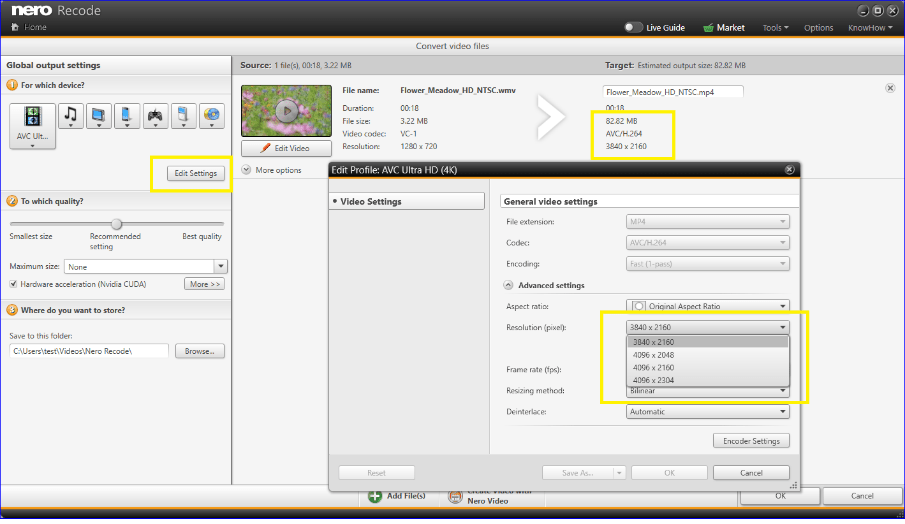
After you add some video files into Nero Recode, select and activate the profile “AVC Ultra HD (4K)” under the category “Video files”. The output file will be AVC Ultra HD (4K). You can also click the button “Edit Settings”, in the pop up profile setting dialog, and select any type of resolution you prefer.

ChangeResolution


Click here to try to convert to 4K video files in your Nero Platinum Suite.


Nero KnowHow 00206