Users who want to use their Nero products on more PCs with the same Nero Account.
What is an Extra Device License?
An Extra Device License allows you to use your Nero Account on one additional PC without signing out another device.
Normally, every Nero product has a maximum number of PCs that can be signed in at the same time.
For example:
Most Nero products: 1 PC
Nero TuneItUp Pro (3 PCs): Up to 3 PCs
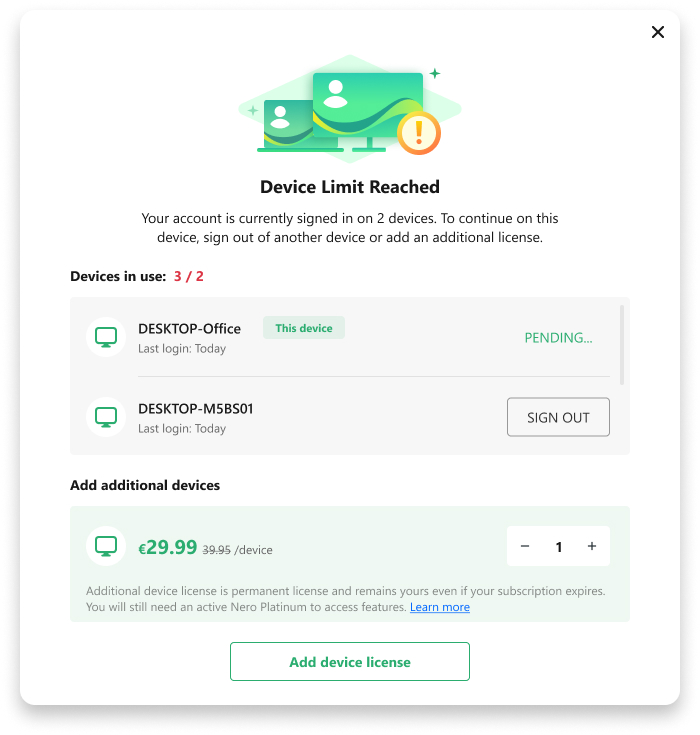
If the number of signed-in PCs exceeds the allowed limit, you will see the Device Limit Reached dialog.
You can then choose to:
Sign out of one or more existing PCs to free up a device.
Purchase an Extra Device License(available if your Nero Account contains a Nero Platinum product).
Purchase Nero Platinum first if you don’t already own it. After that, you can also purchase Extra Device Licenses.
What do I get with an Extra Device License?
After purchasing an Extra Device License:
One additional PC can sign in to your Nero Account.
All Nero products in your Nero Account are available on that PC.
You no longer need to sign out another PC to use the new device.
Which product features can I use?
An Extra Device License does not include any Nero products or premium features by itself.
Instead, it allows the additional PC to use the products already available in your Nero Account.
For example:
If your account includes Nero Platinum and Nero AI Video Upscaler PRO, both products can also be used on the additional PC.
If one of these product licenses expires or becomes inactive, its premium features will no longer be available on any PC, including those covered by an Extra Device License.
Once the product license becomes active again, the corresponding features are automatically restored on all authorized PCs.
Is the Extra Device License permanent?
Yes.
The Extra Device License is a lifetime license and permanently increases the number of PCs that can use your Nero Account.
However, it does not replace or extend your product licenses. Premium features are available only while the corresponding product license is active.
Users replacing, upgrading, or moving to a new Windows PC.
Can I use my Nero products on a new PC?
Yes.
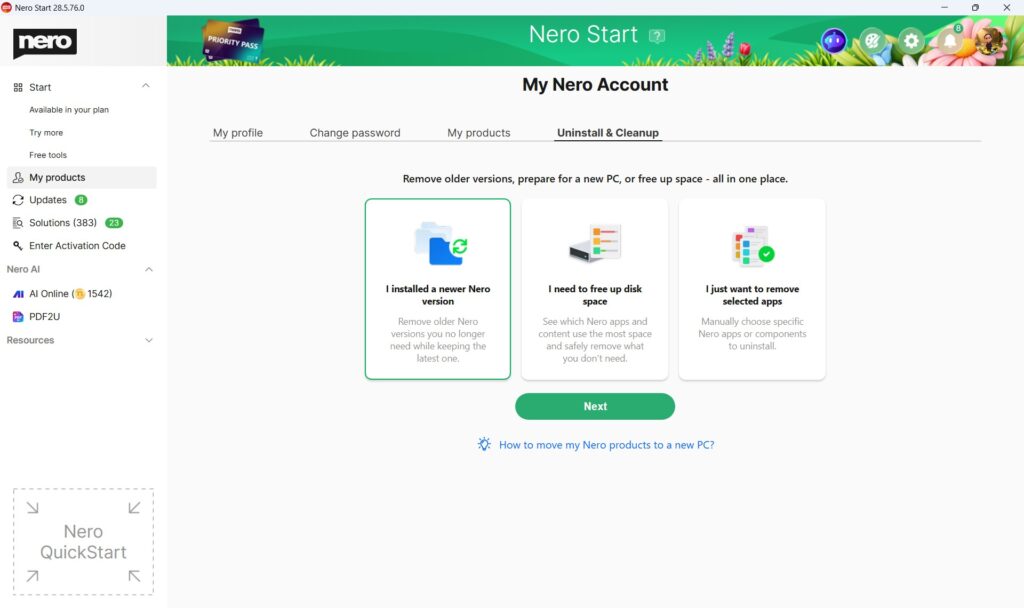
Since Nero 2020, you usually only need to install Nero Start (or reinstall your Nero product) on the new PC and sign in with the same Nero Account used for purchase or activation.
Your available products should appear automatically under Account > My products.
For older versions before Nero 2020, you need to install the product installer manually.
Recommended checklist before moving
On your old PC
Before changing PCs, we recommend:
Save all Nero projects
Copy your videos, photos, music, and other project files
Backup your important media folders
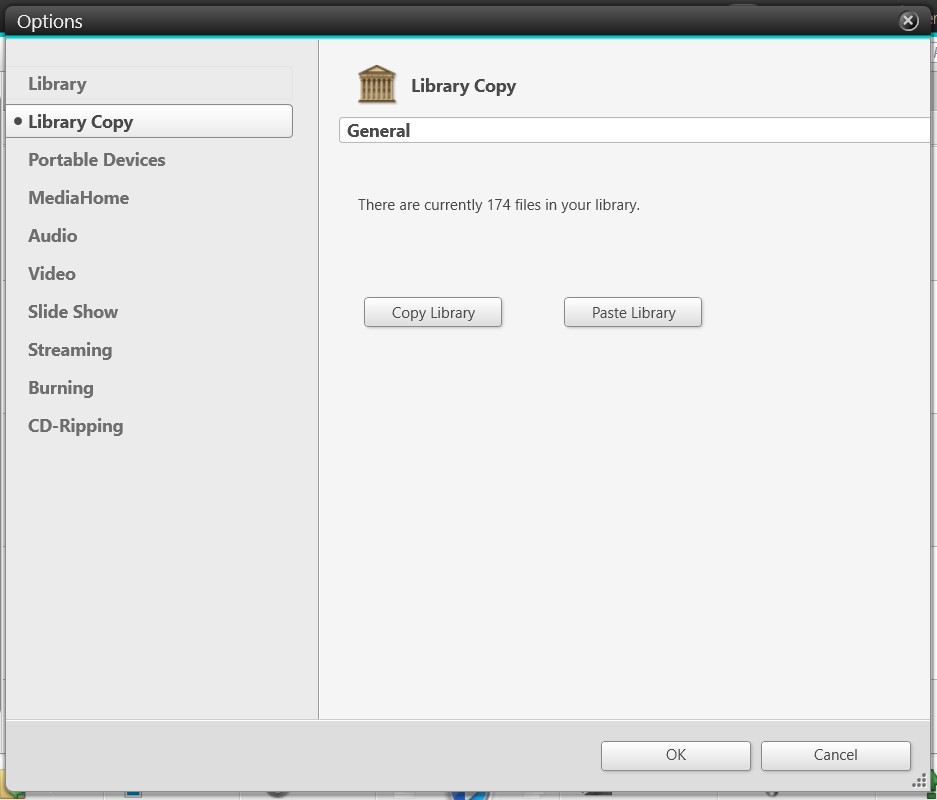
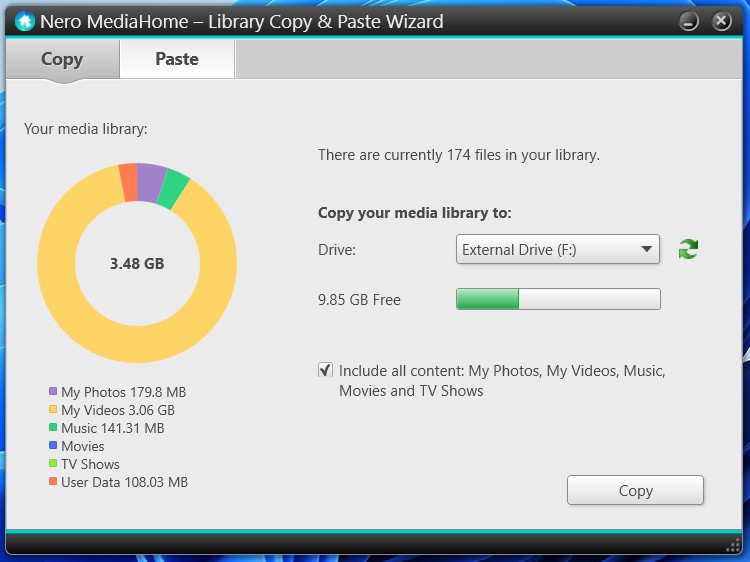
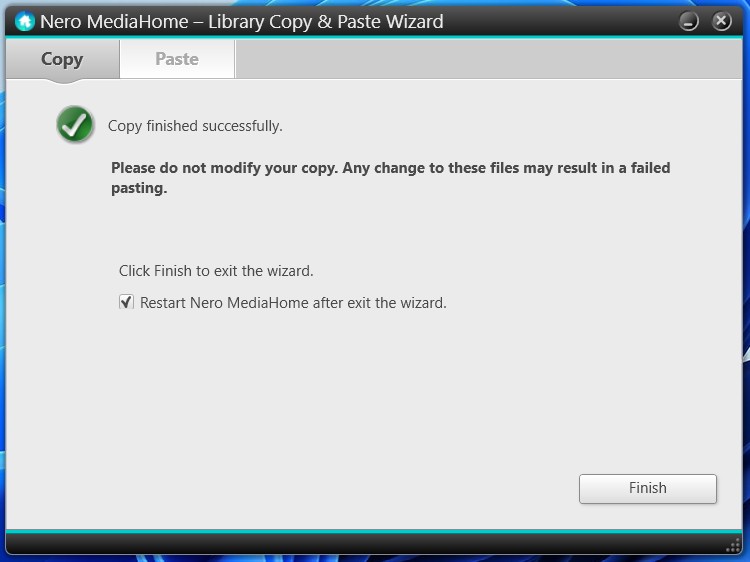
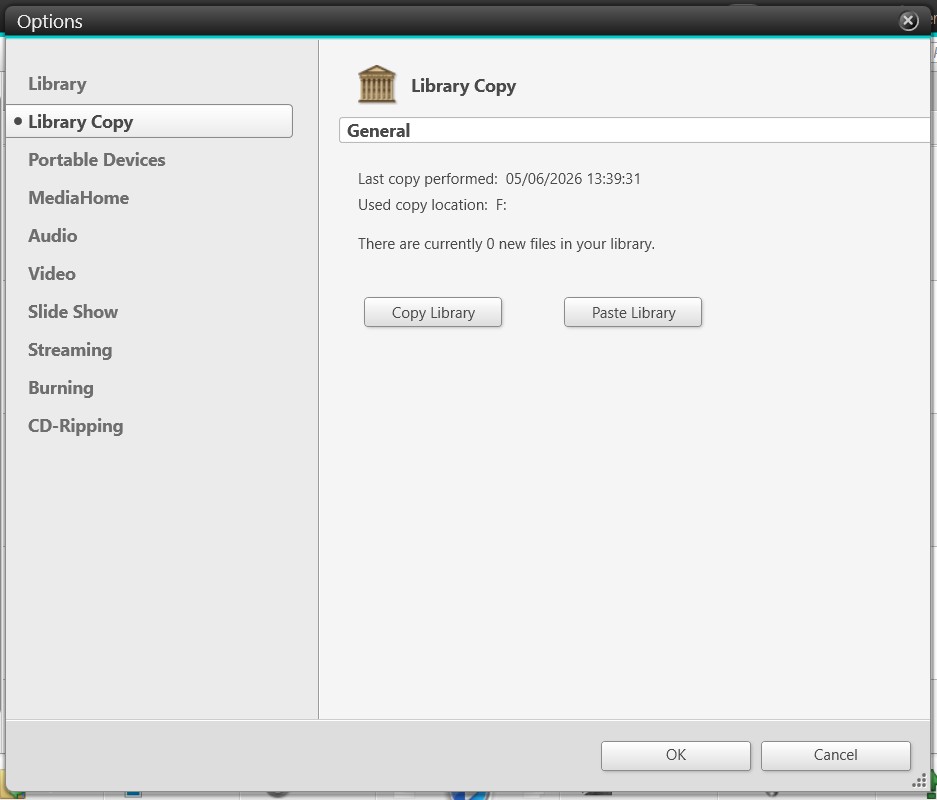
Copy your Nero MediaHome library to an external drive. We recommend including all media content.
Make sure you know your Nero Account email address and password
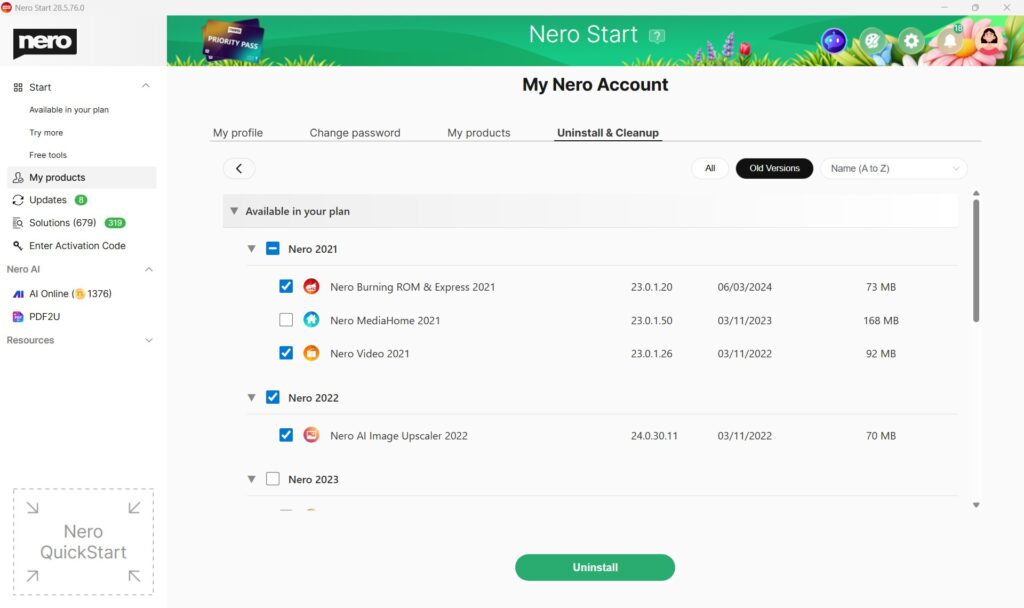
Optional: uninstall Nero after migration is complete
Important:
Do not delete your Nero Account when moving to a new PC. You need the same account to access your purchased products, active subscriptions, Nero Credits, and purchase/activation history on the new PC.
On your new PC
After setting up your new PC:
Install Nero Start or your Nero product
Sign in with the same Nero Account
Install your Nero applications
Copy your projects, media folders, and personal files to the new PC
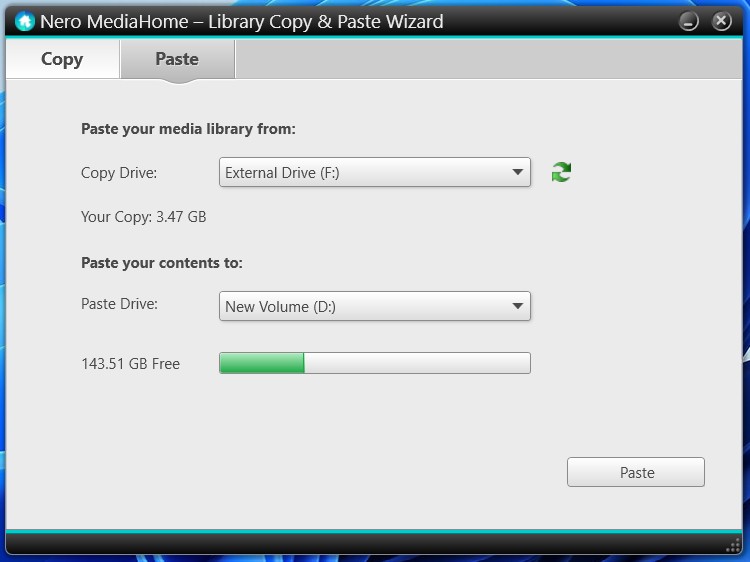
Reconnect media folders or paste the copied MediaHome library if needed
How do I install Nero on the new PC?
Install Nero Start or your Nero product on the new PC
Open Nero Start
Sign in with the same Nero Account used previously
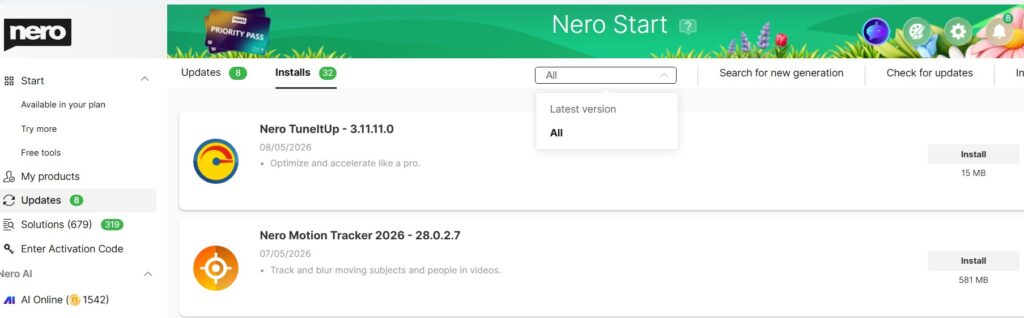
Go to Updates > Installs
By default, Latest version is selected. You also can switch to All to view all available versions
Install your available Nero applications
Notes:
Download the latest Nero Start installer from here.
Find all your products and installers in your online Nero Account here.
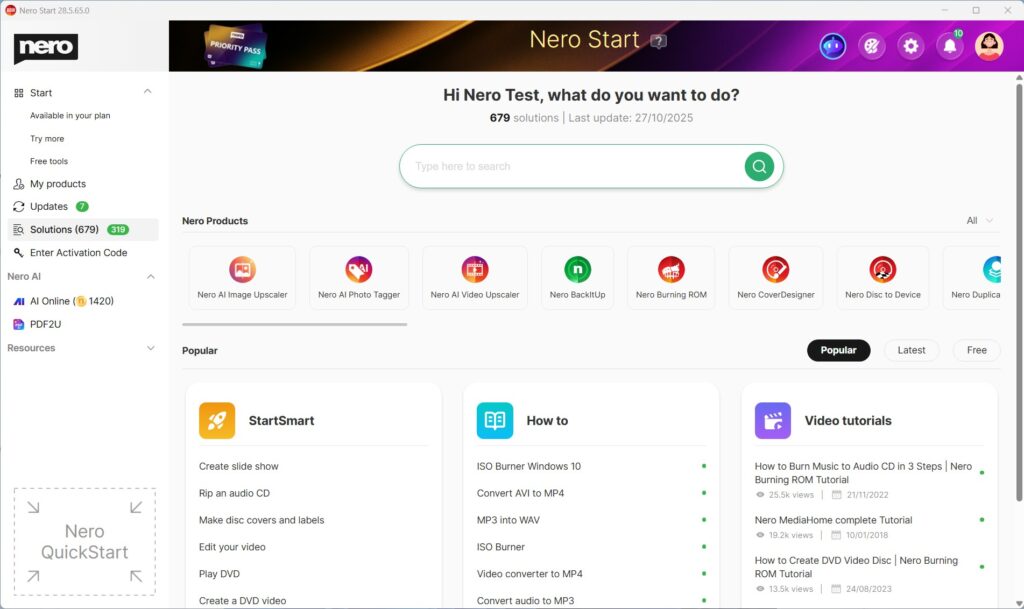
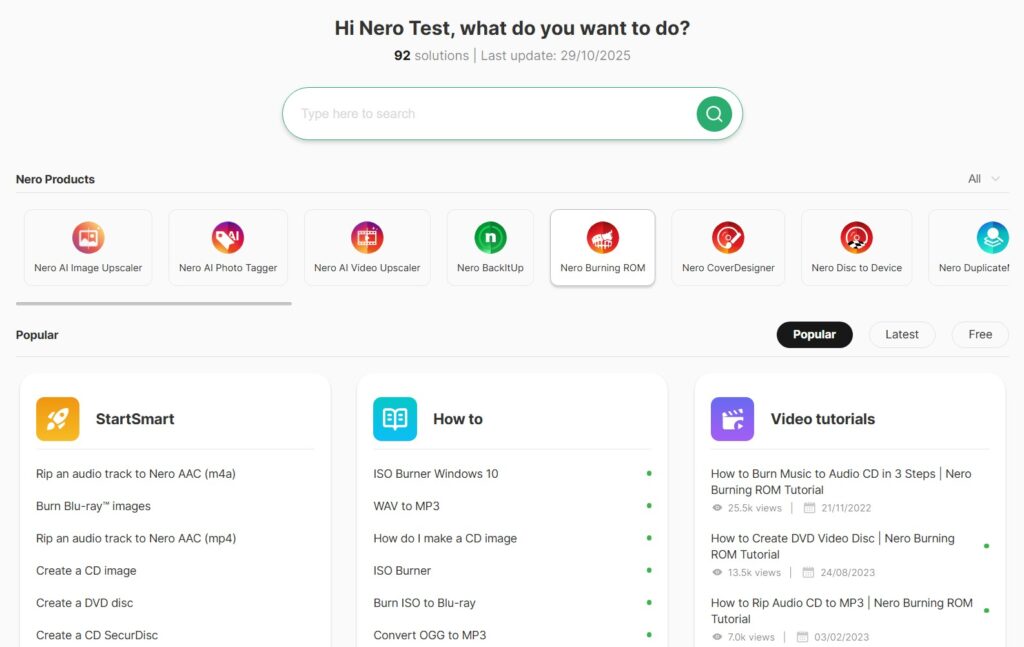
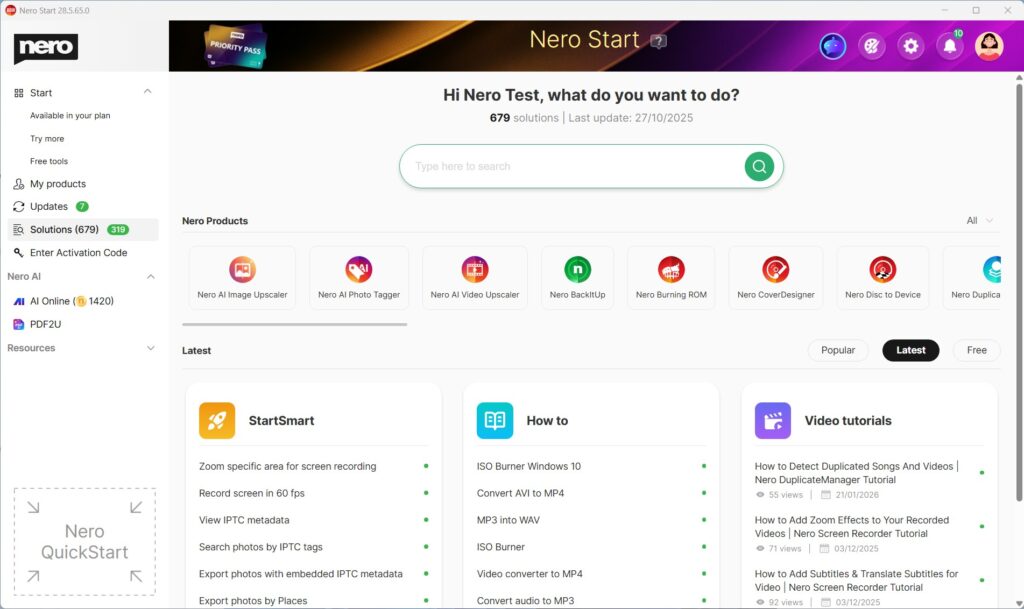
Solutions helps you complete common tasks by offering three types of help in one place:
StartSmart – Guided use cases that take you directly into the right Nero app to start your job.
How to – Step-by-step help articles for detailed instructions.
Video tutorials – Short videos that show the workflow.
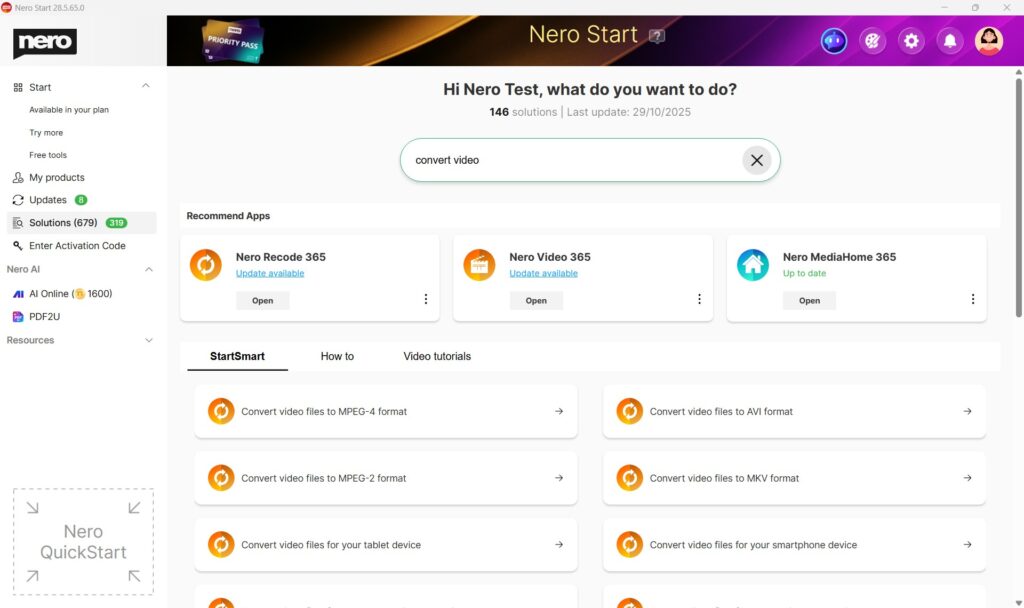
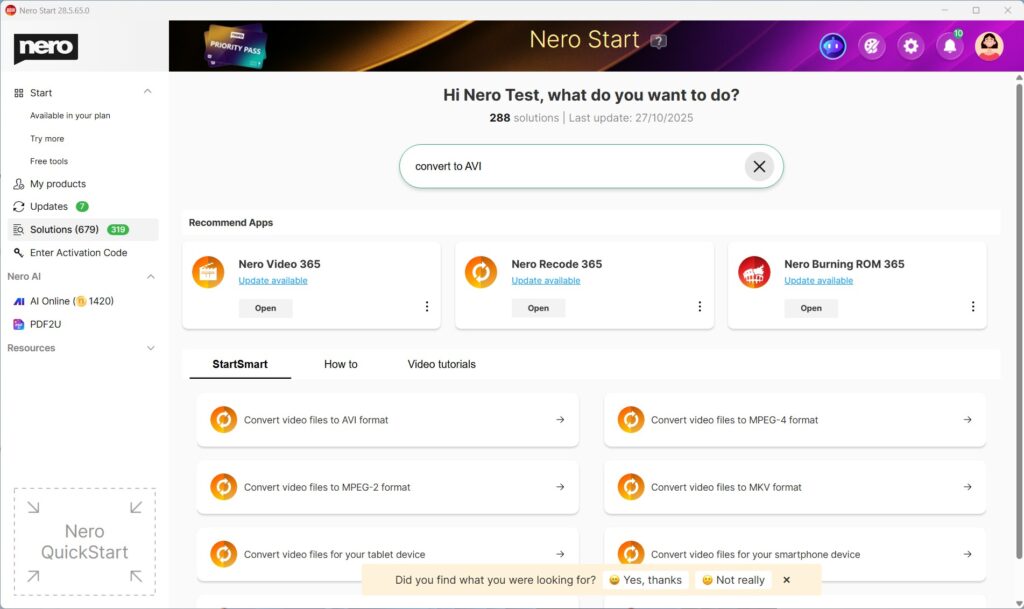
When you search for a use case, Solutions can show all three (StartSmart + How to + Video tutorials) so you can choose what works best for you.
Find what you need with Search
Open Nero Start.
Go to Solutions.
Use the Search field.
Type what you want to do (e.g. convert video, rip CD, backup, edit)
Review results across:
StartSmart (start immediately),
How to (read steps),
Video tutorials (watch a demo).
Select the result you want.
Tip: The most relevant results are always listed at the front.
Use StartSmart to start a task right away
Open Nero Start > Solutions.
Choose a use case from StartSmart that matches your goal.
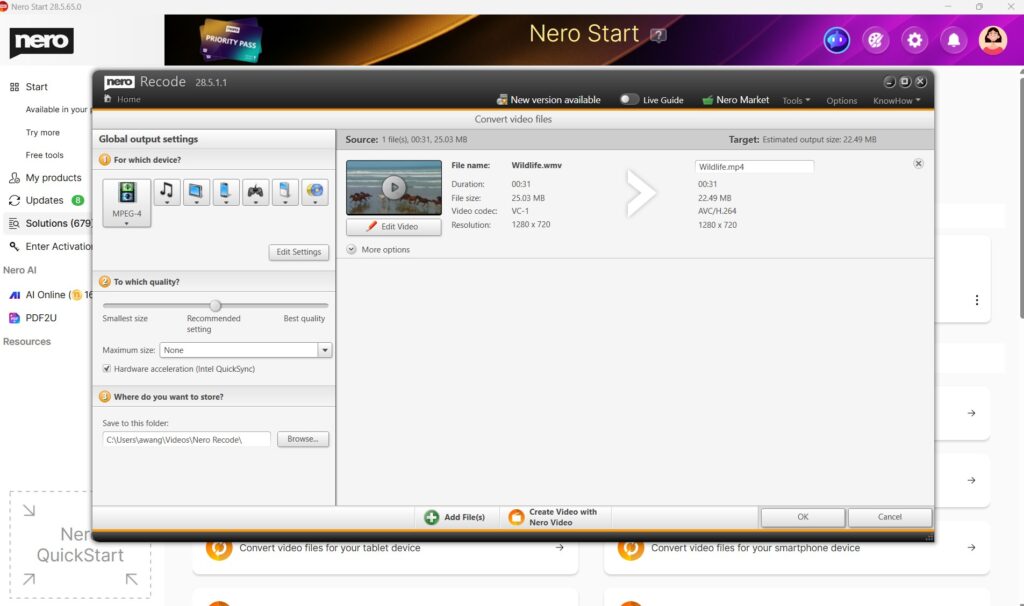
Select Open (or Install if the required app isn’t installed).
Follow the guided steps to begin.
Use “How to” for step-by-step instructions
Open Nero Start > Solutions.
From How to, choose an article for your use case.
Follow the instructions in the article.
Use Video tutorials to learn by watching
Open Nero Start > Solutions.
From Video tutorials, click a topic
You can start the watching of video demo.
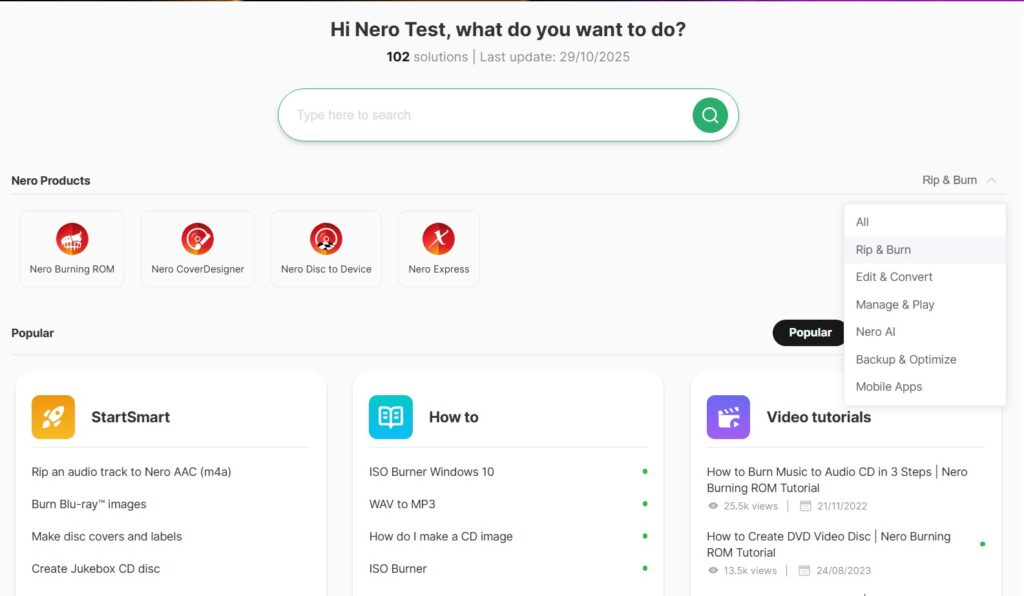
Refine results with Filters and Sorting
Apply filters
Open Solutions.
Select Nero Product Category
Or select a dedicated product
Change sorting
Open Solutions.
Select Popular, Latest or Free.
Solutions will list all info based on your requirement.
Troubleshooting
I can’t find what I need in Solutions
Try a simpler keyword (e.g., “convert” instead of “convert MP4 to AVI”).
Clear filters and search again.
In the feedback area, just feel free to submit what case you were looking for to Nero – we will collect your feedback and make improvements in future updates.
StartSmart doesn’t open the app
Make sure the required Nero app is installed.
If prompted, select Install and try again after installation.
Video editing is evolving, and so are the tools you need to stay ahead. While standard tracking works for simple geometric shapes, real life isn’t always square.
That is why the highlight of the latest Nero Motion Tracker update is Segment Tracking.
This powerhouse feature allows you to track irregular objects—like a running pet, a dancing silhouette, or a complex prop—and generate dynamic masks that adapt frame-by-frame as the shape changes. Here is your deep-dive guide to mastering this new technology.
The Star of the Show: Segment Tracking
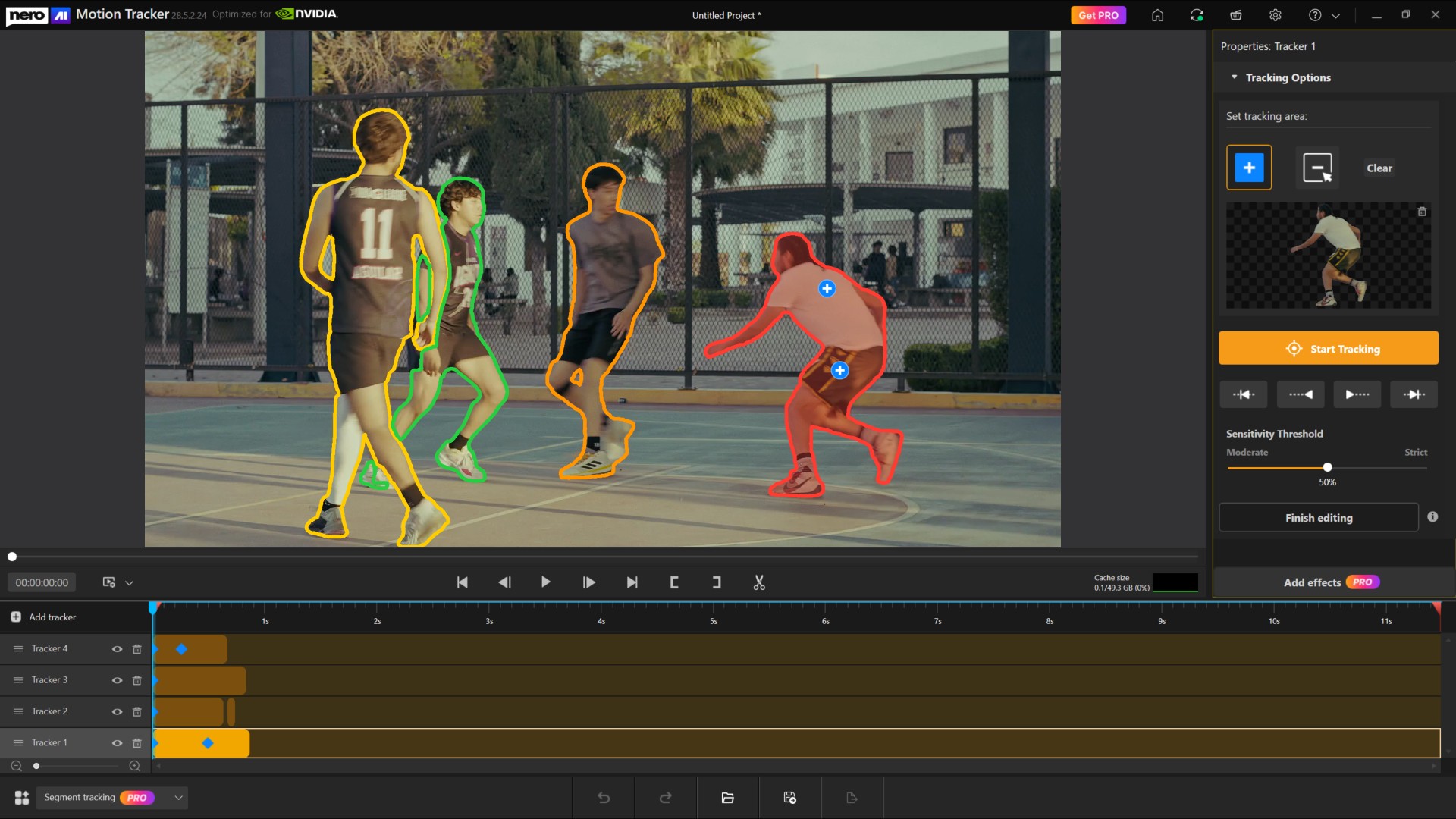
Segment Tracking is designed for precision. Unlike standard “Zone” tracking which draws a box, Segment Tracking analyzes the video pixel-by-pixel. To give you total control, we have refined the Set Tracking Area controls into a simple “Include/Exclude” workflow.
1. How to Define Your Object (Include vs. Exclude)
Once you enter Segment Tracking mode, you will see the “Tracking Options” control panel. Think of this as telling the AI exactly what matters and what doesn’t.
Add Tracking Area (Include):
Select this tool when you want to include a part of the image in your mask.
Click on your subject. A small (+) marker will appear, telling the tracker: “Keep this.”
Remove Tracking Area (Exclude):
Select this tool when the tracker accidentally picks up the background. You use this to exclude unwanted areas.
Click on the unwanted area. A small (-) marker will appear, telling the tracker: “Ignore this.”
2. Refining and Revoking Selection
Did you click the wrong spot? We have made correcting mistakes instant. You don’t need to switch tools to delete a point.
To Revoke: Simply click any existing (+) or (-) marker on the preview screen again. When you hover over a marker, it will glow blue to indicate it is ready to be removed. Clicking it revokes that specific selection instantly.
If you don’t want the tracking area, you can either remove the tracker from the timeline or click the “Clear” button to clear the selection and start from scratch.
3. Tracking Multiple Objects
Need to track two people or more objects?
Click “Add Tracker” button on the timeline to start a fresh track for a second item.
Smart Display:To keep your view clean, the markers for Object 1 are automatically hidden while you edit Object 2. (Only the outer boundaries are visible, so that they can be distinguished from each other.)
Ensuring Smooth Performance (Cache & Settings)
Because Segment Tracking analyzes pixels in high detail, it requires system resources. We have added a dedicated Performance & Cache System to keep your editing smooth.
Automatic Setup: When you first use Segment Tracking, a dialog will ask to set the Cache Location. By default, it smart selects the disk with the freest space.
The Cache Monitor:
Located under the preview, the Cache Size display shows your current usage (GPU Memory + System Memory + Disk Cache) versus the overall available size. It uses a color-coded progress bar:
Finish Editing (Per Object): Once you are happy with an object’s track, click Finish Editing.
What this does: This clears the high-resource cache for that specific tracker and locks it so it is no longer editable. This frees up resources for you to track other objects.
Note: A confirmation dialog will pop up to ensure you are ready to lock the tracker.
Advanced Settings: Click the Gear Icon on the title bar to toggle Hardware Acceleration (CPU/GPU) or manually set a Maximum Cache Size.
The Creative Finish: Effects & Pro Features
Once your tracking is done, click the Add Effects button. This automatically “Finishes Editing” for all trackers and moves you to the design page.
Note: Segment Tracking is a premium feature. You can do all the tracking and testing for free, but the Pro Purchase Dialog will appear when you click “Add Effects” if you are not a subscriber.
Creative Controls
On the Effects page, you can apply 5 post-effects to your masked objects or the background:
Original: No changes (great for preserving the subject while editing the background).
Image: Fill or Fit a custom image into the tracked area.
Blur: Adjust intensity to obscure faces or sensitive info.
Mosaic: Pixelate the area; adjust the “amount” to change block size.
Color: Tint the area using presets or a specific hex code.
Desaturation: Make the area black and white by adjusting saturation levels.
New Face Tracking & Zone Modes
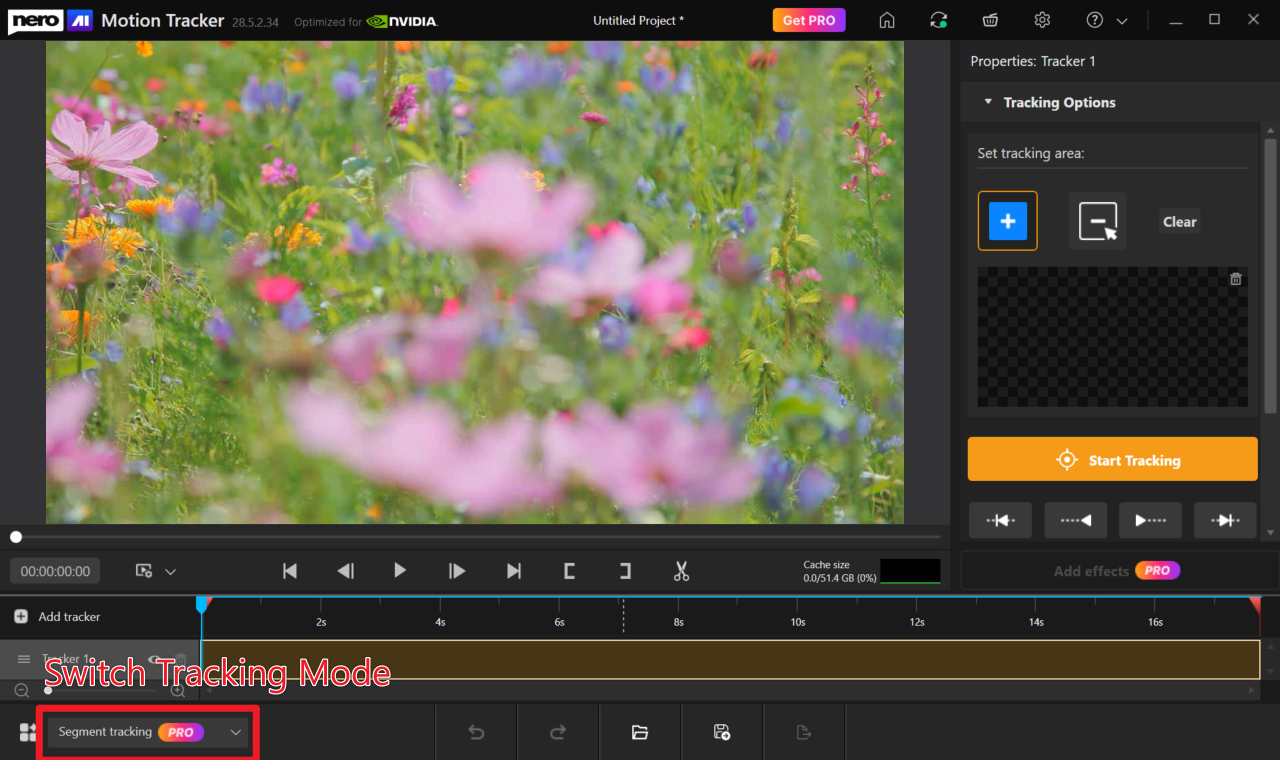
While Segment Tracking is the new headliner, we have also optimized our standard tools. You can switch between modes using the Tracking Mode on the Home Screen or the Dropdown below the timeline.
(If you are launching Motion Tracker direct from Nero Video, you can also use this dropdown to switch back to your familiar Face/Zone Tracking mode.)
Face Tracking (Automated)
Now separated from Zone tracking for speed, this mode features Automatic Face Detection and Auto-Start. As soon as a face is detected in the footage, the system locks on and starts tracking immediately—no manual starting required.
Zone Tracking
The classic, reliable mode for tracking standard geometric shapes like rectangles and ovals.
⚠ Warning: Segment, Face, and Zone tracking use different engines. If you switch modes mid-edit, a warning will pop up indicating that current tracking results will be lost.
Ready to create professional, dynamic masks? Open Nero Motion Tracker and try the new Segment Tracking today!