How to Clean Your Duplicate Video and Audio Files with Nero DuplicateManager

Duplicate videos and audio files can quickly pile up across your computer, external drives, or media folders — taking up precious storage space and making your libraries cluttered. If you’ve noticed duplicate movies, songs, or recordings, it’s time to tidy up your collection.

With Nero DuplicateManager, you can easily detect and remove duplicate media files in just a few clicks — safely and efficiently.

Follow these simple steps to get your library organized and your storage back!


🔄 Step 1: Update to the Latest Version

Before you start, make sure you’re using the latest Nero DuplicateManager 365 or 2026.
Updating ensures you have the newest features, faster scanning, and the most accurate detection for video and audio duplicates.

How to check for updates:

  1. Open Nero Start.
  2. Go to Updates.
  3. Install the latest version of Nero DuplicateManager if available.

Keeping your software up to date guarantees the best cleanup experience.


🎵 Step 2: Check the Detection Options for Audio and Video


Nero DuplicateManager doesn’t just compare file names — it analyzes file content, metadata, and format characteristics to find real duplicates, even when the names differ.

To make sure your media files are included in the scan:

  1. Launch Nero DuplicateManager.
  2. Check the Detection Options.
  3. Enable the checkboxes for Audio and Video.

This ensures that both music and video files are thoroughly analyzed and detected.


📁 Step 3: Select the Folders You Want to Clean

Next, choose where Nero DuplicateManager should look for duplicates.

To select folders:

  1. Select the folders that contain your music and videos — for example, Music, Videos, Movies, or External Drive folders.
  2. Click the Add button to add the folders to the right column.
  3. Add multiple folders if needed for a full-library scan.

When you’re ready, click the Next button to start scan and let Nero DuplicateManager find all your duplicate media files automatically.


🗑️ Step 4: Review and Delete Duplicate Files

After scanning, you’ll see a clear overview of all detected duplicates.

You can:

  • Preview videos and listen to audio directly within the app.
  • Let the software auto-mark duplicates for safe deletion (keeping one original).
  • Or manually select which copies to delete or keep.

Once reviewed, click Remove button to remove duplicates and instantly reclaim valuable disk space.


⚡ Why Choose Nero DuplicateManager?

  • 🔍 Smart Detection: Finds real duplicates based on content, not just names.
  • 🎬 Supports All Major Media Formats: MP4, AVI, MOV, MP3, FLAC, WAV, and more.
  • 🧠 Safe Cleanup: Automatically keeps at least one original copy.
  • 🚀 Fast and Reliable: Optimized for large media collections and quick results.

Whether you’re managing your personal music collection or cleaning up old project folders, Nero DuplicateManager gives you complete control — with safety, speed, and precision.

Upgrade Now 🛒

How to Import and Export Playlists and Collections in Nero MediaHome?

Have you spent time creating playlists in one application only to find they can’t be used elsewhere? Or carefully organized photo and video collections in Nero MediaHome but were restricted to exporting only to external devices? The latest update addresses both: music playlists in popular formats—especially the universal m3u8 format—can now be imported and exported across apps. At the same time, photo and video collections can be exported directly to any local folder, providing greater flexibility for sharing, backup, and cross-device use.

Guide

1: Import Music Playlists

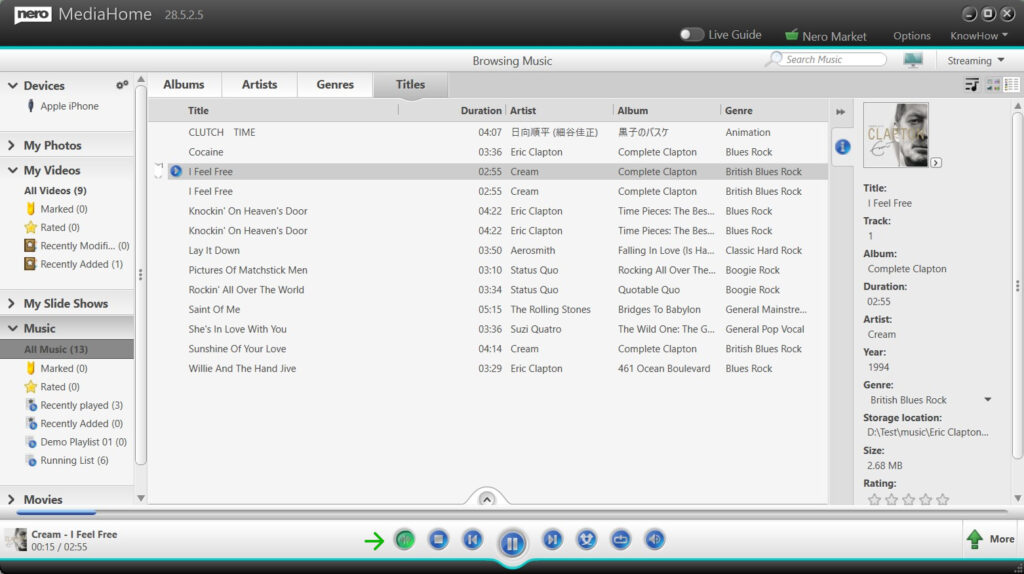
  • Go to the Music → Select All Music → right-click (context menu) → Import Music Playlist → select your playlist file.
    • Supported formats: m3u, m3u8, PLS, WPL
  • Imported playlists appear in your library, ready for playback, editing, or integration.

⚠️ Note: When importing playlists (e.g., m3u8), Nero MediaHome will only import files that are accessible:

  • If some files in the playlist cannot be accessed (e.g., stored in cloud services or unavailable drives), those entries will be automatically removed after import.

  • If none of the files are accessible, the entire playlist will not be imported.

2: Export Music Playlists

  • Go to Music → select an organized music playlist → right-click → Save Playlist to File → choose the destination folder or device.
    • Supported formats: m3u, m3u8

Tip: Supported playlist formats make your music lists usable across different applications.

3: Export Photo and Video Collections to Local Folders or Devices

  • Open your photo/video library → select a collection (by Faces, Places, or album).
  • Click More → Copy to → browse to choose any local folder or select an external device.

Tip: Folder and album structure is preserved, keeping your collections organized.

Continue reading How to Import and Export Playlists and Collections in Nero MediaHome?

How to personalize your Nero Start?

With the latest update, you can customize how Nero Start looks and works. Follow the steps below to personalize your workspace:

Option 1: Product and Application Version Management

Steps:

  1. Go to the top bar in Nero Start.

  2. Click the Option button → select Customize View.

  3. In the Product and Application Version Management category, choose your preferred mode:

  • Smart Stacking Mode (Recommended): Automatically launches the latest active version with one click.

  • Manual Selection Mode (Advanced): Select which product/version to launch for full control.

Option 2: Organize Your Apps

Steps:

  1. Open the Option button → select Customize View.

  2. In the Application Organization category, choose how your apps are displayed:

  • Group by Functional Category: Organizes apps by function.

  • Grid View: Arrange apps in a flexible grid layout.

  1. Rearrange Apps:

  • If Group by Functional Category is selected, you can change the category order in the Customize View options.

  • To change an individual app’s position, go to Start view → right-click ‘…’ on the app → select Move.

  • Move the app to first/last or shift it left/right as needed.

Option 3: Change Banner Style

Steps:

  1. Go to the top bar → click the Banner Style icon.

  2. Select your preferred banner:

  • Nero Classic Red: Keep the classic look.

  • Frosted Purple Style: Refresh Nero Start with a modern frosted-glass effect (latest generation only).

Option 4: Customize Your Profile Avatar

Steps:

  1. Go to the top bar → click your Account icon.

  2. Click Edit to open the Change Avatar dialog.

  3. Choose an avatar:

  • Select from Pre-set

  • Upload Your Own Picture: Choose an image from your device.

  • ✨Try AI Online Avatar: Login with your Nero Account to create a brand-new avatar using the online AI tool.

    • If your account has credits, trying the new AI avatar is free!

Note: The AI process has been updated with the latest AI model, giving you better results – it’s worth trying again!

How to create tutorials with Auto Zoom in Nero Screen Recorder?

Have you ever recorded a tutorial, presentation, or software walkthrough, only to find that viewers struggle to follow your mouse clicks? Manually highlighting clicks in post-editing can be time-consuming and tedious. With the new Auto Zoom feature in latest Nero Screen Recorder, the editor automatically zooms in on your clicks, making it easier than ever to guide your audience and save editing time.

Guide

1: Record Your Screen

  • Select the screen or window to record.

  • Start recording and perform your actions as usual.

  • Tip: Enable 60 FPS recording for smoother playback, especially for fast movements or gameplay.

2: Try Auto Zoom

After recording, in the built-in editor:

  • From Right Panel → Zoom.

  • Click Auto Zoom button → Auto Zoom will track your mouse clicks and highlight them during playback.

  • Playback automatically zoomed clicks and confirm clarity.

  • In Zoom mode, you can manually adjust the Zoom level in Manual tab.

3: Add zoom area manually

  • From timeline → Enable Add zoom area.

  • Move mouse to the position which you want to zoom → clicking to add

4: Review and Edit

  • Playback zoomed clicks and confirm clarity.

  • Optionally, trim, annotate, or enhance your video.

5: Exportieren

  • Export your video in the desired format.

Continue reading How to create tutorials with Auto Zoom in Nero Screen Recorder?

1-Click Batch Upscale: Process up to 20 Images Effortlessly in Image Upscaler

The Batch Upscale feature lets you process multiple images in one go — up to 20 images at a time — while maintaining high quality and flexibility. You can either apply the same AI model and settings to all images with one click or customize different settings for each image individually. This feature saves time and ensures consistent, professional results across your entire image set.

💡 What is [Apply to all]?

The Apply to all button automatically copies your current settings — including AI model, upscale rate, and face preferences— to all imported images.
Use it to ensure all photos follow the same parameters for a unified result.
Alternatively, you can assign different models or adjustments to individual images before batch processing.

🧭 How to Use

  1. Import Images
    Add up to 20 images. Drag and drop them into the workspace or click Add.
  2. Set Upscale Rate or Resolution
    Choose a preset scale (e.g., 2×, 4×) or define a custom output resolution.custom resolution
  3. Select AI Model
    Pick an AI model best suited to the image type — for example:

    • Photo – Soft and natural for portraits or everyday photos

    • Iris – Enhances fine textures such as hair, fur, and eyes

    • Standard – Ideal for landscapes and architecture

    • Anime – Designed for illustrations, paintings, and anime-style art

  4. Enable Face Recovery (Optional)
    Turn on Face Recovery if your images include blurry faces that you want to enhance. It helps restore facial details and smooth imperfections.
  5. Preview and Adjust Settings
    Process one image first to check results. Fine-tune model strength, upscale ratio, or face recovery if needed.
  6. Apply to All (Optional)
    Once satisfied, click [Apply to all] to copy your current settings to all remaining unprocessed images.Or you can right-click the current image from the file list then click the [Apple settings to all images] button.You can still modify individual images afterward if they require different models or adjustments.
  7. Select Images for Batch Processing
    Click Select all button to include the entire batch (the processed image will not be processed again even checked on) or choose the specific images you want to process.
  8. Start Processing
    Click [Start processing] to begin batch upscaling. Each image will be processed in sequence based on its assigned model and settings.
  9. Monitor Progress and Review Results
    Follow progress in real time. When finished, review each result and export your enhanced images.

✅ Best Practices

  • Preview Before Batch Processing: Always test settings on one image before applying them to all.
  • Mix Models for Different Image Types: Choose different AI models for portraits, artwork, or architecture to get optimal results.
  • Balance Quality and Speed: Higher upscale ratios and larger original images increase processing time.
  • Try Cloud Process for Heavy Tasks: If your PC is slow or running low on GPU/CPU memory, switch to Cloud Process for faster performance.(Requires Pro plan and consumes Nero Credits.)

🛠️ Troubleshooting

  • Face Recovery Not Available
    This feature requires a Pro or higher subscription. Upgrade to unlock advanced facial enhancement.
  • Task Failed or Processing Stopped
    • Check your internet connection and ensure the batch does not exceed 20 images.
    • If your PC is under heavy load or lacks GPU resources, try using the Cloud Process mode for stable and faster results.(Available for Pro users; each image consumes Nero Credits.)
  • Inconsistent Results Across Images
    Confirm that the correct AI model and settings are applied via [Apply to all], or adjust individually if image types vary.
  • Slow Performance
    Close other demanding applications or background processes. For best speed, use Cloud Process or reduce batch size.
Get It Now 🛒