Entdecken Sie die neue mobile Anwendung: Erasee – Hintergrund entfernen in 5 Sekunden. Probieren Sie es jetzt aus: https://pcai.nero.com/erasee .
Wo finde ich meinen Aktivierungscode?
In Nero Start werden Sie aufgefordert, Ihren Aktivierungscode einzugeben. Je nachdem, welches Produkt Sie gekauft haben, kann sich dieser Code an unterschiedlichen Stellen befinden:
1) Produkte mit Schachtel
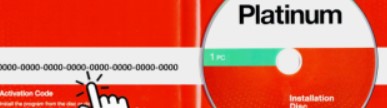
Bei Produkten in der Pappschachtel liegt in der Regel eine Installations-CD bei. In der Kunststoffhülle oder auf der Papierhülle finden Sie Ihren Aktivierungscode, der zum Aktivieren der Software erforderlich ist. Normalerweise besteht es aus 32 Zeichen in 4er-Blöcken mit dazwischen liegenden Bindestrichen.
Eine weitere Möglichkeit besteht darin, dass der Aktivierungscode auf den Kassenbon gedruckt wird. In diesem Fall beginnt der Code normalerweise mit NERO, gefolgt von mehreren Zeichen. Dieser Code muss eingegeben werden, um Ihr Produkt zu aktivieren.
2) Produktkarten
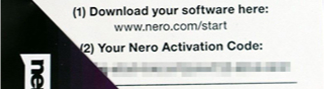
Auf den Produktkarten ist in der Regel ein Download-Link und Ihr persönlicher Aktivierungscode aufgedruckt. Der Aktivierungscode besteht normalerweise aus 32 Zeichen in 4er-Blöcken mit Zwischenstrichen und muss eingegeben werden, um Ihr Produkt zu aktivieren.
How to Clean Up and Organize Your Desktop/Downloads
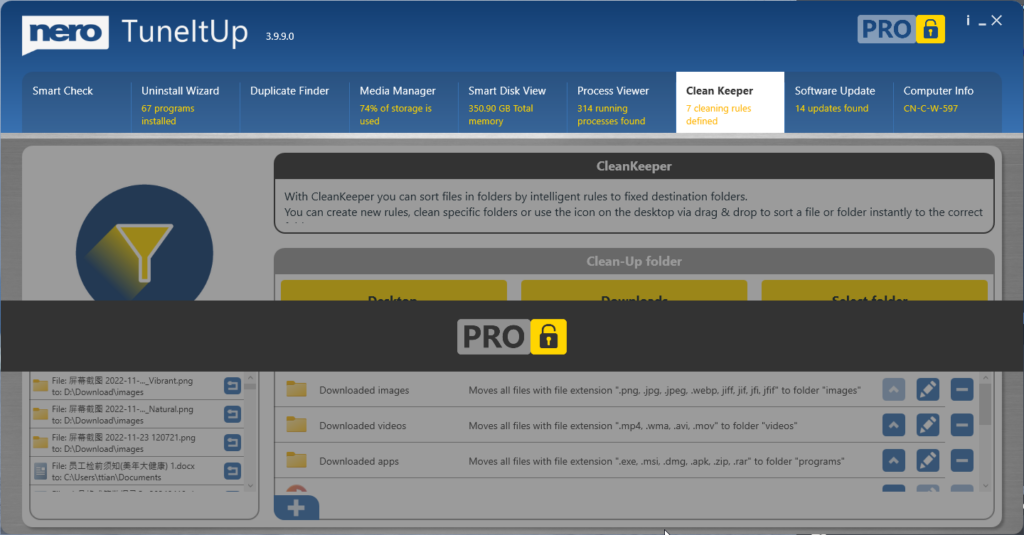
With the new CleanKeeper feature since TuneItUp Pro v3.6.0.6, you can easily clean up and organize your Desktop, Downloads, and any other folders you want to keep tidy and organized.
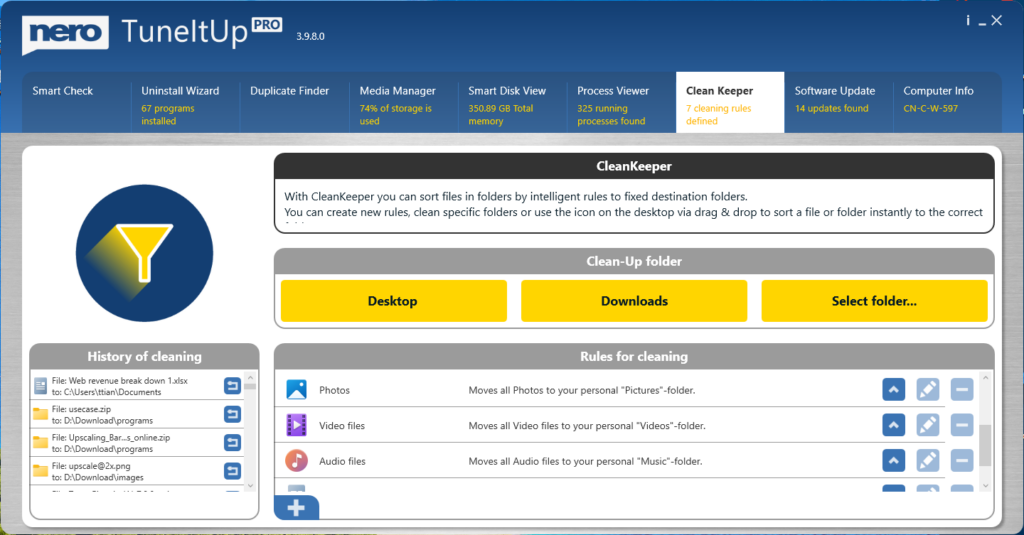
CleanKeeper provides a default rule to clean up your Desktop and Downloads folders:
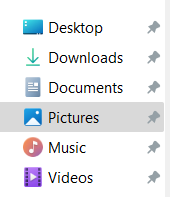
- Moves all photos to your personal „Pictures“ folder
- Moves all video files to your personal „Videos“ folder
- Moves all audio files to your personal „Music“ folder
- Moves all Office document files to your personal „Documents“ folder
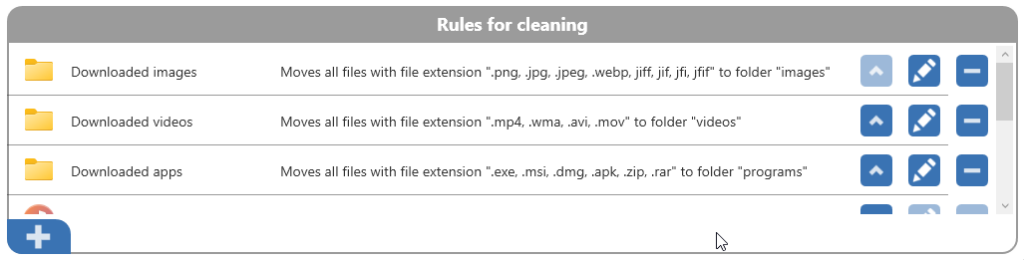
Moreover, you can create your own rules if you don’t like the default file handling method.
How to Clean Up Files and Move Them to Your Preferred Folder
For example, here’s how I automatically clean up my installers and apps by moving them to my D drive.
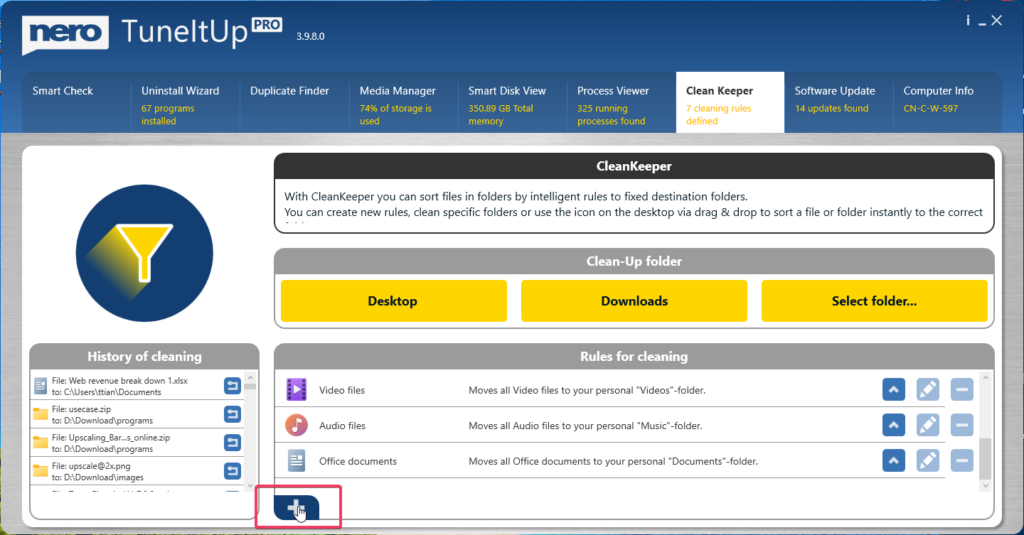
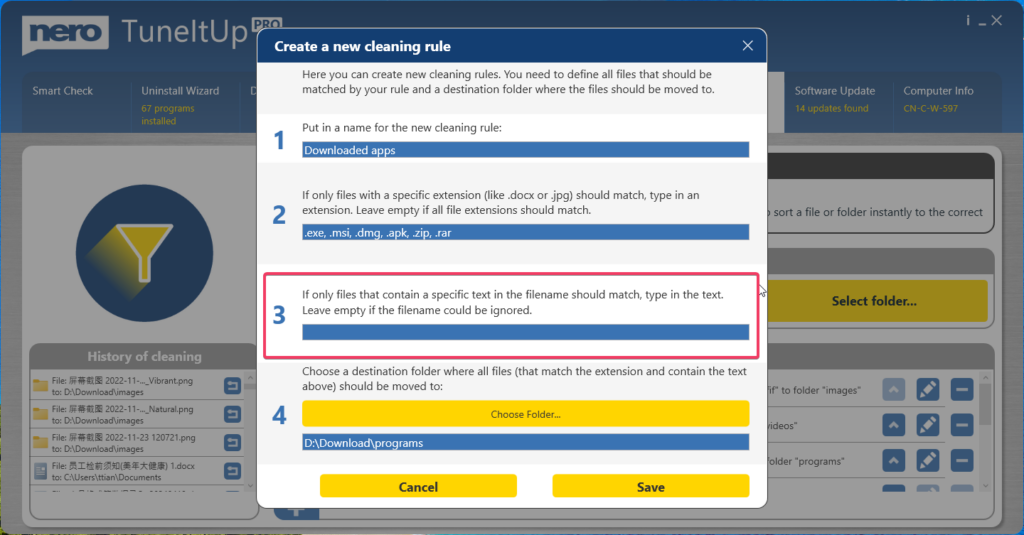
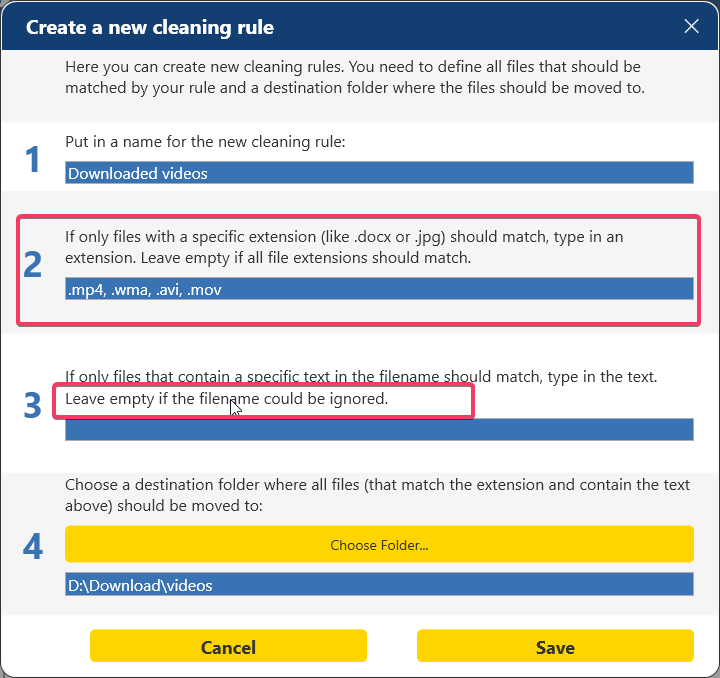
- Click the Plus button to add a new rule

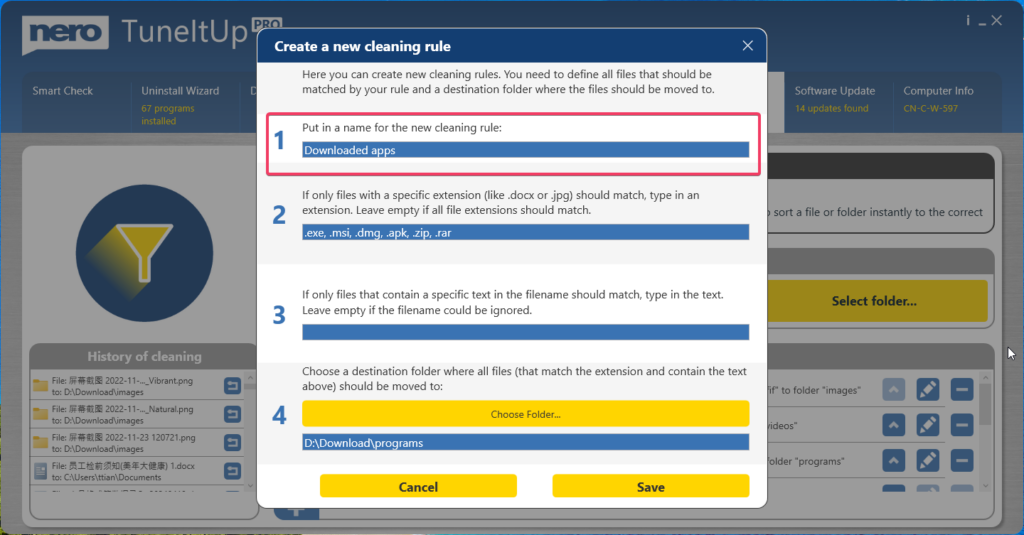
- Name your rule (e.g., „Downloaded apps“)
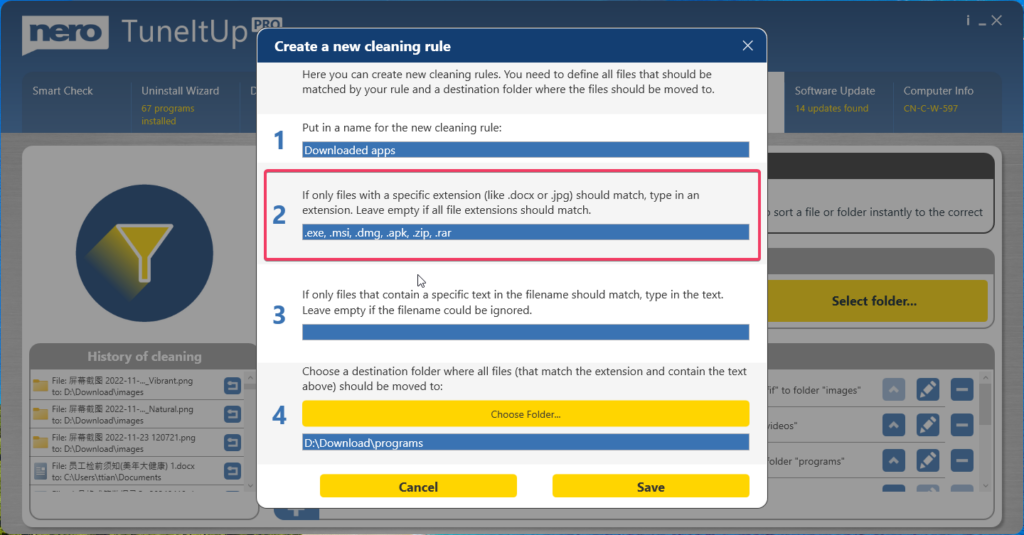
- Specify file types you want to clean up (e.g., .exe, .msi, .dmg, .apk, .zip, .rar)
- Leave the filename filter empty if you don’t want to target specific file names
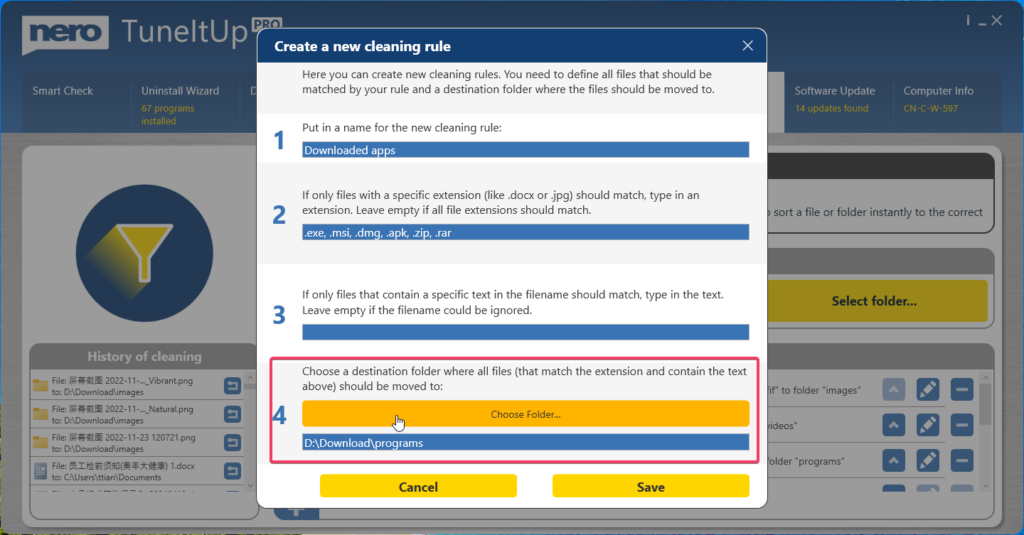
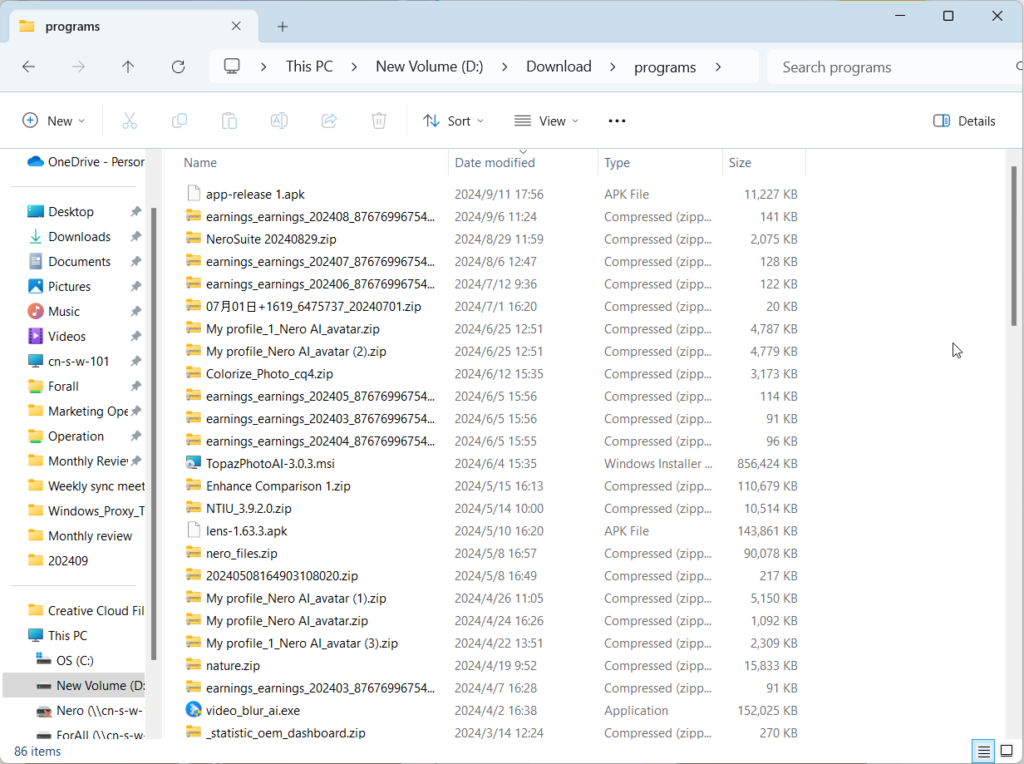
- Choose a target folder for your downloaded apps (e.g., D:\Download\programs)
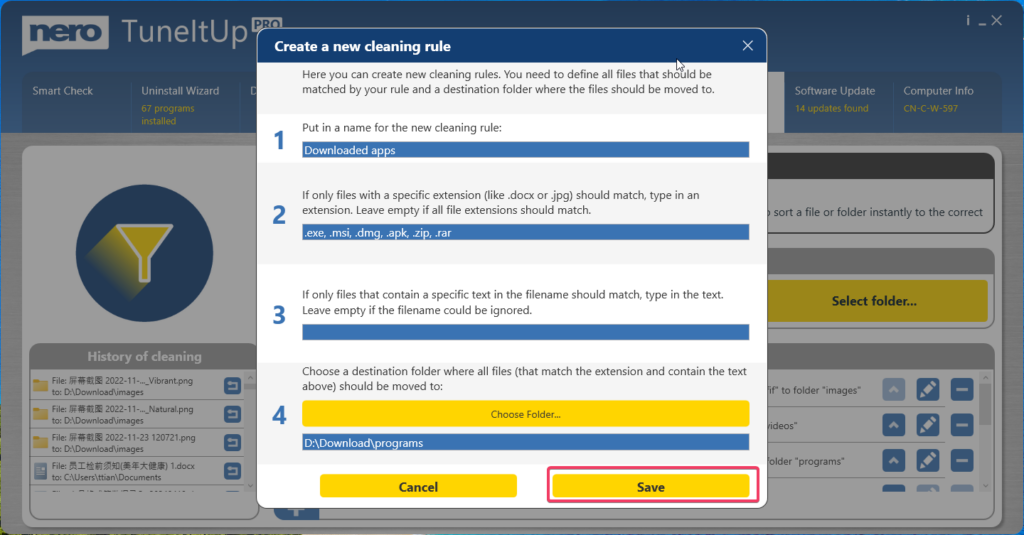
- Click Save to continue.
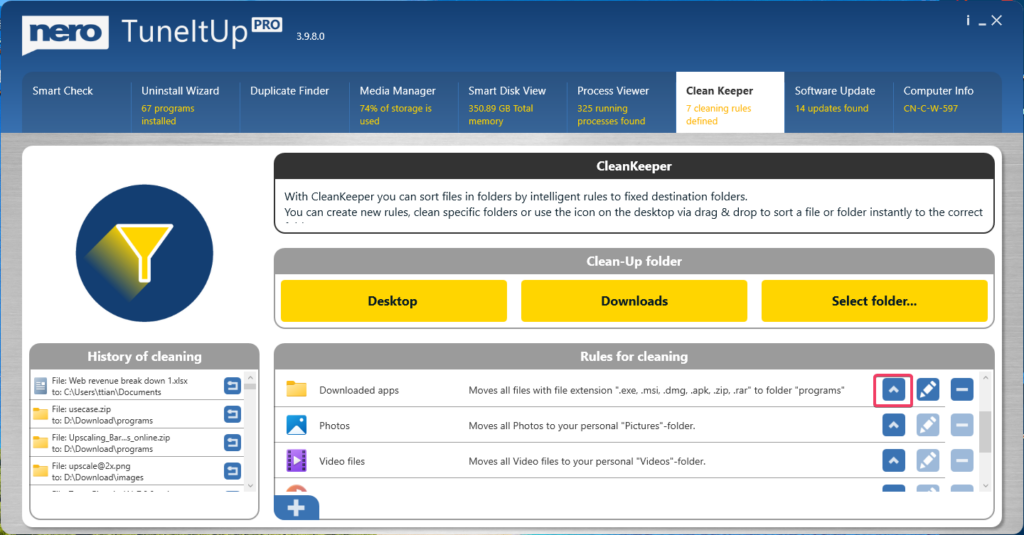
- Click the Up button to increase the rule’s priority
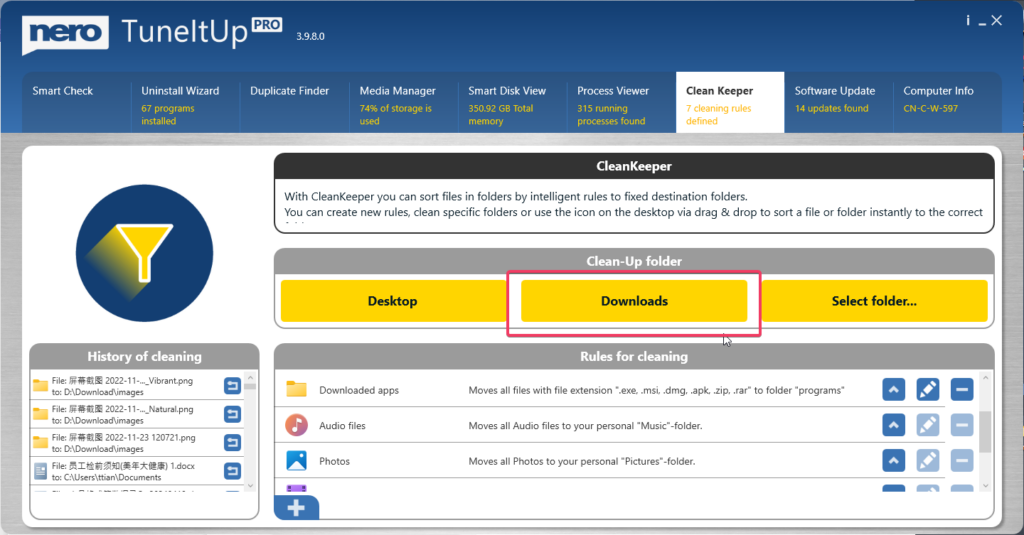
- Click the Downloads button to clean up the Downloads folder
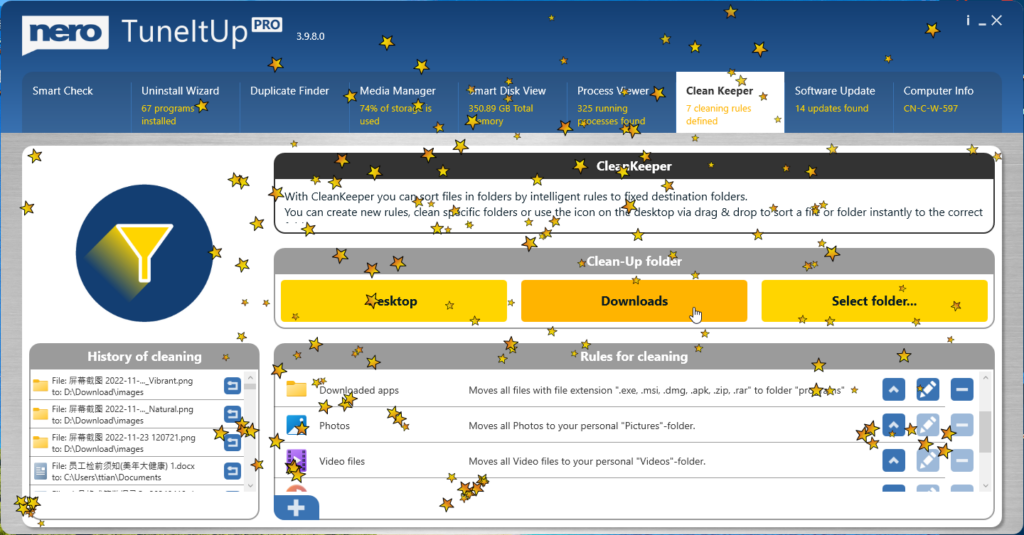
- The app will automatically move all matching files
- You’ll see all the specified file types in your chosen target folder

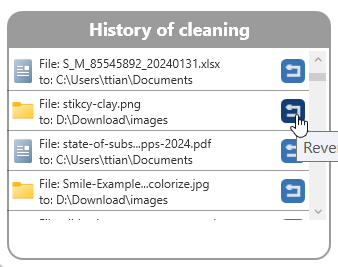
Finally, you can revert files from the History list if you decide you don’t want them cleaned up after all.
Why isn’t it working?
- First, this feature is only available in the Pro version. If you’re still using the free version, click the lock button to upgrade.
- Check the rule priority. Files are moved according to the rules in order. If you can’t find files in the expected folder, they might be in other folders with higher-priority rules.

- Specify either the file extension or filename—not both.

- If your Desktop or Downloads folder is too large, especially on a slower PC, the automation process might struggle. Try manually moving some files to reduce the folder size.
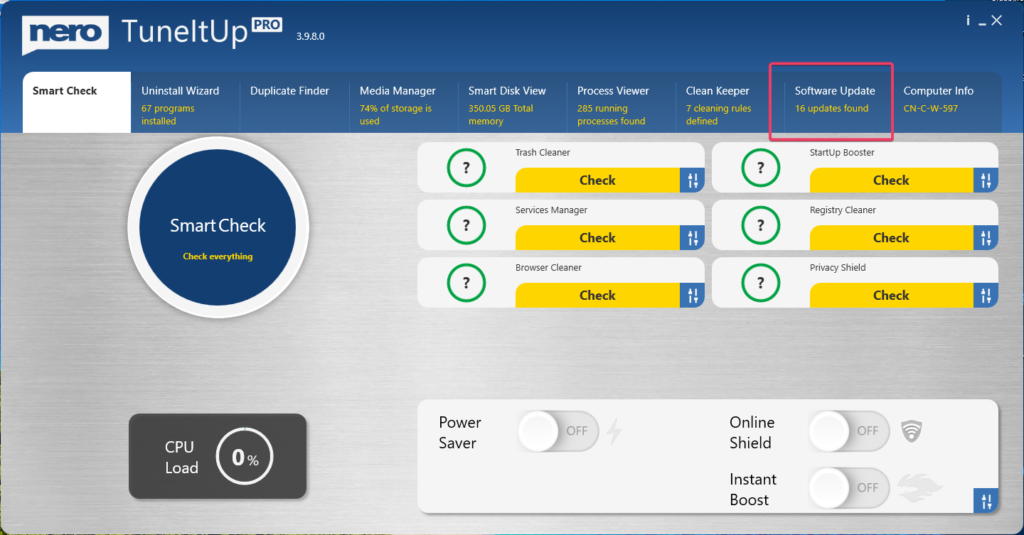
Update your programs automatically with Nero TuneItUp Pro 3.9.8.0
The latest version of Nero TuneItUp Pro features a powerful new software update capability.
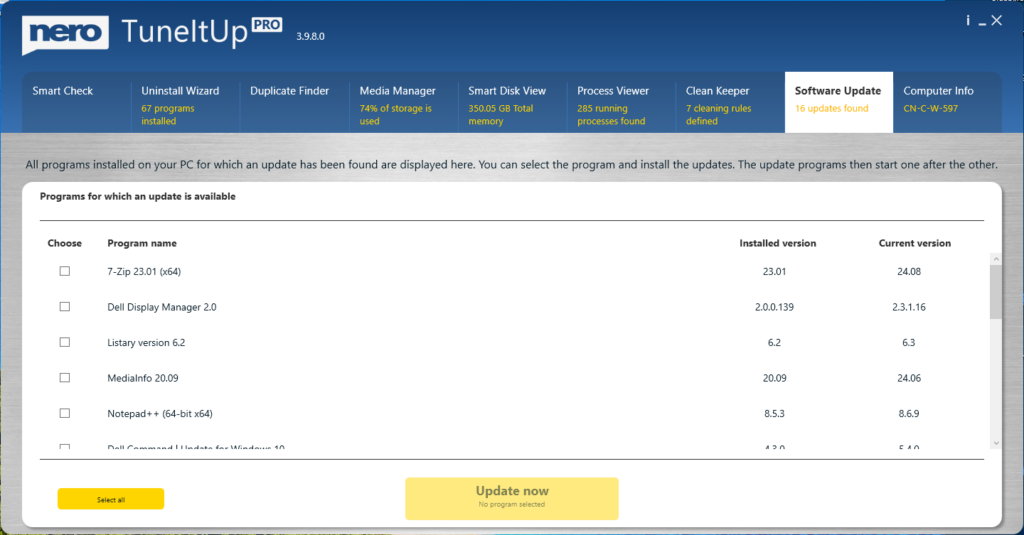
It scans your PC for installed software and provides a list of available updates.
Quick Start Guide
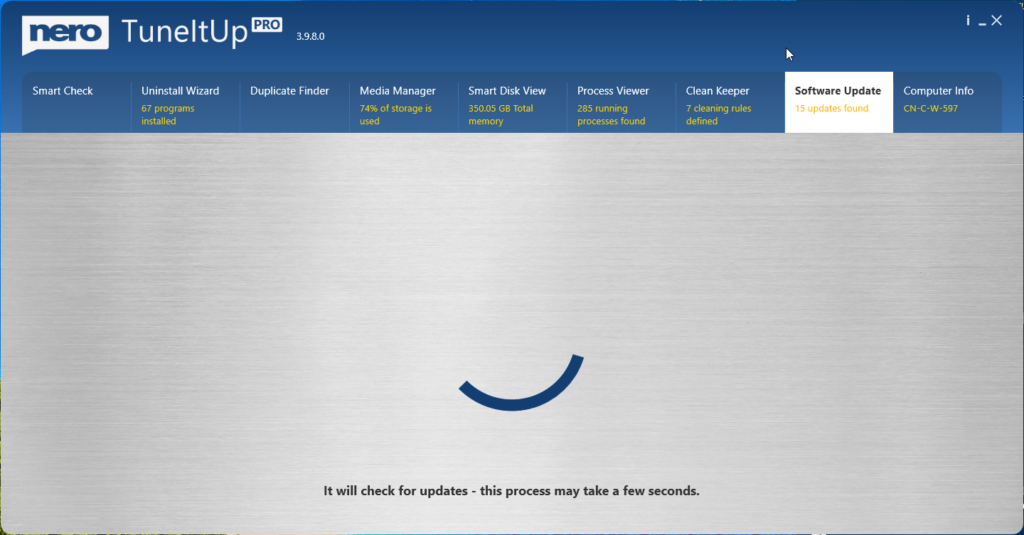
- Launch TuneItUp Pro 3.9.8.0 and navigate to the Software Update tab
- The program will automatically scan all your installed applications
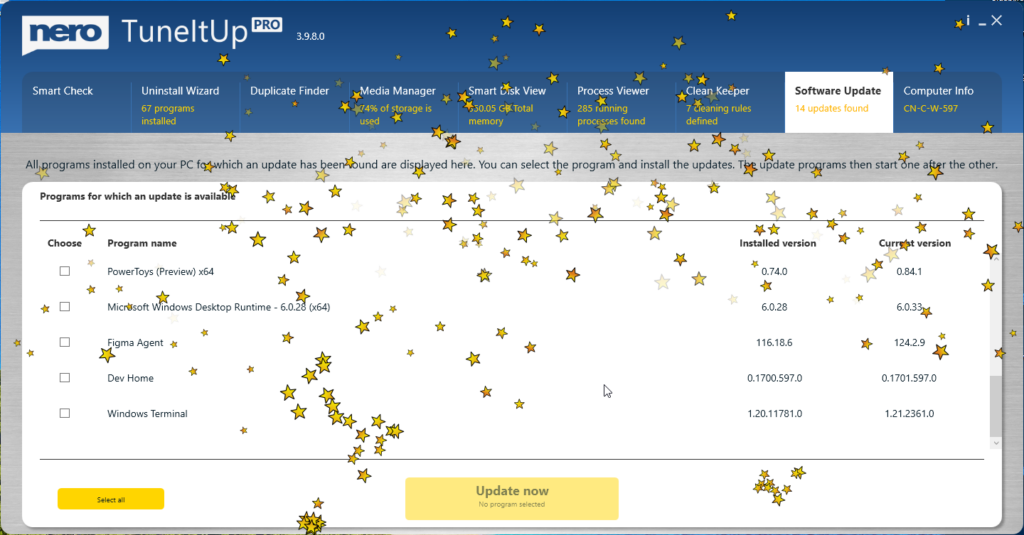
- Available updates will be displayed as shown below
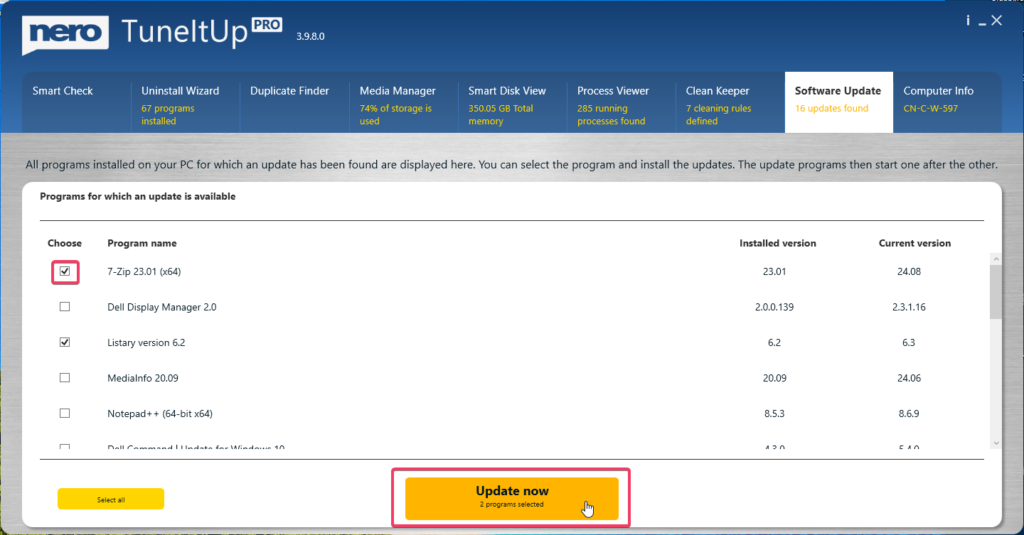
- Select the apps you wish to update, then click the Update now button to begin
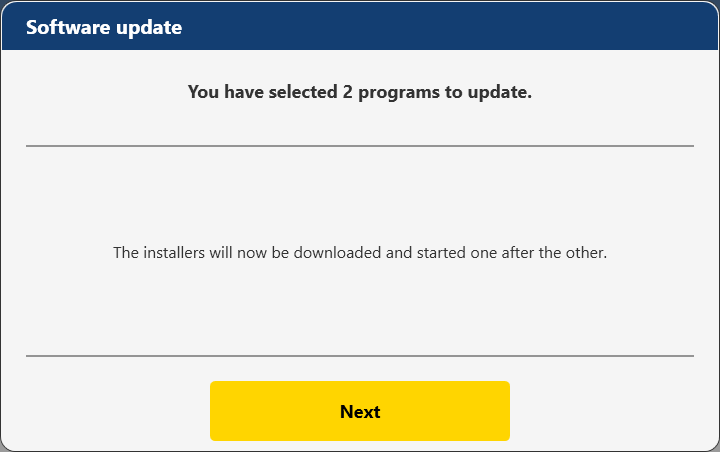
- Click Next to proceed

- The update process may take some time. If it’s taking too long, you can skip an update by clicking the Skip button
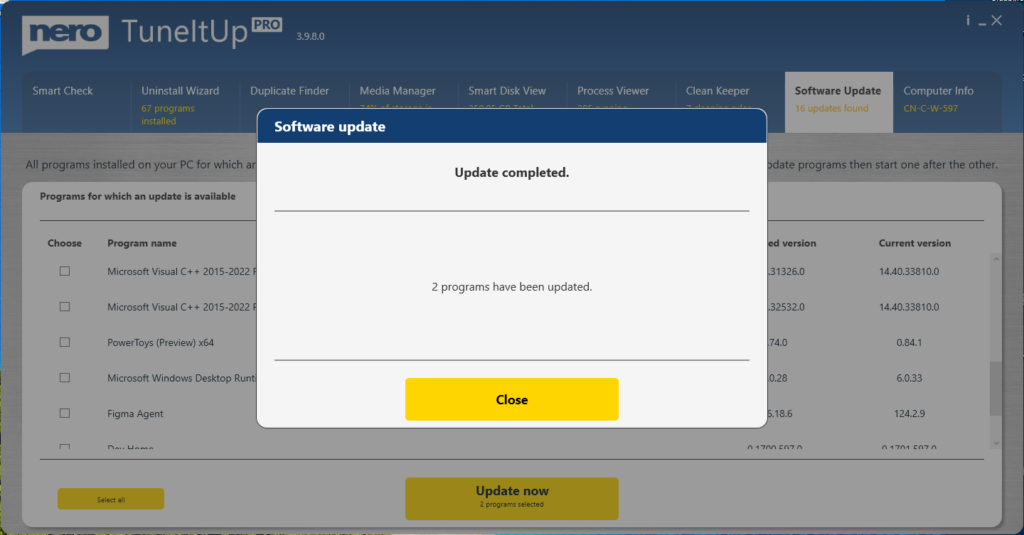
- Upon successful completion, the status will be displayed
- Click Close to finish the process
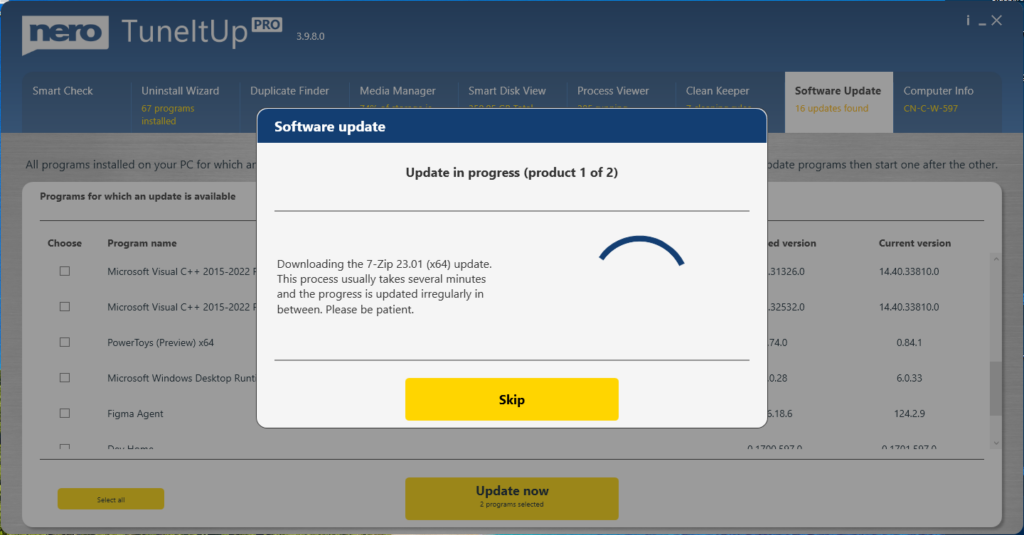
Why isn’t it working?
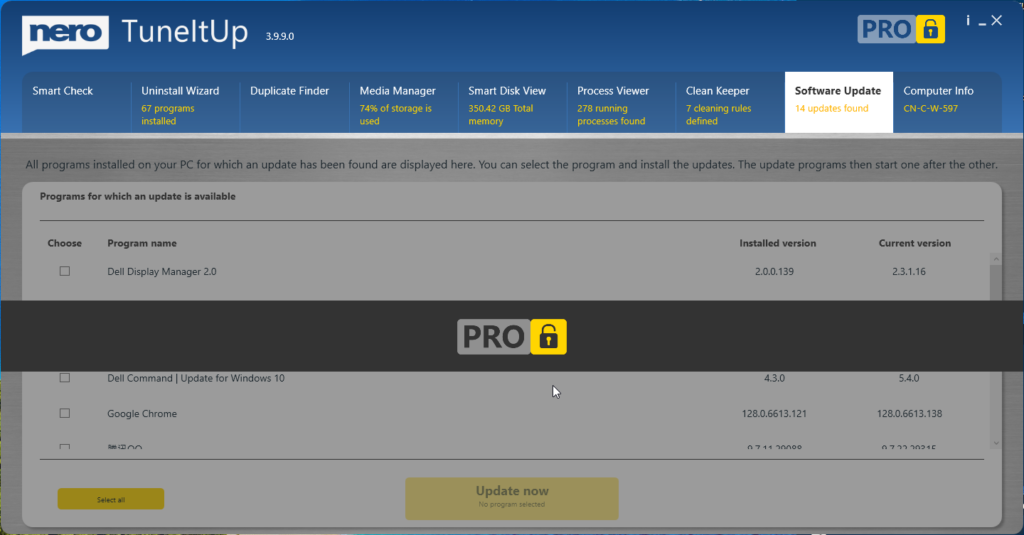
- First, this feature is only available in the Pro version. If you’re using the free version, click the lock button to upgrade.
- Secondly, you need an internet connection to use this feature.
- Thirdly, some applications may require a PC restart to complete the update process.
Nero Screen Recorder Versionshinweise – 26.5.3.31
Neue Funktion
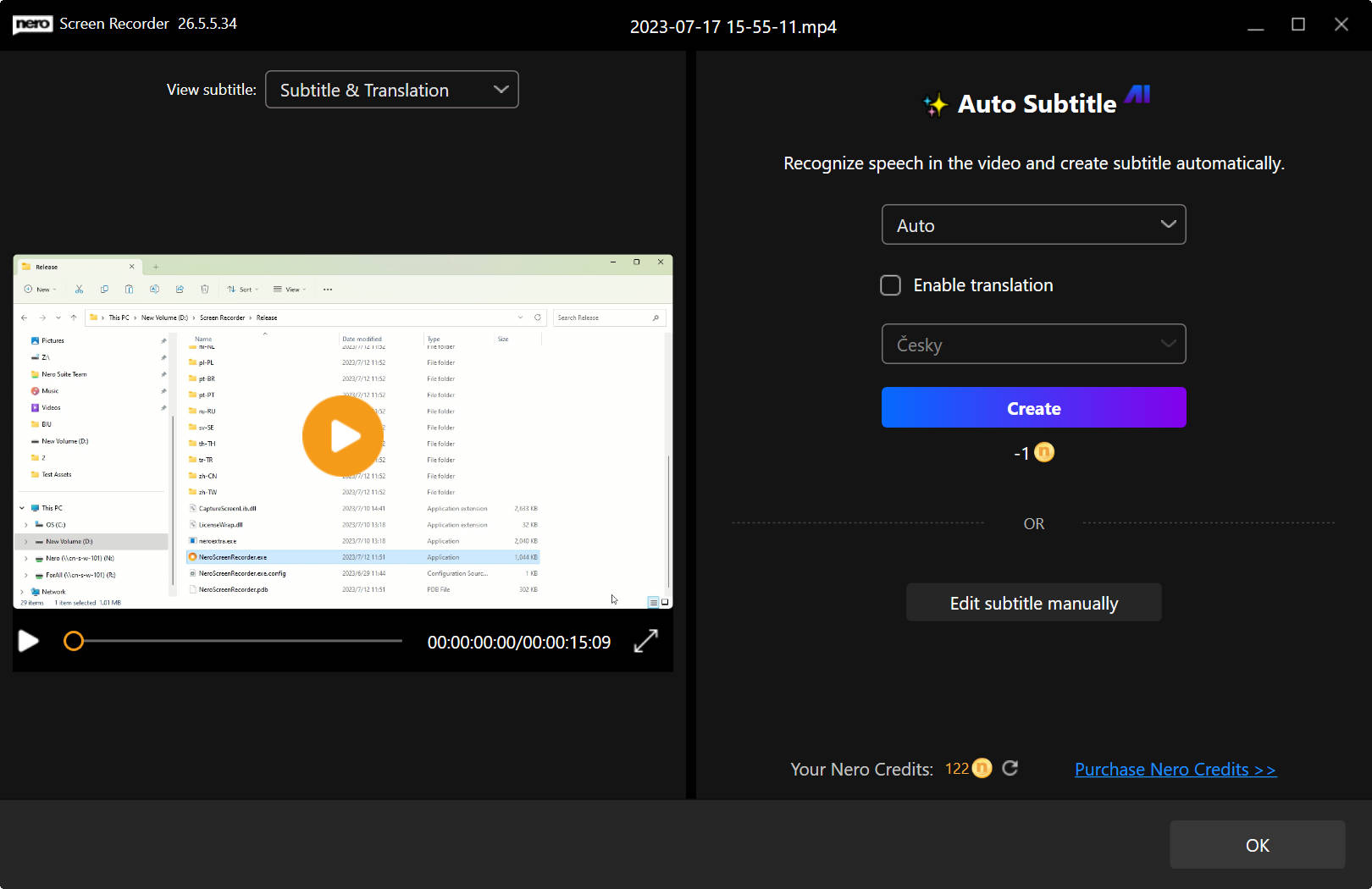
Unterstützt die KI-Untertitelfunktion, um Sprache zu erkennen und automatisch über den Onlinedienst in Untertitel umzuwandeln. Es bietet auch eine manuelle Untertitelbearbeitungsfunktion, einschließlich der Bearbeitung von Timecode und Textstil.