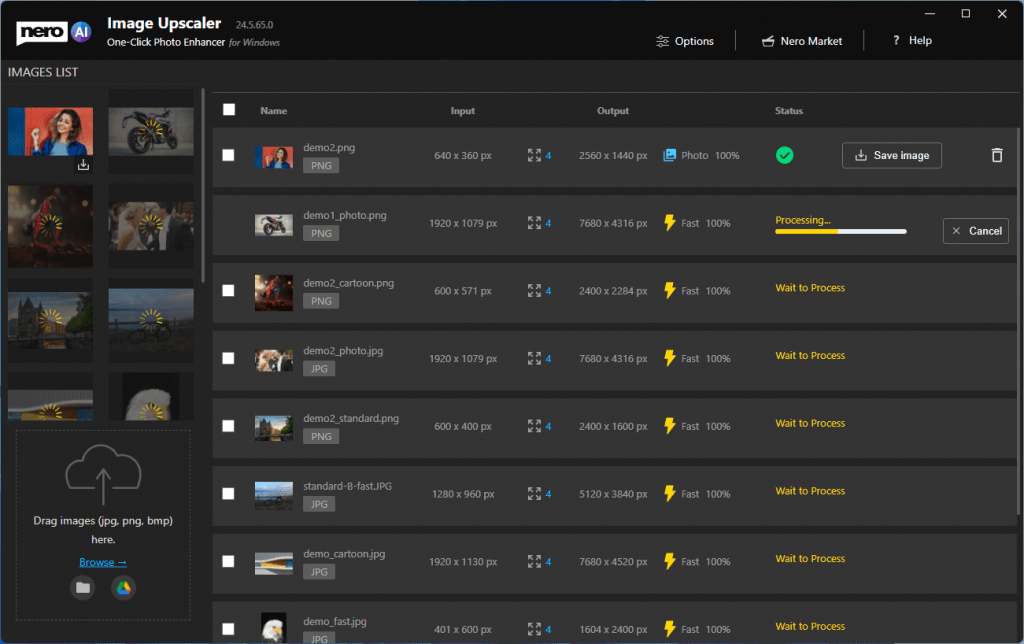
Changelog – Image Upscaler Pro Steam

This is the changelog for Image Upscaler Steam.

1.0.13

New features

  • 1-Click Start/Cancel for Multiple Images
    You can now start or cancel upscaling with a single click for all selected images. This streamlined feature saves time and gives you greater control over batch processing.
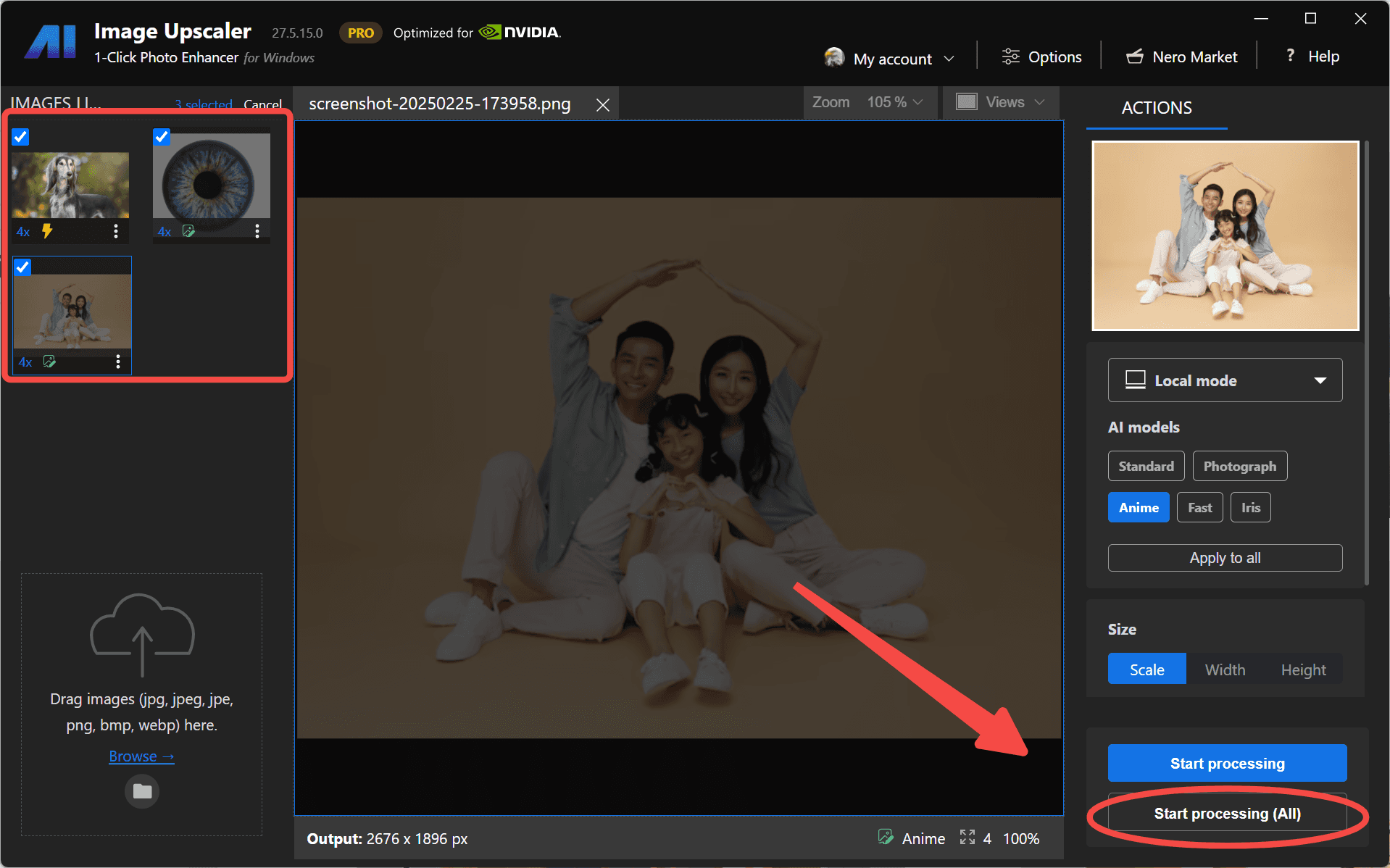
1-click to start all images
  • New AI Model – Iris
    Meet Iris, our latest model designed to enhance fine contrast details like eyes, fur, hair, and feathers. Perfect for portraits and close-ups, Iris brings out the delicate textures in your images.
Meet our new model IRIS

Improvements

  • You can now enable face enhancement with any online upscaling model, thanks to Nero Cloud GPU. Enjoy sharper, more detailed facial features across all your images.
Face Enhancement with All online Models
  • You can now set a targeted scaling ratio for online upscaling models, giving you more control over the final image size and quality.
Custom Scaling Ratios for Online Upscaling

Bugfixes

  • We’ve fixed an issue where the app failed to load the local upscaling engine on certain devices.


1.0.10

New features

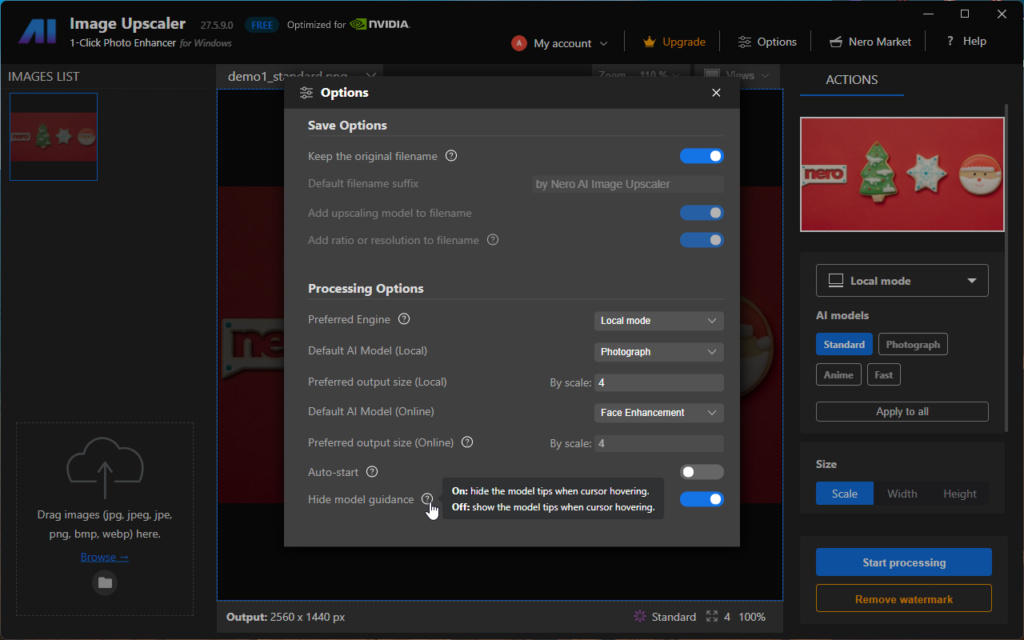
  • Model tips can now be shown or hidden based on your preferencesOption to turn off the model tips in Image Upscaler

1.0.8

New features

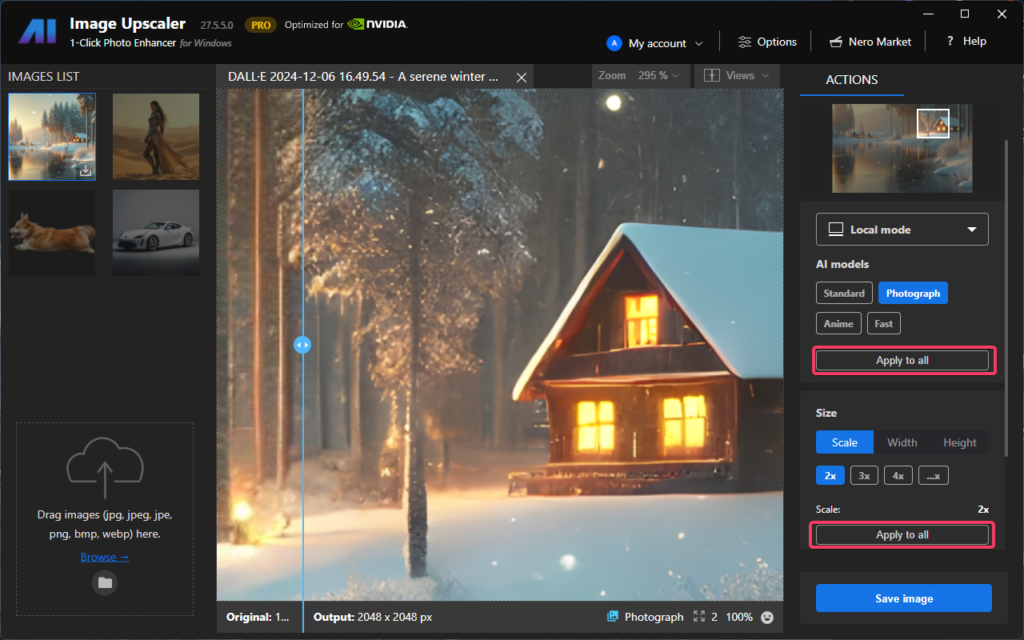
  • Now you can set the default upscaling ratio and models for all remaining unprocessed images with just 1-click.
    • via Options page:Auto-start option for face recovery
    • via the processing control zone:Apply model and size settings to all the unprocessed images

For more infomation, please refer to How to set model and size settings to all unprocessed photos quickly with Image Upscaler


1.0.1

Improvements

Improvement in the speed of login and online processing.


1.0.0

The initial version was released!

Features

Utilize artificial intelligence to increase image resolution with enhanced sharpness and detail.

  • Flexible Upscale: up to 4x
  • Batch process: upscale multiple images in 1-click.
  • Remove noises and jpeg compression artifacts.
  • Recover blurred facial details for blurry portraits.
  • Use the Nero cloud-based GPU for slow PCs. Read more >
  • Support JPEG, PNG, WEBP, BMP, JFIF, and so on.
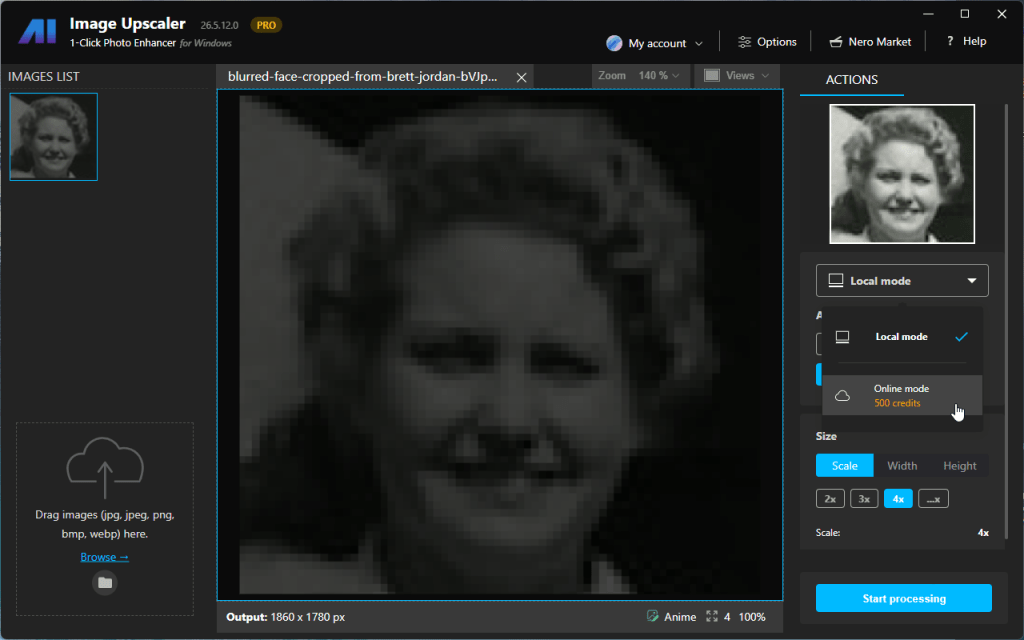
 

Image Upscaler Release notes – 26.5.12.0

New features

We are pleased to announce that the latest version 26.5.12.0  includes an online engine mode. Users can now upscale images faster than ever before, thanks to the acceleration provided by the cloud server GPU.

select online mode
select online mode

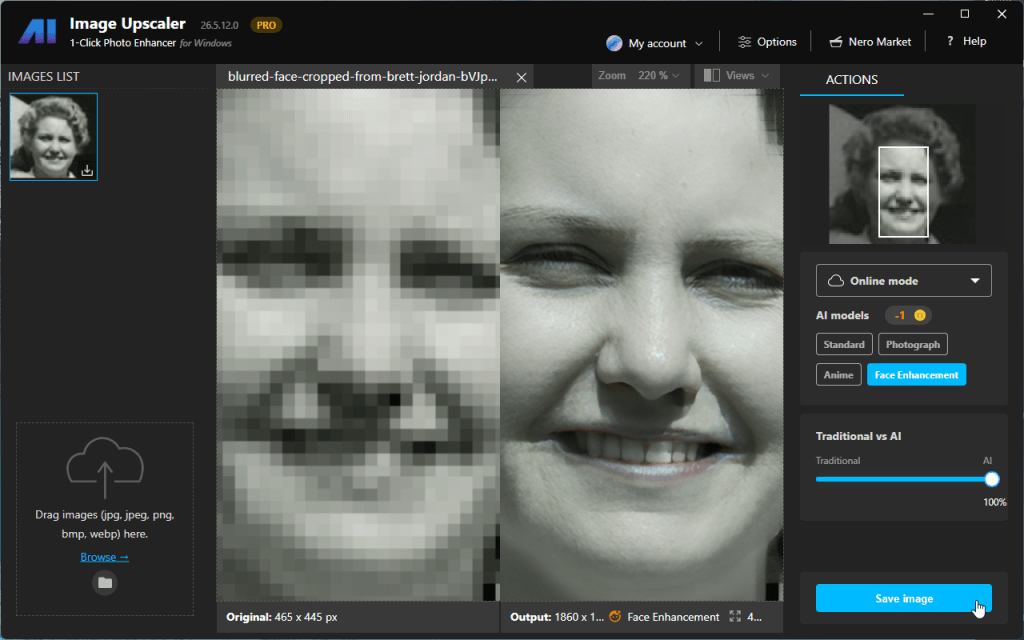
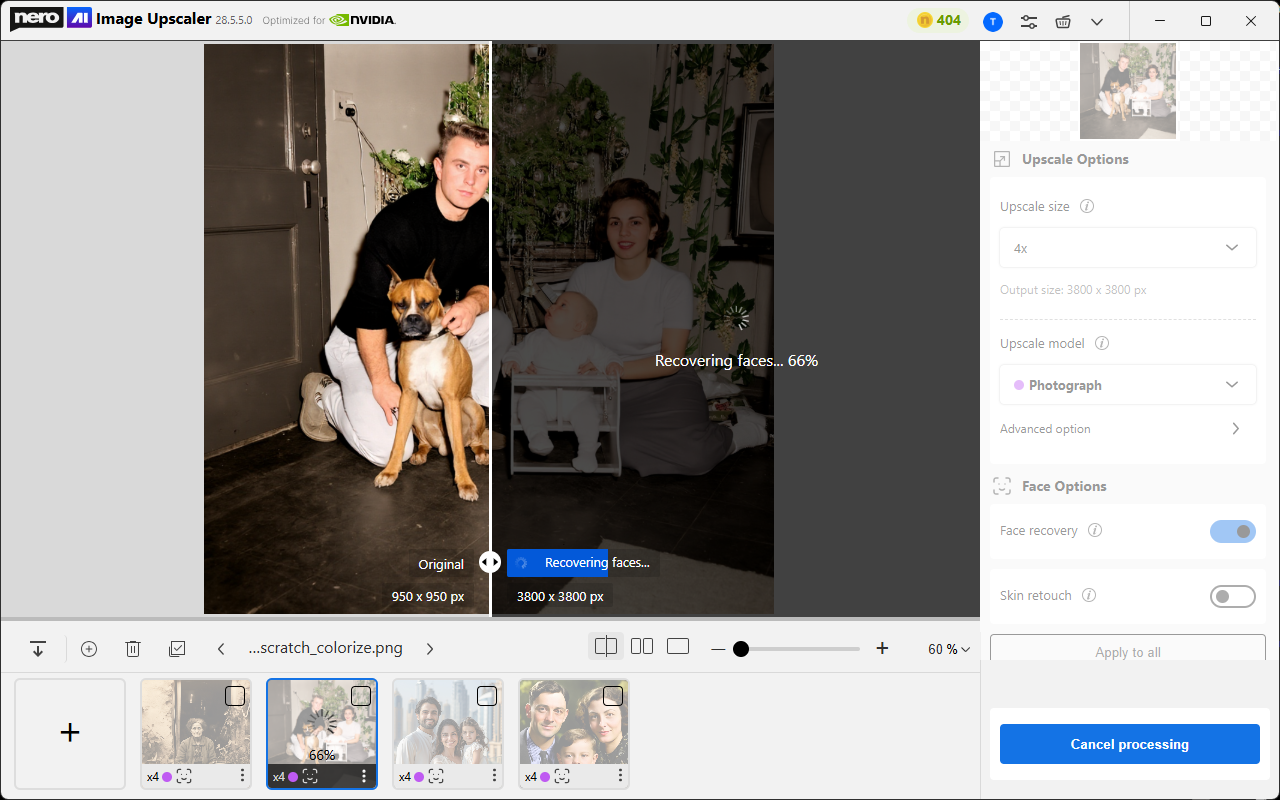
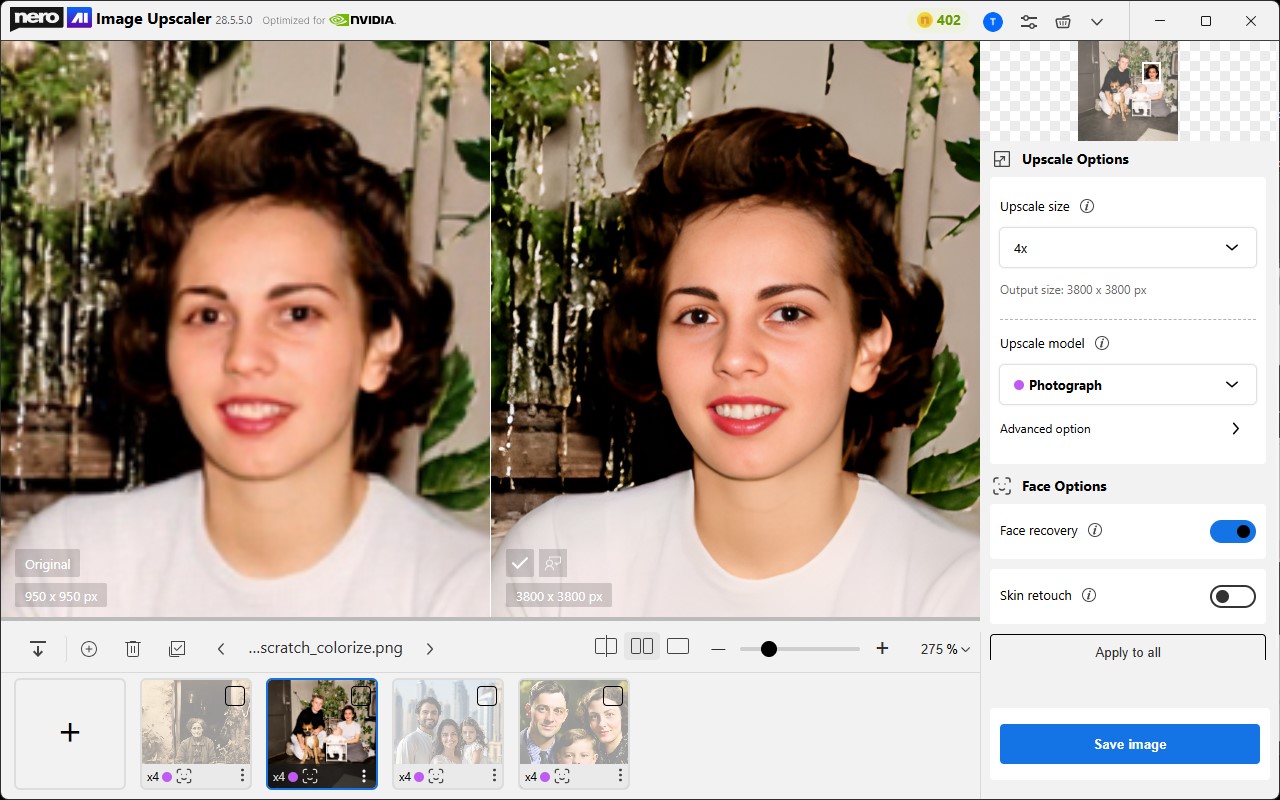
A new AI model – Face Enhancement is included in the online engine mode so you can restore and enhance blurry faces in the desktop app without going to the web service or the mobile app.

Save the result
Example result of Face Enhancement

Improvements

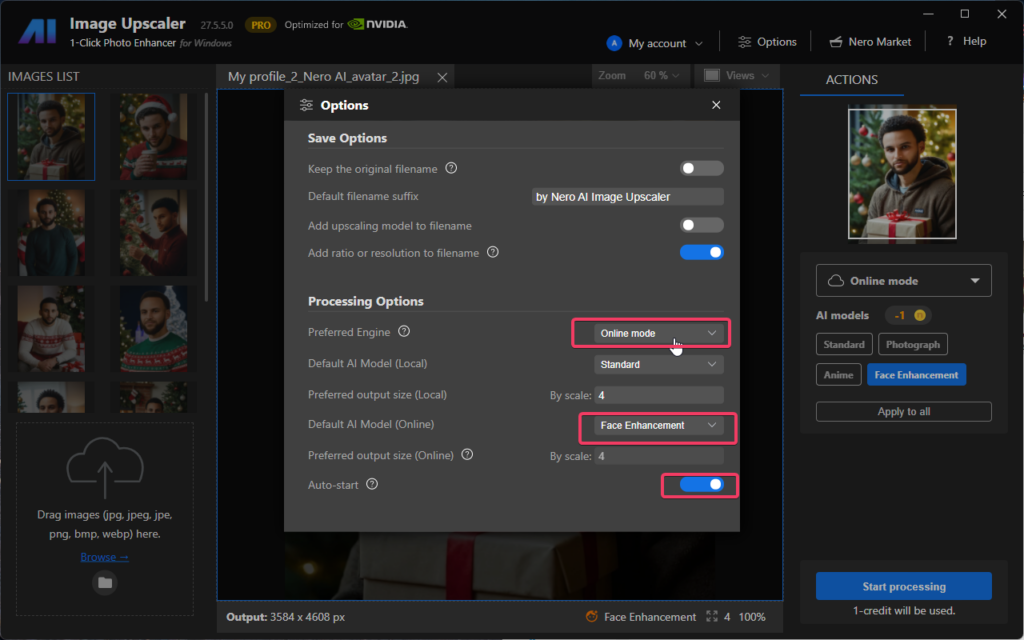
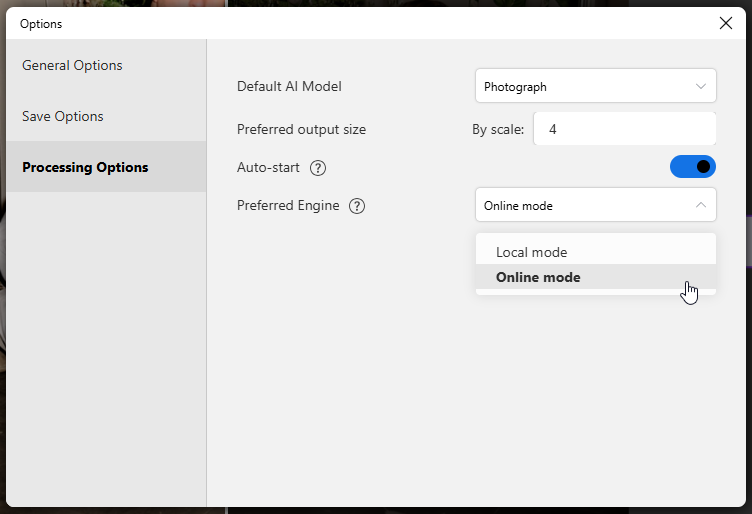
Now you can set up the automatic trigger with a specified AI model. Just import the images and the upscaling process will be automatically started.

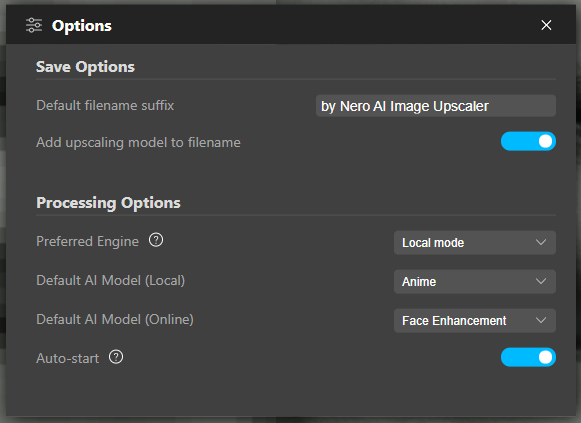
Preferred engine, model and auto-start

How Nero Cloud GPU Accelerates AI Image Upscaling

We’re pleased to announce that the latest version significantly improves processing speed through the Nero Cloud GPU (available since October 2023).
With this enhancement, you can now upscale images faster than ever before — powered by the acceleration of Nero’s high-performance Cloud GPU.

What is the Cloud Process?

The Cloud process uses Nero’s remote AI engine integrated within the AI Image Upscaler (Windows Desktop App) to handle image processing tasks.

Your images are securely uploaded to our EU-based servers for processing.
Rest assured — your photos are never stored after completion. Once the task is finished, all uploaded data is immediately and permanently deleted, ensuring that your personal images remain private and secure.
We take your data privacy seriously and are fully committed to protecting it.

Why do we need the Cloud process?

AI image upscaling performance depends heavily on GPU power and efficiency.

Expensive GPU

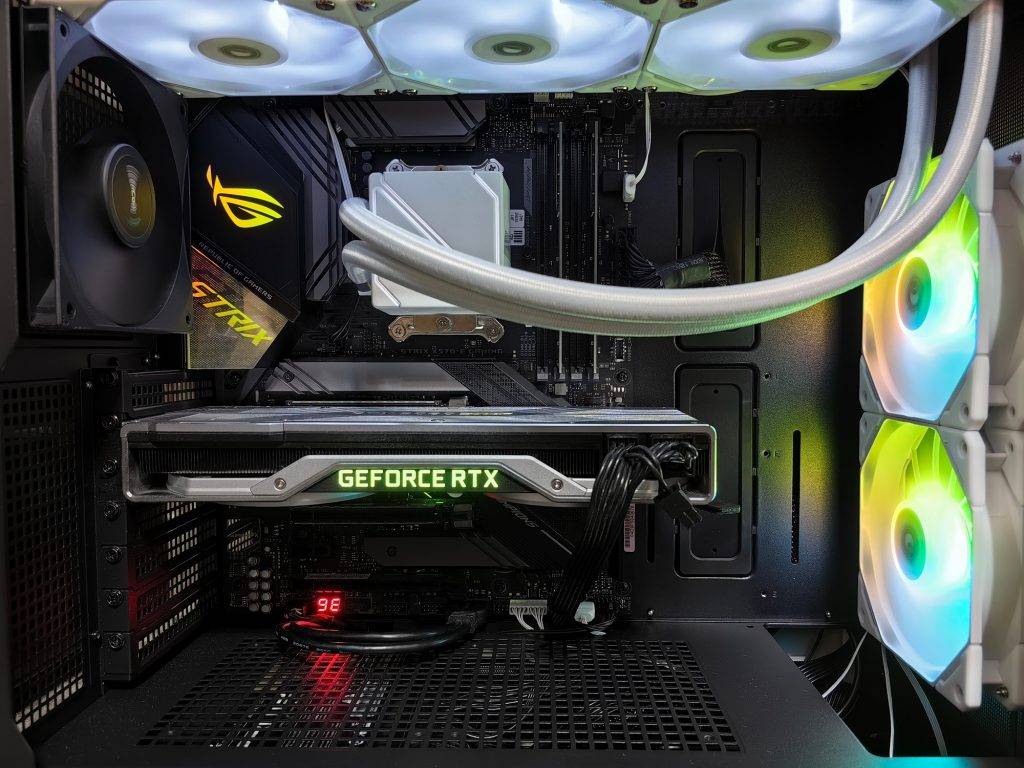
In recent years, GPU prices have soared due to the growing demand from cryptocurrency mining and AI-generated content (AIGC). As a result, not every user can afford high-end graphics cards.

Even if you have a capable GPU at home, you might experience slower performance or limited access when using a laptop or traveling without your desktop PC.

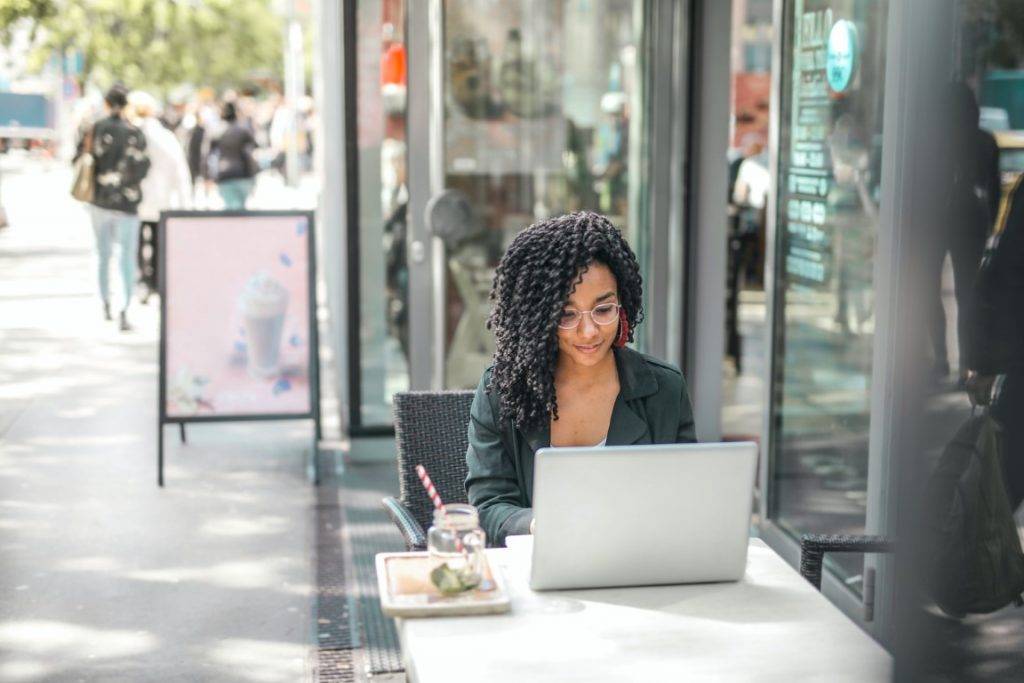
travel and work with laptop

The Online Engine Mode solves all these issues — no more errors, hardware limitations, or long waiting times.

With Nero Cloud GPU, you’ll always enjoy fast, stable, and high-quality upscaling, wherever you are.

Can I use the Cloud process for free?

The Cloud process is not a free service — it requires Nero Credits to operate. Each upscaling task typically consumes 1–2 credits, depending on the selected model and options.

To use Cloud processing, you’ll also need Pro version privileges. You can upgrade your entitlement through in-app purchases or online purchases.

Secondly, you need to have Pro version privileges. You can upgrade your entitlement through in-app purchases or online purchases.

If you have subscribed to our Platinum Suite 1-Year License (also known as the Nero Platinum Suite 365), simply sign in with your Nero Account to activate your entitlement.

As a bonus, we’ll add 100 Nero Credits to your account after a successful purchase.

How to use the Cloud process?

  1. Launch the app and import your image.
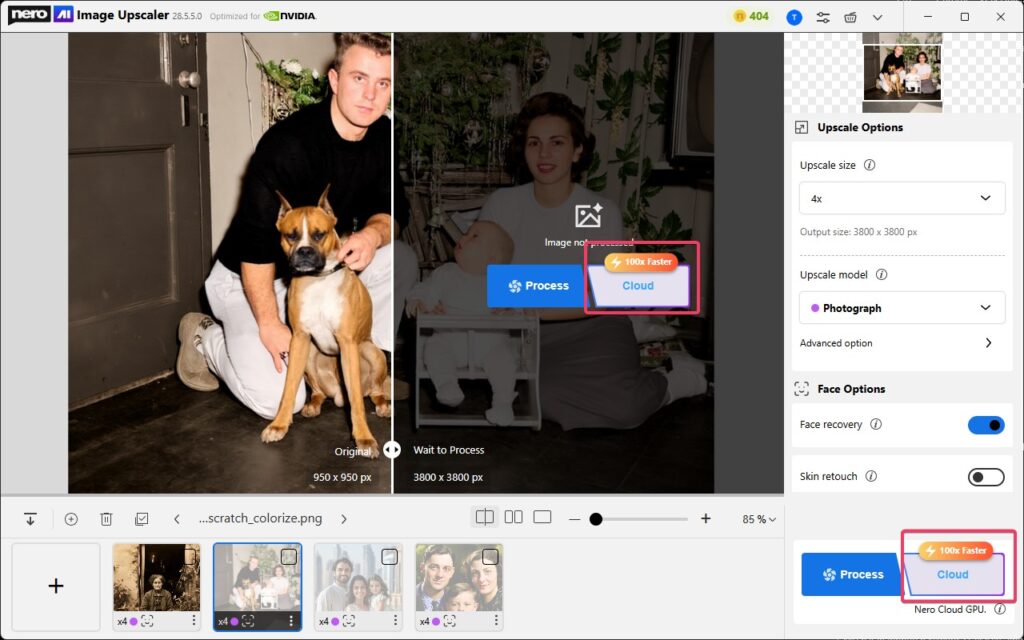
  2. Set the target size, AI model, and face options, then click the [Cloud] button to start.
  3. The app will upscale your image using the Nero Cloud GPU.
  4. Once the processing is complete, don’t forget to save your result.

💡 Tip: You can enable Auto-start and set the engine mode to Online, then choose a default model.

After that, simply import an image — no need to click any button. The app will automatically begin upscaling using the Nero Cloud GPU, ensuring faster results on any PC.

What to Consider

  • Ensure you have a stable internet connection.

  • Pro version access is required to use Cloud processing.

  • Make sure you have enough Nero Credits, as each task consumes 1–2 credits.

After processing, remember to save your images to local storage promptly to avoid losing results.


Nero KnowHow 00318

What is Nero Muse?

Nero Muse is an AIGC app to generate AI art based on prompts and photos. AIGC stands for AI Generate Contents. It is an artificial intelligence-based tool that helps in generating photos and images.

How does Nero Muse work?

Nero Muse uses machine learning algorithms to analyze and understand the context, tone, and style of the content. It then generates unique and high-quality photos based on the input provided by the users such as prompts and reference images.

What are the benefits of using Nero Muse?

Using Nero Muse can save time and effort in image creation. It can generate images quickly and efficiently. What’s more, it is a lot of fun to share your AI artworks and creations. You can also get inspired by the Artwork Gallery which is published by other creators.

Is Nero Muse easy to use?

Nero Muse is designed to be user-friendly and easy to use.

The Rookie mode is designed for users who are not familiar with AI image generation at all. Users just need to select a photo from the library and choose a style. Then the app will turn the real photo into great AI art.

The Hall of Fame mode is a bit difficult for rookies who never heard about AI image generation. Like the other AI image generators, users need to write a prompt before AI starts to process.

What is prompt and how does it work?

In image generating, a prompt is a short description or phrase that provides the AI model with an idea or concept to generate an image from. The model then uses algorithms to create an image that matches the prompt. The quality of the generated image depends on the quality of the model and the level of detail provided in the prompt.

How to write a prompt for image generation?

To write a good prompt for image generation, you should be as specific and detailed as possible. Use descriptive language to convey the style, tone, and context you want the image to have. It’s also helpful to provide reference images or examples to give the AI model a better understanding of what you’re looking for. Experiment with different prompts and see what works best for you.

Is it free to use?

Yes, Nero Muse offers a free version with limited features. The free version allows users to generate images with some basic styles and limited quality. You can upgrade to the Pro version for unlimited access to all features and styles. The Pro version is available for a monthly or yearly subscription fee.


Nero KnowHow 000304

Visit Nero Muse Official site →

Leave us feedback at feedback@nero.com

Changelog – Image Upscaler MS

This is the changelog for Image Upscaler Microsoft Store

2.0.51.0

2025-03-27

Improvements

  • Now we will provide you a discount on Lifetime Plan regularly. Don’t miss out the offer!

    Join the Microsoft Store sales
    Join the Microsoft Store sales
  • Localization update for German


2.0.50.0

2025-03-07

New features

  • 1-Click Start/Cancel for Multiple Images
    You can now start or cancel upscaling with a single click for all selected images. This streamlined feature saves time and gives you greater control over batch processing.
1-click to start all images
  • New Local AI Model – Iris
    Meet Iris, our latest model designed to enhance fine contrast details like eyes, fur, hair, and feathers. Perfect for portraits and close-ups, Iris brings out the delicate textures in your images.
Meet our new model IRIS

Note: The “Iris” model is paid-only. 

  • Seamless Editing in PhotoSnap
    After upscaling with Nero AI Image Upscaler, you can now fine-tune your images directly in PhotoSnap. Adjust colors, apply filters, retouch faces, add clip art, text, and more—without missing a beat.
Seamless Editing in PhotoSnap

Improvements

  • You can now enable face enhancement with any online upscaling model, thanks to Nero Cloud GPU. Enjoy sharper, more detailed facial features across all your images.
Face Enhancement with All online Models
  • You can now set a targeted scaling ratio for online upscaling models, giving you more control over the final image size and quality.
Custom Scaling Ratios for Online Upscaling

Bugfixes

  • We’ve fixed an issue where the app failed to load the local upscaling engine on certain devices.


2.0.48.0

2025-02-12

New features

  • In-app purchase update – now you can subscribe to our Lifetime Plan.


2.0.43.0

New features

  • Model tips can now be shown or hidden based on your preferencesOption to turn off the model tips in Image Upscaler

2.0.41.0

2024-12-11

New features

  • Now you can set the default upscaling ratio and models for all remaining unprocessed images with just 1-click.
    • via Options page:Auto-start option for face recovery
    • via the processing control zone:Apply model and size settings to all the unprocessed images

For more infomation, please refer to How to set model and size settings to all unprocessed photos quickly with Image Upscaler

2.0.37.0

2024-05-20

New features

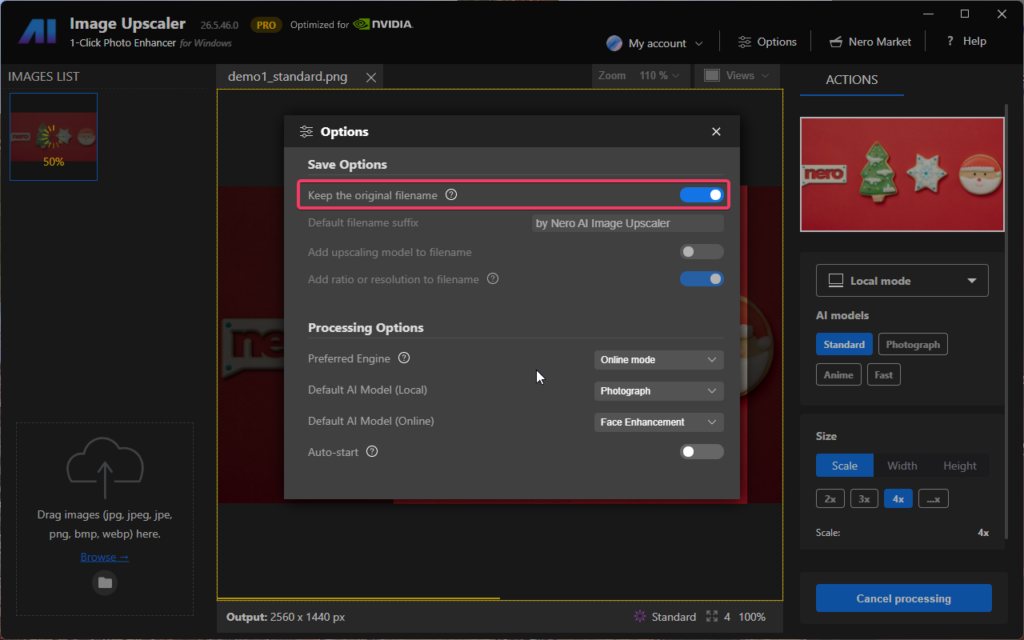
  • Now you can choose to keep the original filename when you output results.
    Options - keep original filename
    Options – keep original filename

    Warning: This option might overwrite your original files when you export the results to the same directory as the original files.

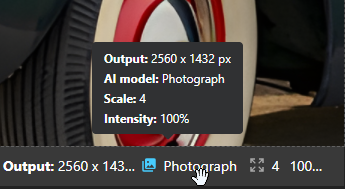
  • You can see all upscaling info with the cursor hovering on output image
    hovering for image info
    hovering for image info

2.0.25.0

2023-06-30

New features

If you like our app, share you love and rate for us!

rate for us
rate for us

Or give us feedback via quick survey.

2.0.21.0

2023-06-01

New features

  • New model to restore blurred faces.

  • Zoom in to the image at 300% level.


2.0.16.0

2023-02-03

New features

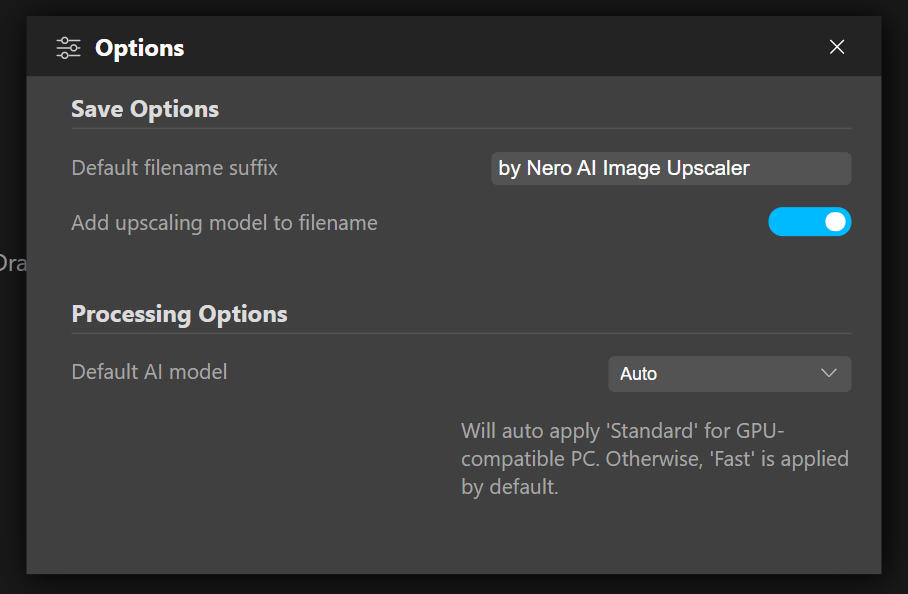
setup default ai model

  • Now you can set up the default AI model in the Options.
  • Support new format .webp
  • A 7-day free trial is now available.


2.0.12.0

2022-10-10

New features

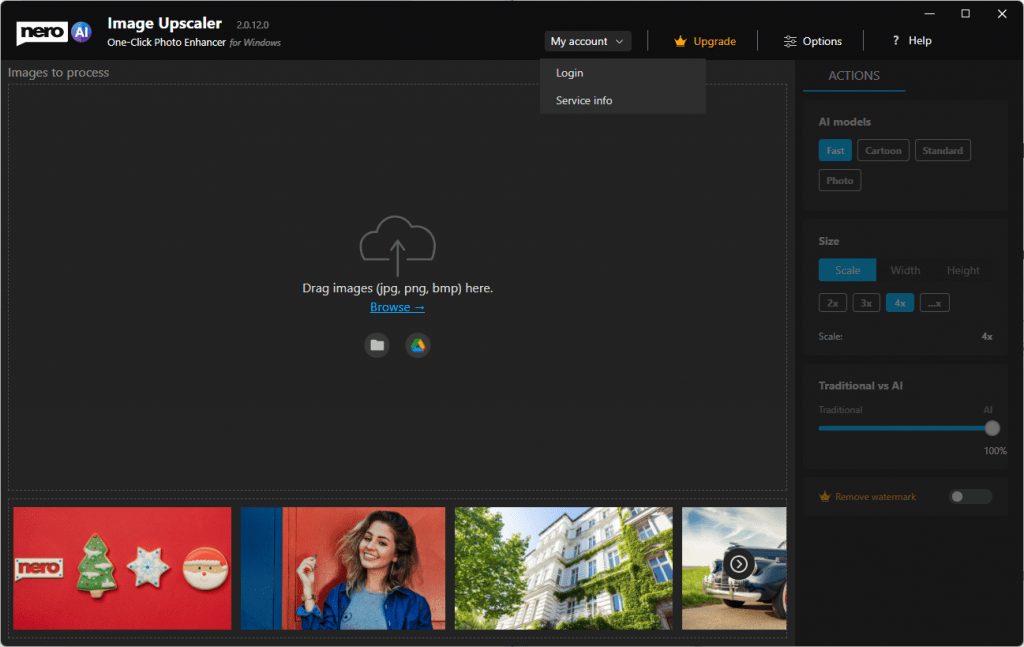
  • Sign in or create a new Nero Account for a special gift now!

sign in

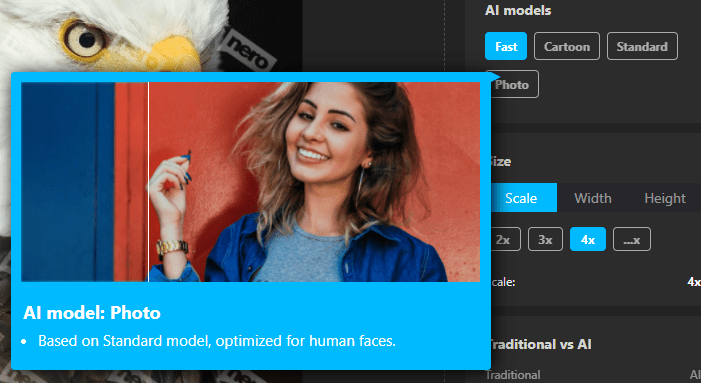
  • Hints with gif when cursor hovers on the model.

tooltip for models

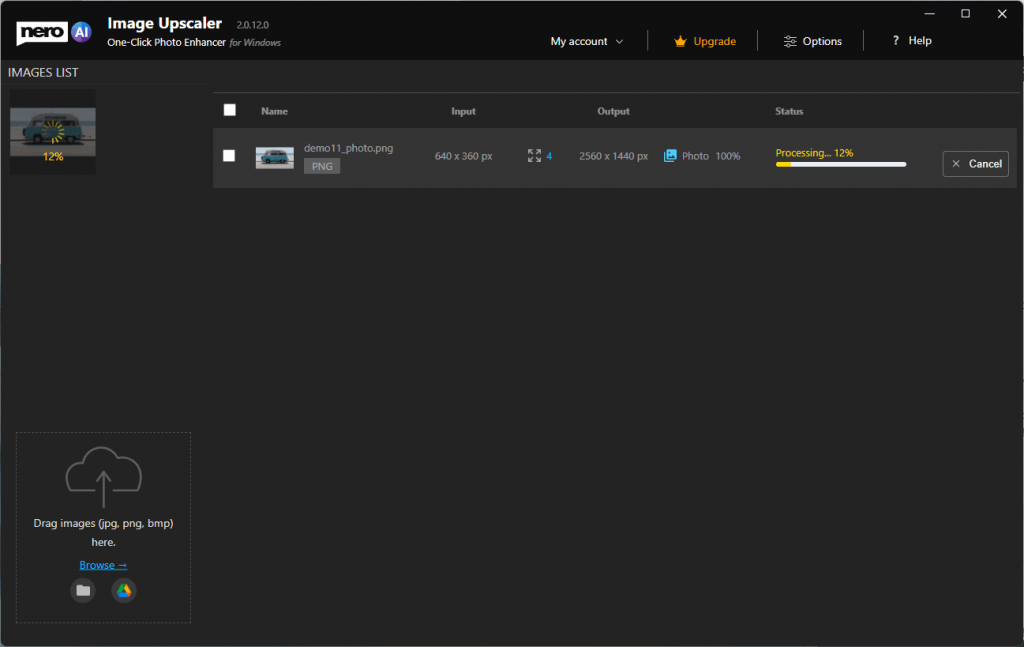
  • Show the progress status in the thumbnail list for the image under processing.

progress status

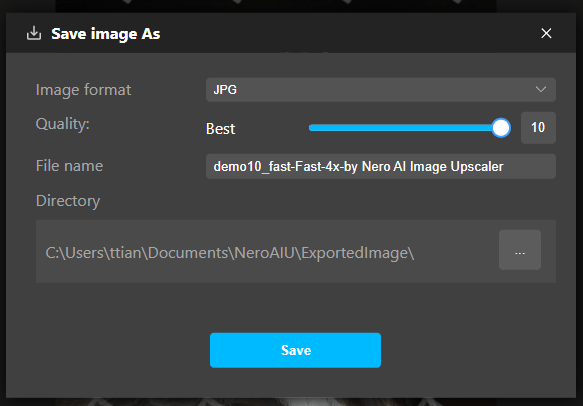
  • Support compression settings when saving results as jpeg files.

jpeg compressions

  • Keep original EXIF data in the result.

Improvements

  • Better sample image with result presenting.
  • The project will not be interrupted when the PC sleep.
  • Other improvements for stability and reliability.


2.0.6.0

2022-08-29

Improvements

  • Some improvements for Intel CPU acceleration.


2.0.3.0

2022-8-18

New

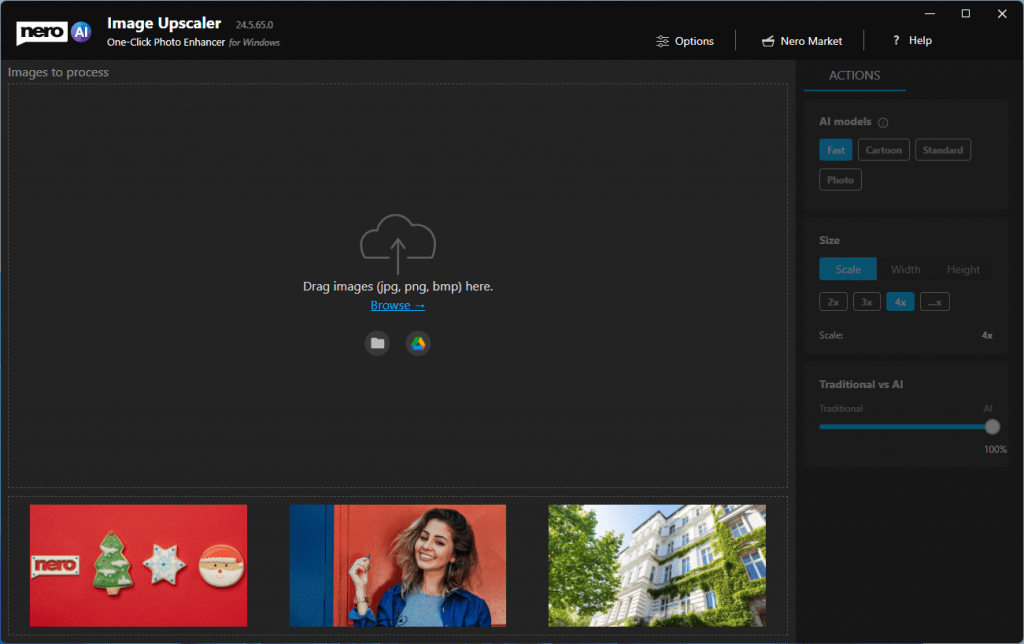
  • Some example images to start with.new start with example
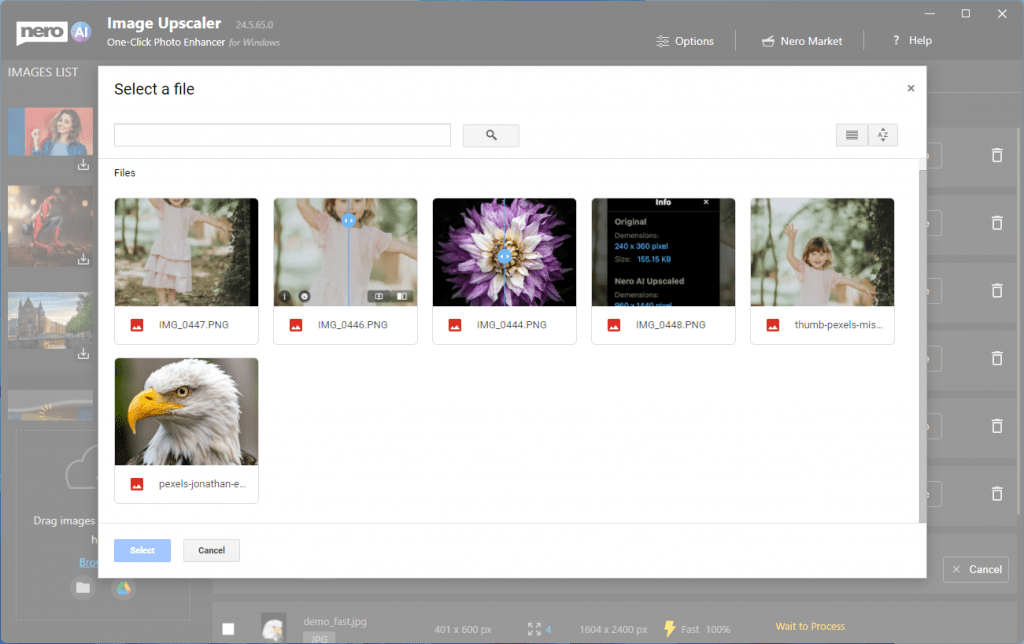
  • You can input images from Google Drive

open from google drive

  • AI model selection is now available. Try different models for different photo till you get happy result.

ai models

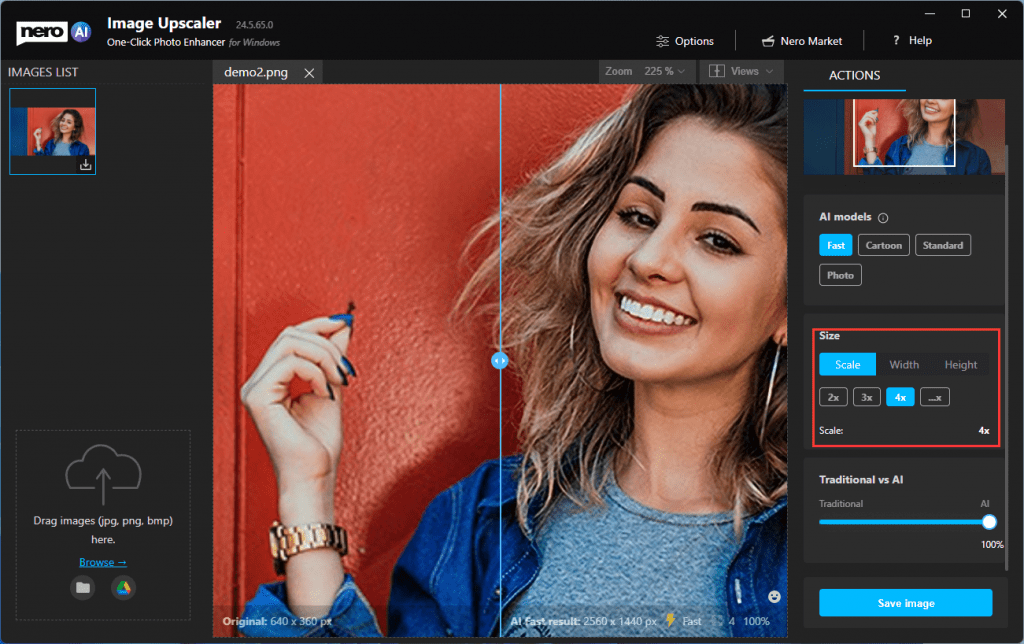
  • You define how big the result goes. 2x, 4x or by targeted width and height values.

more scale ratio

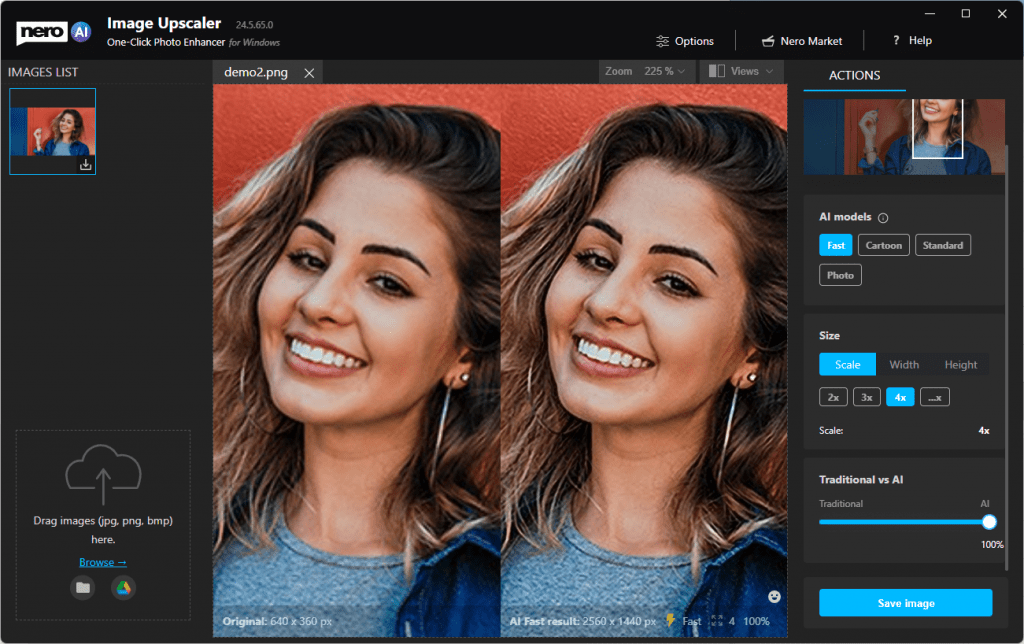
  • More comparison views:

1on1 view

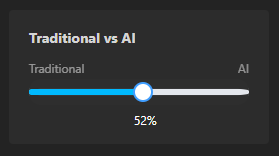
  • Compare traditional and AI results with slide bar.

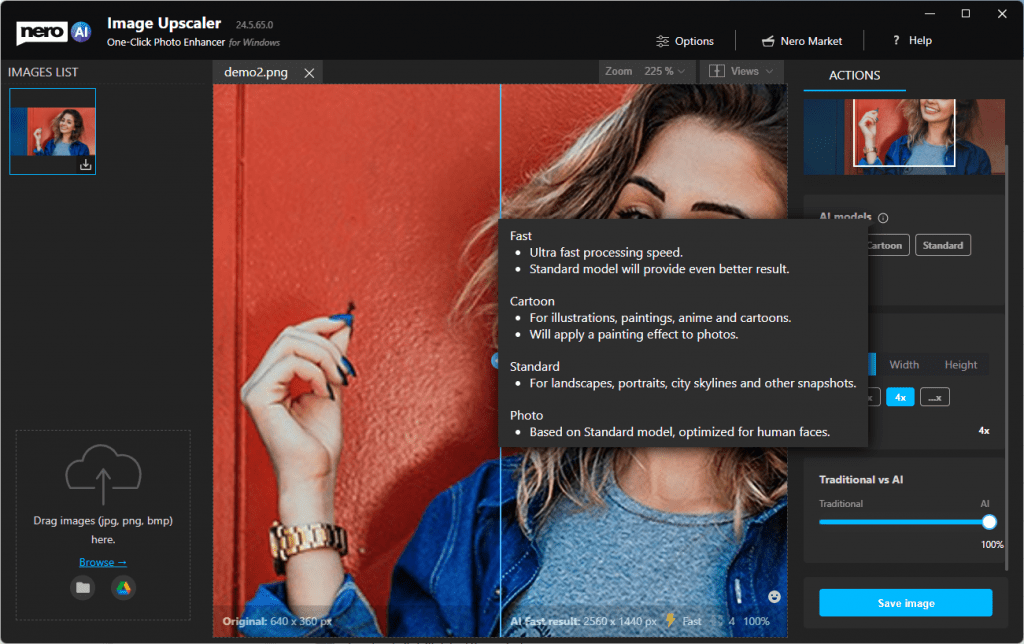
traditionalvsai

  • Batch processing is possible and up to 20 images in a row.

batch process

Improvements

  • Giant improvements on processing speed with NVIDIA GPU acceleration.
  • Save files with customized file name.


1.0.9.0

2021-11-1

Features

Microsoft Store initial release of Nero AI Image Upscaler – use artificial intelligence to increase image resolution with enhanced sharpness and detail.

  • Upscale rate: 4x.
  • Remove noise and jpeg compression artifacts.
  • Support JPEG, PNG.


Nero KnowHow 00287