All Nero products you purchased are bundled to your nero account. Email, especially the primary email, is very important for your nero account. It is used not only for your Nero account but also for your orders.
But what do you do if your email address has to be changed because it is about to be expired or for some other reason?
Please check below FAQs and follow the steps to change your email.
FAQ: How can I change email?
If you are Nero desktop customer, please launch Nero Start. If you are Nero AI online services customer, please go to Nero Account online page > Account information.
- In Nero Start, from Account icon, go to ‘Manage my account’
- Click ‘Edit’ button for Email.
 Nero Account online page will be opened. The email change need to be done in the Nero Account online page. Maybe another login will be required if you have never open Nero Account online page before.

- Click ‘Email’ in ‘Account information’. ‘Edit’ button will be enabled once you cofirmed not a robot. Click ‘Edit’.

- Follow the guide to confirm your password.
- Now you can enter the new email address. Click ‘Change Email’ and make sure you want to move all your Nero products and services to new email.


- Your new email address will receive a confirmation email. You will be able to change your account’s primiary email by clicking the verification button in the confirmation email.

- Clicking the verification button to start the change. Please be patient and don’t leave the page.
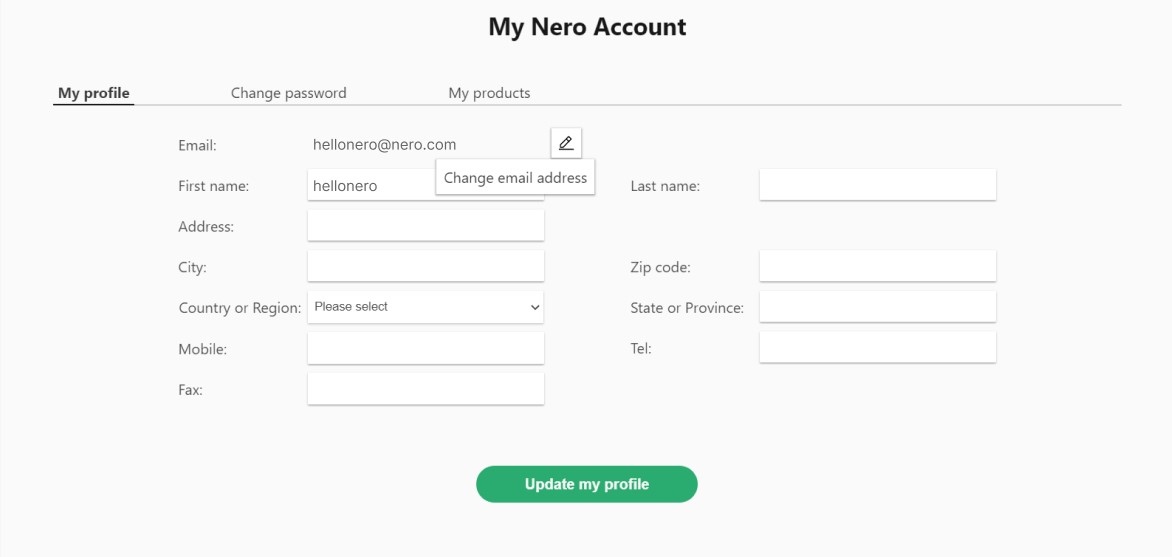 Nero Account online page will be opened. The email change need to be done in the Nero Account online page. Maybe another login will be required if you have never open Nero Account online page before.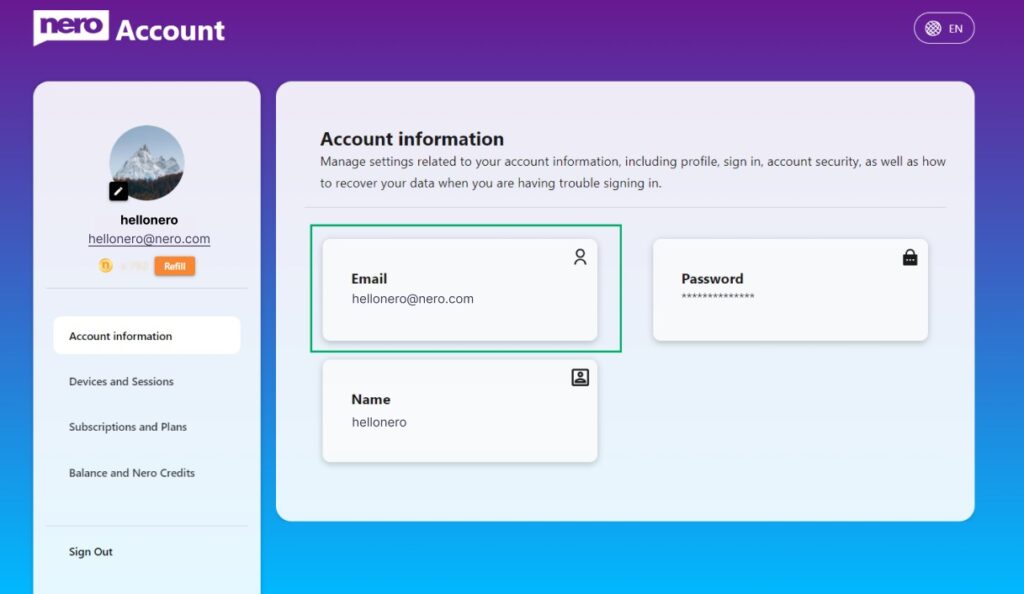
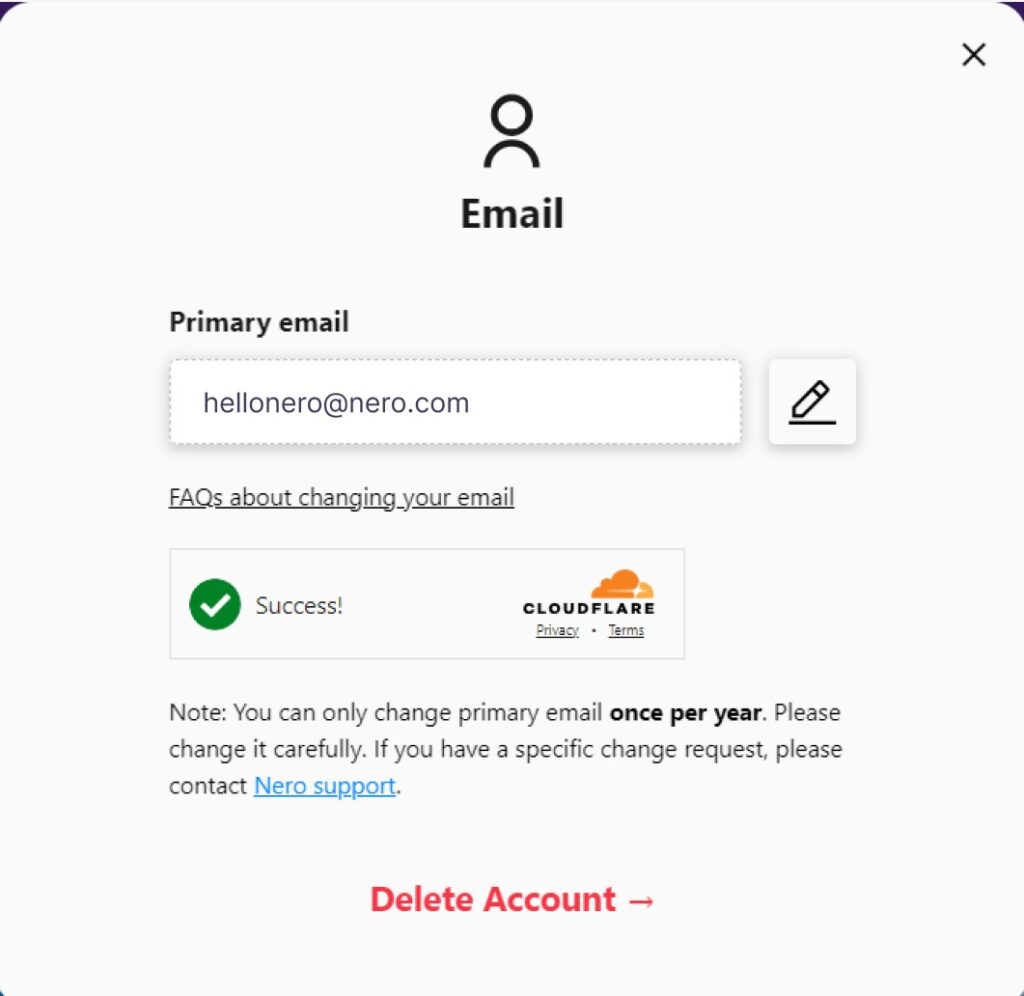
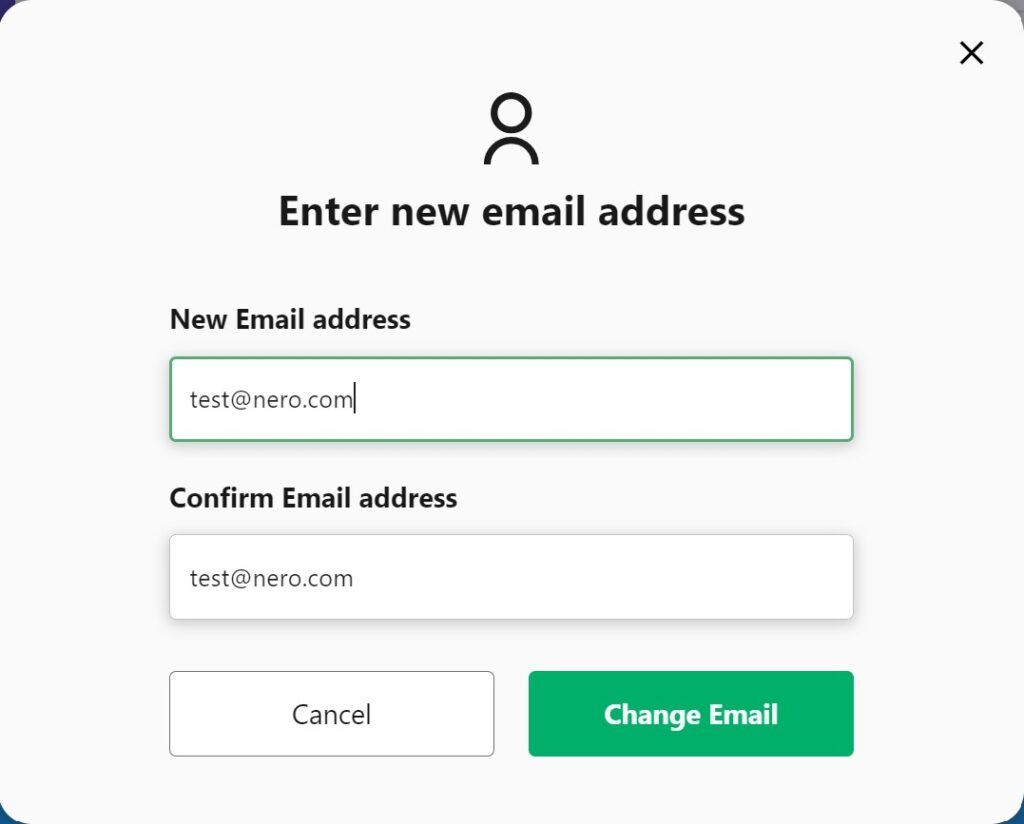
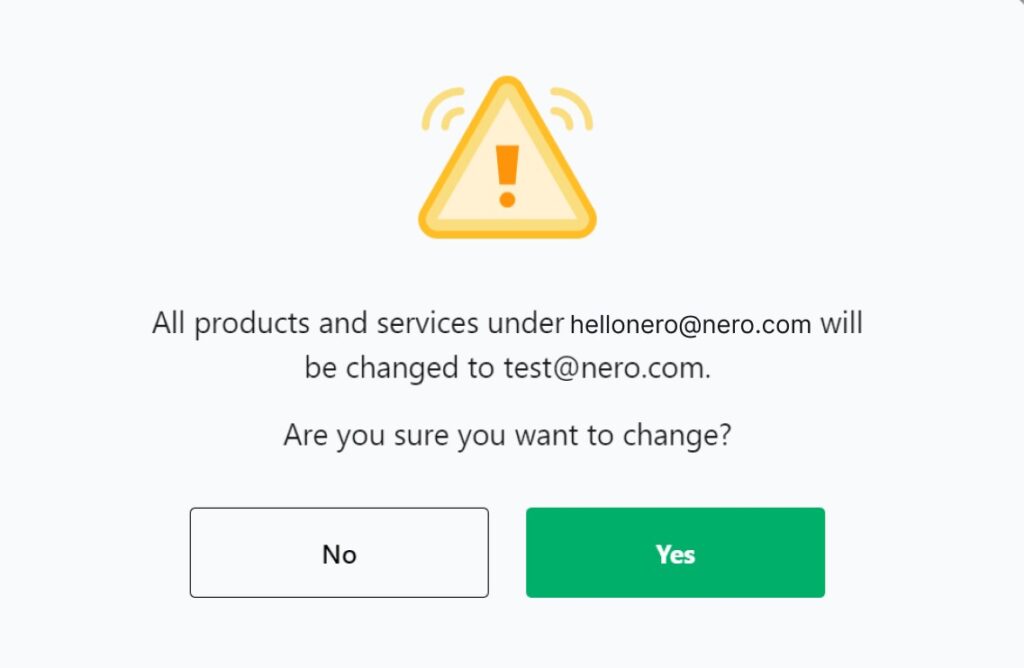
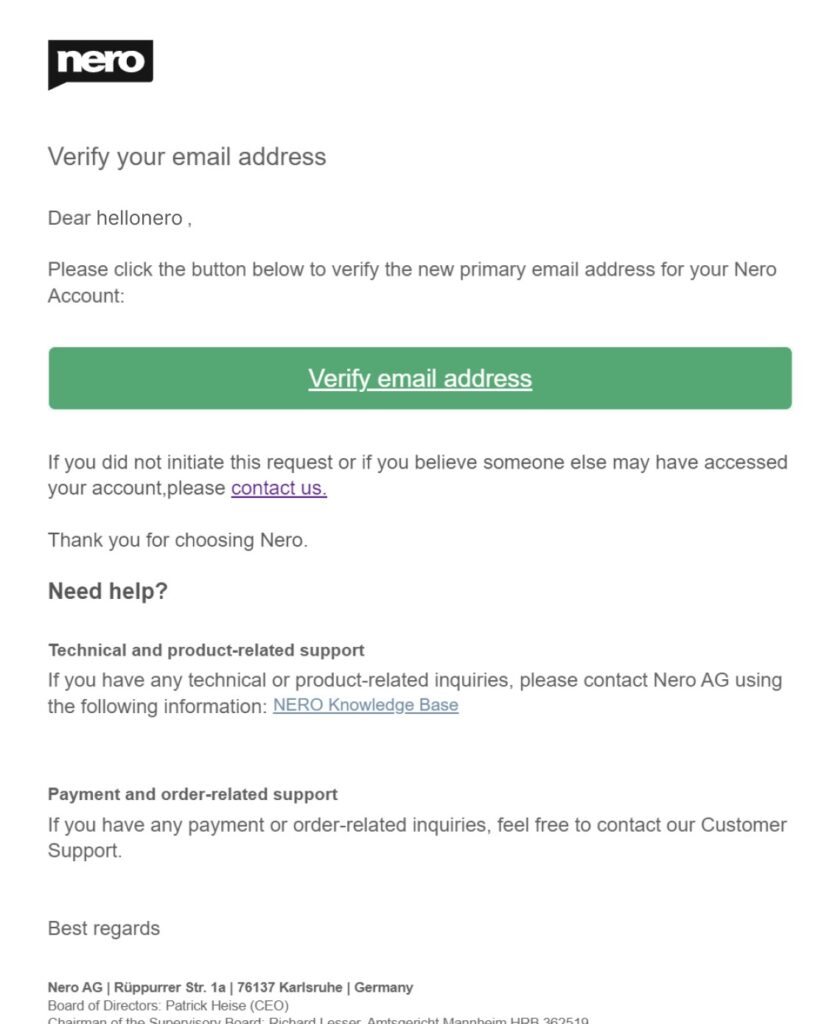
After email address is changed successfully, please go to Nero Start to log back in with your new email.
Note:
- As Email is a very important information for your Nero account, please change it carefully.
- There is only one chance to change your primary email per year. If you do have special request to change it again, please contact our customer support to get some help.
- In order to avoid the change by mistake, the primary email can be rolled back to the original one within 48 hours.
- After changed the primary email, when checking the order information, you may find that some of the order information is empty. Don’t worry. All of your information, products and services have been properly saved. This is just a “display” issue and we are fixing.
FAQ: How to upgrade my 2nd email to primary email?
You may have added a 2nd email a long time ago because you were worried about your primary email expiring. You can leave it as it is or you can upgrade the 2nd email to the primary email. None of this will impact your normal use of Nero products.
If you would like to upgrade the 2nd email to the primary email:
- You will see your 2nd email at your Nero Account online page.
- Remove it. As you are able to change your primary email, 2nd email does not make a lot of sense to you.
- Now follow the ‘FAQ: How can I change email?’ to change your primary email to the new one.
FAQ: Can I merge two Nero accounts if I purchased products with the wrong email address?
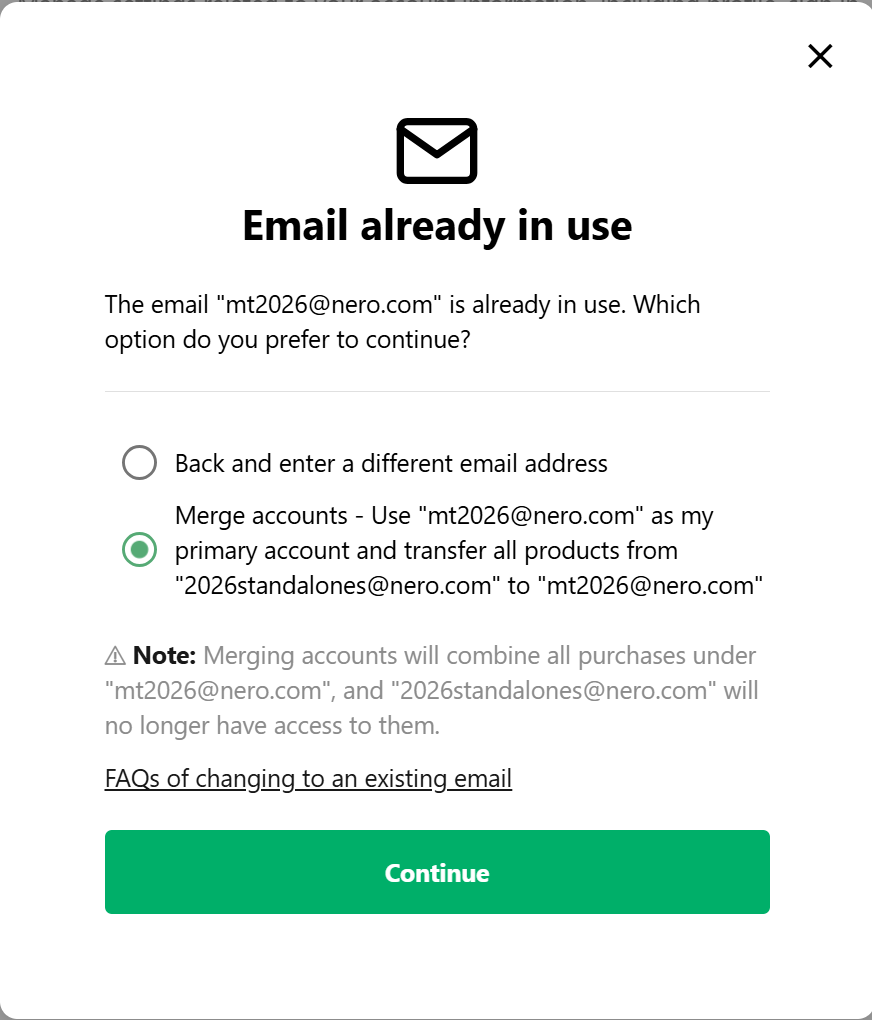
Yes. If you want to update your email from address ‘A’ to address ‘B’, and ‘B’ already exists, you now have two options:
-
Enter a different email address instead of B.
-
Merge your accounts by transferring all products from ‘A’ to ‘B’ and if ‘B’ is your primary account.
This is especially useful if you accidentally purchased products using the wrong email address. By merging, you can ensure all your products are available under the correct account without losing access.
Just like ‘change email’, if you choose to merge accounts, a confirmation email will be sent to email B to verify that you own it. This process can only be done once per year, so please make sure you double-check the email address before making a purchase to avoid delays or complications.
If you are having difficulties or questions, please get in touch with our customer support.
Nero KnowHow 00325