Applies to:
Users replacing, upgrading, or moving to a new Windows PC.
Can I use my Nero products on a new PC?
Yes.
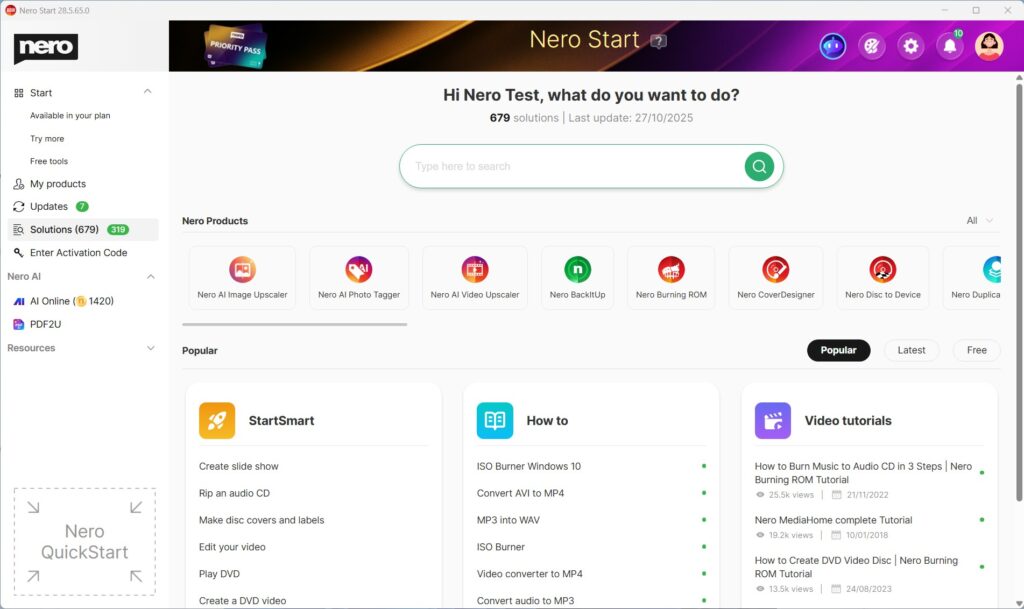
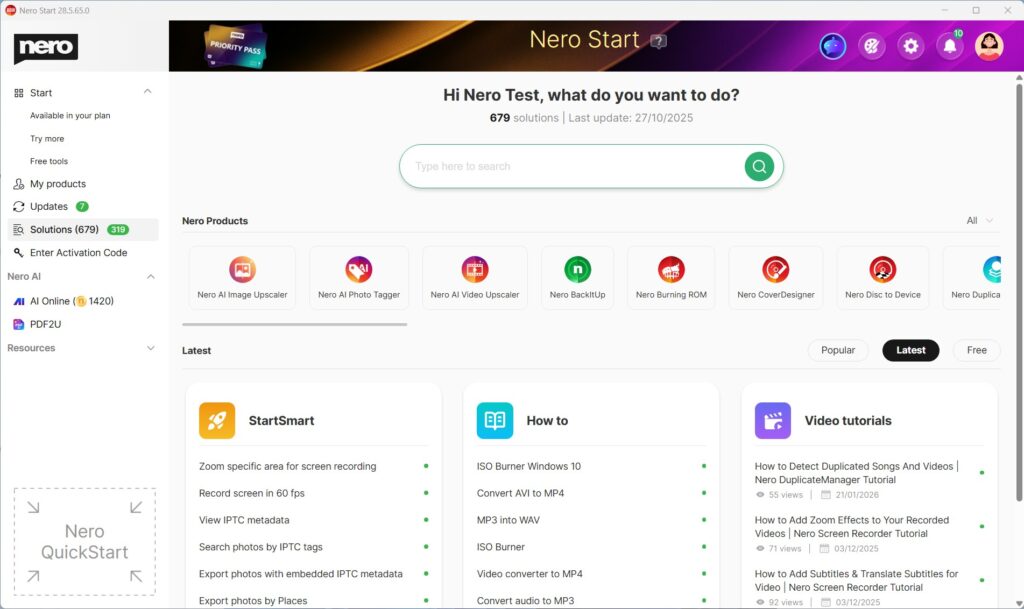
Since Nero 2020, you usually only need to install Nero Start (or reinstall your Nero product) on the new PC and sign in with the same Nero Account used for purchase or activation.
Your available products should appear automatically under Account > My products.
For older versions before Nero 2020, you need to install the product installer manually.
Recommended checklist before moving
On your old PC
Before changing PCs, we recommend:
- Save all Nero projects
- Copy your videos, photos, music, and other project files
- Backup your important media folders
- Copy your Nero MediaHome library to an external drive. We recommend including all media content.
- Make sure you know your Nero Account email address and password
- Optional: uninstall Nero after migration is complete
Important:
Do not delete your Nero Account when moving to a new PC. You need the same account to access your purchased products, active subscriptions, Nero Credits, and purchase/activation history on the new PC.
On your new PC
After setting up your new PC:
- Install Nero Start or your Nero product
- Sign in with the same Nero Account
- Install your Nero applications
- Copy your projects, media folders, and personal files to the new PC
- Reconnect media folders or paste the copied MediaHome library if needed
How do I install Nero on the new PC?
- Install Nero Start or your Nero product on the new PC
- Open Nero Start
- Sign in with the same Nero Account used previously
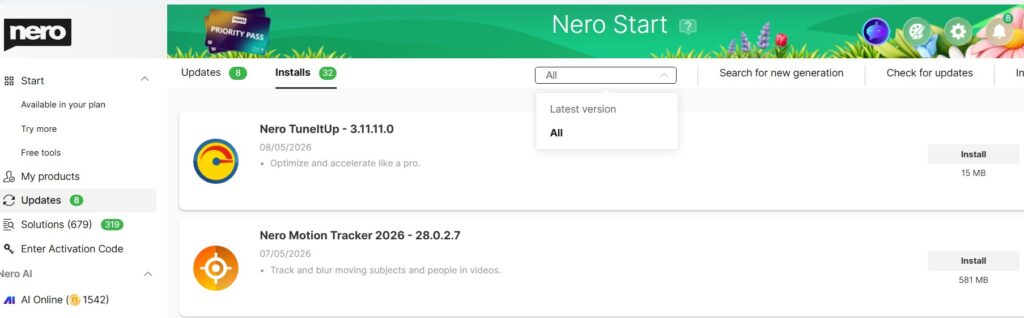
- Go to Updates > Installs
- By default, Latest version is selected. You also can switch to All to view all available versions

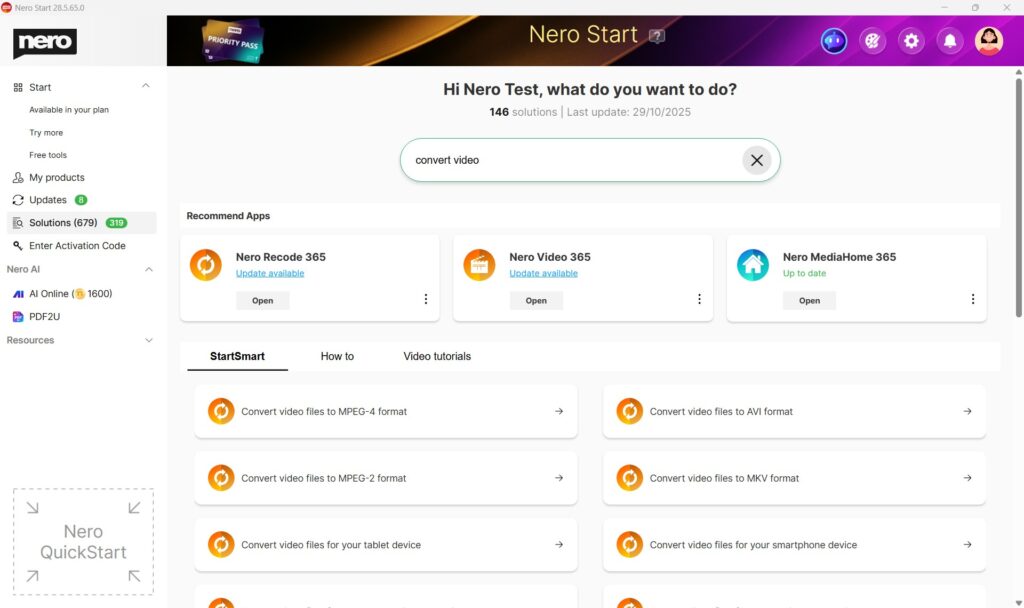
- Install your available Nero applications
Notes:
Move your data by application
Nero MediaHome
What should I move?
Nero MediaHome library and its content.
Copy the library from old PC to external drive
- Connect an external drive with enough free space
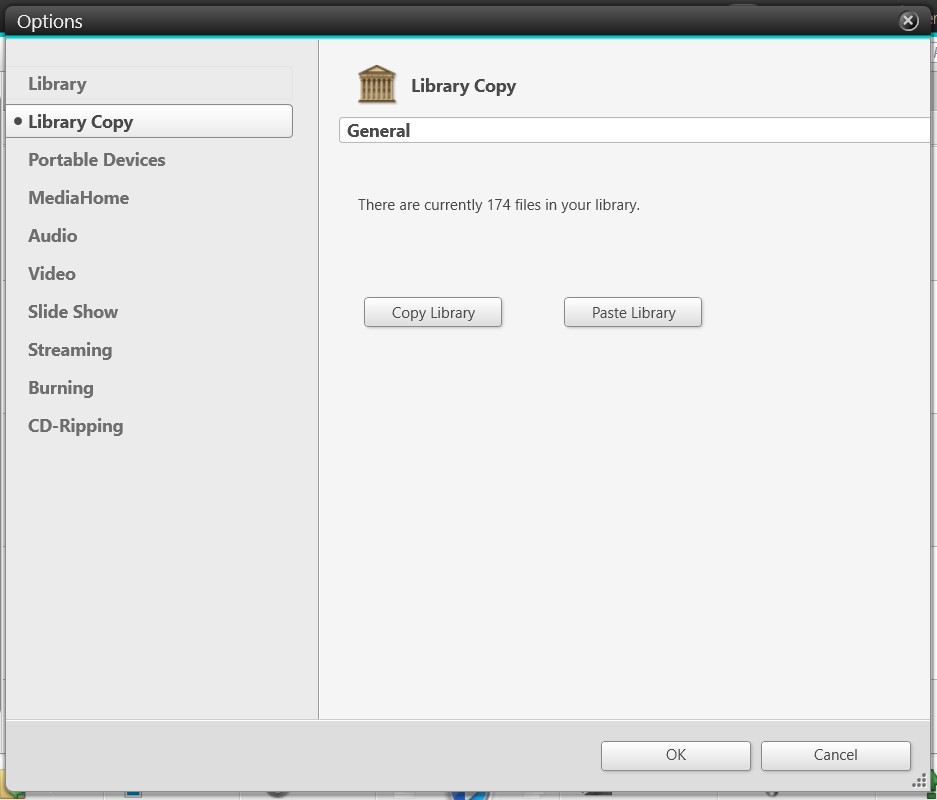
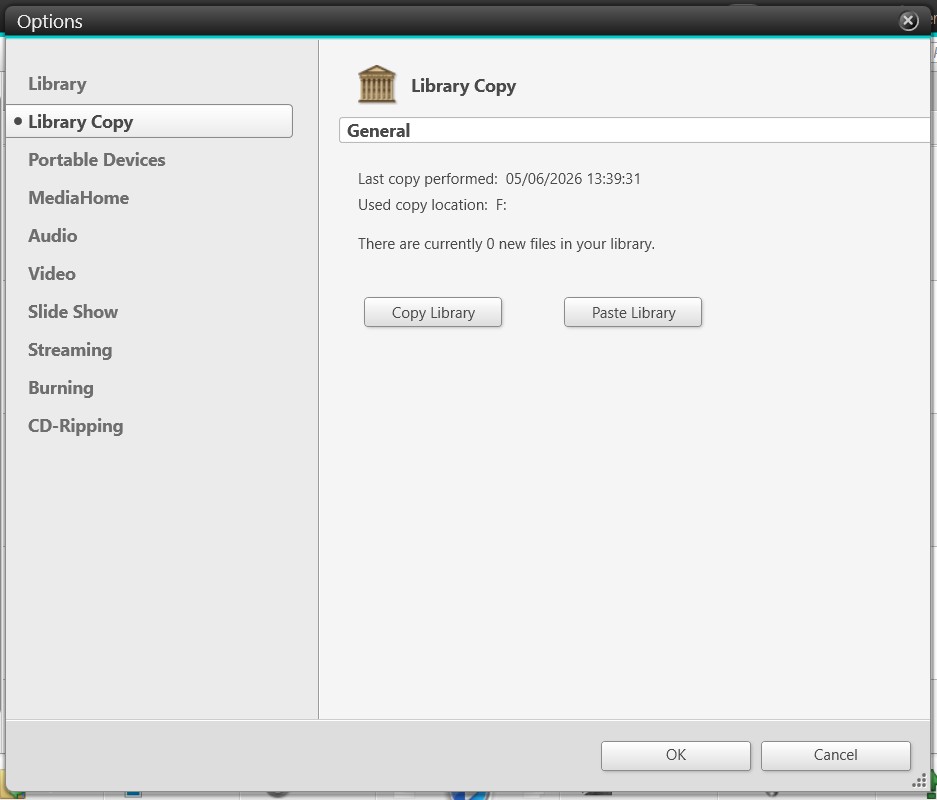
- Open Nero MediaHome > Options > Library Copy > Copy Library

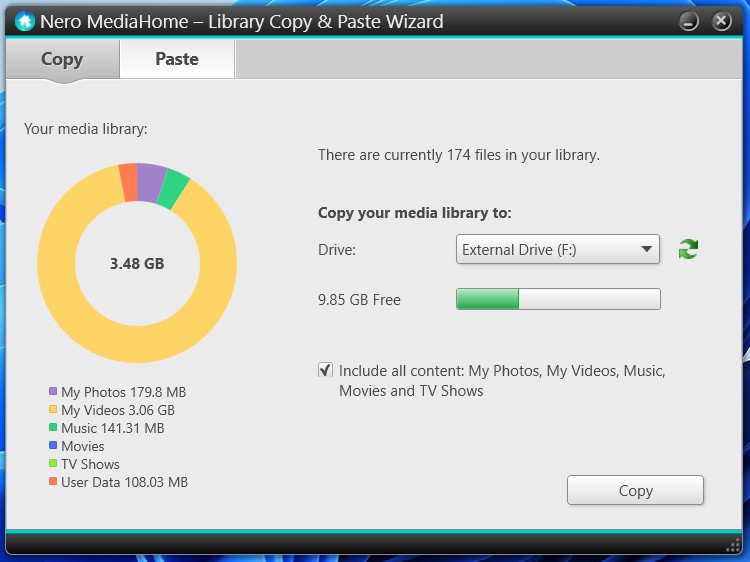
- The Nero MediaHome Library Copy & Paste Wizard opens automatically and Copy tab is by default selected.

- Select the external drive as the copy destination
- We recommend enabling Include all content
- Start the copy process
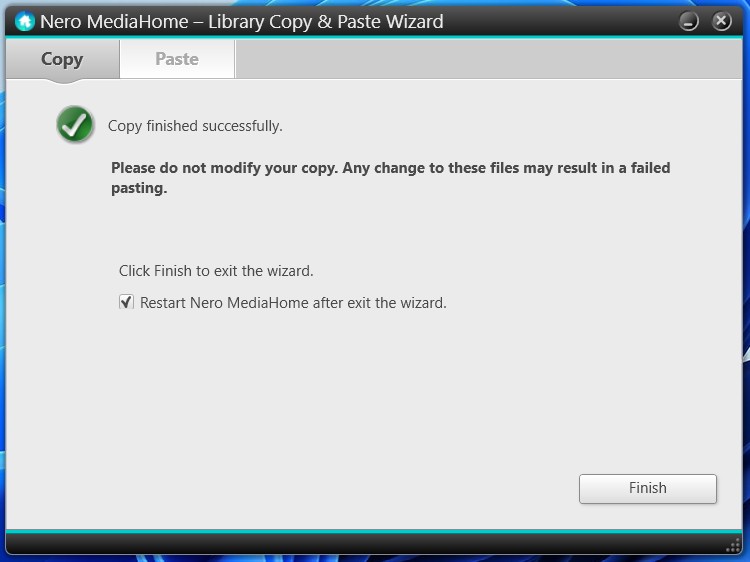
- Click Finish when the process is finished
Result:
A folder named Nero MediaHome Library Copy will be created on the external drive.
Restore the library on the new PC
- Connect the external drive to the new PC (the drive containing the Nero MediaHome Library Copy)
- Open Nero MediaHome > Options > Library Copy, you will see the library copy information
- Select Paste Library
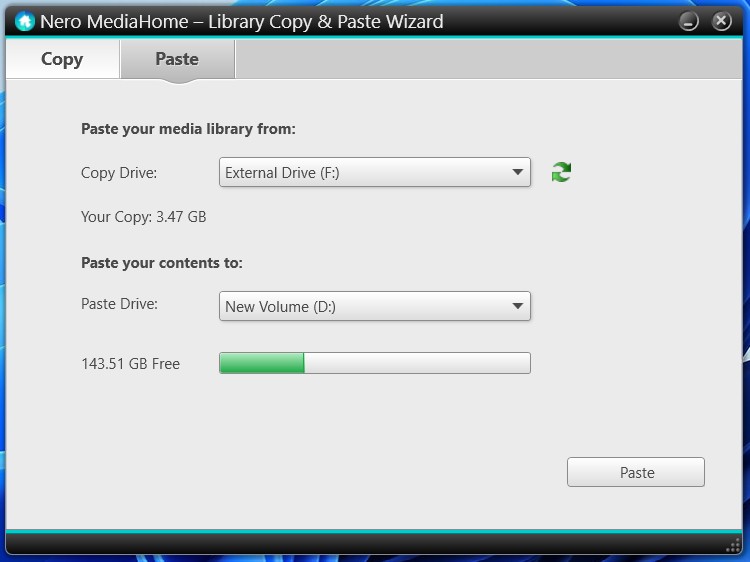
- Nero MediaHome Library Copy & Paste Wizard opens automatically in the Paste tab
- Confirm the correct copy drive (source drive)
- Select the paste drive (destination drive)
- Start the paste process
- Select Finish when the process is completed
- Start Nero MediaHome. Your media library shall now be fully restored on the new PC.
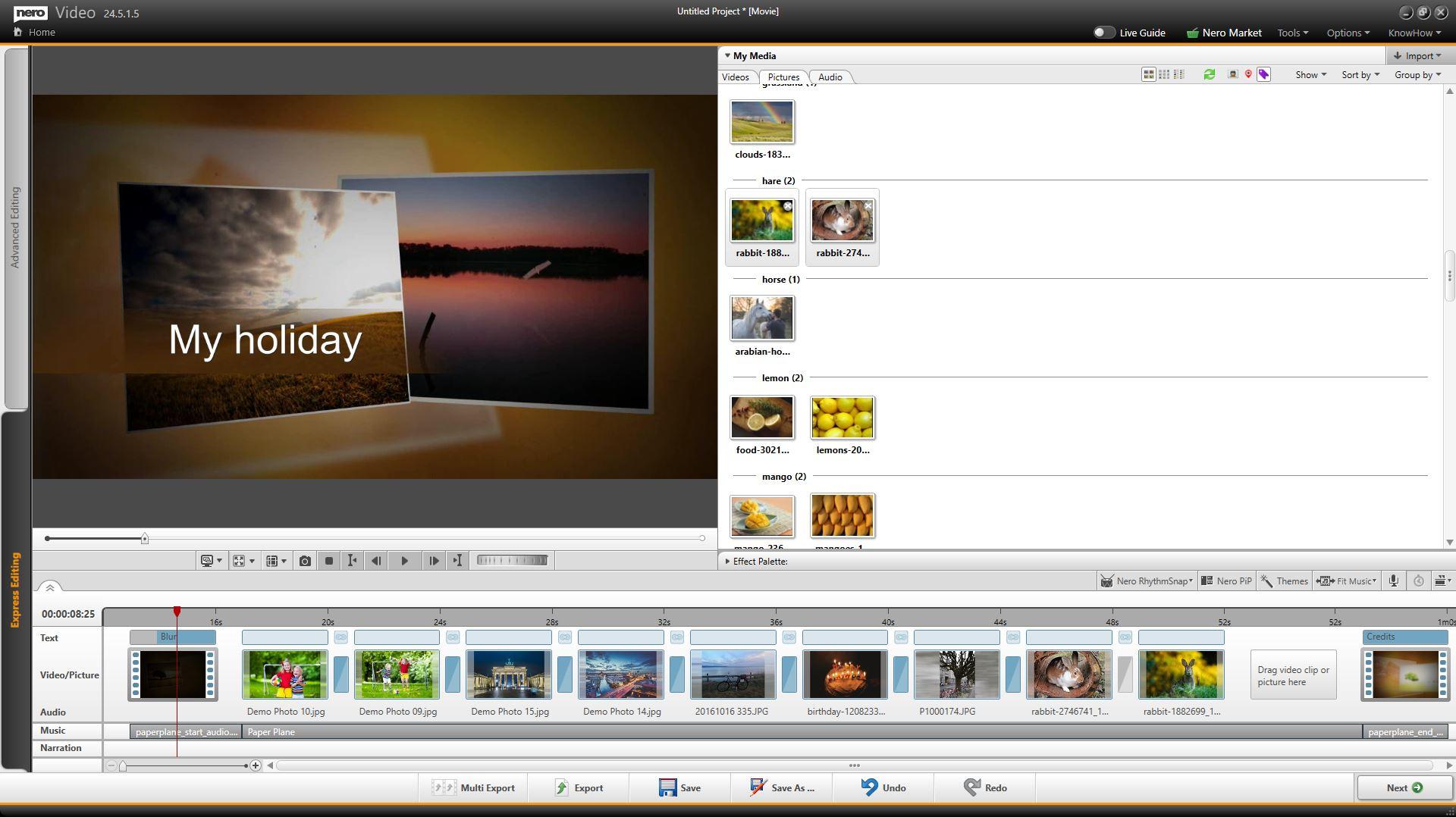
Nero Video
What should I move?
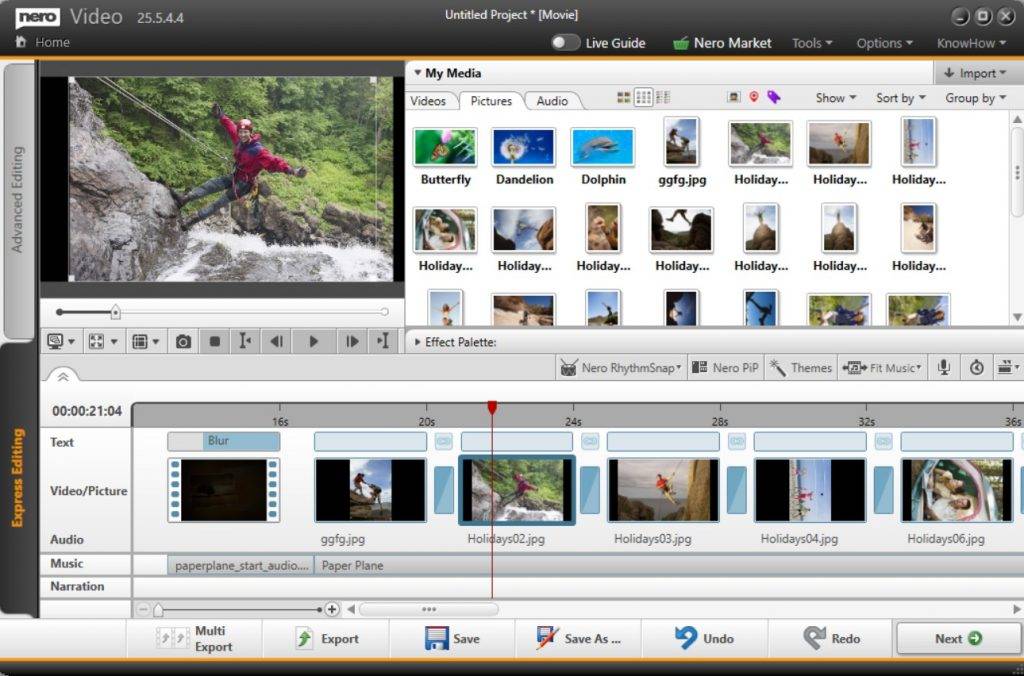
- Nero Video project files (.nvc files)
- Source videos, photos, and music
Important
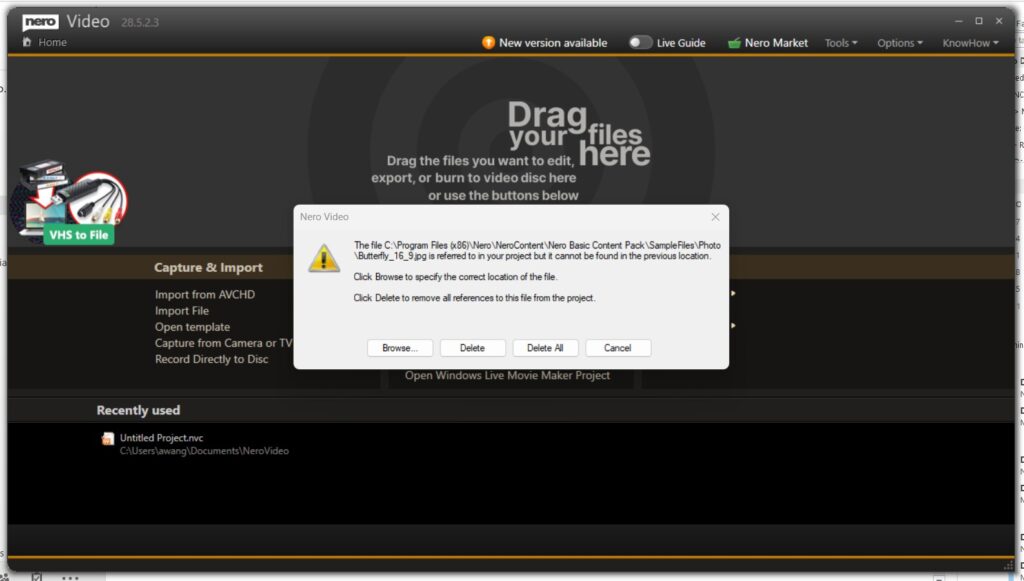
Projects may still reference media files stored on the old PC. If files were moved, Nero Video may ask you to locate them again.
Please click the Browse button and navigate to the correct file location on your new PC.
Best practice
We recommend copying project folders together with all related media files and keeping the same folder structure whenever possible.
Nero BackItUp
What should I move?
- Existing backup files
- Backup destination drives or folders
Recommended
Create your backup jobs again on the new PC to ensure all paths are correct.
Should I uninstall Nero from the old PC?
Yes, if you no longer use the old PC.
Quick Summary
New PC setup in 4 easy steps:
- Install Nero Start
- Sign in with your Nero Account
- Install your Nero apps
- Copy your projects media files and MediaHome library.
If you need help, please contact Nero Support and include your order details and product information.